

Graphic guide to archiving and anonymizing readers
- 1 Archiving or anonymizing selected readers
- 2 Anonymizing an individual reader
- 3 Bulk archiving and anonymization
Archiving or anonymizing selected readers
To archive or anonymize a reader, we go to the Loans tab, expand the Actions button and choose Reader management.
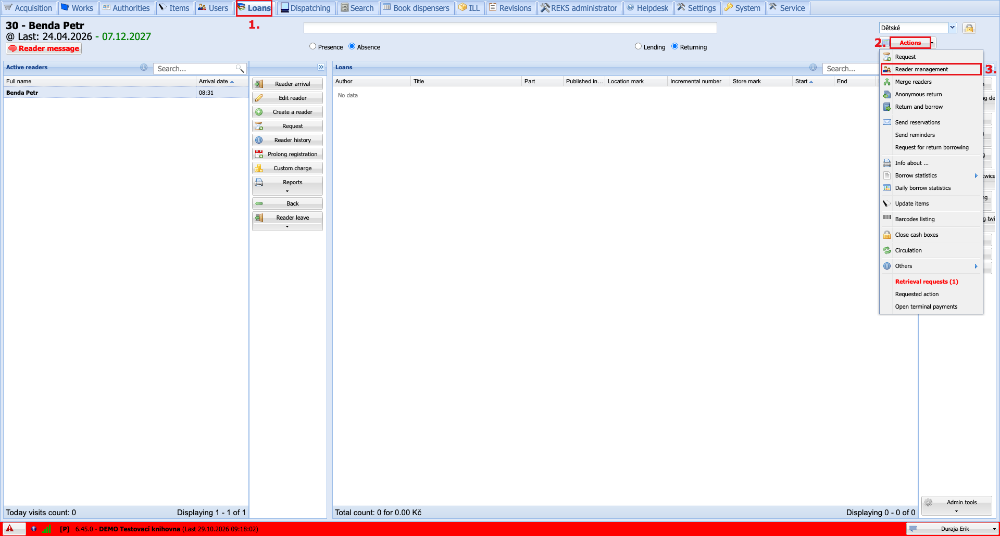
(fig. 1)
In the reader management window we select one or more readers whom we want to archive or anonymize. Then we expand the Others button and click Archive selected readers.
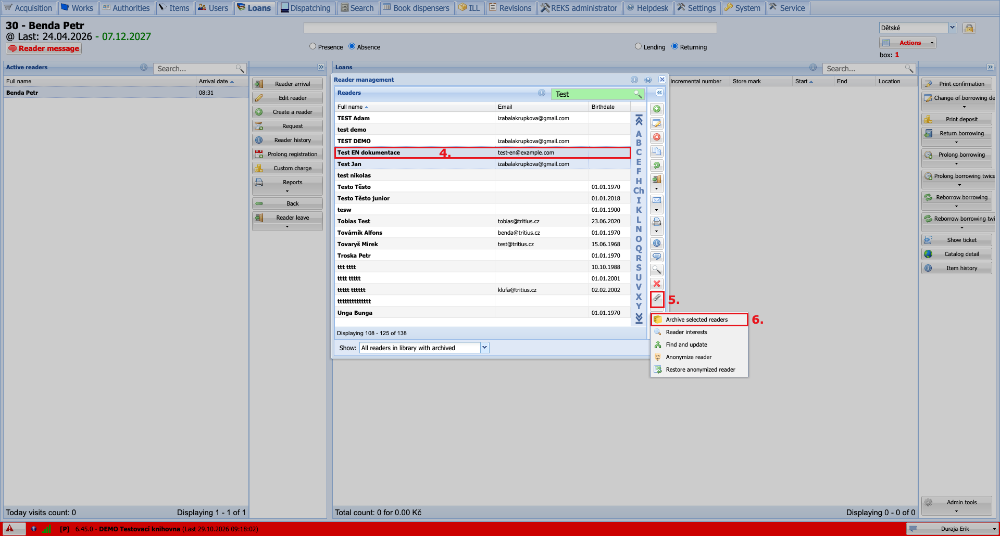
(fig. 2)
A window then appears in which we see all the selected readers who will be either archived (fig. 3a) or anonymized (fig. 3b). We confirm and carry out the action by clicking Yes.
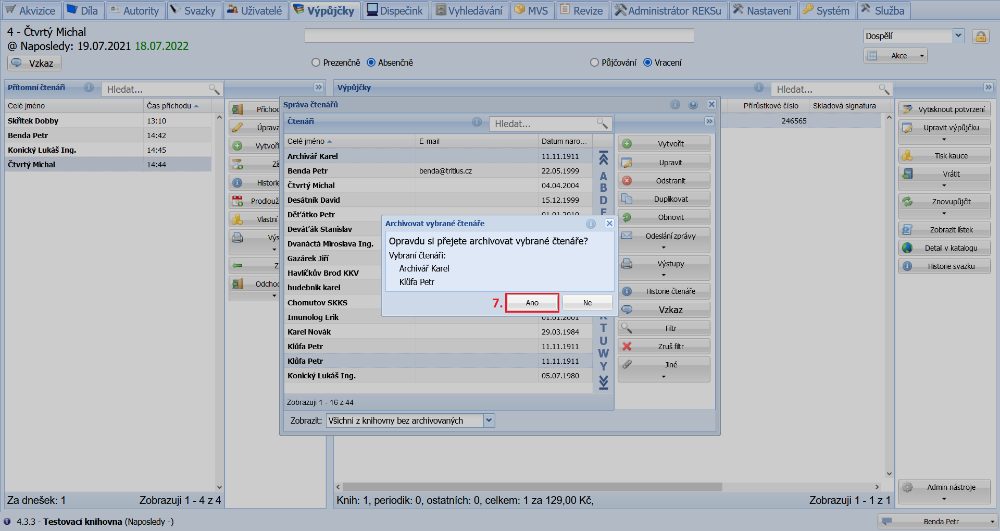
(fig. 3a)
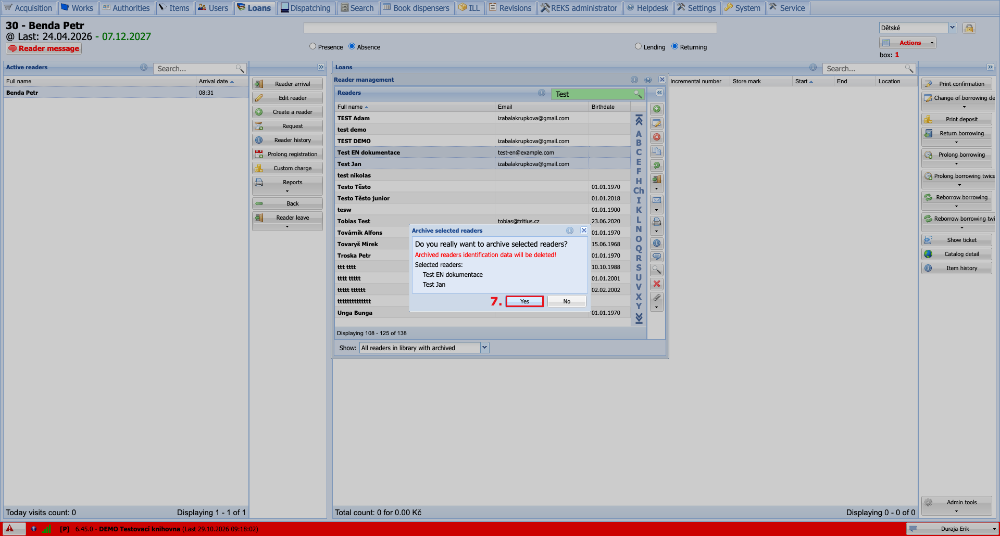
(fig. 3b)
Finally, a window with the result of the archiving or anonymization is displayed, where we can see whether the reader was archived or anonymized, or whether the archiving or anonymization was prevented. We check the result and can Close the window.
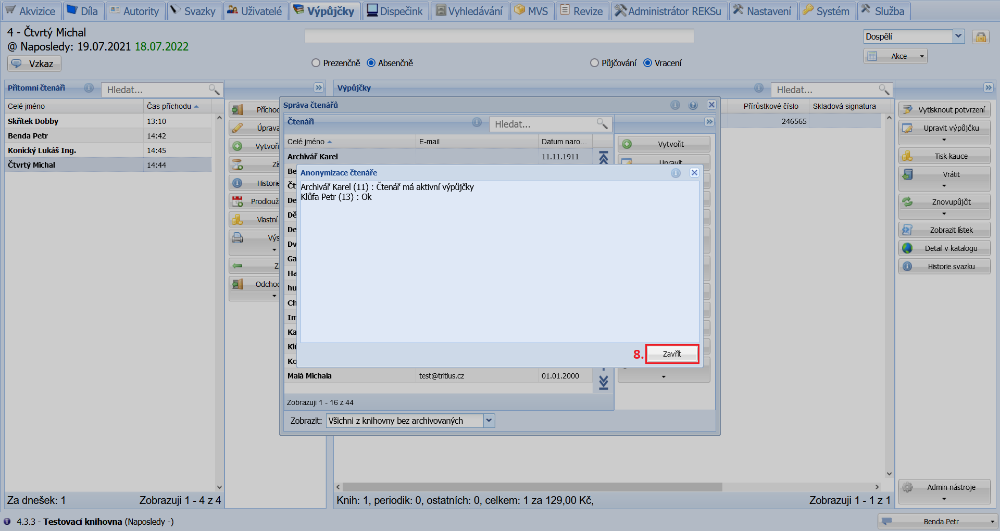
(fig. 4)
Anonymizing an individual reader
We anonymize an individual reader on the Loans tab, where we choose Actions and Reader management.
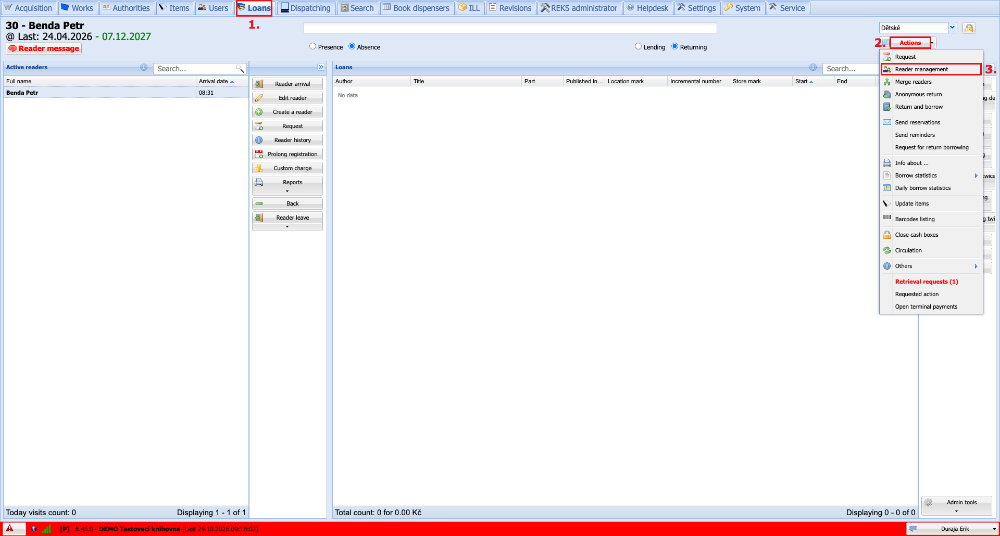
(fig. 5)
In reader management we select the reader we want to anonymize and open their record by clicking the Update button.
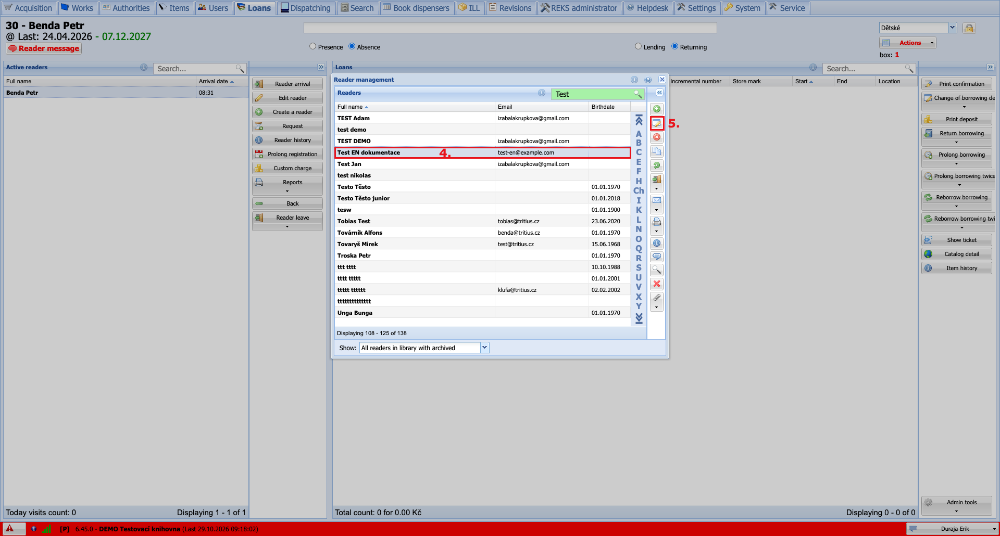
(fig. 6)
Next we click the Others button and select the Anonymize reader option.
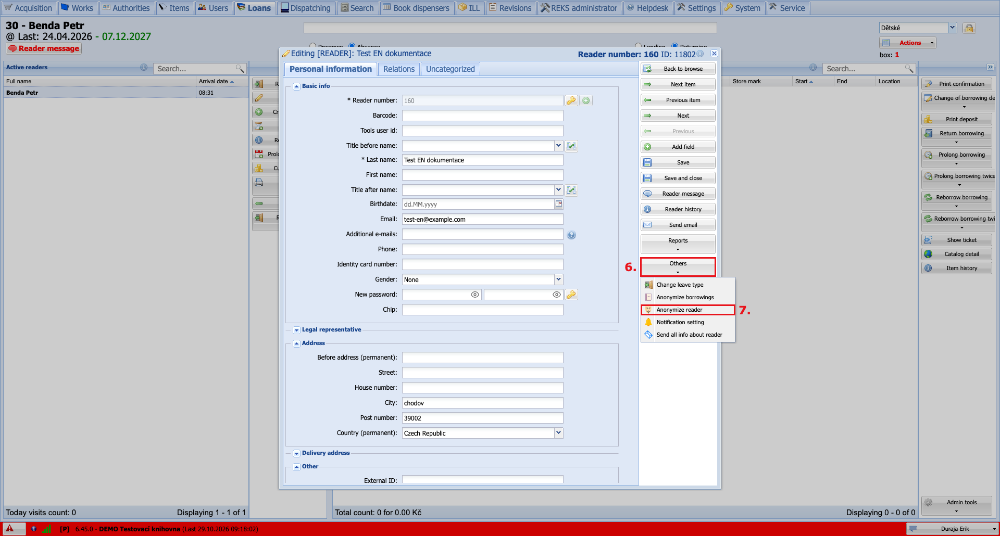
(fig. 7)
A dialogue appears in which we confirm the anonymization by clicking Yes.
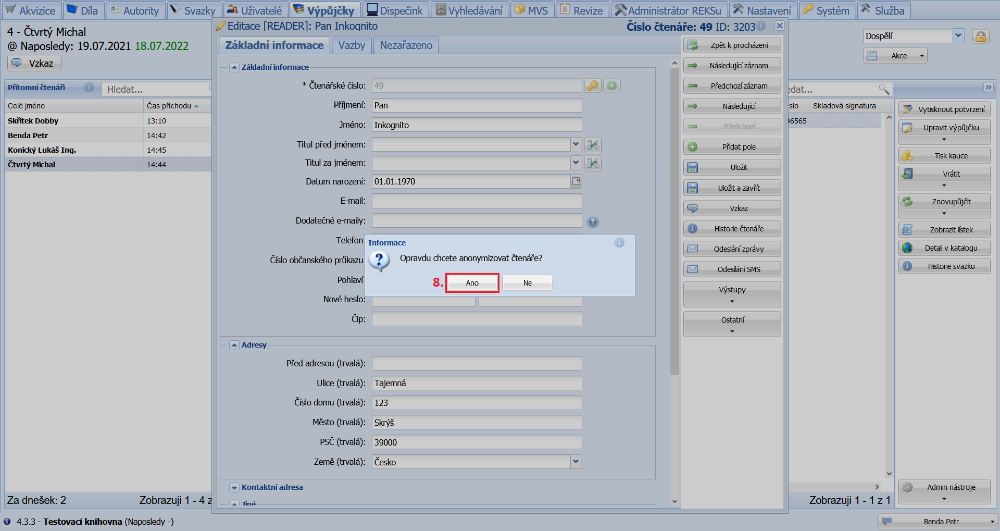
(fig. 8)
After the anonymization has been carried out, a window with the result is displayed and a PDF output with the reader's personal data pops up. We print it and hand it to the reader in case they want to restore their account in the future. Then we can Close the window.
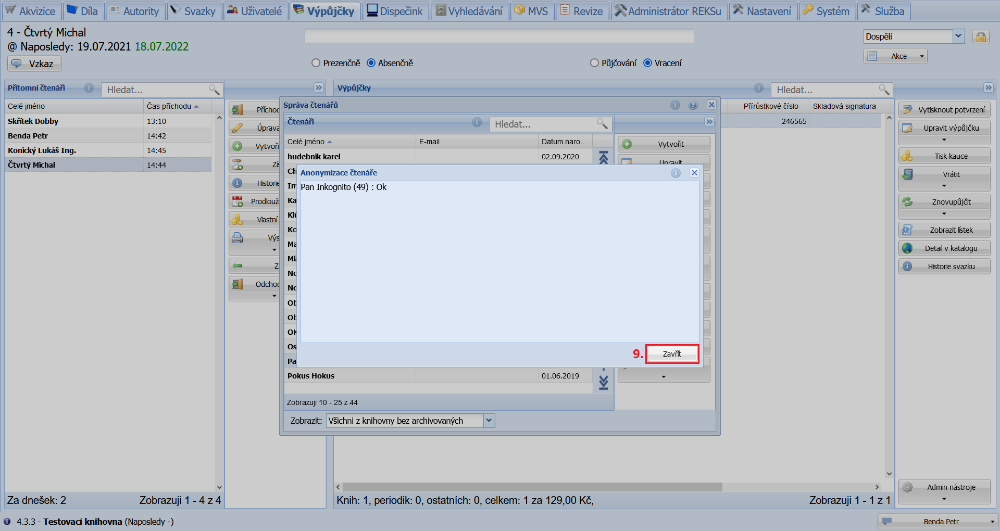
(fig. 9)
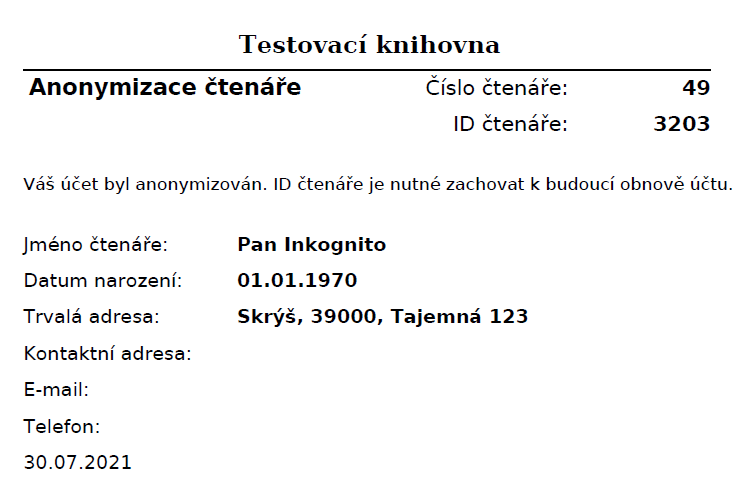
(fig. 10)
Bulk archiving and anonymization
Besides individual archiving and anonymization, we can also carry out these actions in bulk for a larger number of readers at once. On the Loans tab we expand Actions, then go to Others and select Bulk reader archivation settings there.
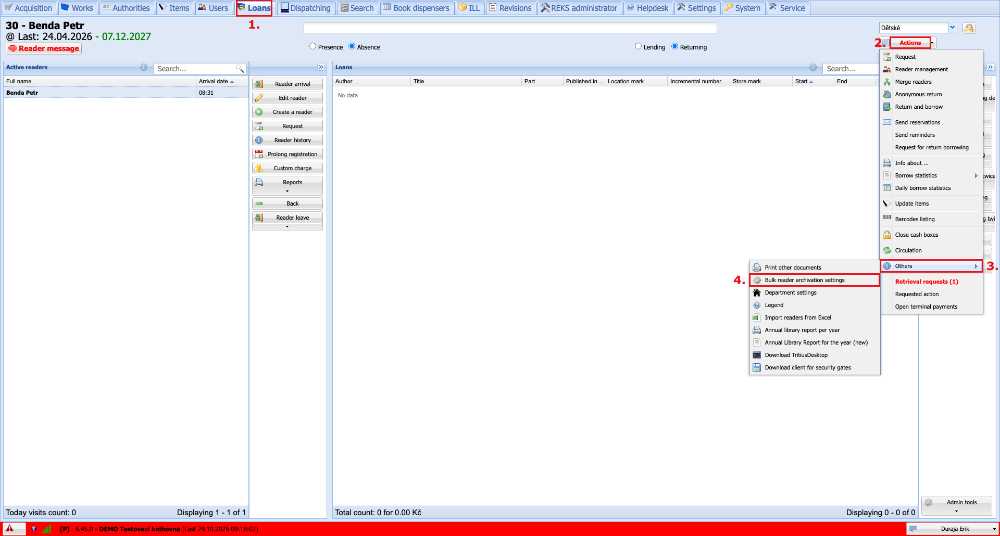
(fig. 11)
In the bulk archiving window we set whether we want to archive by the number of days since the end of registration or the last visit and enter the number of days. We also choose whether readers with unpaid charges, with reservations and blocked readers are to be archived as well. In the next step, we must be very careful whether we want to archive or anonymize the readers.
Next we choose whether we want the list of archived readers to be sent by e-mail and, if so, we also enter our e-mail address. Finally, we choose the archive department to which the readers will be moved. When the settings are done, we click Preview, which saves the settings and displays a window with a preview of the readers for archiving or anonymization.
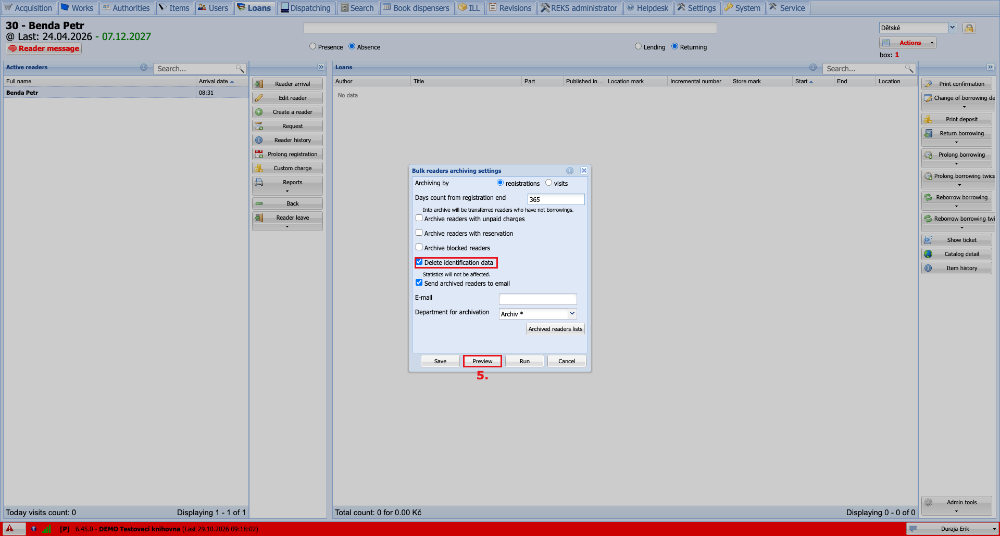
(fig. 12)
In the preview window of readers to be archived or anonymized, a double check takes place. It shows absolutely all readers who meet the number of days we entered in the settings, regardless of the other options we chose. Then, for each reader, a second check is carried out to see whether they also meet the other settings we entered. If a reader is marked with a green Ok, they will be archived or anonymized. If a reader is marked in orange, they do not meet one of the entered conditions and will not be archived or anonymized. The reason is also displayed next to them. We go through the preview and can then close it with the cross in the top right corner.
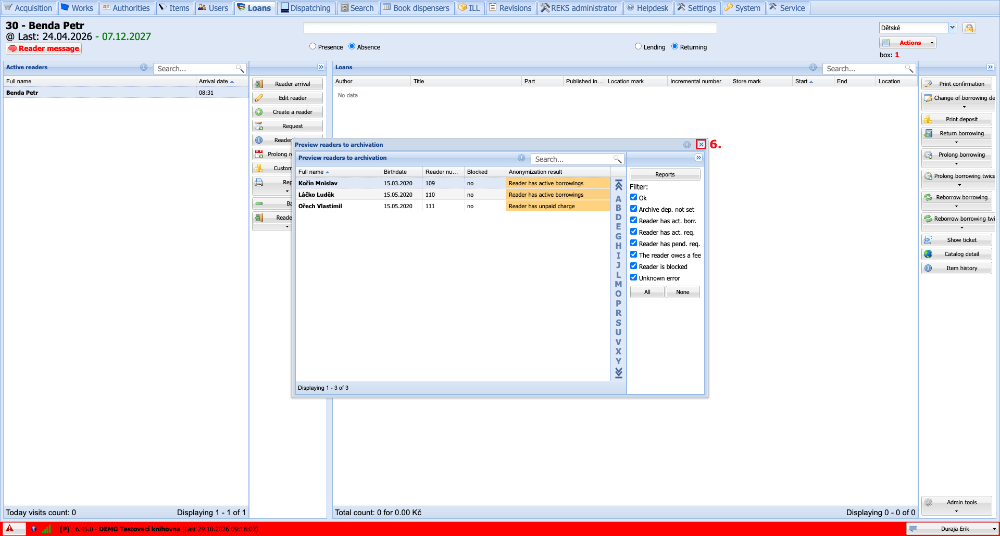
(fig. 13)
The bulk archiving settings window appears again, where we click the Run button and confirm the archiving or anonymization by clicking Yes in the dialogue that has appeared.
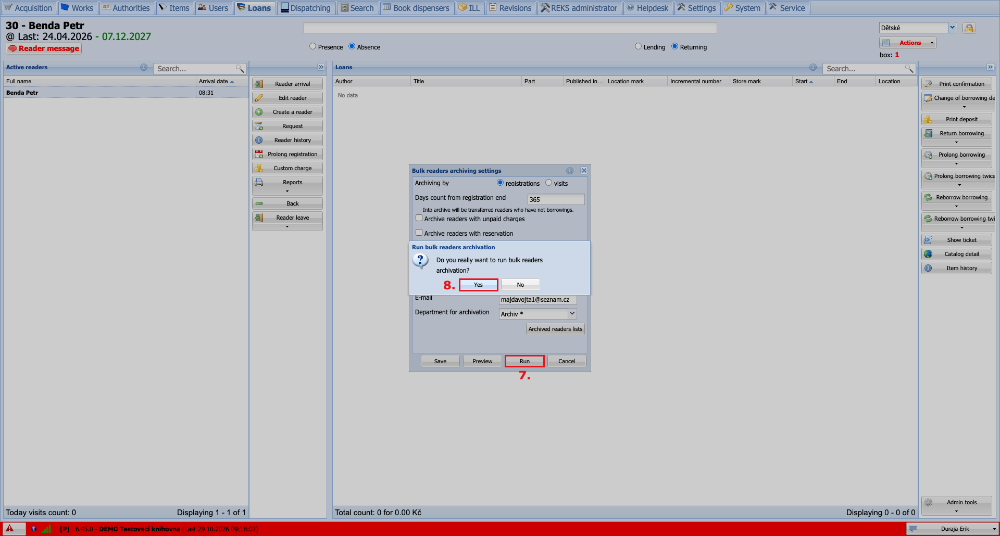
(fig. 14)
As the last step before running, we must choose whether we want to archive or anonymize readers only from the selected department or from the whole library.
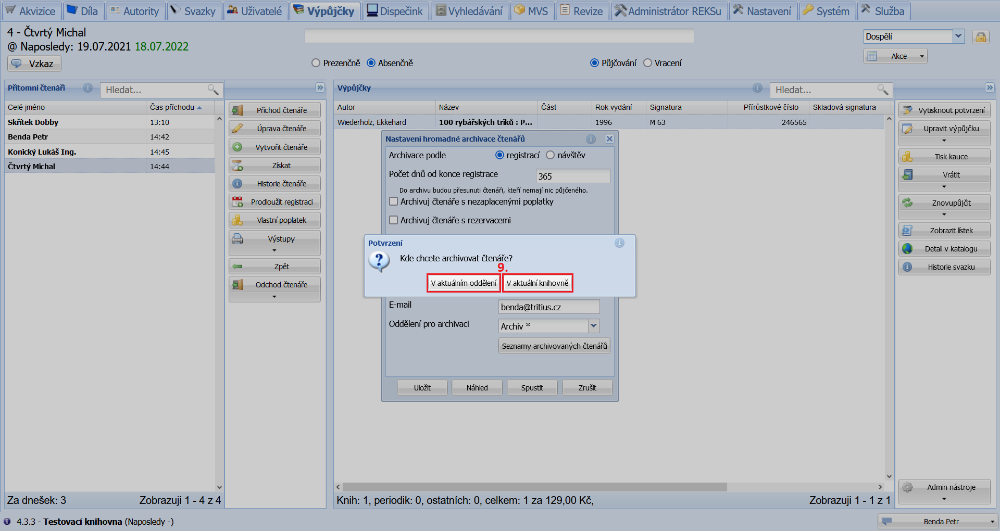
(fig. 15)
Finally, the result of the archiving or anonymization is displayed, which we can Close after checking it. The list of archived or anonymized readers can be found in the e-mail or in the bulk archiving settings window under the Archived readers lists button. We can download and print the list and close the settings window by clicking the Cancel button.
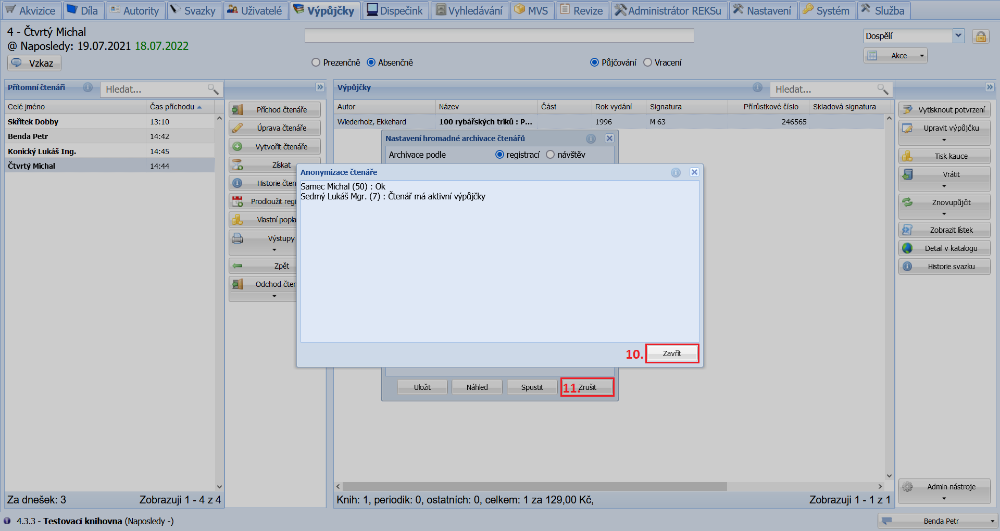
(fig. 16)