

Graphic guide to delivery notes in acquisition
A delivery note can be created and linked directly to an order on the Acquisition tab in the Orders subtab. Here we select the order to which we want to assign the delivery note and click the Order administration button. A window with an overview of the selected order opens, where in the top right part, in the Delivery notes section, we click the green plus to create a new delivery note.
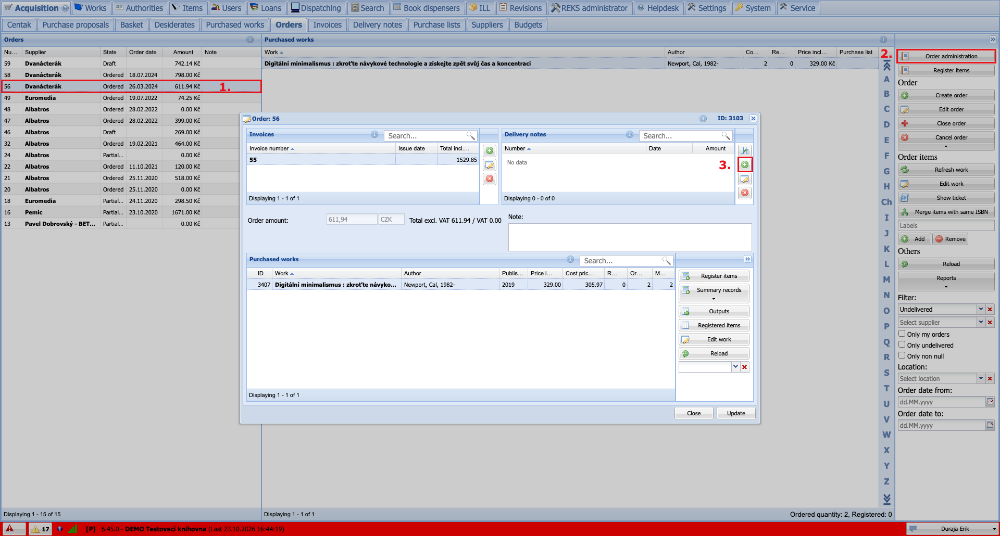
(fig. 1)
A window with the delivery note now appears, where we fill in the mandatory fields with the delivery note information in the left part of the window. Then we click the Save button (or directly Create and close). After saving, we can also link the delivery note to an invoice. An invoice that has already been created can be assigned to the delivery note by clicking the Select button, which opens a small window with an overview of invoices, where we can find and select our invoice. When we are done, we close the delivery note by clicking the Close button. After the delivery note is closed, it automatically appears in the top right part of the order window.
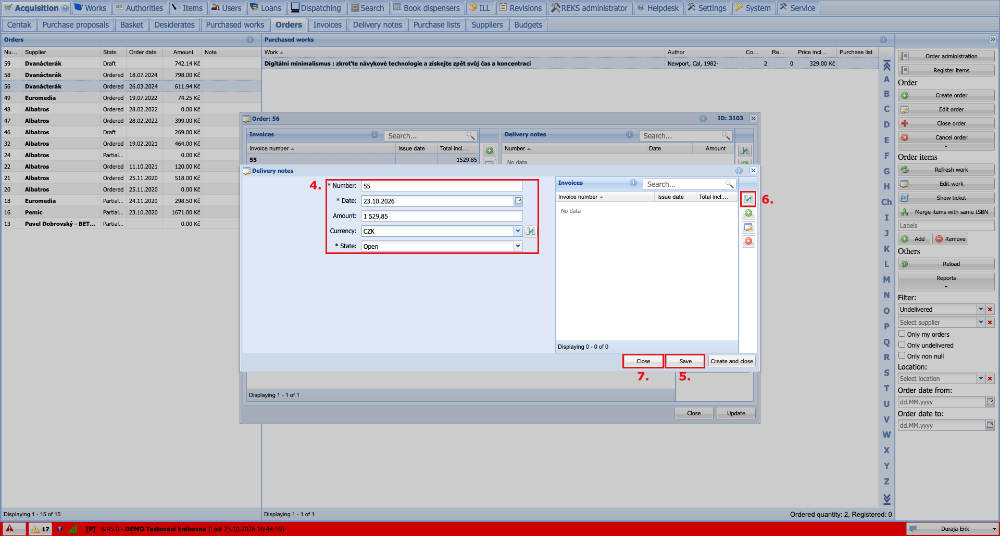
(fig. 2)
Delivery notes can also be edited and created directly on the Acquisition tab in the Delivery notes subtab. Here we select the delivery note that we want to edit and open it by clicking the Update button (if the delivery note does not exist yet, we can create it here first). When editing a delivery note, an existing invoice can be assigned to it by clicking the Select button next to the Invoices box (if the invoice does not exist yet, we can create it here). When we have all the changes done, we save the delivery note by clicking the Update and close button.
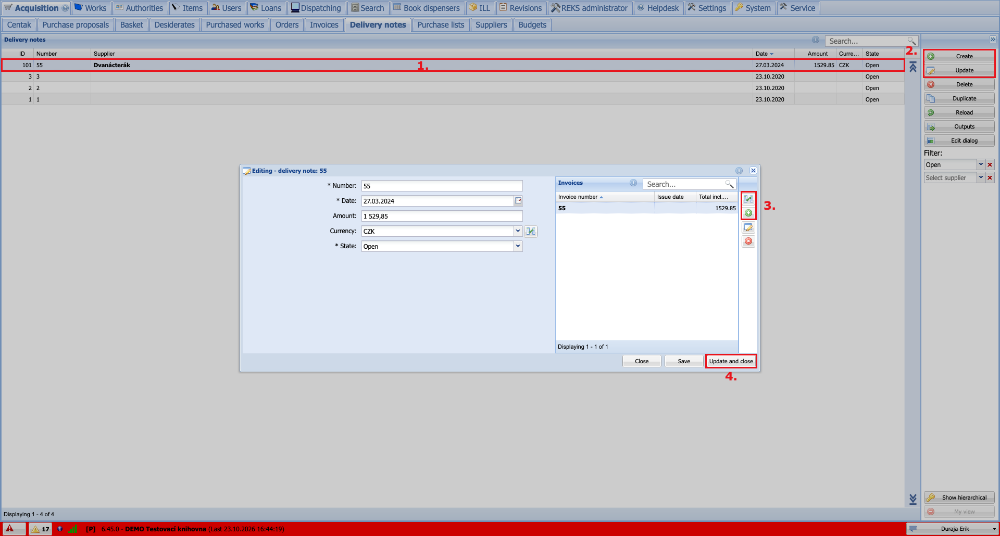
(fig. 3)