

Graphic guide to recording periodicals
We record periodicals on the Works tab. If we already have the title set up from the past, we do not create a new one and only add periodical sheets and items to it. In the left part of the screen we select the document type Periodicals, find the title in the table of works and press the Update button.
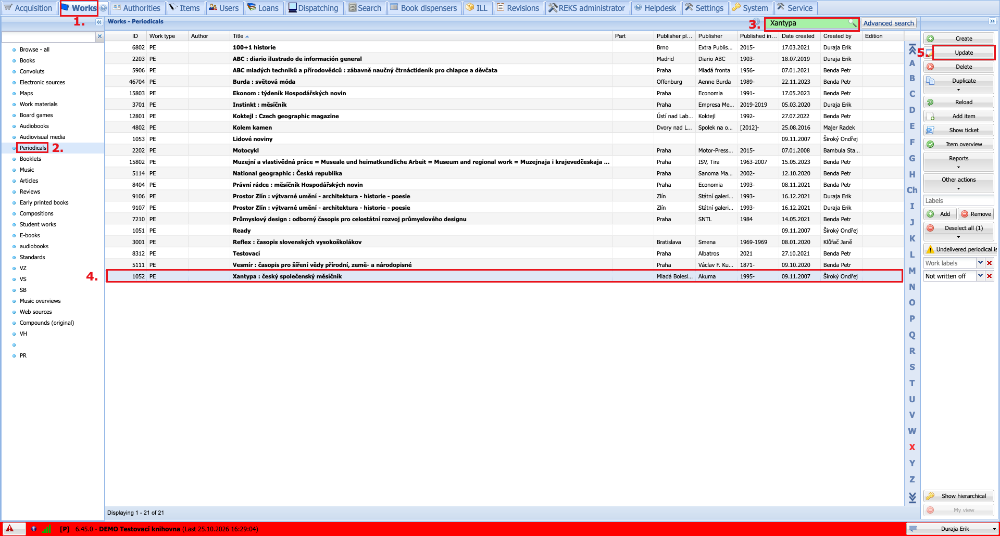
(fig. 1)
On the Periodical sheets tab we always create a new periodical sheet for the given year and then add the items of the individual issues of the periodical to it. To create a new periodical sheet, we expand the Periodical sheets drop-down and select the New periodical sheet option from the list. If we already have a periodical sheet created for the given year, we do not need to create another one. We only need to record the item.
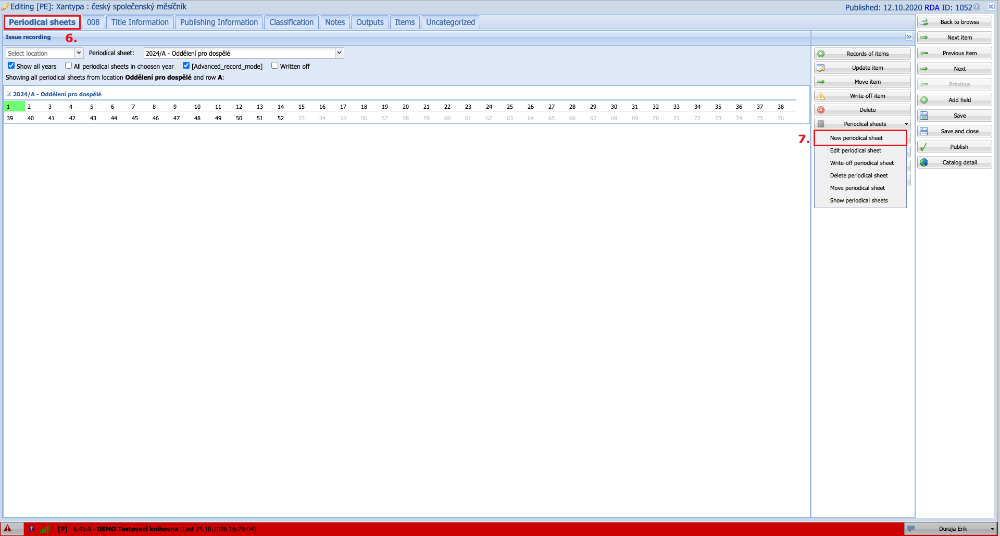
(fig. 2)
In the window that has opened we enter the information about the periodical sheet. The fields marked with an asterisk are mandatory. If we want to give the individual issues barcodes or RFID chips, we choose the type of recording by items. If it is enough for us to record that we own the given issue, we choose the type of recording by quantity and select the number of pieces we want to record. If we want to record several issues by items at one location in one year, we must create a new periodical sheet for each of them, marked A, B, C, etc. When we have filled in all the information, we save the periodical sheet.
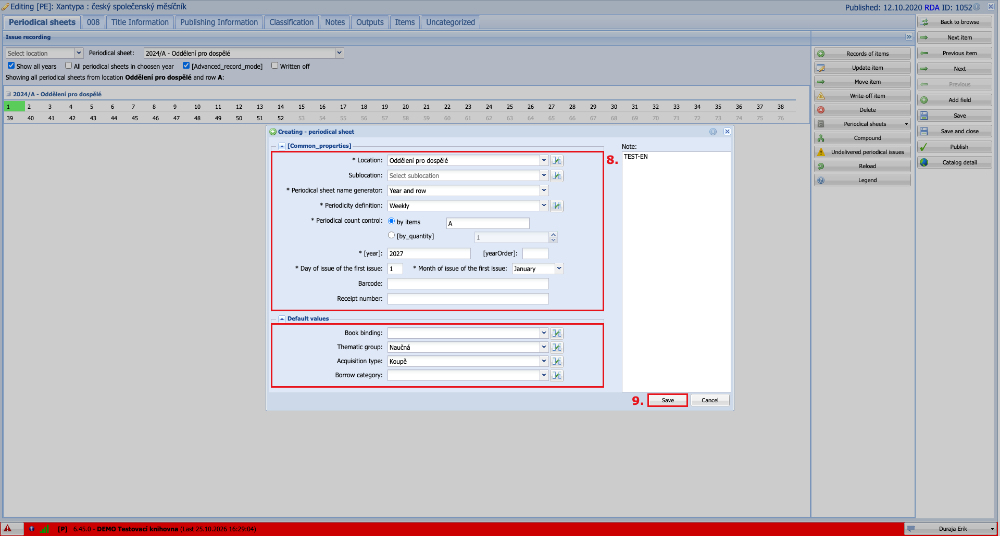
(fig. 3)
Now that we have a periodical sheet created, we can record our specific issue. We make sure that we have selected the correct periodical sheet for the correct year. Then we select the issue we want to record in the table and click the Records of items button. A window appears showing the information about our new item. We are mainly interested in the barcode, which we will stick on the periodical. If all the details are correct, we complete the recording by confirming the dialogue.
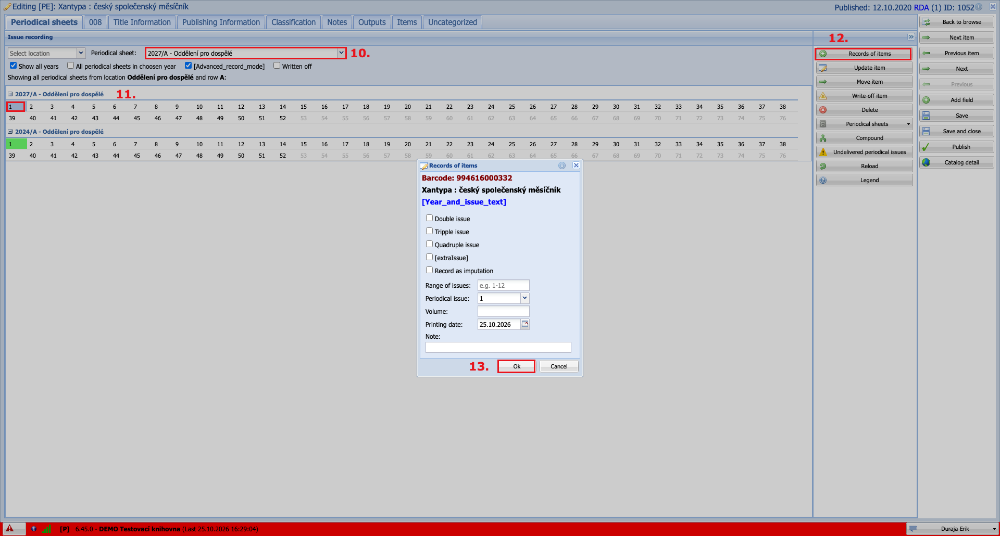
(fig. 4)
The recorded items have a green background in the table. When we have finished the recording, we can stick barcodes on the recorded periodicals and close the cataloguing form.
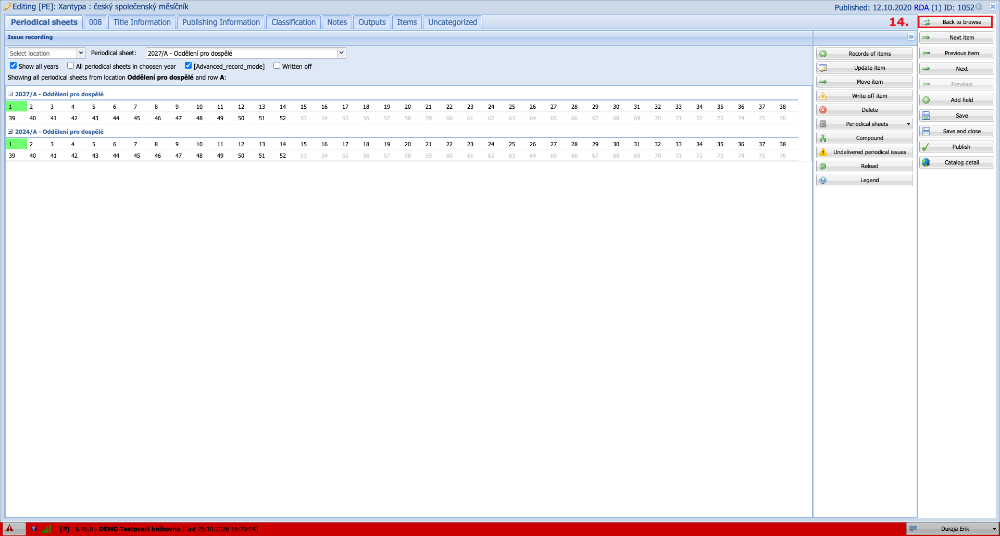
(fig. 5)
To be able to start recording issues of a periodical that we have only just started to subscribe to, we must first create the title to which we will record them. In the left part of the screen we select the document type Periodicals and click the Create button. We do this step only once, when purchasing the periodical for the first time.
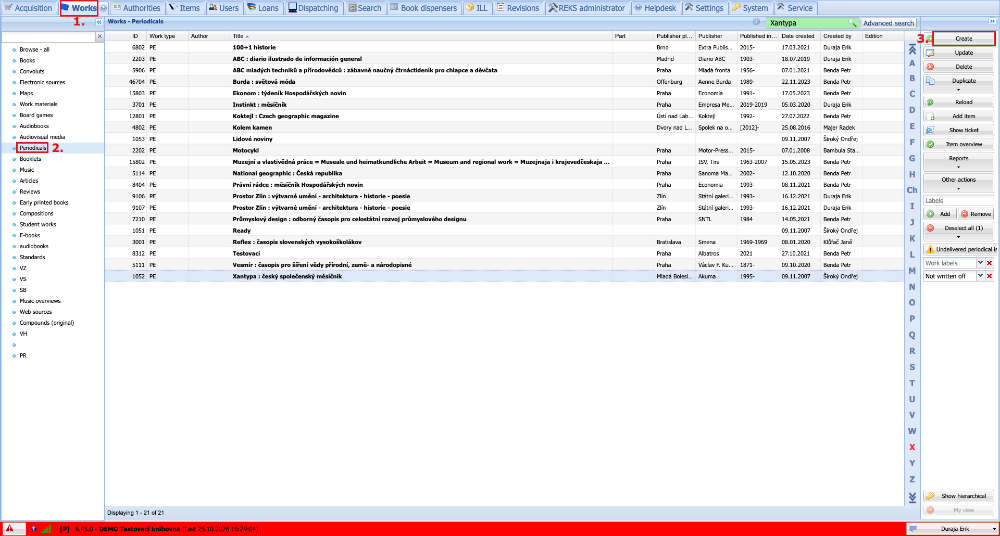
(fig. 6)
To search for the periodical we ideally use the ISSN, which we copy from the magazine, or another known detail, and click the Search button. The library's own holdings and free Z39.50 sources are now searched. From the records found we select the one we want to use and take it over into our library's database.
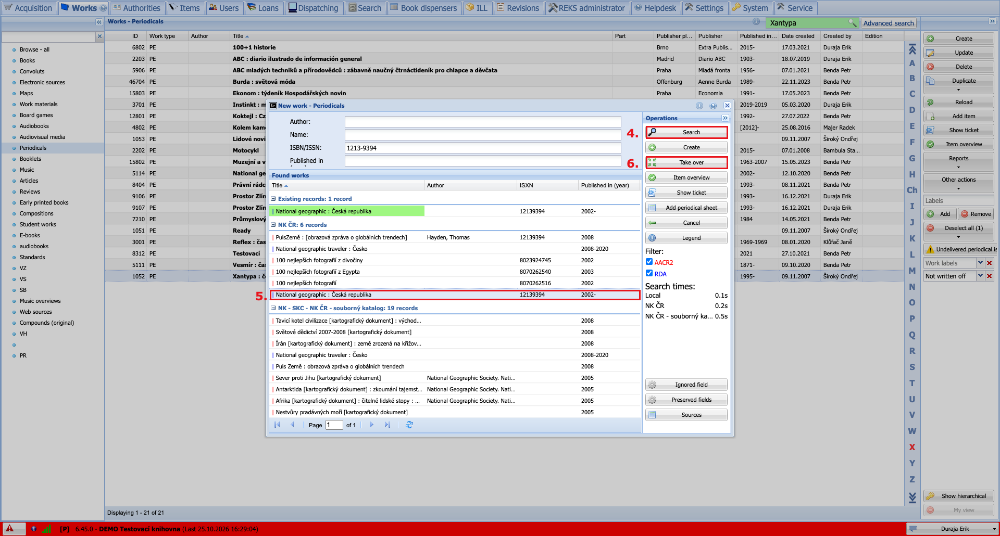
(fig. 7)
We go through and check the individual fields on the tabs. If we want, we can edit or supplement some of the information. When we are satisfied with the record, we click the Save button and continue with the recording as in figure 2.
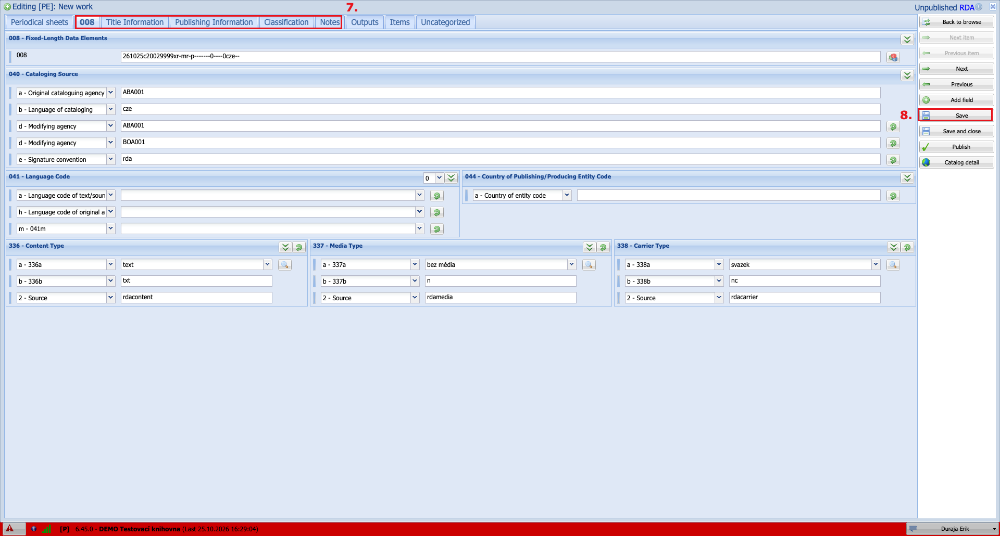
(fig. 8)