

Graphic guide to exporting exchange files
Sending a file within the same server (the library is on the same Tritius)
We send the file we have prepared for the library within the same server by clicking the Send stock button. In the overview window we select the file we want to send and press Ok.
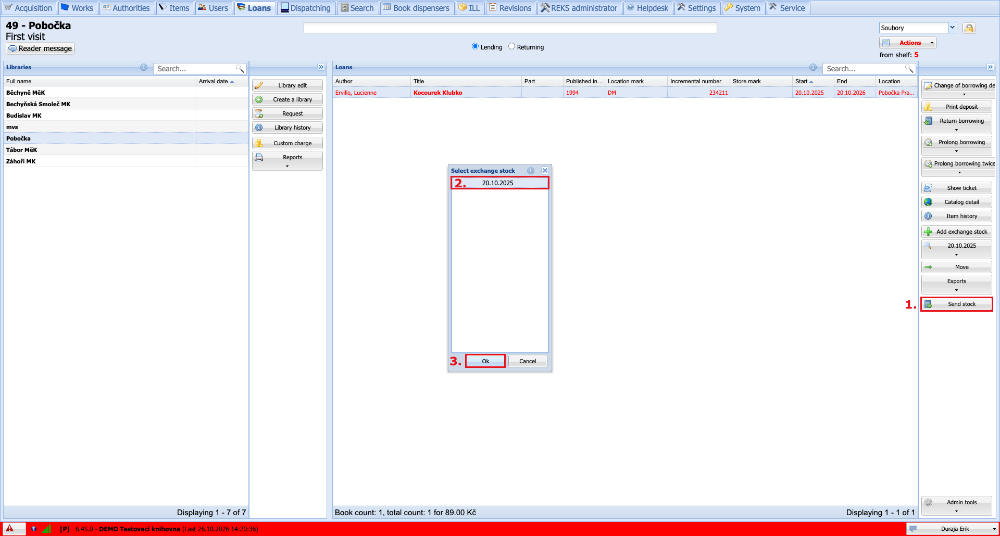
(fig. 1)
A dialog then appears where we confirm sending the file by clicking the Yes button.
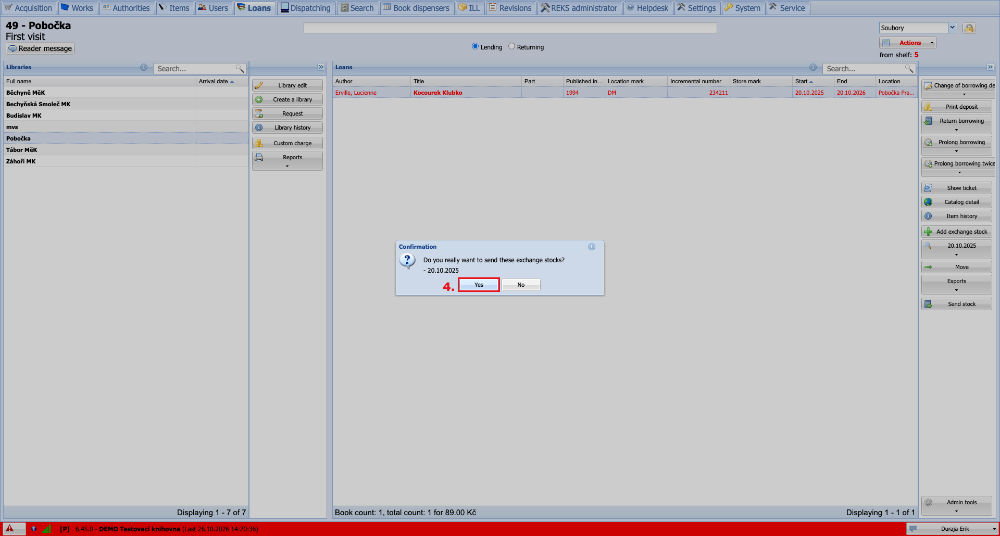
(fig. 2)
After confirmation, a small window with information about the file being sent appears. We close the window by clicking Ok.
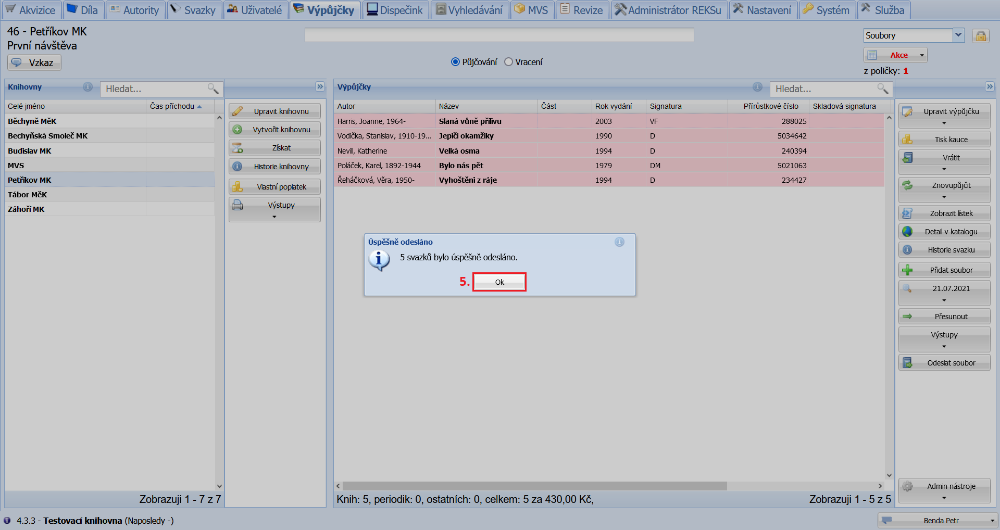
(fig. 3)
If we display the file again or wait a few seconds, the pink background of the items in the overview disappears. This tells us that the items have been sent and the library can lend them and find them in its catalogue.
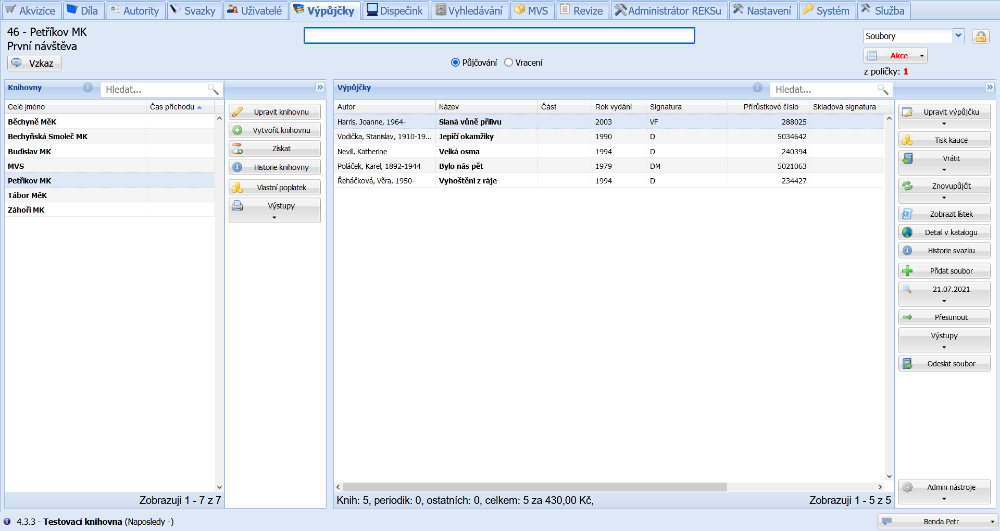
(fig. 4)
Exporting a file for a library on another server - the library is on another Tritius, on Clavius and on other systems
If the library for which we have prepared the file is on another server, we have to export the file and send it to them. We therefore expand the Exports button and select Exchange stock tag content.
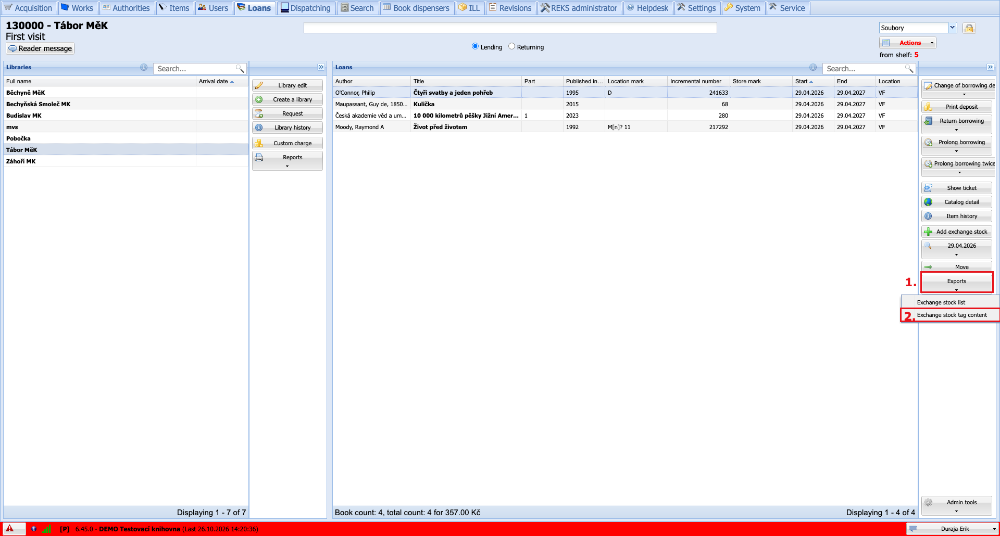
(fig. 5)
In the overview we select the file we want to export and click the Ok button.
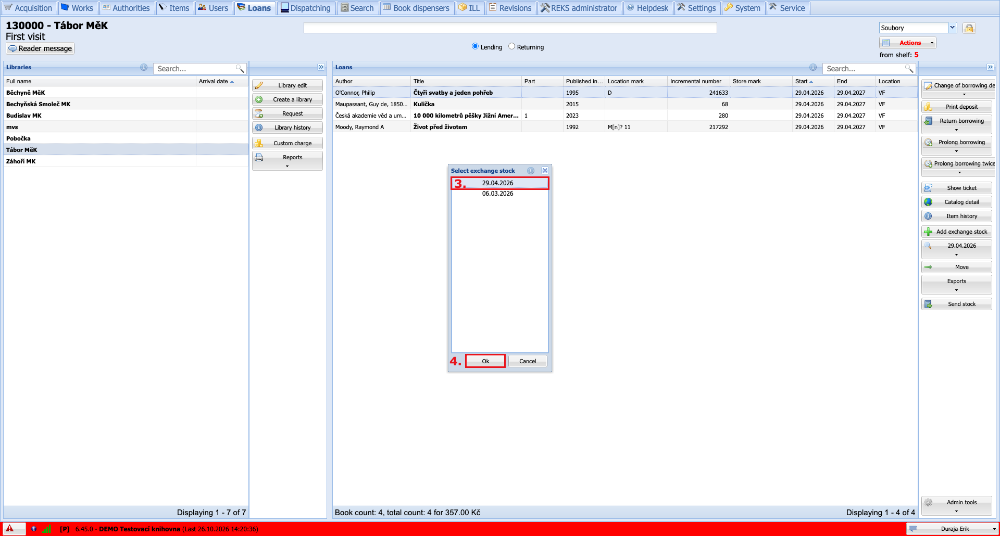
(fig. 6)
We then choose the Tag ticket output and press the TAG button to generate the file. After a moment a window with the generated file pops up. We mark that we want to Save file and by clicking OK the exported file is downloaded to the computer. We then send this file by any means to the library, which will import it into its system itself.
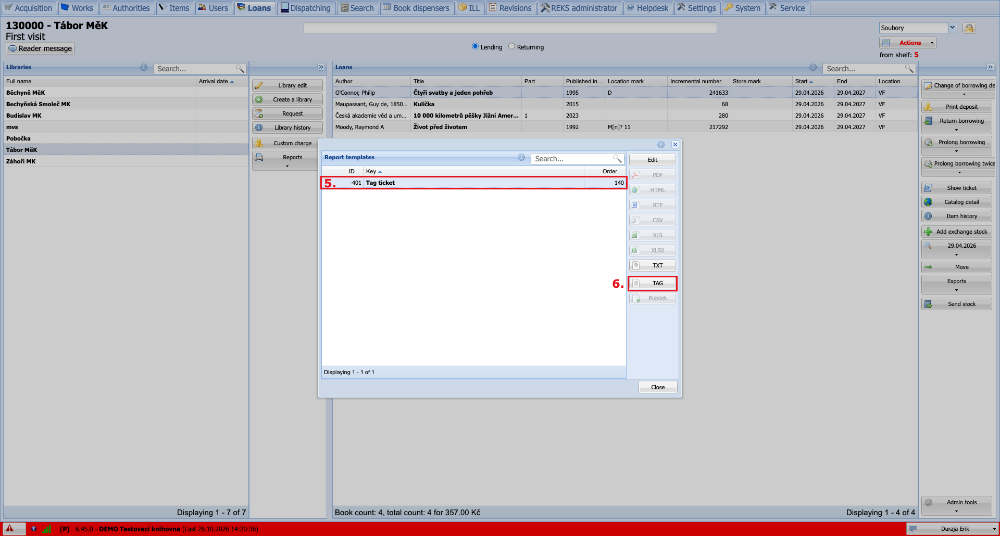
(fig. 7)