

Graphic guide to cataloguing in REKS
If we want to create a new item or a new work and then add an item to it, we work on the Works tab. In the right part of the screen we select the document type we want to create, and on the left we click the Create button.
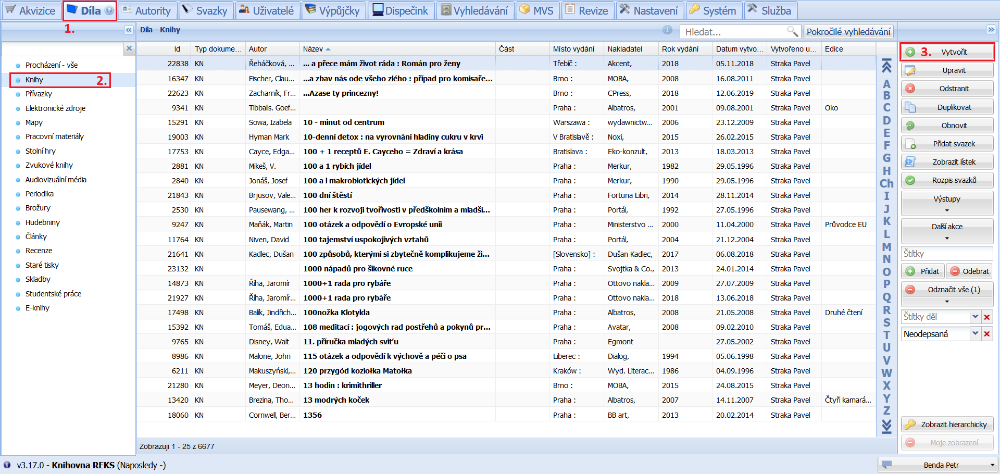
(fig. 1)
If the document has an ISBN, we scan it or type it into the field. If not, we enter the title, the author and possibly the year of publication. Then we click the Search button. The system searches our database and at the same time the database of the National Library and of the Union Catalogue. If we find an existing record with green highlighting, it means that the document is already in our library. In that case we do not create a new record and use our existing one. By clicking the record we mark it and press the Add item button.
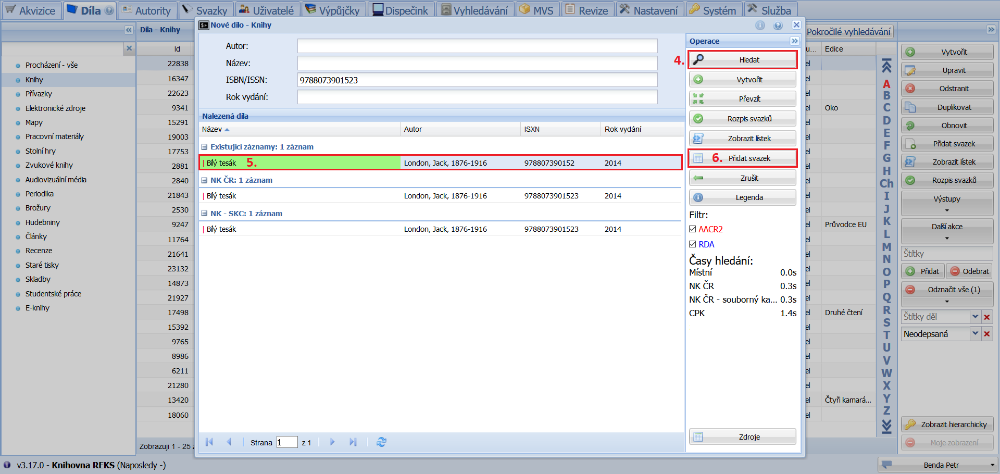
(fig. 2)
A form for creating an item has now opened. The next free incremental number is inserted automatically. The barcode is also inserted automatically, but independently of the incremental number. After saving the item, we stick this code onto the document from the pre-printed sheet. We fill in the other data ourselves, and when we are done, we click the Save and close button. We then close the work record by clicking Back to browse.
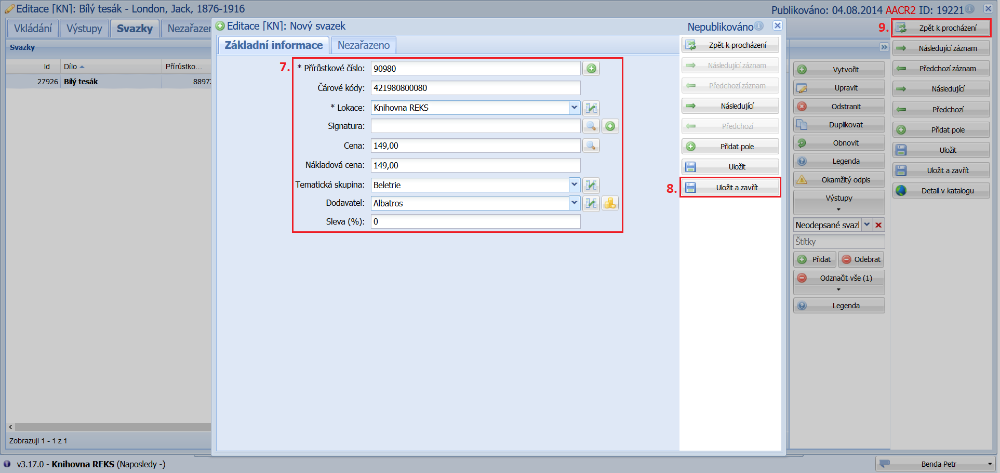
(fig. 3)
If after the search an existing record appears that is not highlighted in green, it means that the record is in one of the other REKS libraries or in the regional library. If we do not want to make changes to the record, we try to use the existing record so that we do not create further ones. We mark the record and by clicking the Add item button we create a new item for it as in figure 3.
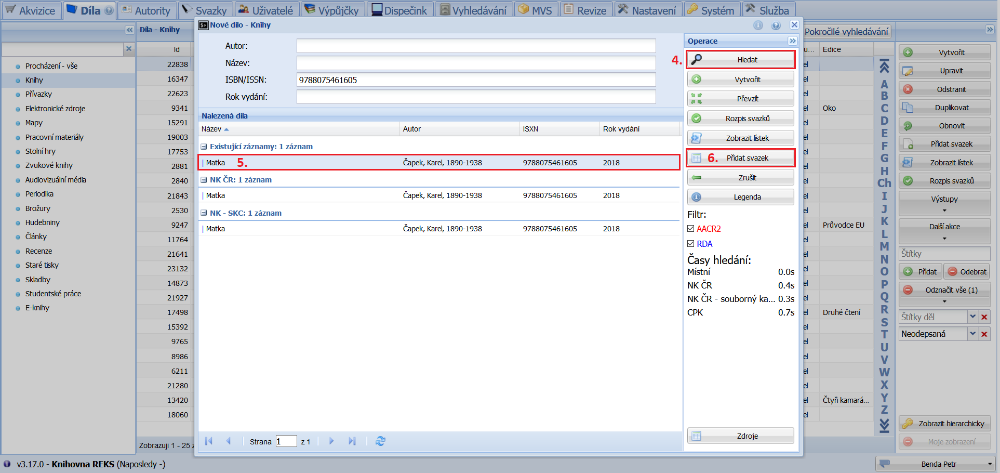
(fig. 4)
If no existing record is found, it means that none of the other libraries has yet created the document in our database. So we choose a record from the National Library or the Union Catalogue, mark it and click the Take over button.
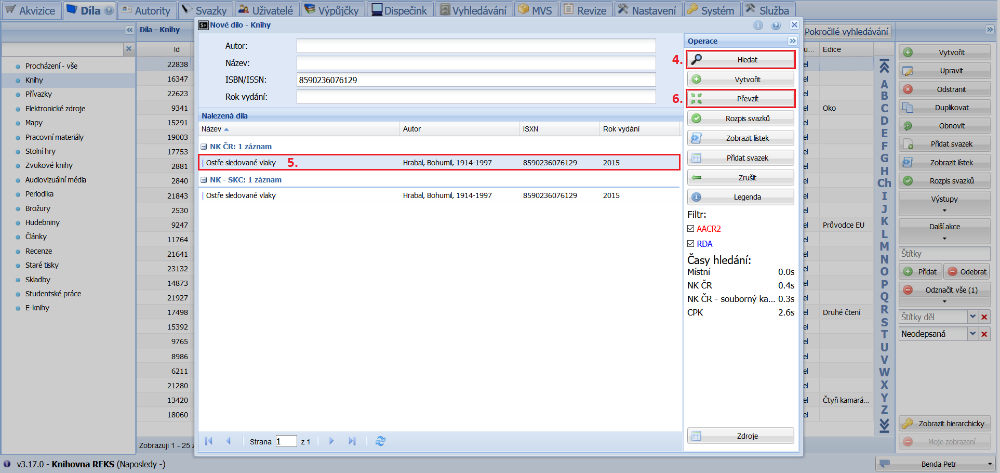
(fig. 5)
The selected record is downloaded and offered for checking. To be able to continue, we must Save it.
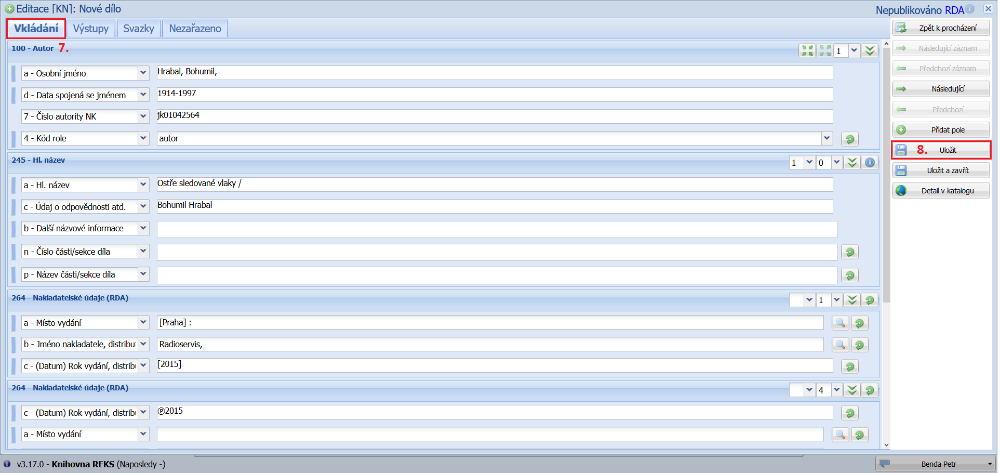
(fig. 6)
We then move to the Items tab, where we create a new item by clicking the Create button. When creating a new item we proceed as in figure 3.
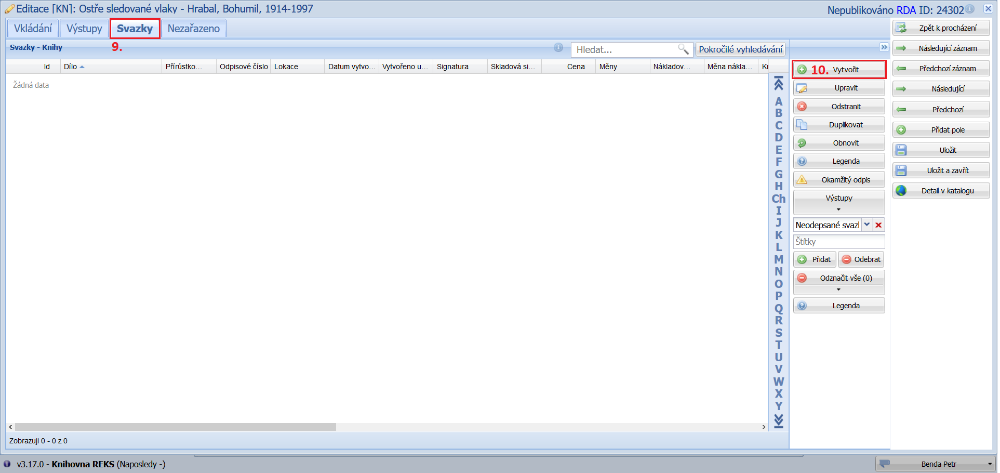
(fig. 7)
If we cannot find any existing or freely available record, we try waiting a week. For new publications there is a high probability that within a few days the record will appear in one of the free sources and we will be able to simply take it over as in figure 4 or 5.
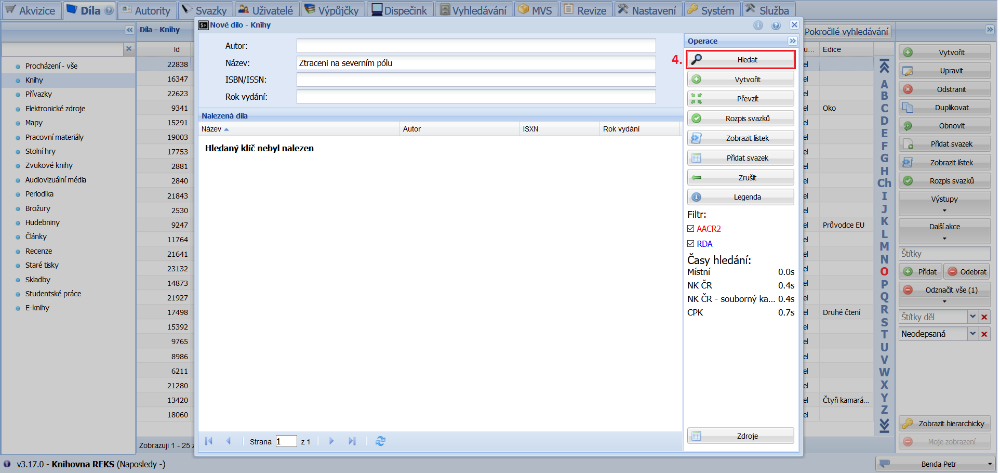
(fig. 8)