

Graphic guide to setting up NEKs
Last modified by Erik Duraja on 2026/10/29 08:23
We find the NEK settings on the Settings → NEK settings tab. Here, on the right side of the screen, we click the Management of NEKs button.
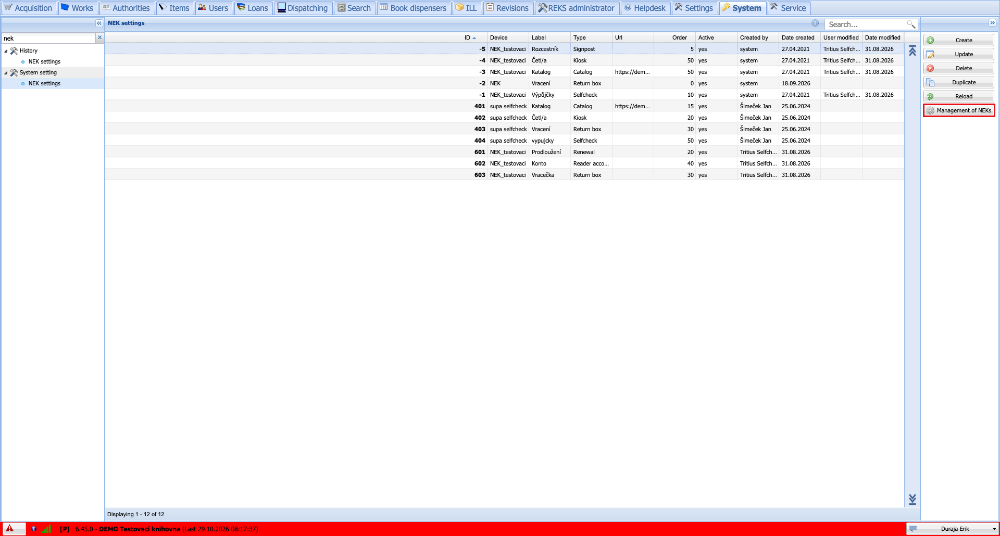
(fig. 1)
If we have several NEKs in the library, we set up each of them separately.
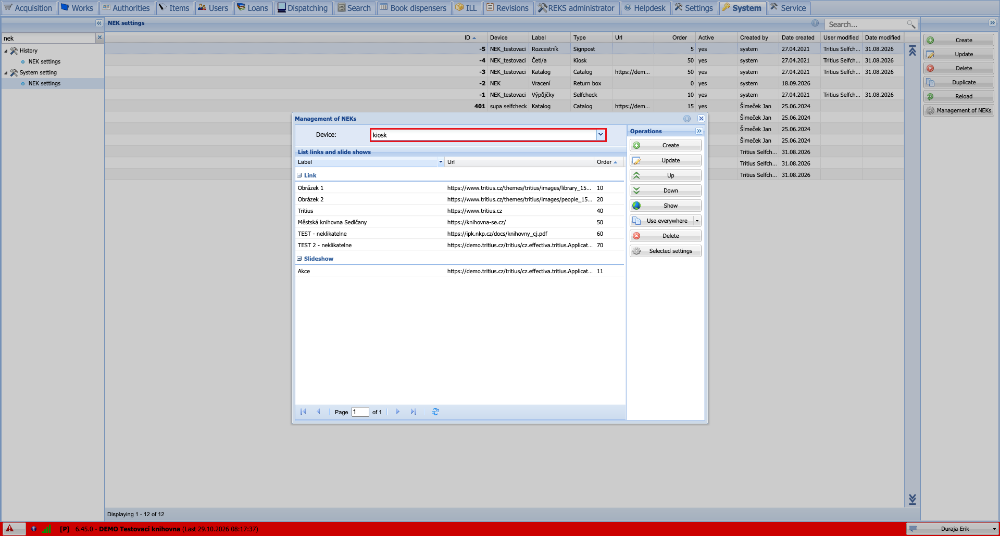
(fig. 2)
- To add a new file, we click the Create button.
- First we fill in the Label of the file, where we enter the name.
- Then we must choose the Type, that is, whether the file is to be displayed in the NEK screensaver as a Slideshow or in the signpost as a clickable Link.
- In the URL box we can enter either a link to the file (the link must point to viewing, not downloading), or upload the file from the computer by clicking the magnifying glass.
- As the Order we enter the numerical order in which the files are to be displayed one after another.
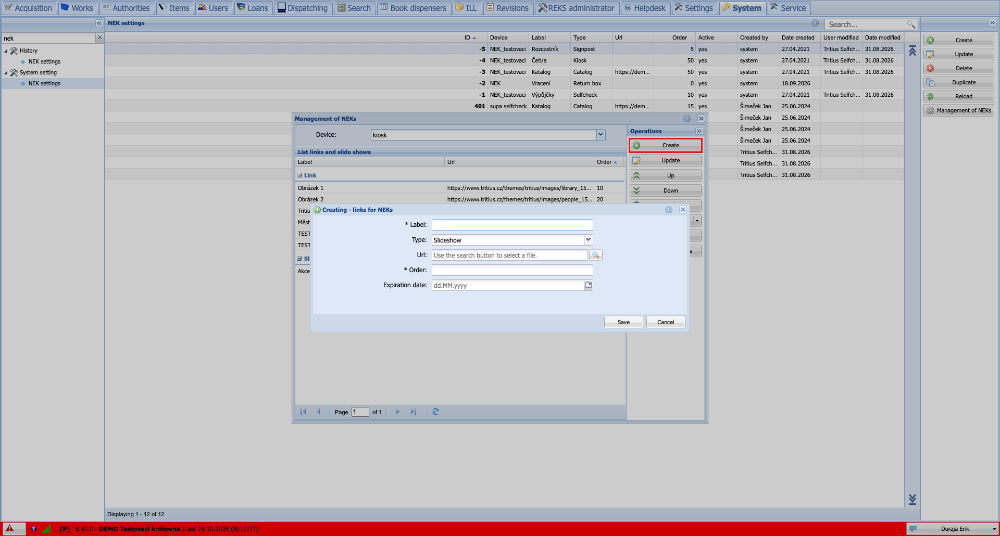
(fig. 3)
- Using the Up and Down buttons we can change the order of the selected file.
- The Use everywhere button adds the selected file both to Links (Signpost) and to the Slideshow (Screensaver).
- The Show button displays a preview of the selected file in a new browser tab.
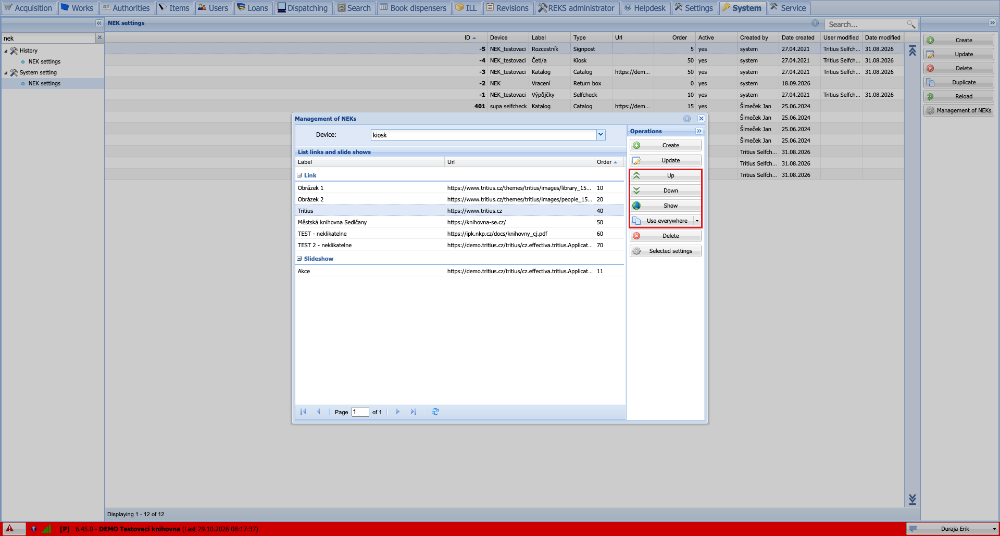
(fig. 4)
- The Selected settings button allows us to set the basic behaviour of the NEK.
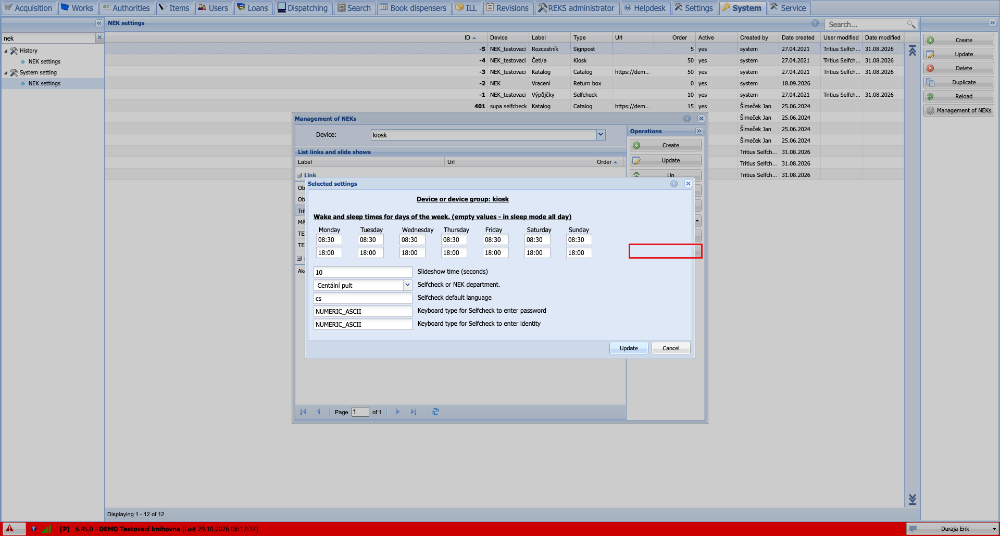
(fig. 5)