

Graphic guide to incoming ILL
Creating an ILL request via the web catalogue
Readers with the ILL library category can create ILL requests in the web catalogue, which are displayed in our library as Incoming ILL requests. To create a request, the library logs in to the catalogue to its reader account. It then searches for the title it wants to create an ILL request for, and then clicks the ILL button next to the work.
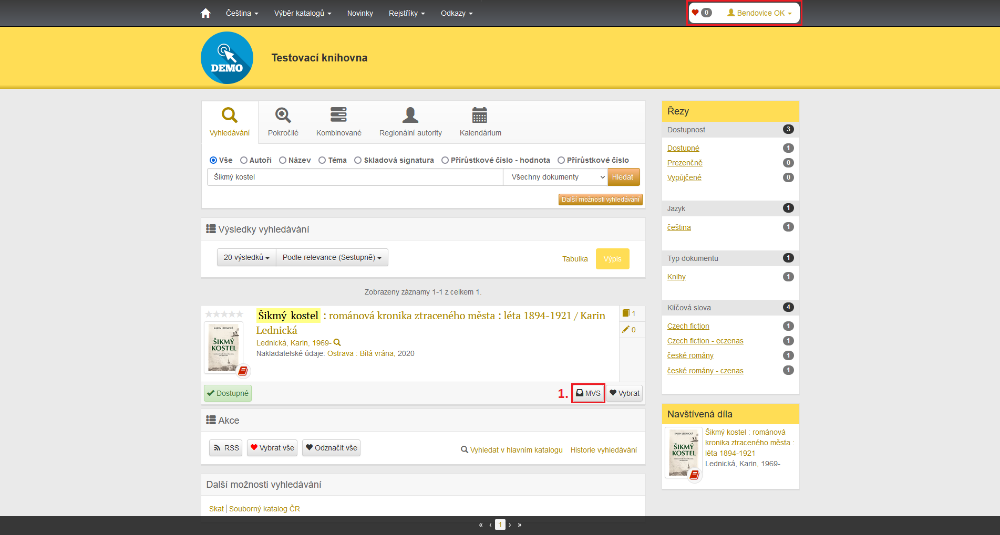
(fig. 1)
The library is now presented with a form for creating a request. As the Request number, the library can enter the number under which it records the ILL in its library system. Entering it is not mandatory, however. The catalogue pre-fills the Valid until date automatically, so the library can leave it unchanged. If needed, a note can also be added to the ILL. When the form is filled in, the library completes the creation of the request by clicking Send.
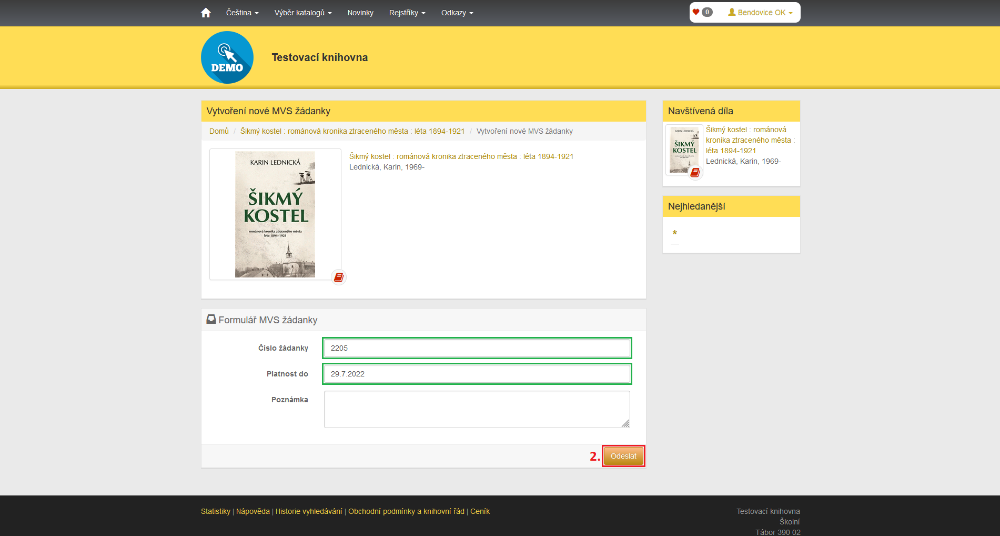
(fig. 2)
The request created in this way is then displayed in our system in the ILL module on the Incoming ILL requests tab, where we can show it, and possibly edit or reject it. The source of the request is listed as Web catalog.
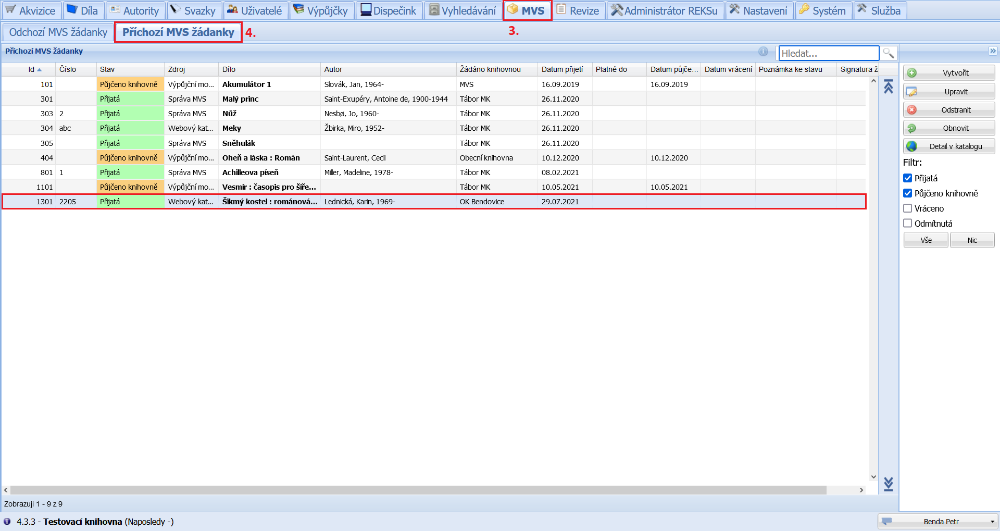
(fig. 3)
We lend the document on the Loans tab. First we register the arrival of the library that is requesting the ILL. We select the library in the list of present readers, switch to Lending and scan the item. After scanning, the item appears in the list of loans and the ILL request switches to the Lent to library state.
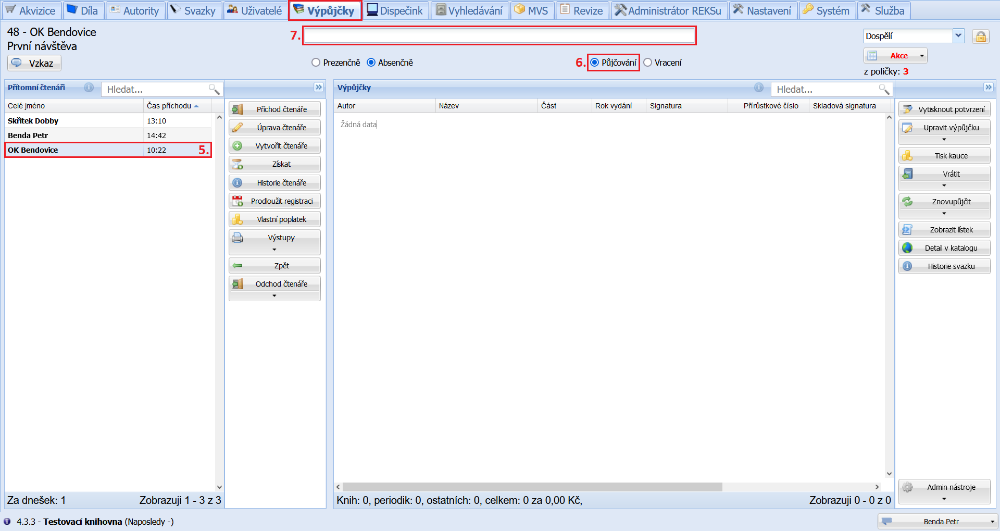
(fig. 4)
When the library sends the item back to us, we process its return by discharging the item from the library's account. This switches the ILL request to the Returned state.
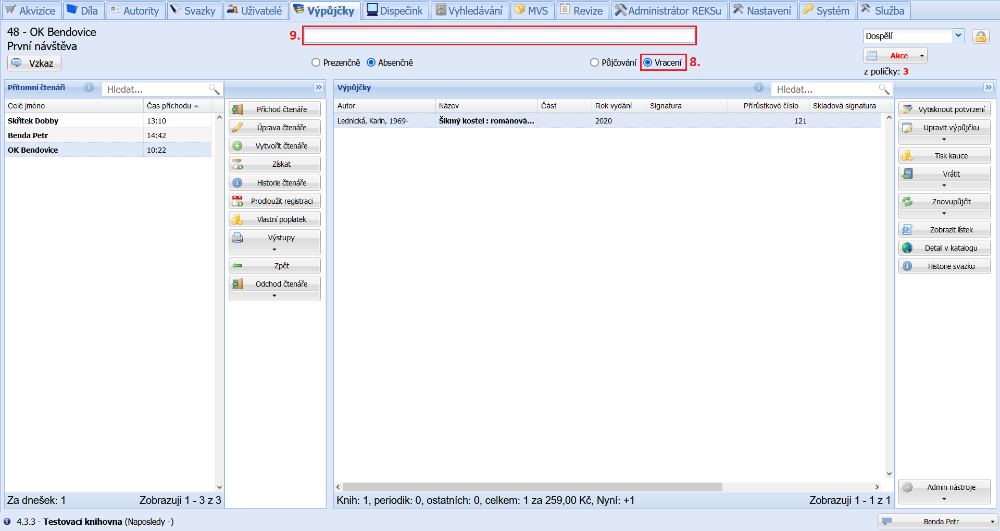
(fig. 5)
Creating an ILL request via the ILL module
A request for a document that another library wants to borrow from us can be created in the ILL module on the Incoming ILL requests tab. To create a new request, we click the Create button. In the form that appears, we first enter the details of the work. We therefore click the Find button.
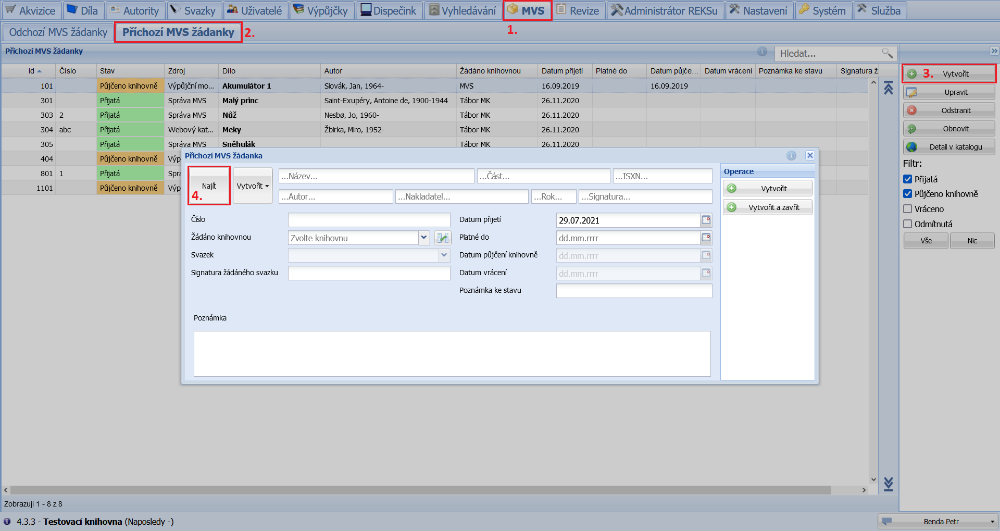
(fig. 6)
In the overview of works we search for the work we are going to lend, select it and click Select.
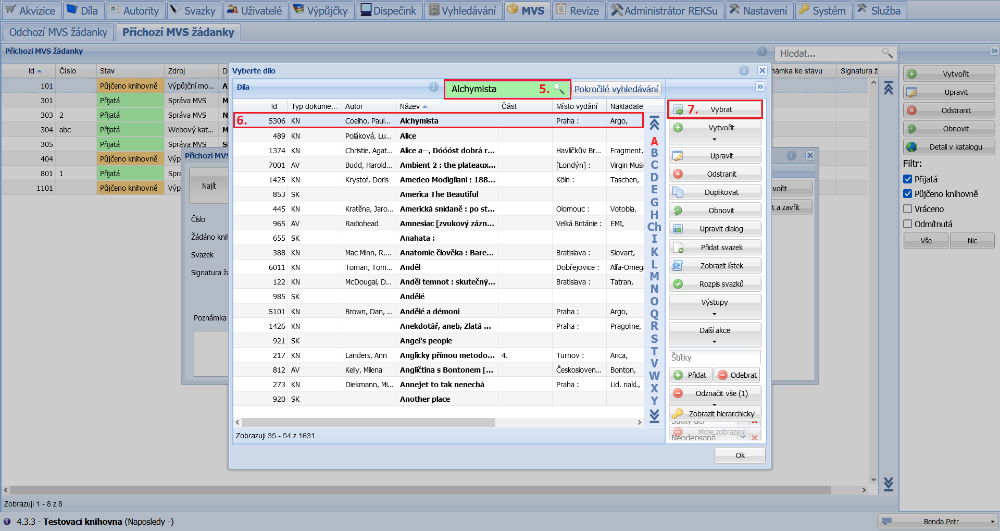
(fig. 7)
This transfers the title information into the request form automatically. Next we select the library that is requesting the document. If necessary, we can enter further details in the request. Finally, we click the Create and close button, which saves the request.
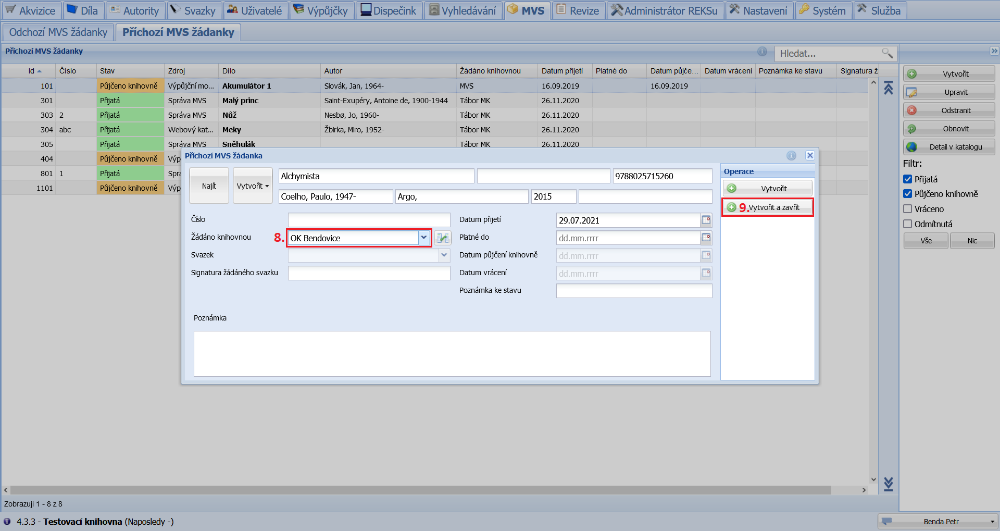
(fig. 8)
The request created is then displayed in the overview of incoming ILL requests, where we can show it, and possibly edit or reject it. The source of the request is listed as ILS Administration. We lend and return the document in the same way as described for figures 4 and 5.
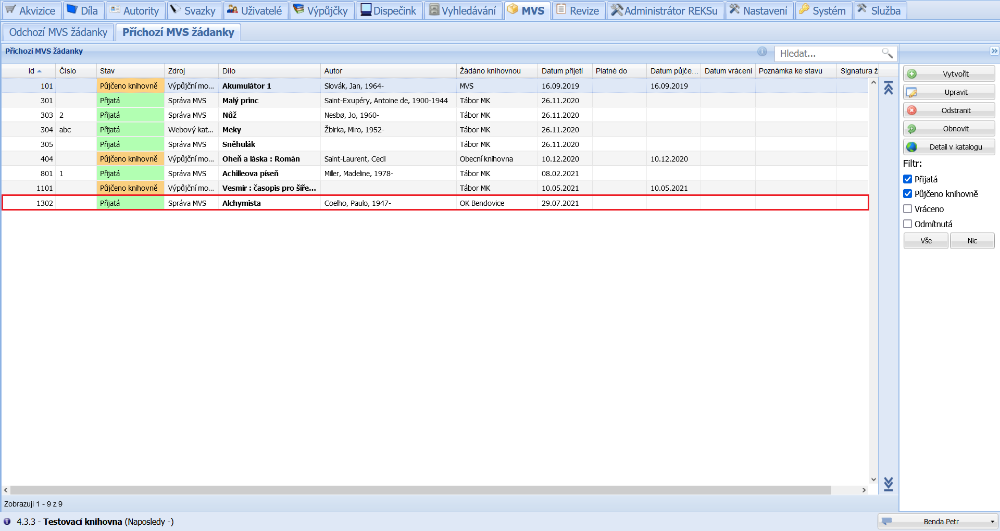
(fig. 9)
Creating an ILL request via the loan module
An incoming request can also be created directly by scanning an item for a reader with the ILL library category. On the Loans tab we register the arrival of the library that is requesting the document. We select the library in the list of present readers, switch to Lending and scan the item onto the library's account.
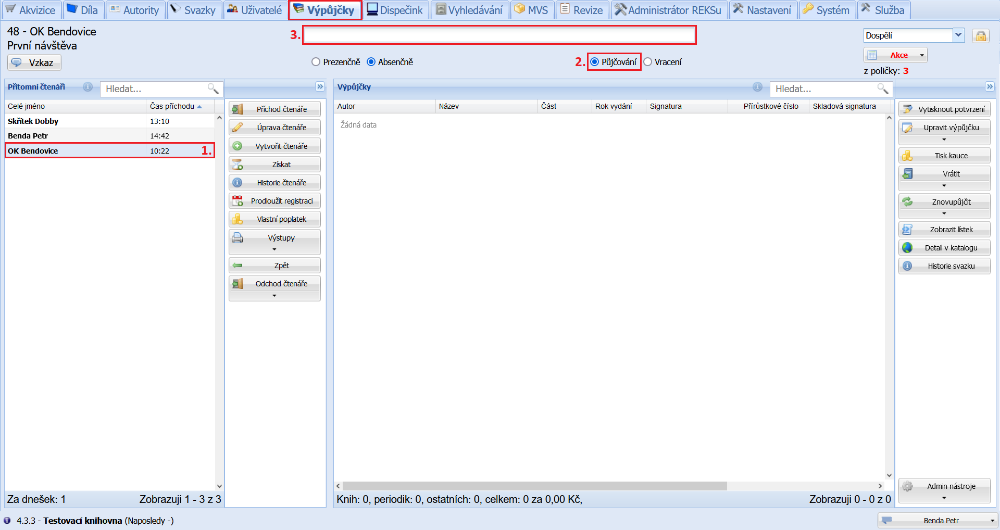
(fig. 10)
The request created in this way is then displayed in the ILL module on the Incoming ILL requests tab, where we can show it, and possibly edit it, and it immediately switches to the Lent to library state. The source of the request is listed as Borrow protocol.
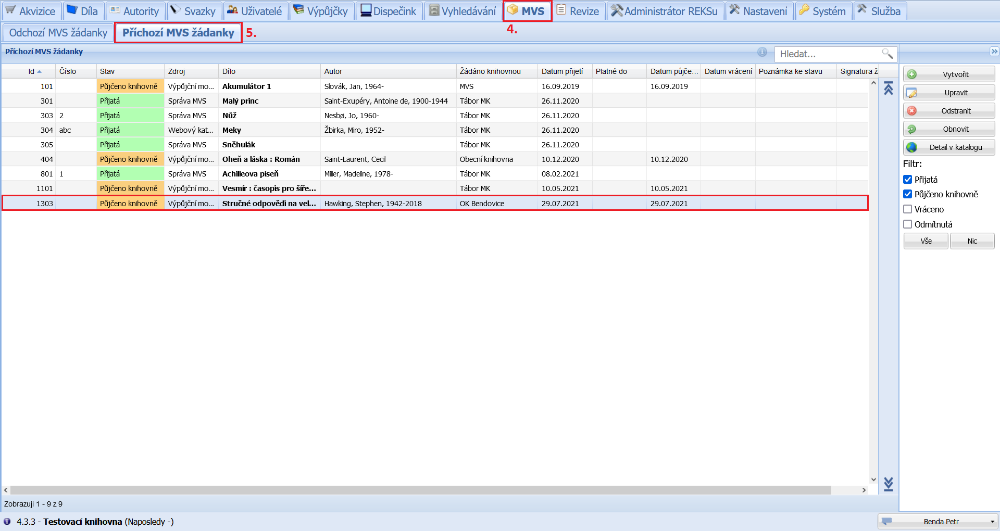
(fig. 11)
We process the return of the item again on the Loans tab by discharging the item from the library's account. This switches the request to the Returned state.
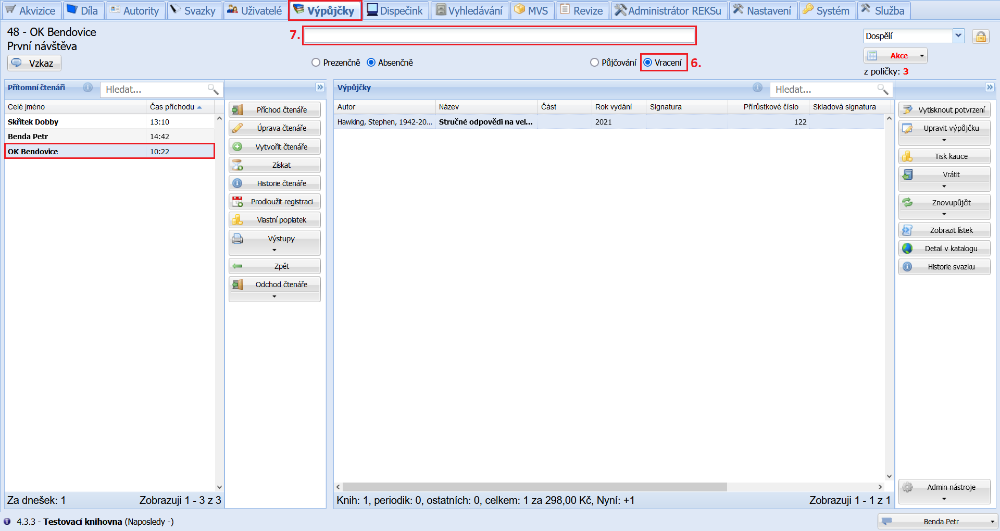
(fig. 12)