

Graphic guide to loans
We lend and return documents on the Loans tab. First we scan the reader's card into the input field, which registers the reader's arrival. If the reader has forgotten the card, we click the Reader arrival button.
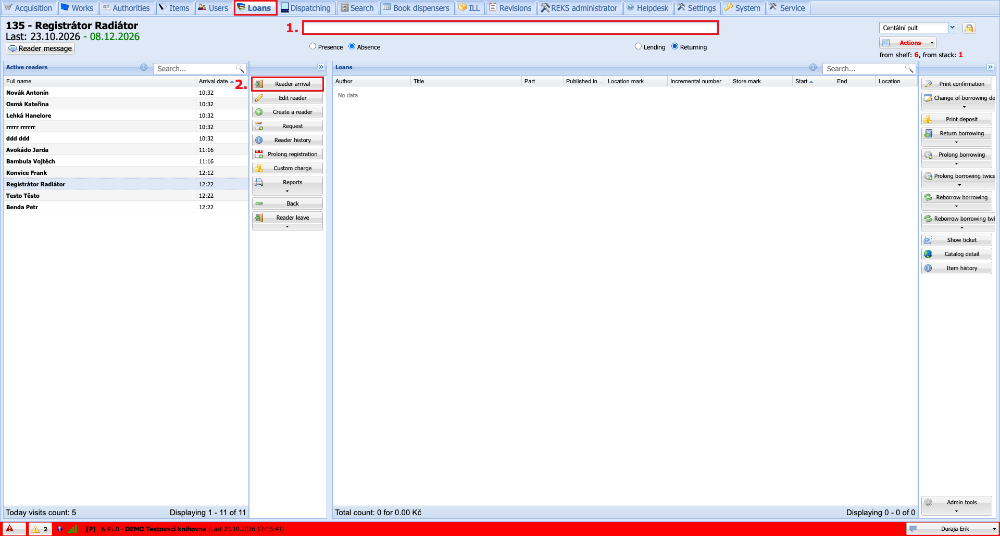
(fig. 1)
In the overview of readers we find the reader whose arrival we want to register, mark them and click the Select button.
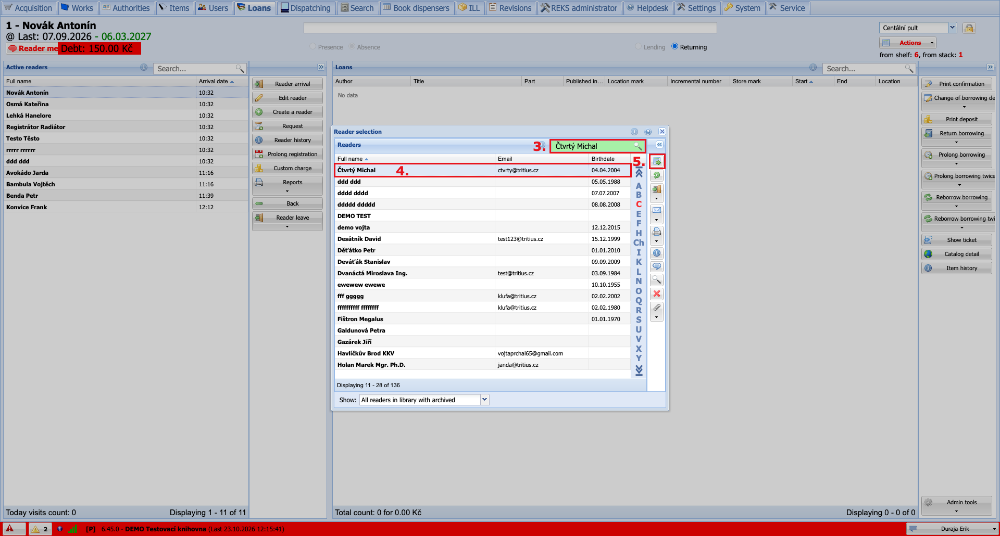
(fig. 2)
After the arrival, the reader is shown among the Active readers and is marked automatically. Before lending, we check that we have the correct reader selected, and switch to Lending. Into the input field we scan the barcode with the scanner. We can also type in the incremental number and confirm the entry with the Enter key. In this way we scan all the documents the reader is borrowing.
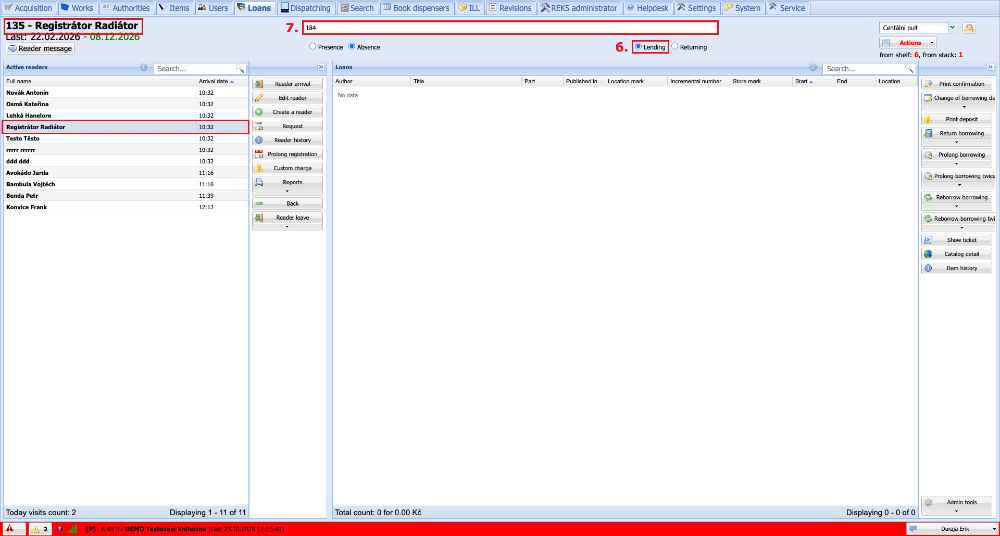
(fig. 3)
We check that all of the reader's loans are correct and click the Reader leave button.
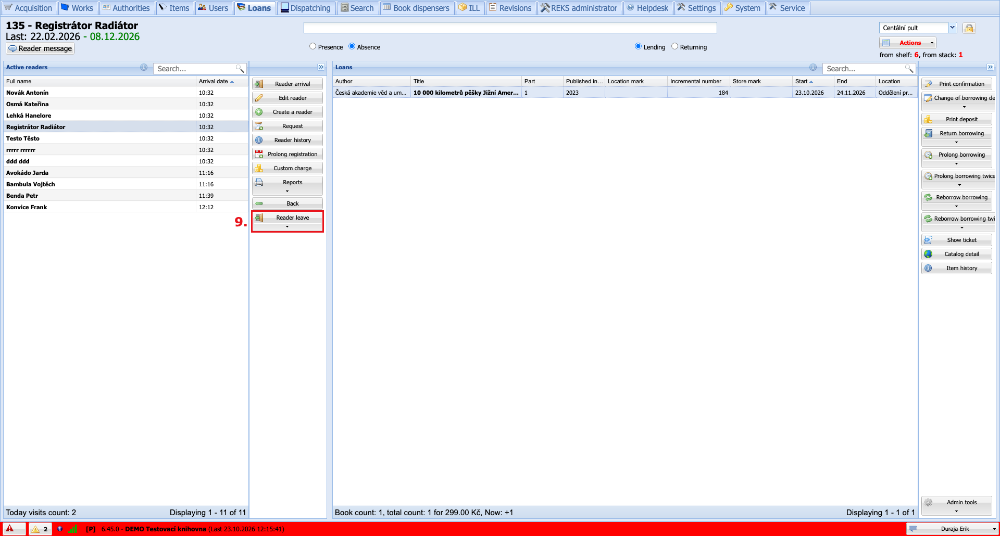
(fig. 4)
At the first leaving, the system asks whether the reader wants to receive a summary of loans. From the list we select the option by which the reader wants to receive the summary and press the Save button. If the reader does not want any summary, we select None. This setting can be changed at any time in the reader's profile. Now at every subsequent leaving the reader automatically receives the summary of their loans in their preferred way. If we wanted to make a leaving in a different way as an exception, we would click the arrow under the leaving button, where further options are displayed.
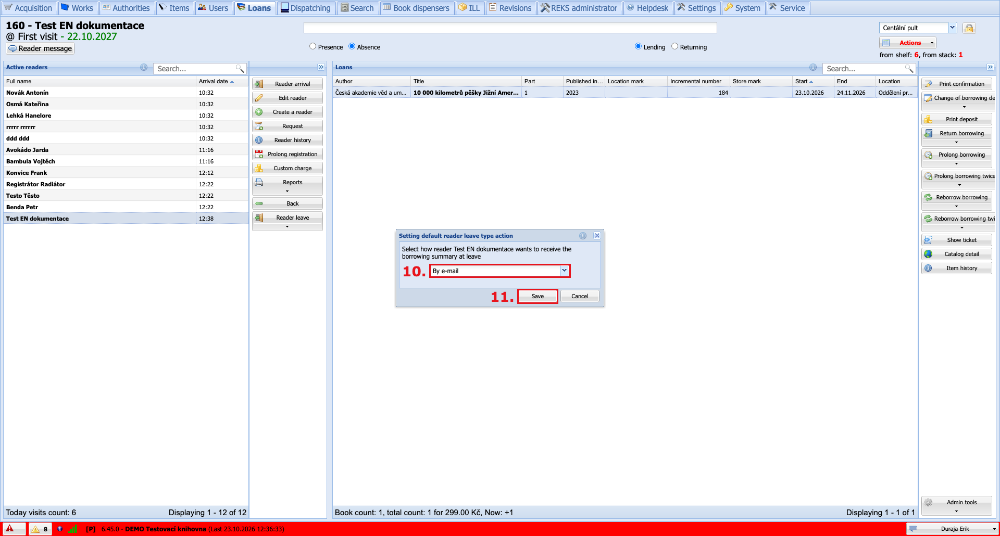
(fig. 5)
After leaving, the reader disappears and information about the loans is displayed in the bottom left corner.
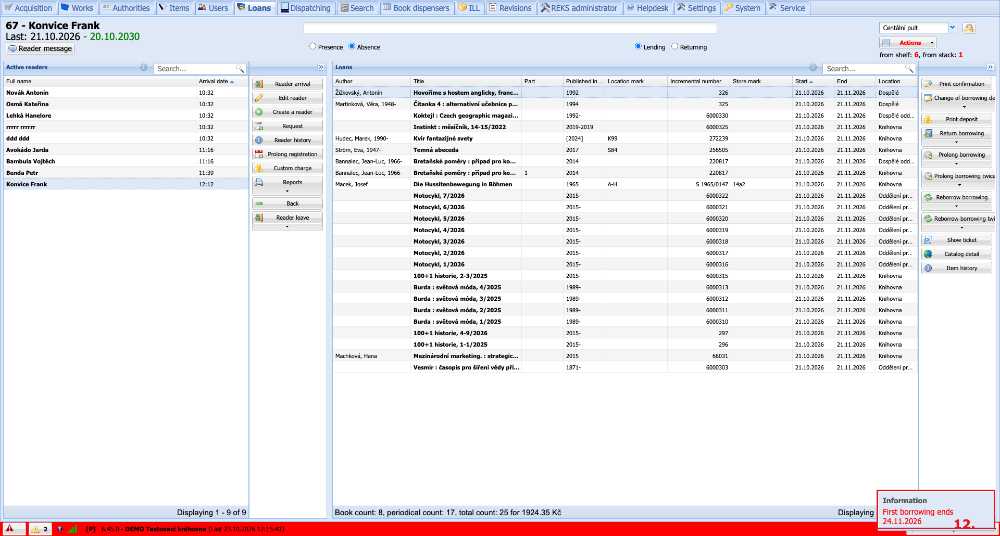
(fig. 6)
For returning we proceed in the same way. We register the reader's arrival, switch to Returning and scan the returned loans.
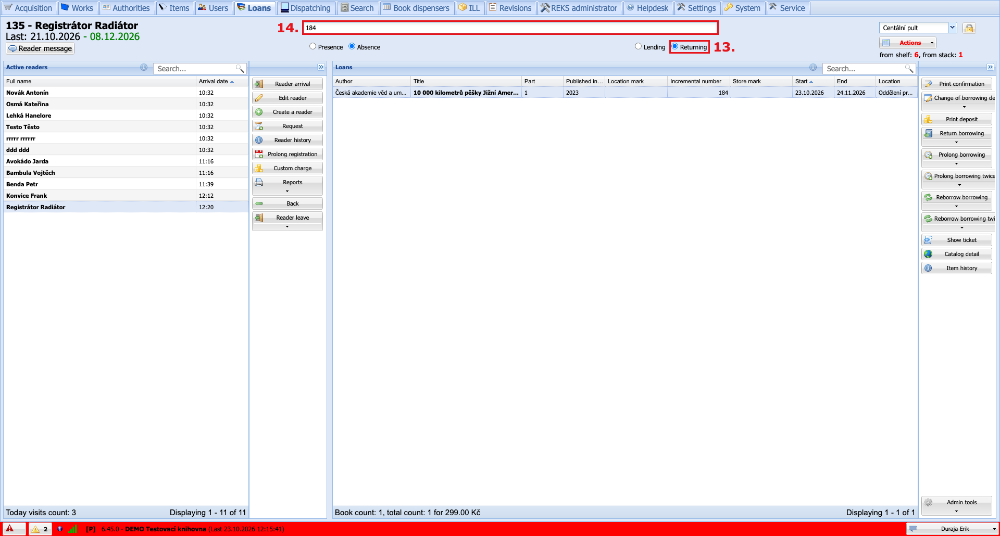
(fig. 7)