

Graphic guide to creating exchange stock
To create an exchange stock, we switch to the Loans tab and select the department for lending exchange stock from the drop-down list. On the left side of the screen we click the library for which we will prepare the stock. Then we click the Add exchange stock button on the right. In the window that appears, we enter the date of the new stock and confirm its creation by clicking OK.
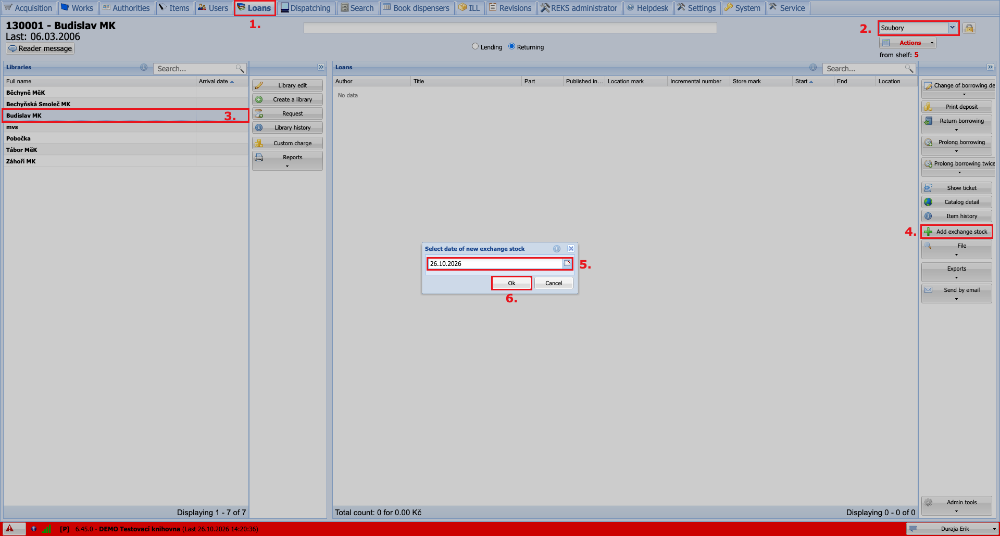
(fig. 1)
When the new stock has been created, we switch to the Lending mode in the upper part of the window and gradually scan the items that we want to lend to the library into the stock.
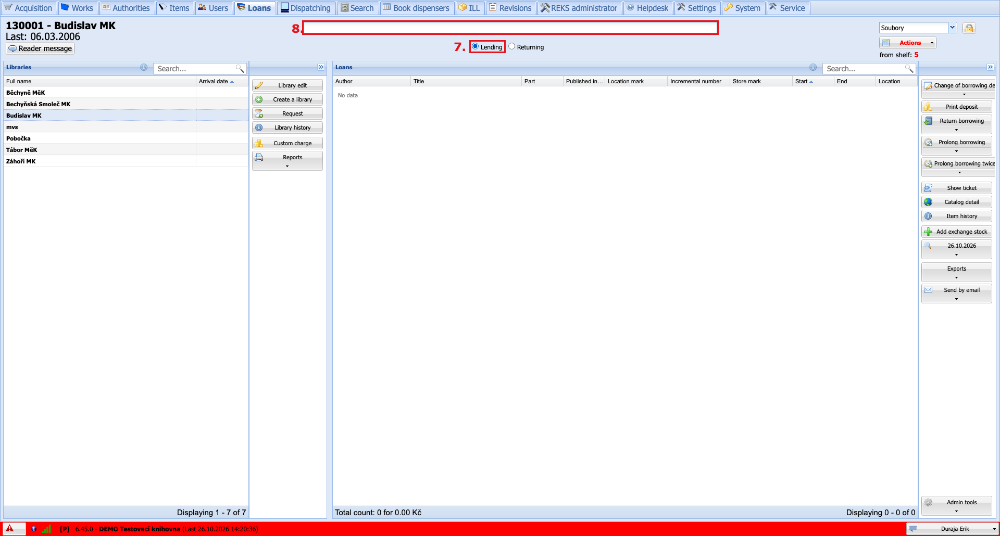
(fig. 2)
All items scanned into the stock are displayed in the Loans table. If the library for which we are creating the stock is located on the same server (in the same Tritius), the loans are highlighted in pink as an unsent stock. If the library is located on a different server (in a different Tritius, Clavius, etc.), the loans are shown in the overview without highlighting.
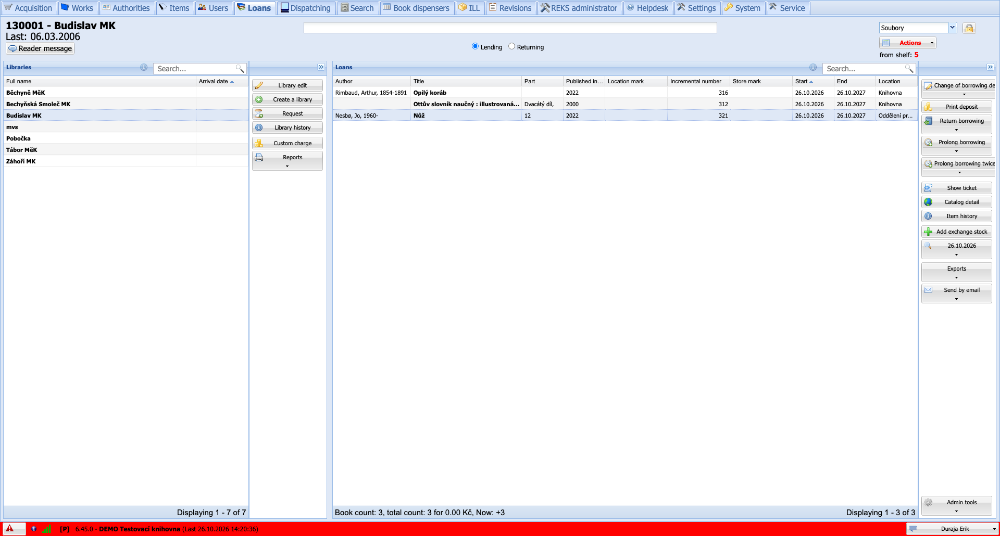
(fig. 3)
We then continue by sending the stock. You can read more about export and sending in Graphic guide to exporting exchange stock