

Graphic guide to creating a new supplier
We can create a new supplier in the item registration form. Next to the Supplier field we click the Find button.
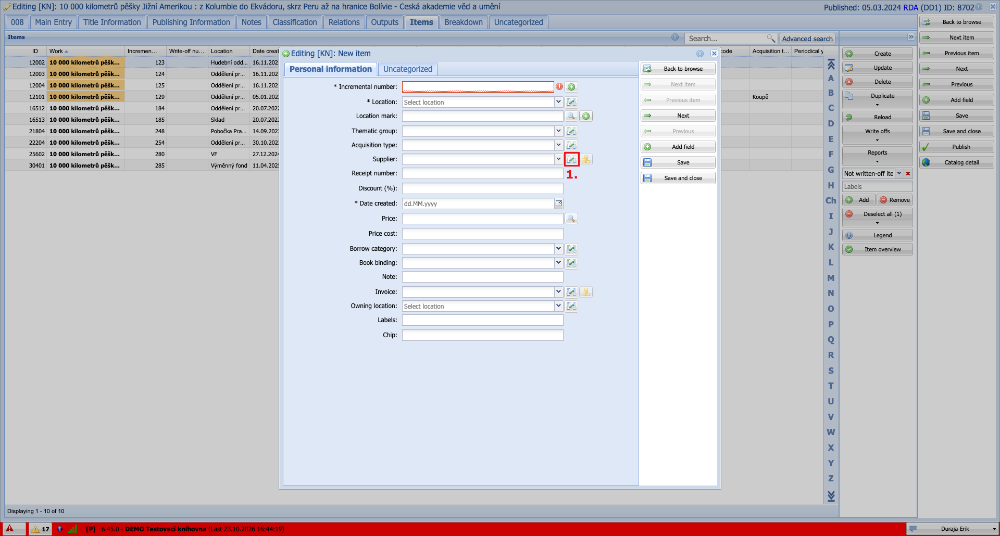
(fig. 1)
A list of existing suppliers opens in a new window, where we click the Create button.
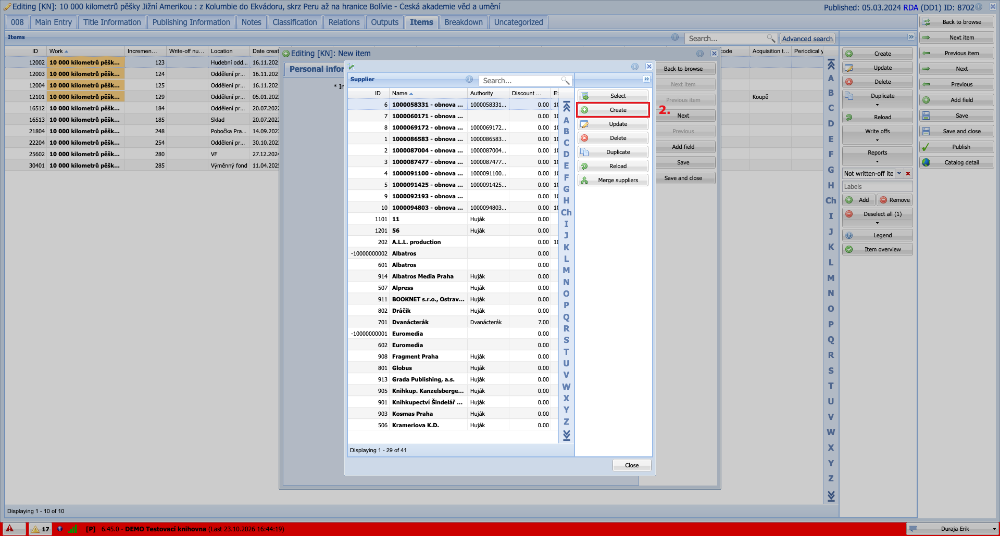
(fig. 2)
For the new supplier we fill in the name, the currency in which we buy from them, and if we have a permanent purchase discount from the supplier, we also enter its amount as a percentage. Optionally, we can also select the supplier's authority record, which we created beforehand on the Authorities tab. When everything is done, we press Save.
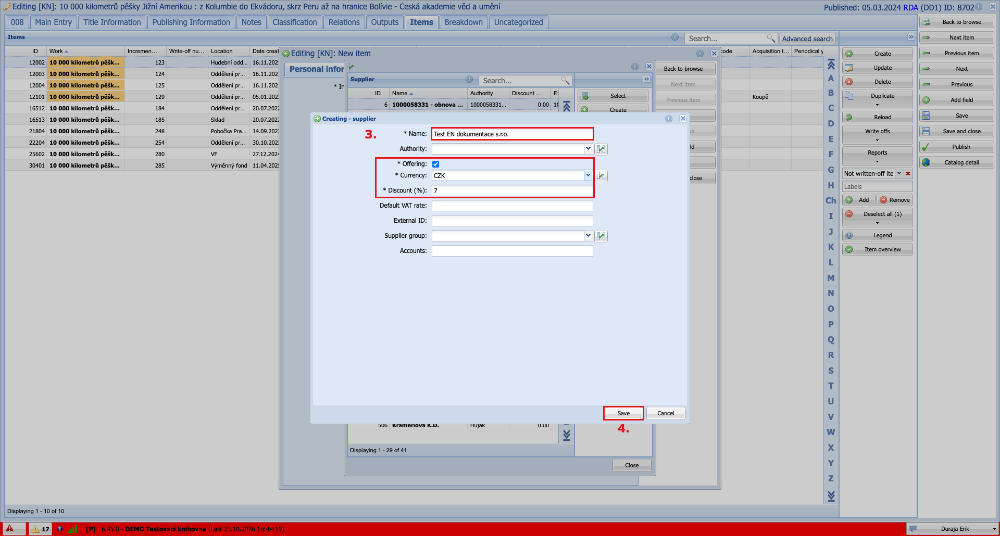
(fig. 3)
We then select the supplier we have created and click Select, which transfers the supplier to the registration form. When registering further items, we only need to select this supplier from the Supplier drop-down list.
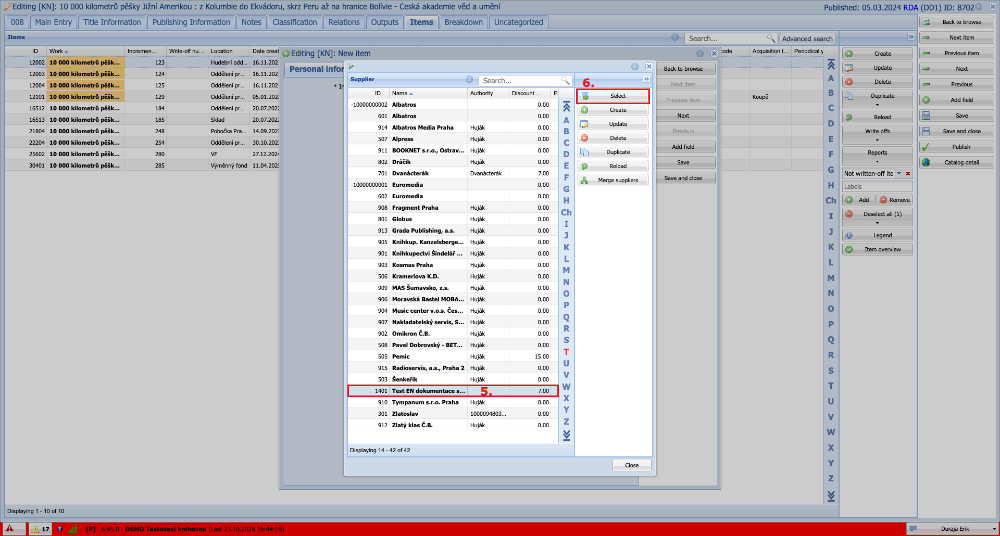
(fig. 4)
For periodicals the procedure is very similar. On the Periodical sheets tab we expand the Periodical sheets menu by clicking it and select New periodical sheet.
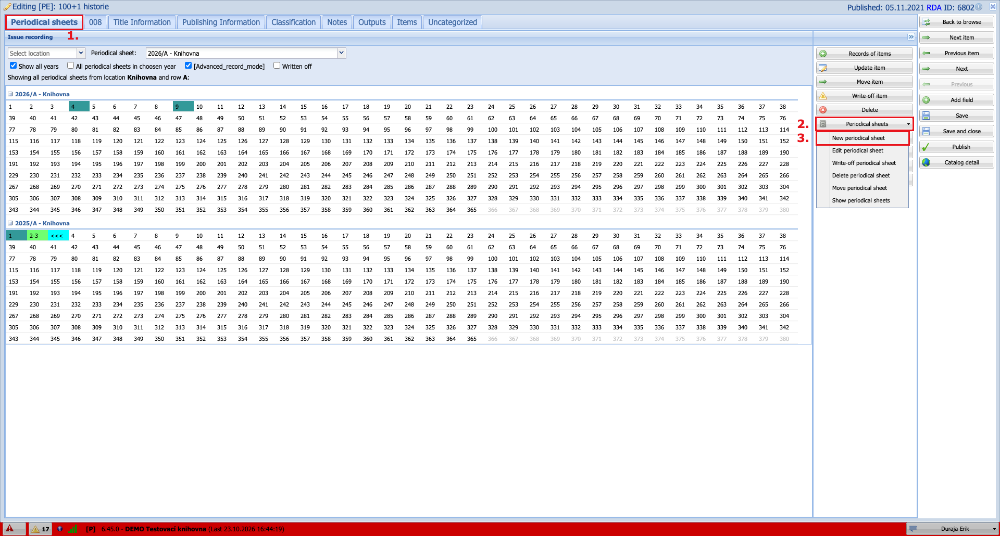
(fig. 5)
We scroll down with the mouse wheel and in the Acquisition group we click the Find button next to the Supplier field. Then we proceed in the same way as in figure 2.
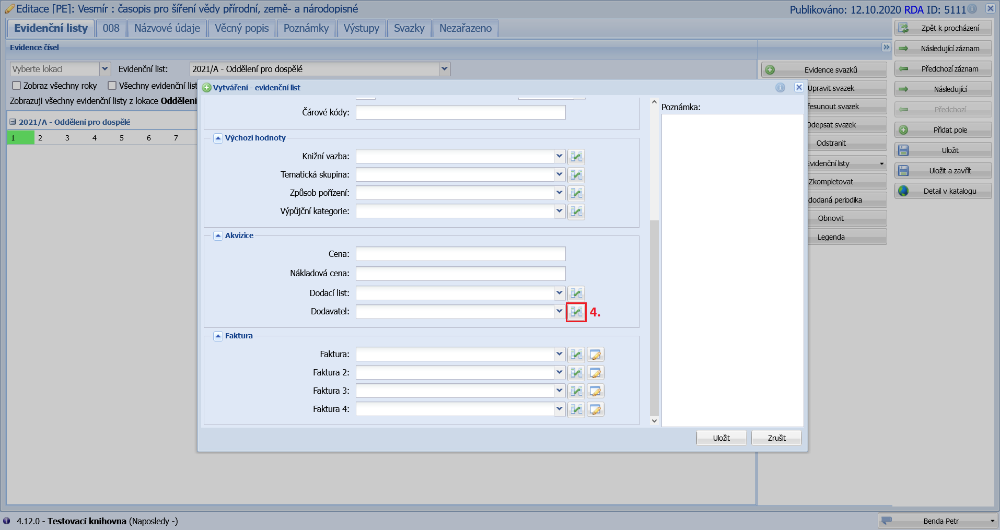
(fig. 6)
The second way to create a new supplier is to go to the Suppliers tab in the Acquisition module and click the Create button there. We would then proceed in the same way as in figure 3.
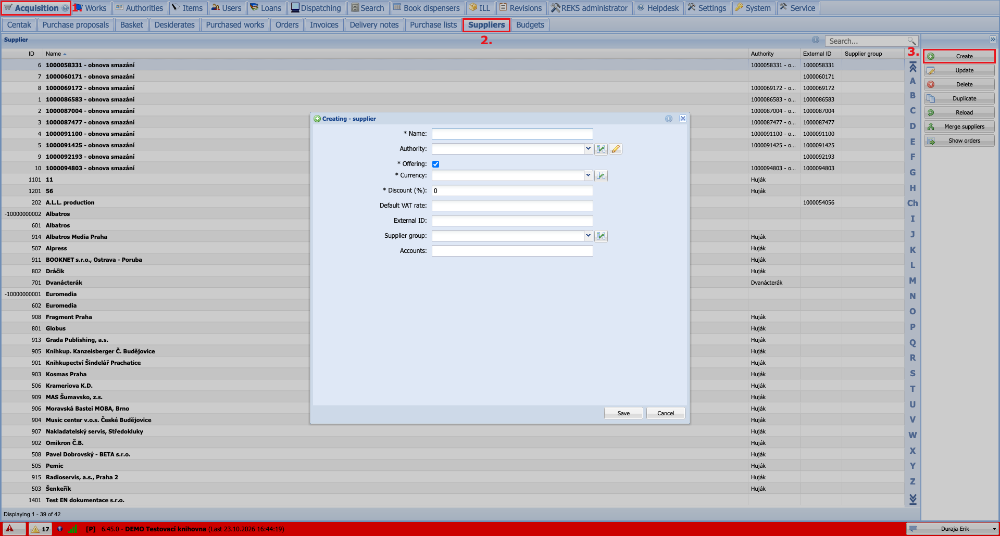
(fig. 7)
We can also keep an authority record about the supplier, in which we store additional information. On the Authorities tab we select the Suppliers category among the dictionaries and press the Create button. We then fill in all the known or important details in the authority record and click Save and close. The authority record created in this way can then be selected when creating a supplier in the Authorities field in figure 3.
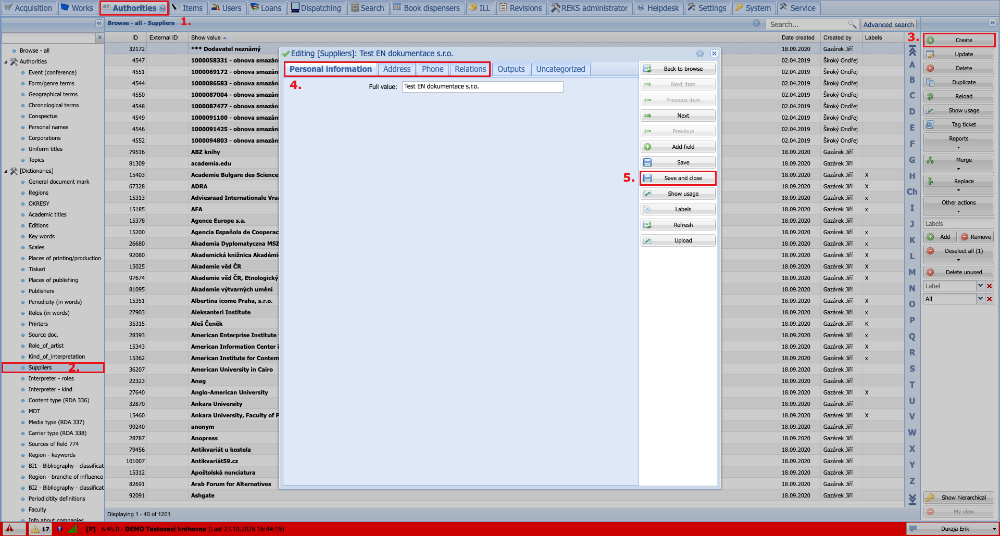
(fig. 8)