

Graphic guide to sharing an application in BankID
1. At the bottom of the Dashboard section, "My organizations" are listed - you need to click on it.
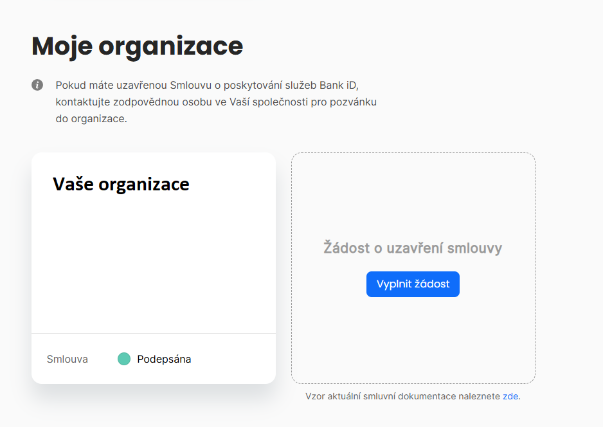
2. In the overview on the left, you need to select "Applications" and create a new one (in the picture below the button is not visible, we do not have the right to do so).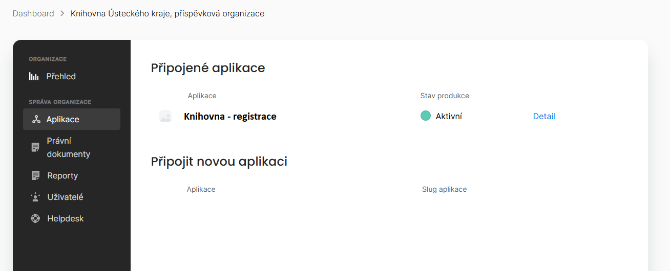
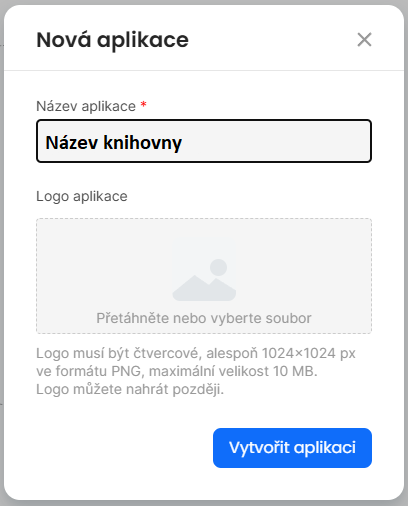
3. In the new dialog, name the application suitably so that it is clear in the overview which library it is - Library name
.
4. In Application settings -> Organization connect your organization.
5. Next, the application we created needs to be shared with us - in the application detail, in the "Users" menu, use the "Invite user" button: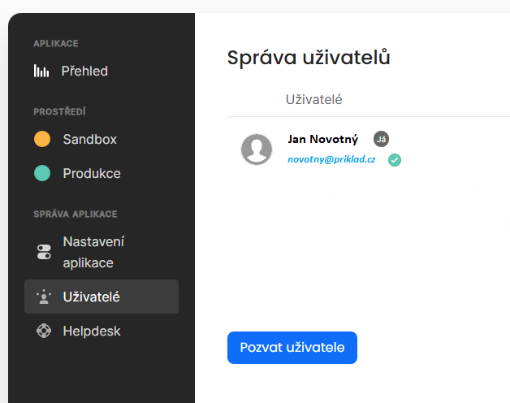
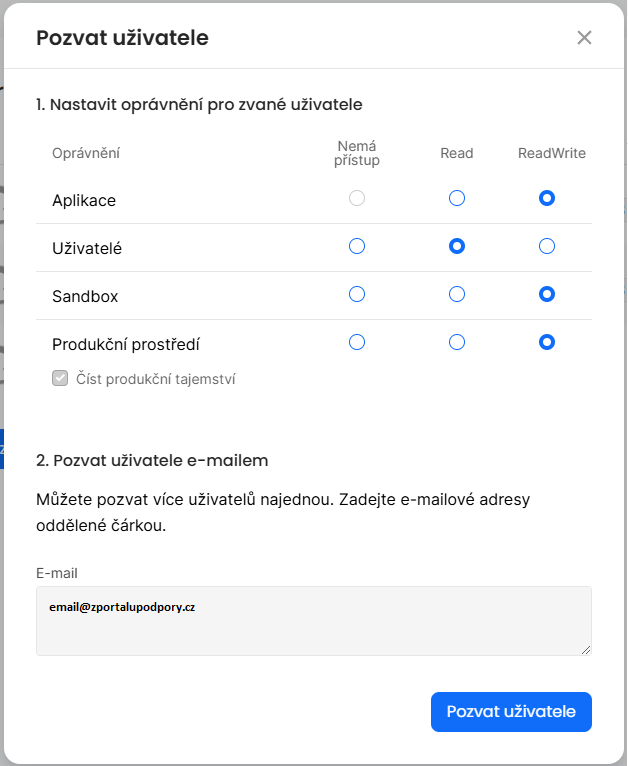
6. In the dialog for sending invitations, you need to assign the rights correctly and fill in the e-mail.
- ReadWrite needs to be set for Applications, Sandbox and the Production environment.
- A lower right is enough for Users.
- The e-mail for the invitation will be given to you by the staff of the support portal.
- See the picture below:
7. An invitation should arrive by e-mail - once you accept it, we will set the rest up ourselves.