

Graphic guide to acquisition
When working with acquisition, we will be on the Acquisition tab. The first step is to create a record of the work we want to order. On the Purchased works tab we click the Create button.
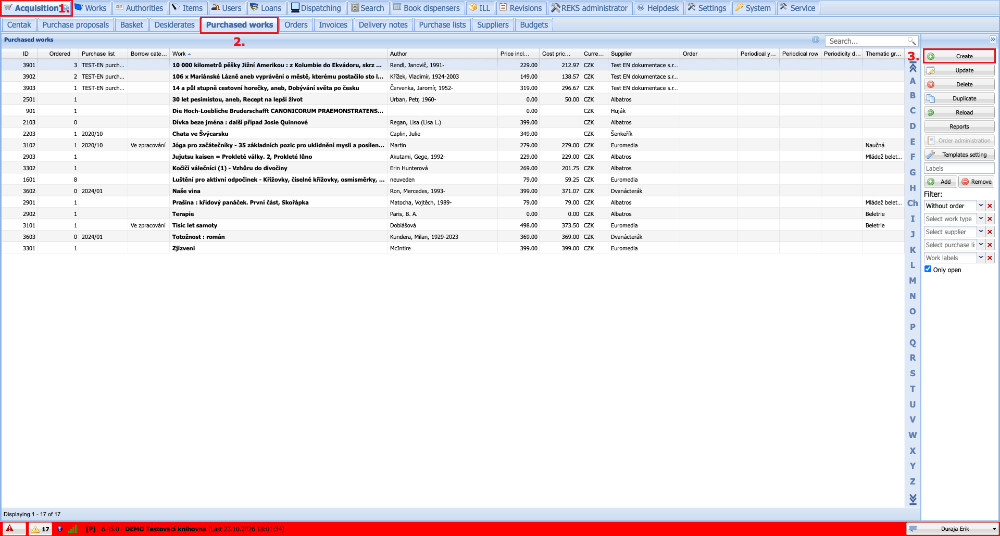
(fig. 1)
In the form that appears, we click the Create button and select the appropriate document type - this is the easiest way to find records or create new ones. If we know that the work we are looking for is among the desiderates or already processed records, we can click the Find button and try to find it using the filter and the Search field.
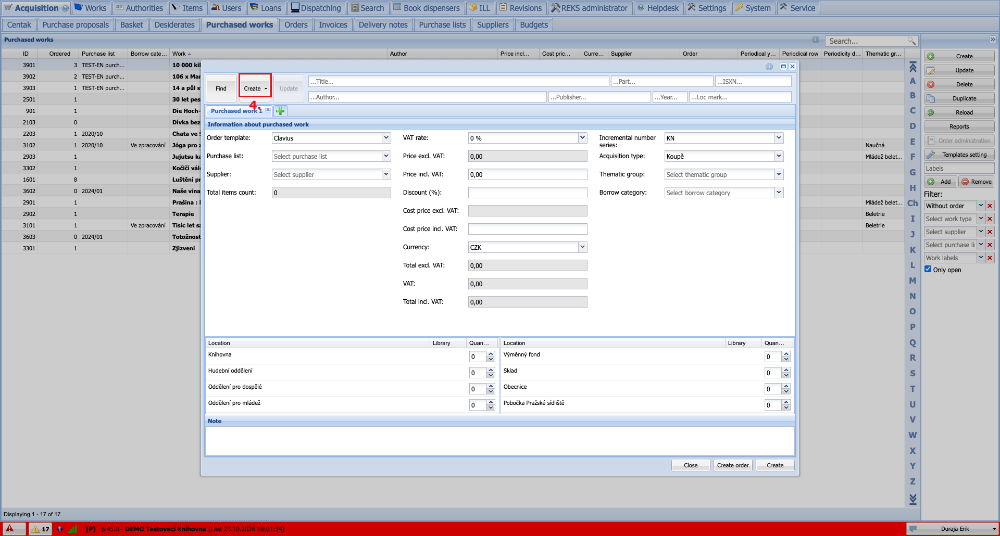
(fig. 2)
We scan the ISBN into the form, or type the title, author and year, and click the Search button. The system searches our own collection including the desiderates and at the same time searches all available Z39.50 sources. If we find an existing record, it means that such a work is already in our collection. We mark it and click the Select button. The record is transferred straight into the Purchased work form.
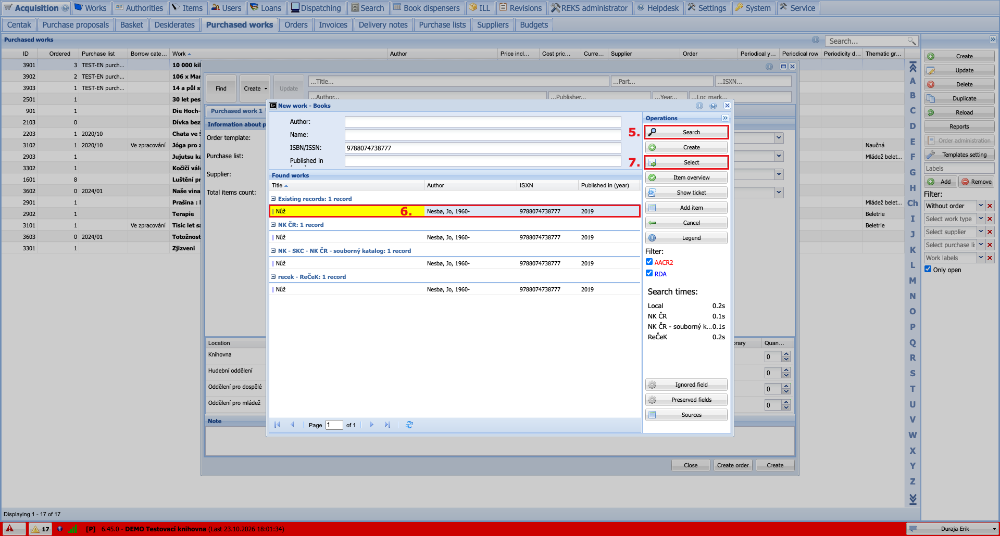
(fig. 3)
If we find no existing record, we choose the one from an external source that suits us best, mark it and click the Take over button.
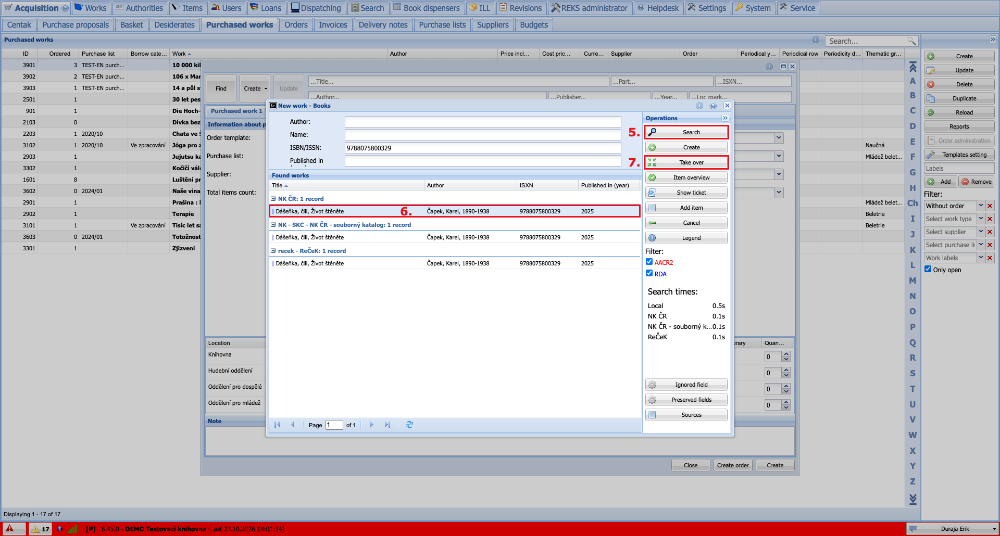
(fig. 4a)
The selected record opens in the cataloguing form for checking and any necessary editing. We go through the individual tabs and, when we are satisfied with the record, we click Save and close. The record is saved among the desiderates and transferred to the Purchased work form.
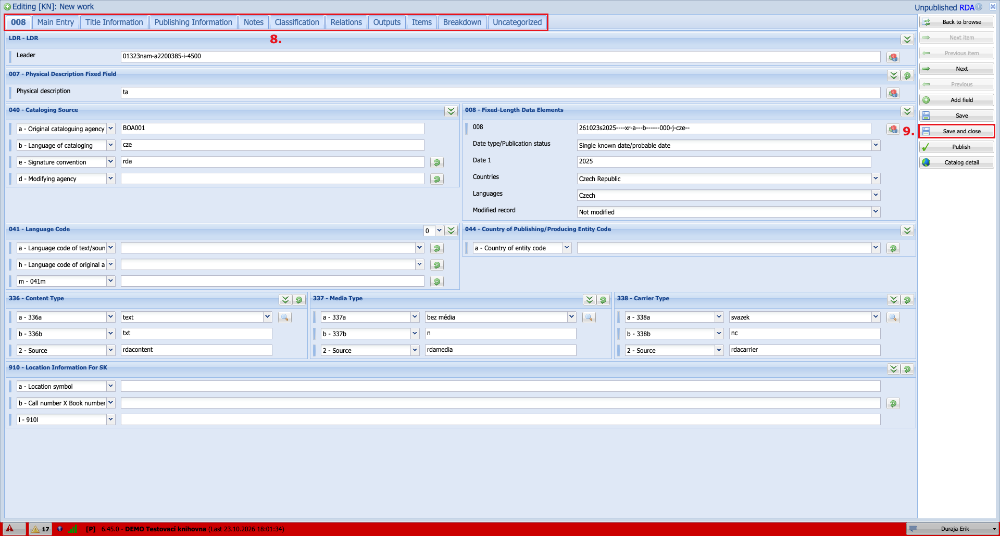
(fig. 4b)
If we cannot find any record, we will have to create a new one by clicking the Create button.
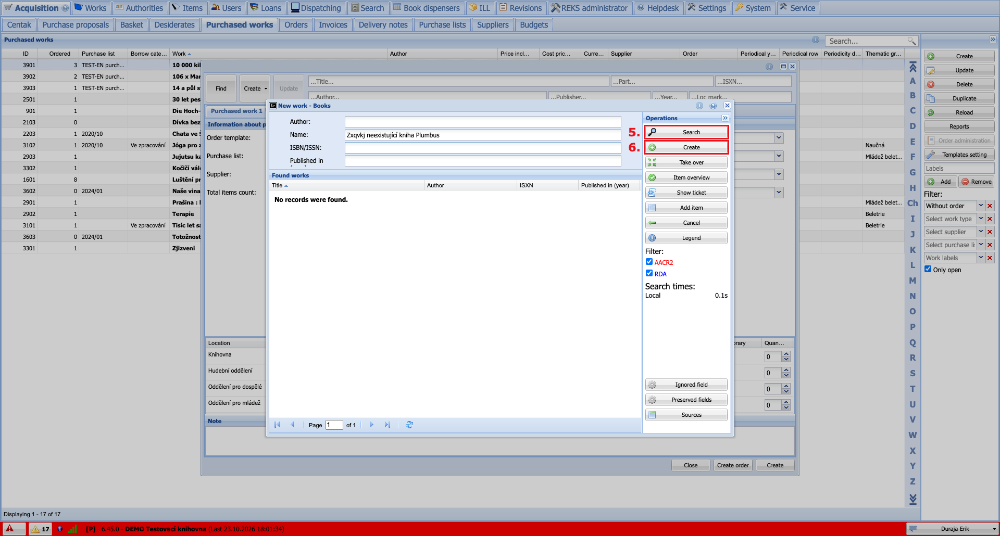
(fig. 5a)
The button opens the cataloguing form, where we enter the details we know about the work according to the cataloguing rules. When the record is finished, we click the Save and close button. This saves it among the desiderates and transfers it to the Purchased works form.
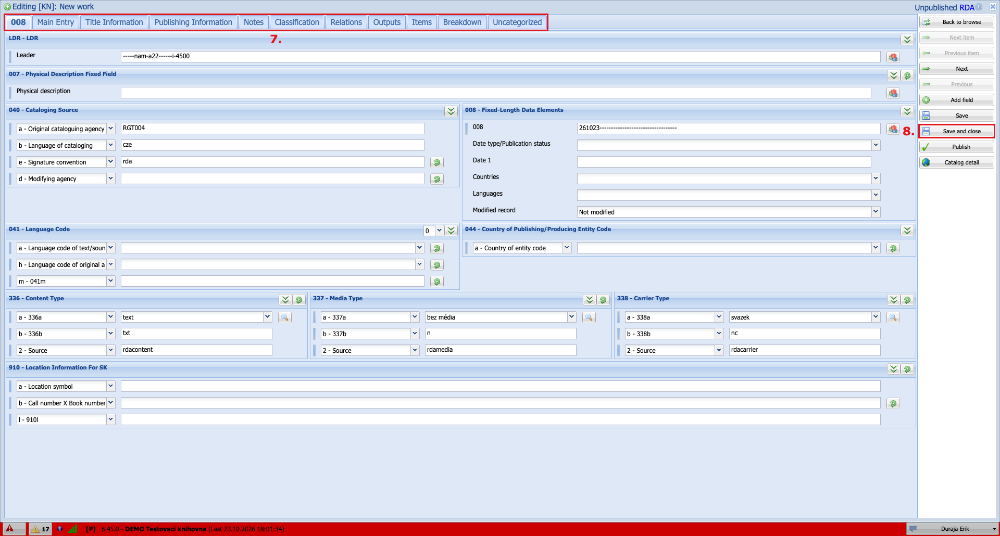
(fig. 5b)
After selecting or saving, the work has been transferred to the Purchased work form. Here we first fill in the Information about purchased work. We select the order template, which prepares a list of locations for us, and the supplier from whom we are going to order the work. If we use purchase lists, we select the appropriate list, otherwise we leave the field empty. We choose the Incremental number series according to the type of document we are ordering. If we also know other details in advance, such as the price, method of acquisition, subject group and category, we can fill them in as well. We can also return to them later and fill them in before registering the item. In the lower part of the form we enter the numbers of items we want to order for the respective locations. When all the details are filled in, we save the purchased work by clicking Create. If we want to order only this single work, we can click Create order.
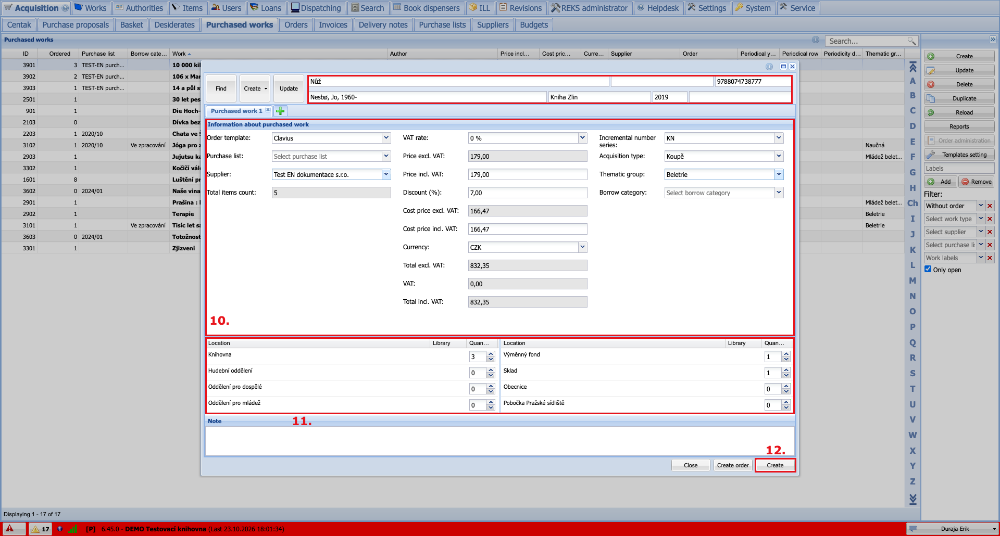
(fig. 6)
Now we move to the Orders tab, where we create a new order by clicking the Create order button.
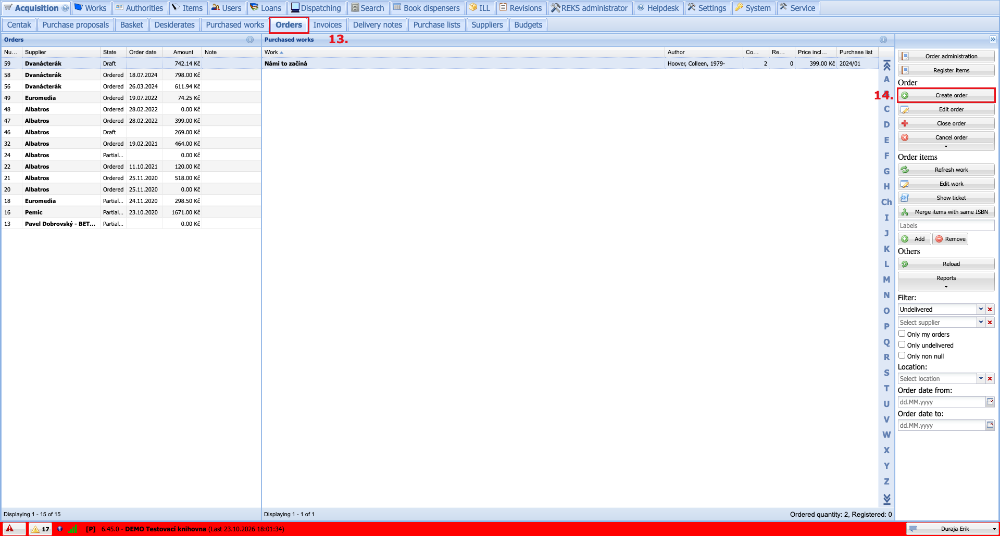
(fig. 7)
The Order number is filled in automatically according to the configured series. From the drop-down list we select the supplier from whom we will be ordering the works, and click the Add purchased work button. If we use purchase lists, we can use the Add purchase list button.
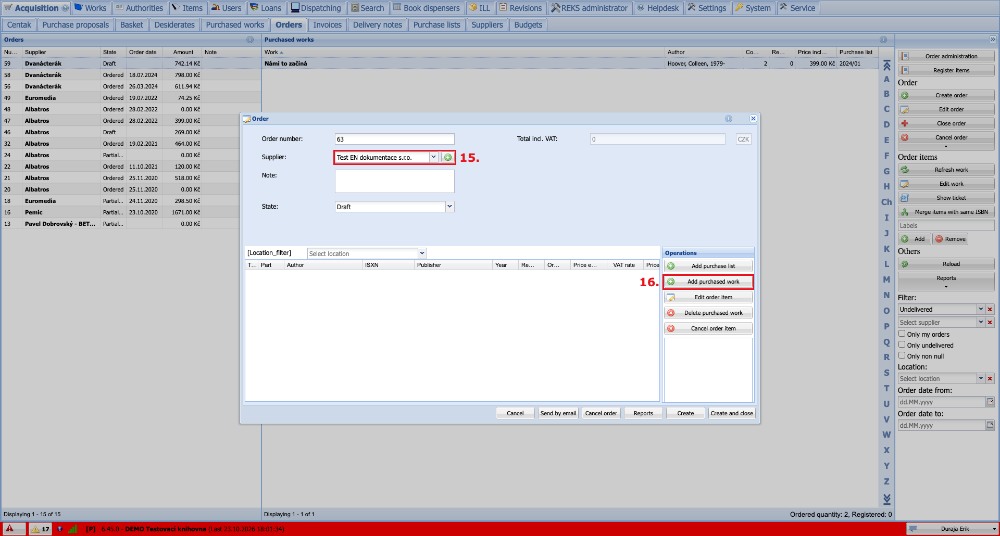
(fig. 8)
The purchased works from the selected supplier appear in the list. We can add works to the order individually or mark several of them at once. By clicking the Select button, we add the marked works to the order.
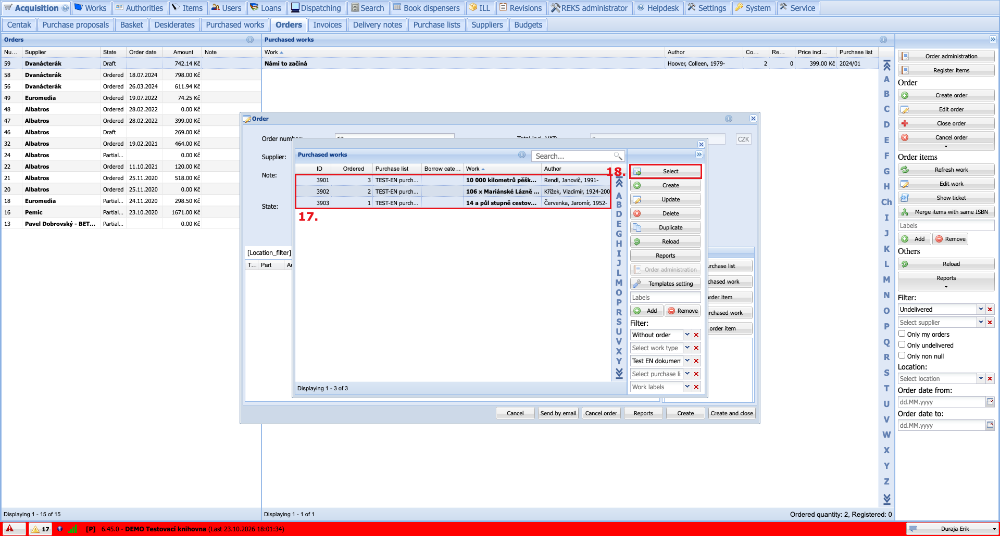
(fig. 9)
After selecting all the purchased works, we choose the State from the drop-down list. If we want to continue editing the order, we leave it in the Draft state. If the order is complete and we no longer want to edit its content, we change the state to Ordered. Then we save the order by clicking the Create button. If the order is finished, we can print it straight away in the outputs or send it to the supplier by e-mail.
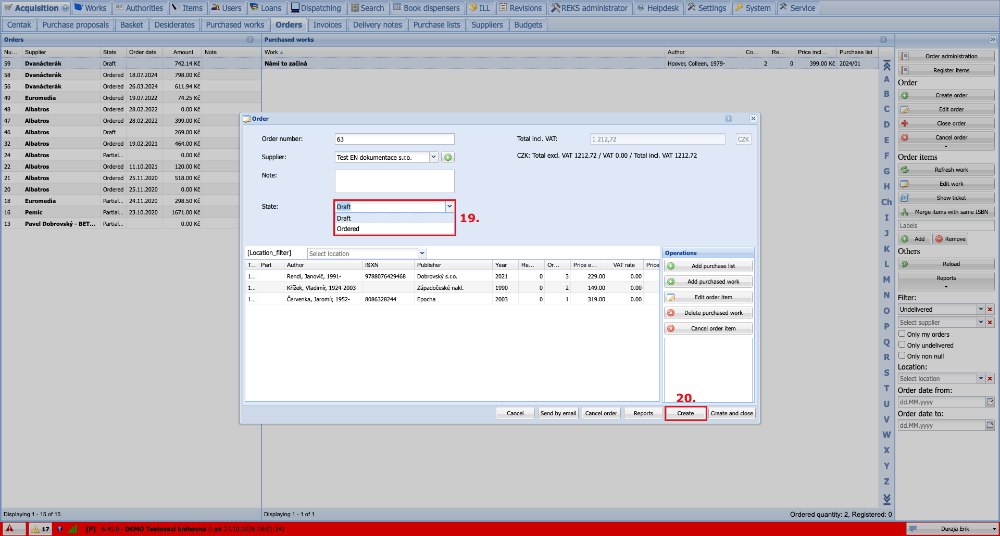
(fig. 10)
After the items have been delivered, on the Orders tab we find the relevant order, mark it and register the delivered items by clicking the Order administration button.
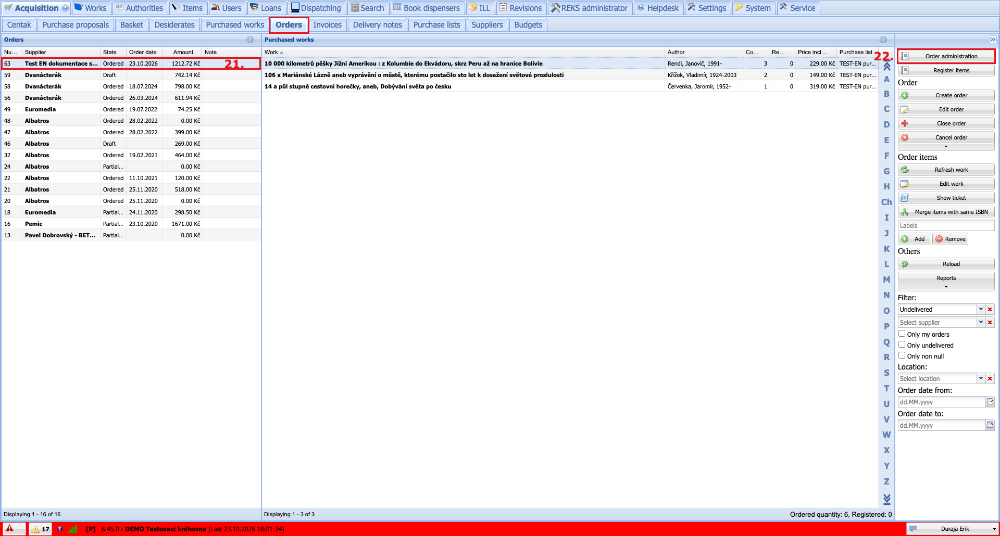
(fig. 11)
We mark the work whose items we want to register and click the Register items button. If the supplier has delivered all ordered items of all purchased works, we can use Summary records. If necessary, we can open the window for registering Invoices or Delivery notes from the order form.
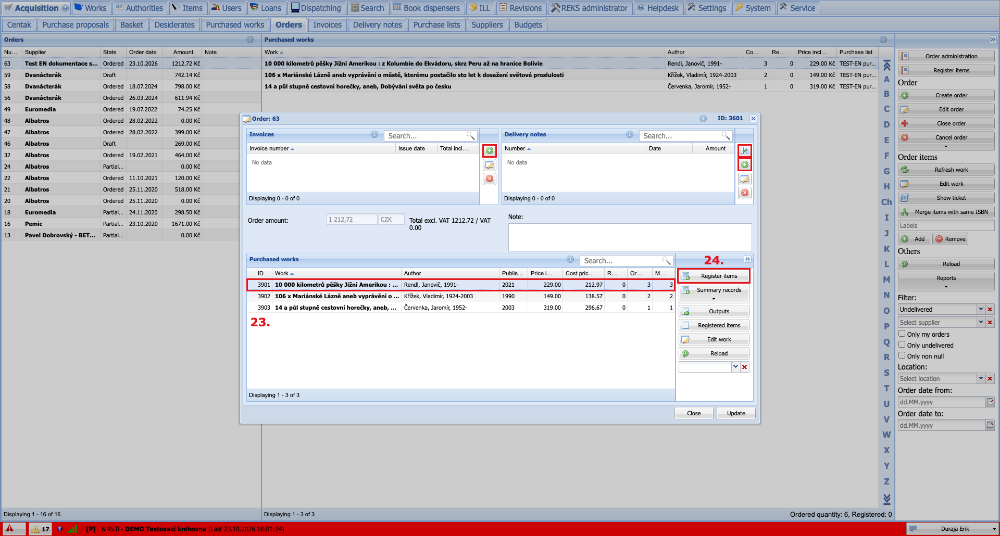
(fig. 12)
On the Register items tab, before we start registering, we adjust the number of items to be registered at the locations, in case the supplier has not delivered all the ordered items. We then carry out the registration itself by clicking the Register button.
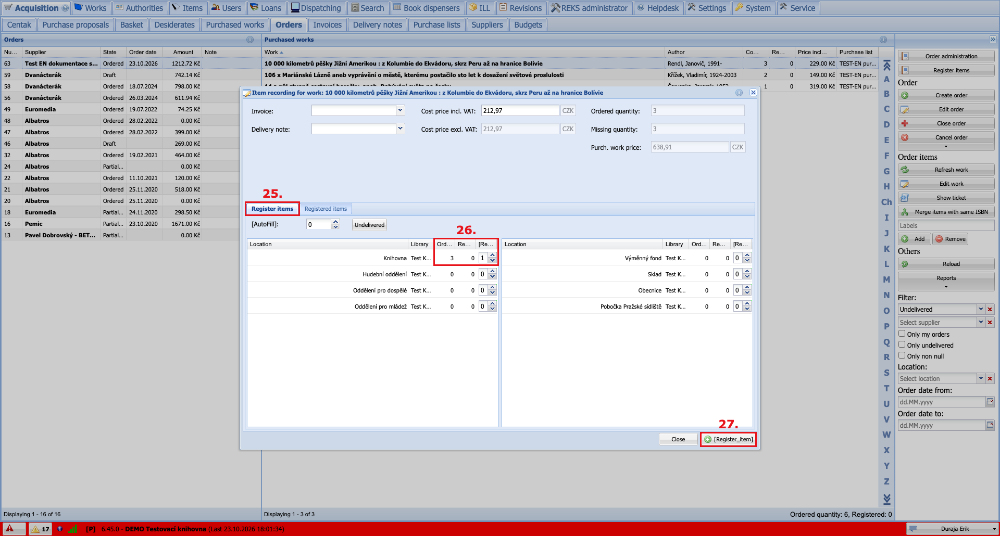
(fig. 13)
Before saving, we can still set and edit the details that will be copied to all items. We then confirm the creation of the items by clicking Save and close.
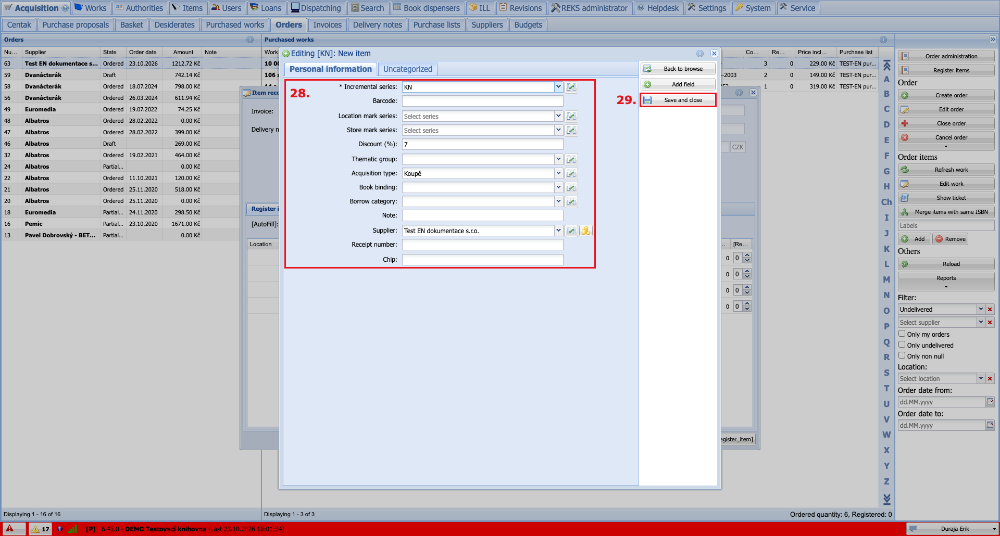
(fig. 14)
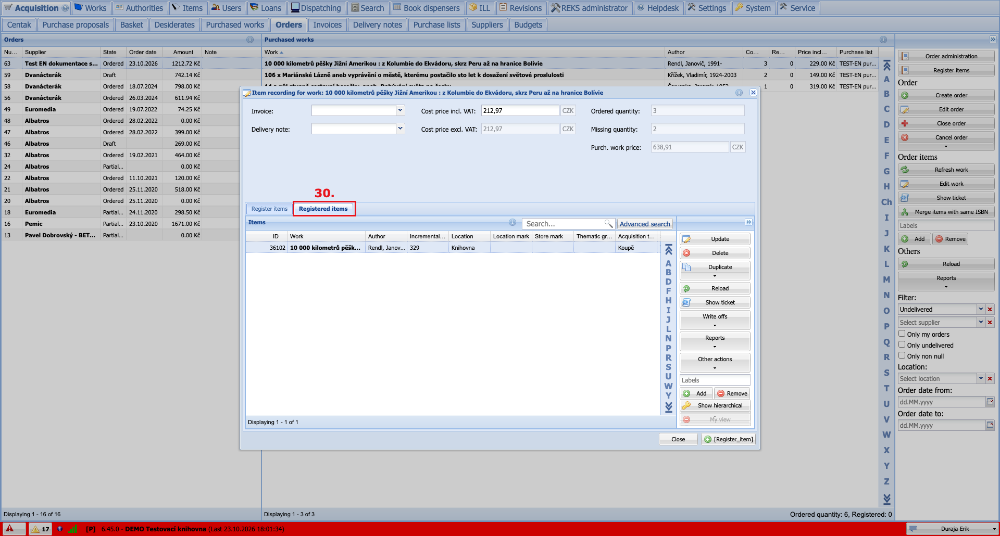
The registered items can be checked and, if necessary, edited on the Registered items tab. It is also now possible to find and edit the items directly on the Items tab in cataloguing.
(fig. 15)