

Graphic guide to bulk updating of items and works
Items
We perform the bulk update of items on the Items tab. We expand the Other actions button and select Load and update from the menu.
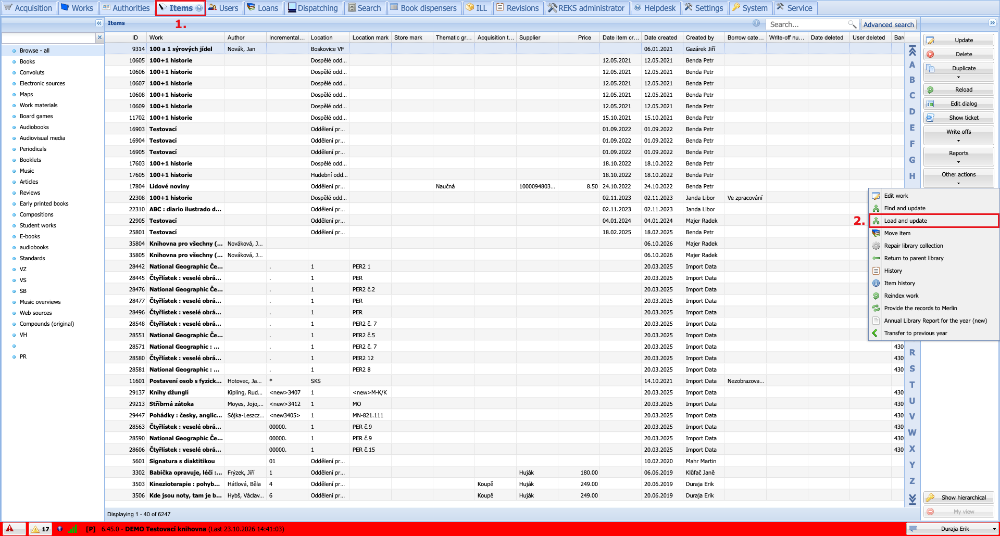
(fig. 1)
In the fields that we want to change for the items being loaded, we enter or select the new data. Then we scan the barcode or enter the incremental number in the bottom box. The entered data of the item change immediately after loading. When we have finished updating, we just close the window by clicking the Cancel button.
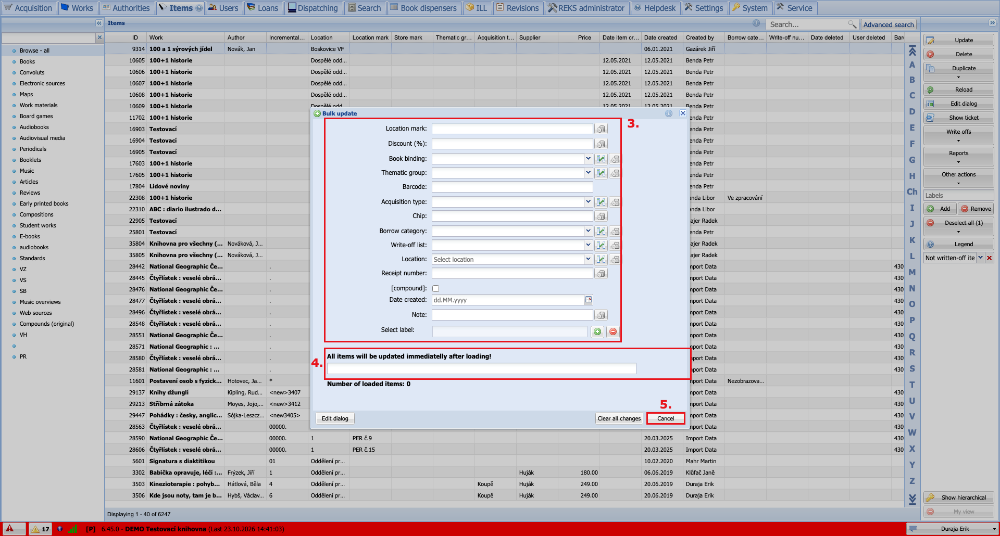
(fig. 2)
On the Items tab we can also change the data of all found items. In Advanced search, on the Combined search tab, we enter the conditions by which we want to find the items and click the Search button.
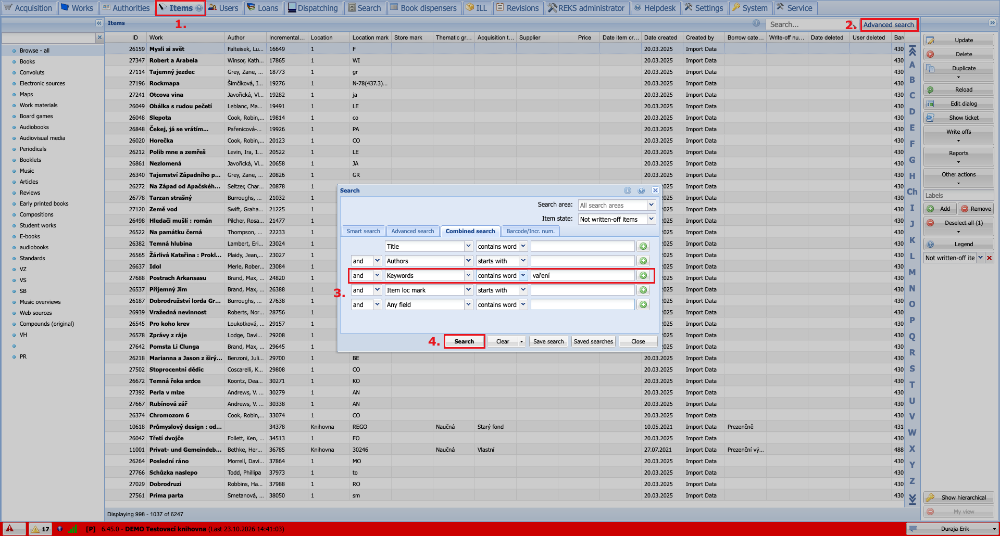
(fig. 3)
All found items are displayed in the table of items. Then we click Other actions and select Find and update from the menu.
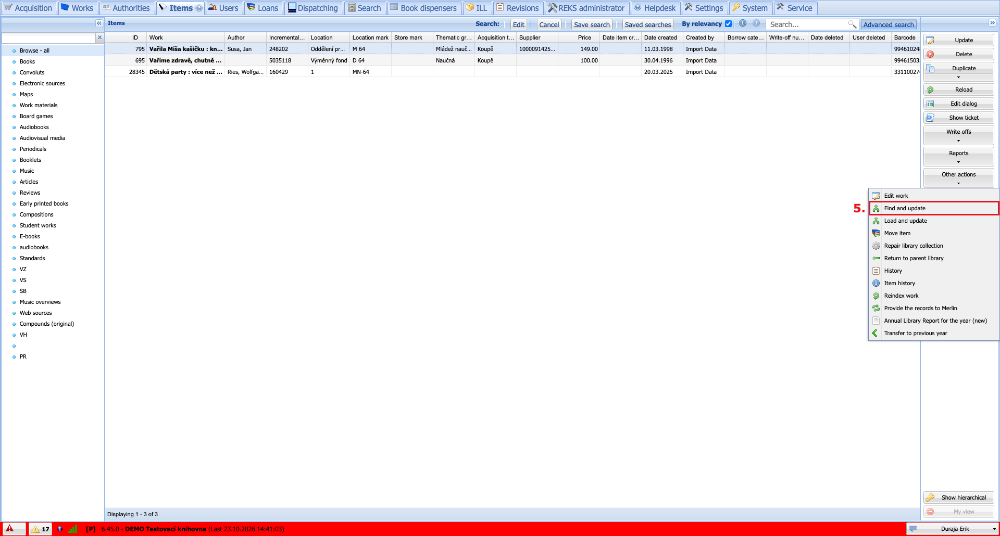
(fig. 4)
In the bulk update window we fill in the data that we want to change for the items. By clicking Update all found items we make the change for all found items.
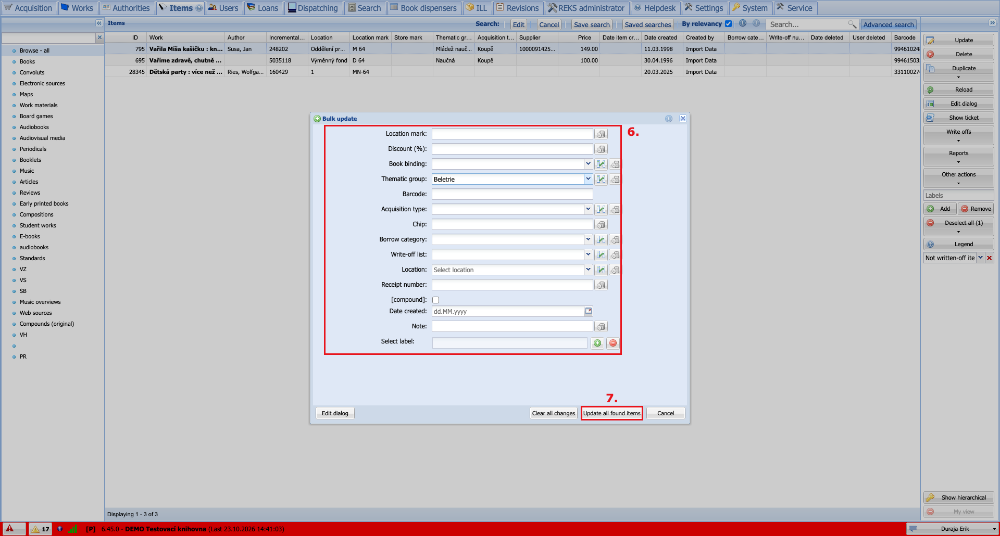
(fig. 5)
Before the change, a confirmation dialog is displayed, which we confirm by clicking the Yes button.
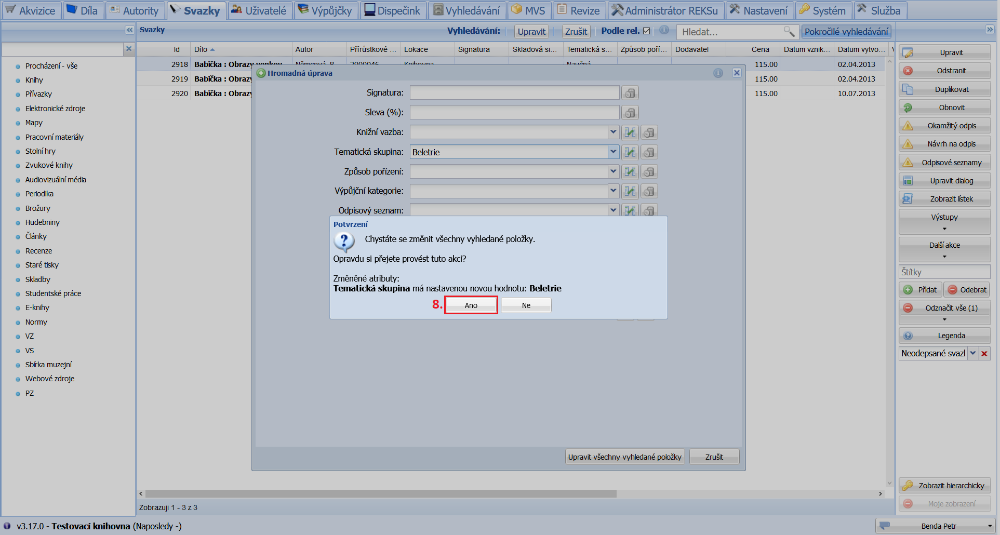
(fig. 6)
Works
On the Works tab, we can use the bulk update to change titles. First, in Advanced search and the Combined search tab, we enter the condition for the works we want to find and click the Search button.
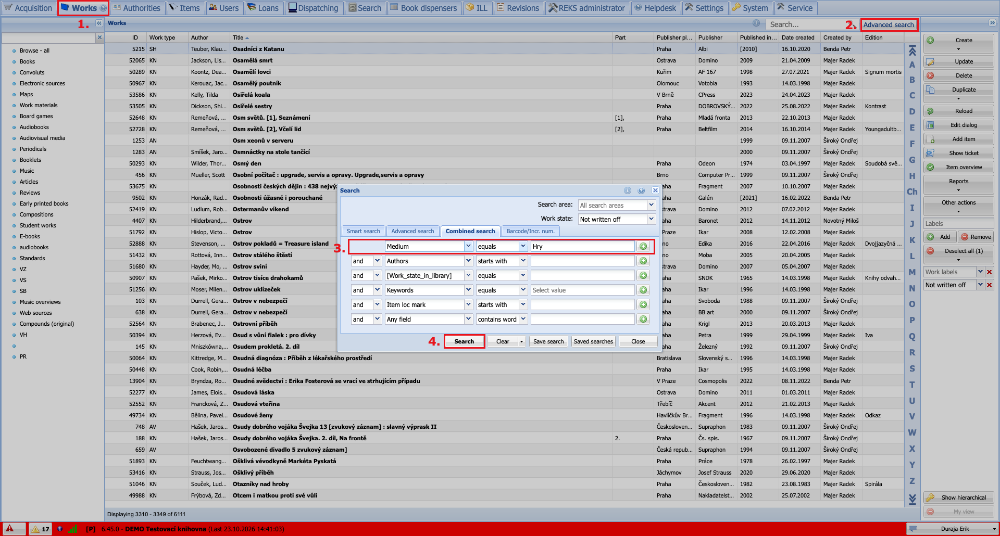
(fig. 7)
Then in Other actions we select the Find and update function.
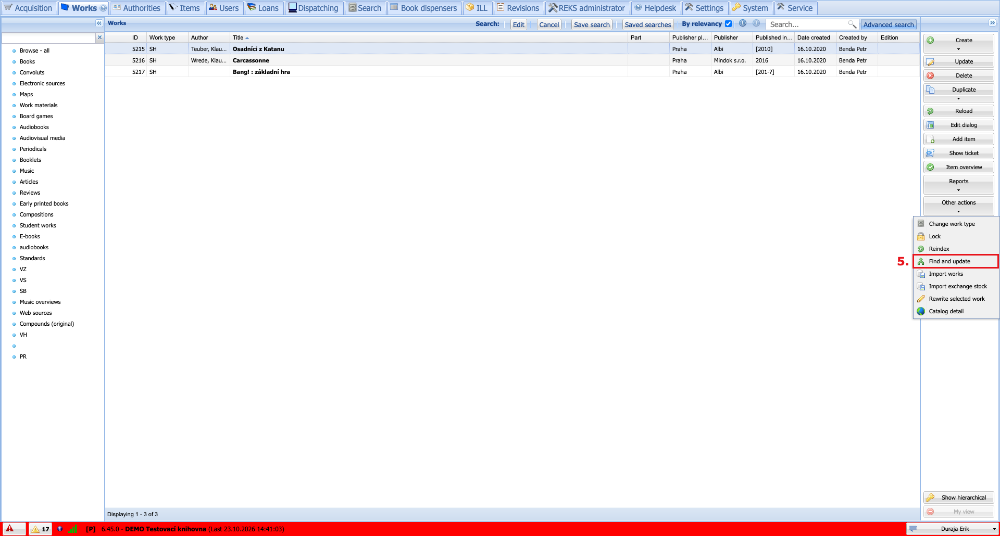
(fig. 8)
We fill in the data that we want to change for the works and click Update all found items.
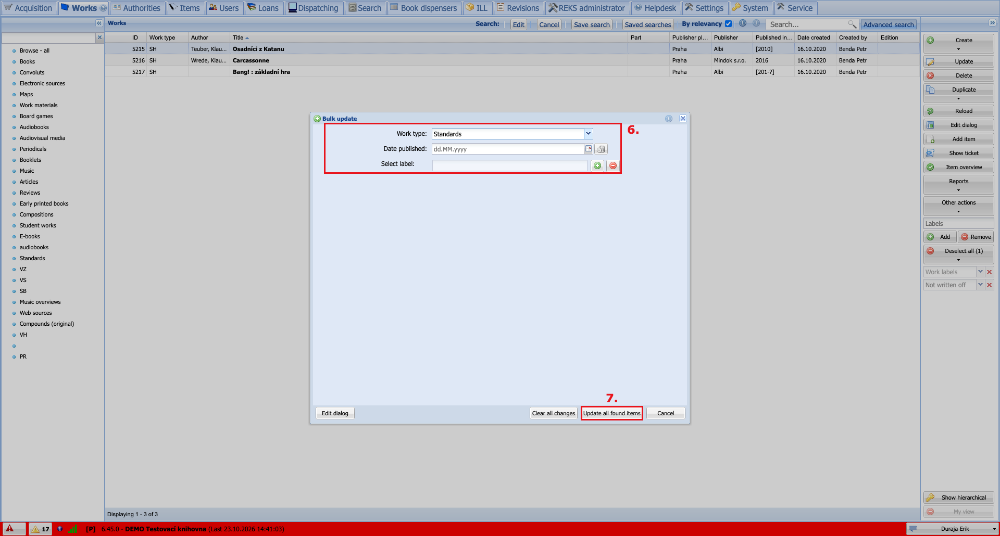
(fig. 9)
As the last step, we confirm the change by pressing the Yes button.
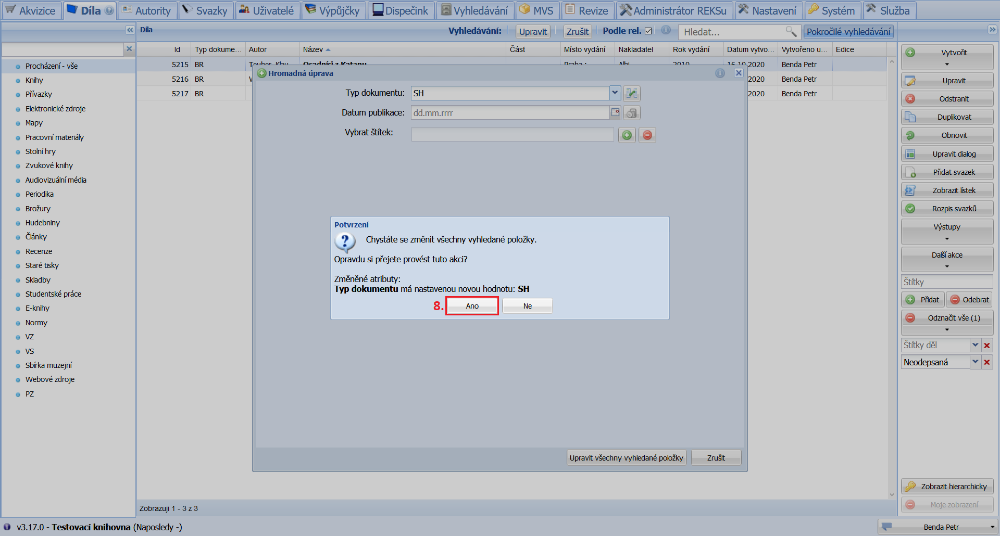
(fig. 10)