

Graphic guide to installing TritiusDesktop
Last modified by Erik Duraja on 2026/10/23 11:57
Read more about the applications included in the Tritius Desktop package.
Download and unpack the ZIP from Tritius
Loans → Actions → Other → Download TritiusDesktop
Right-click the downloaded TritiusDesktop.zip file and extract it.
In the extracted folder, run TritiusAppsSetup.exe. If this warning pops up, click Run anyway:
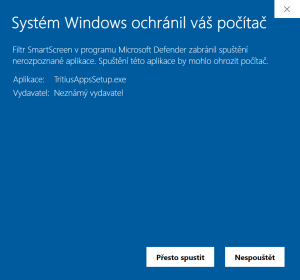
| If a problem occurs during installation, try turning off your antivirus program or adding the application to its exceptions. |
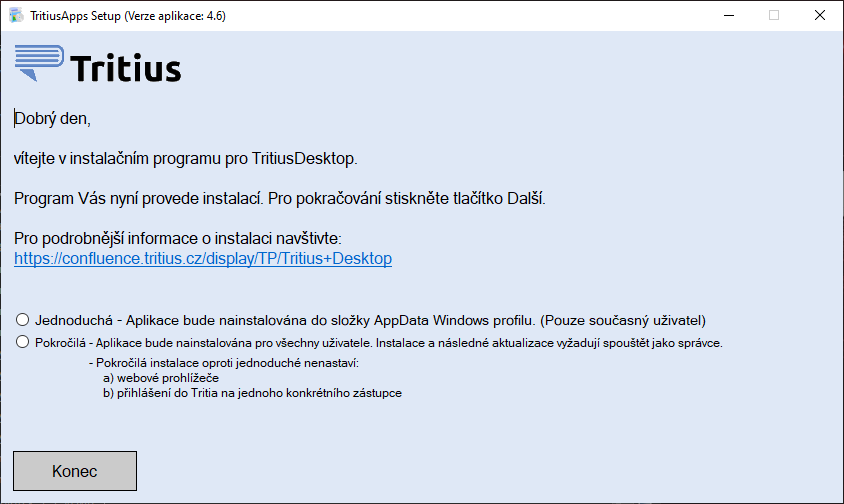
Select the simple installation
- use the advanced installation only after prior consultation (more information at Downloading, installing, updating and uninstalling (Tritius Desktop))
- the simple installation must be carried out for every Windows account
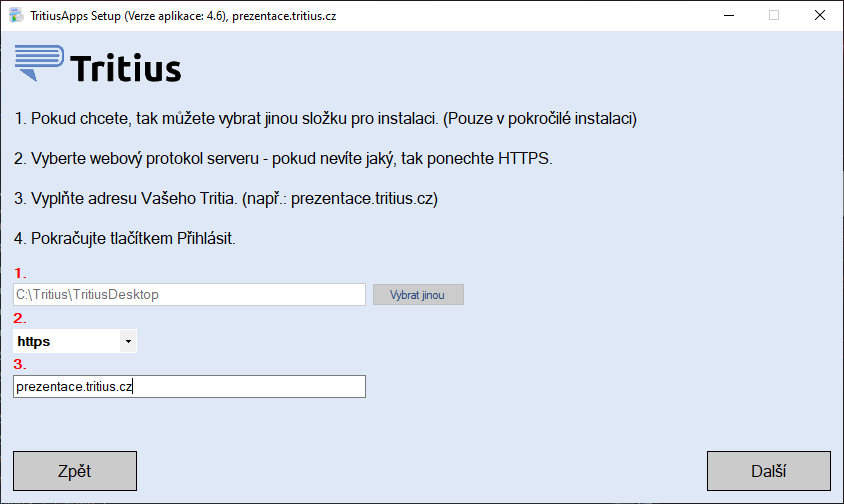
Fill in the server of your Tritius
- if you downloaded TritiusDesktop from your Tritius, it will already be pre-filled
- if you do not have Tritius, use the offline installation: Graphic guide to installing TritiusDesktop without Tritius
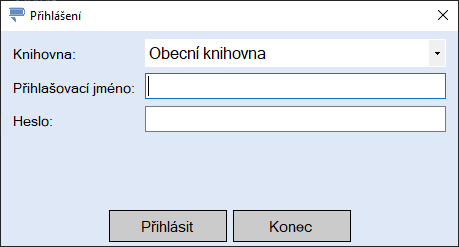
Log in to your library with the same account as in Tritius
- the user name must be the same as the one given in Tritius - NOTE that it is case-sensitive
Select the device that you see in your Tritius
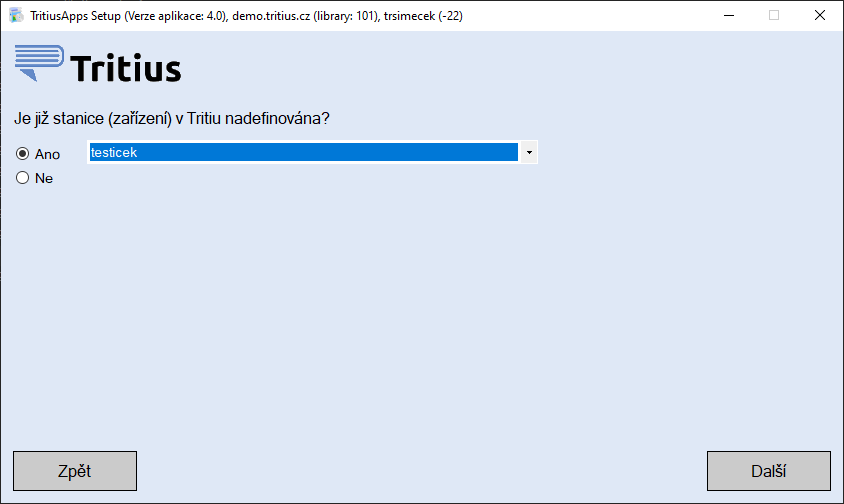
- the device name can be found in Tritius at the bottom left, next to the library name

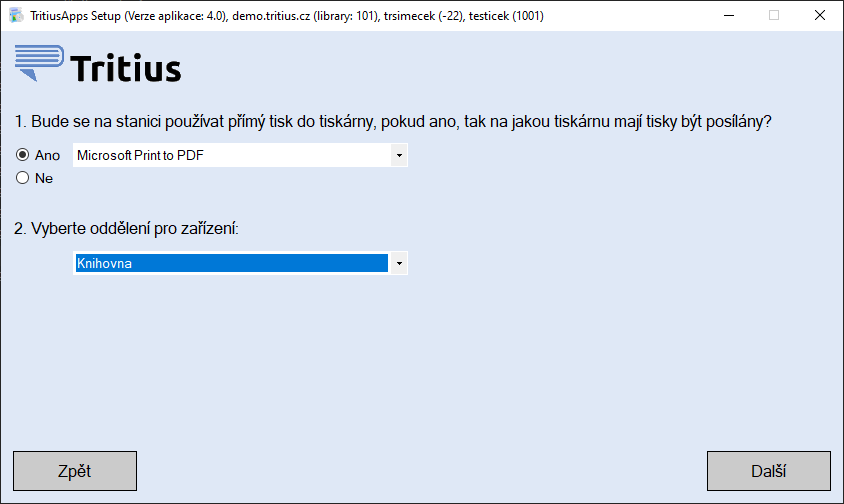
Select the printer to be used for direct printing (e.g. the list of loans when a reader leaves)
- it is usually a receipt thermal printer
- you also need to select the department, which is selected automatically on the Loans tab
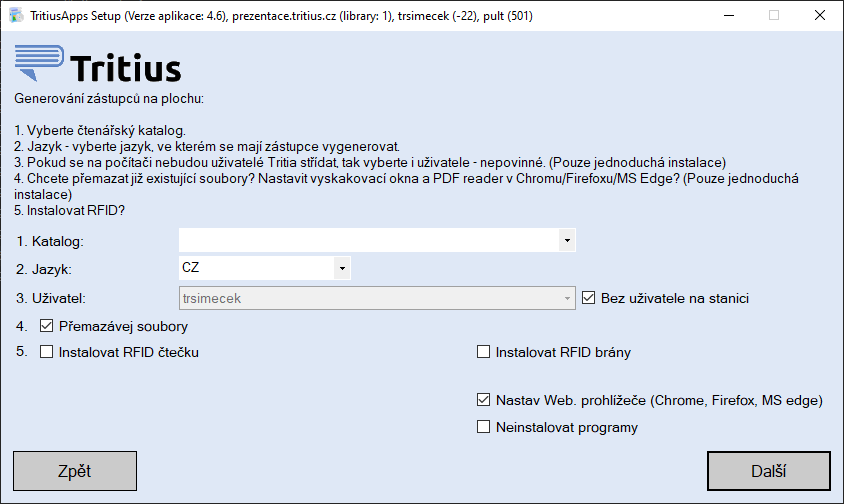
Finish the installation
- items 1. - 3. define which shortcuts you want to add to your computer desktop
- item 4. overwrites the previous TritiusDesktop installation (if there was one)
- item 5. installs the programs for working with the RFID technologies supplied by our company
- The Set up web browsers option tries to set the web browsers to the settings recommended for using Tritius (the browsers must be closed during the setup; if they are not, the installer will ask you to close them in the next step)
- if in the previous steps you chose not to use direct printing, the option Do not install programs appears at the bottom right, which only generates a shortcut on the desktop (printing, RFID and the Offline loan desk are not installed) - this option is used if the customer does not have a licence for the Loans module
- if you selected a printer, after the installation you should see a new printing program running in the taskbar:

- if you selected the RFID installation, after the installation you should see a new program for the RFID reader running in the taskbar:

- if you selected the RFID gate installation, after the installation you should see a new program for the RFID gates running in the taskbar:

- you will also find shortcuts to launch them on the desktop or in the Start menu
Possible problems
The installation may be blocked by an antivirus program, an example of an error message caused by AVG:
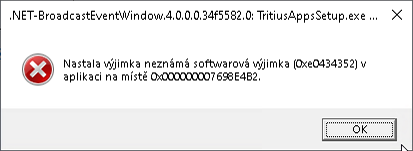
Solution: Turn off the antivirus program before the installation or add the application to its exceptions.