

Graphic guide to resetting a reader's password
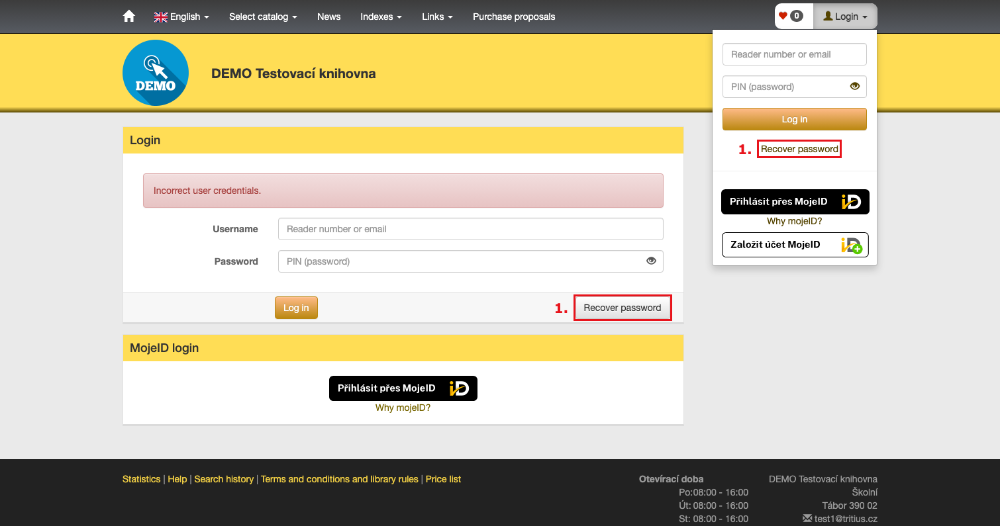
If the reader has an e-mail address filled in on their account, they can reset the password themselves directly in the online catalogue. In the first step, click the Recover password option.
(fig. 1)
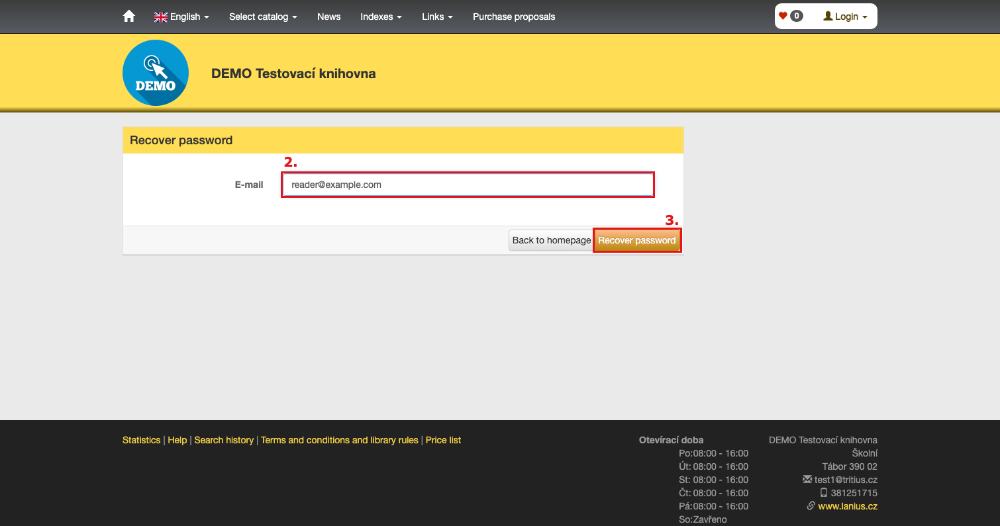
The reader then fills in the e-mail entered on their account and clicks the Recover password button.
(fig. 2)
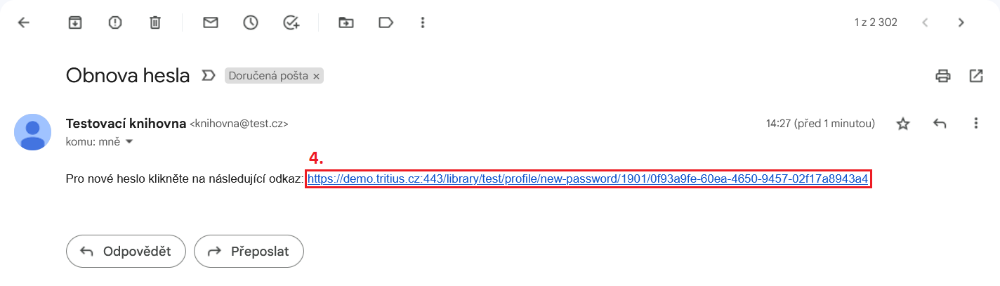
The reader then receives a message at that address containing a link for password recovery, which they simply click.
(fig. 3)
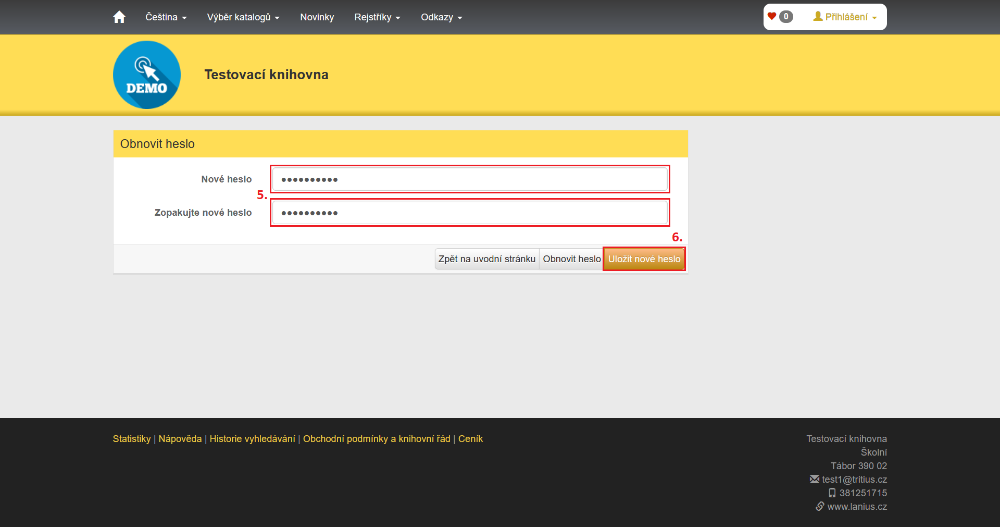
In the last step, the reader enters their new password, which they will use to log in from now on, twice and confirms the change by clicking Save new password.
(fig. 4)
The password can also be changed for the reader by the staff at the lending desk. We simply open the reader for editing and fill in the New password fields twice. We can enter the standard default password in the format YYMMDD. Finally, we click the Save and close button, which sets the new password.
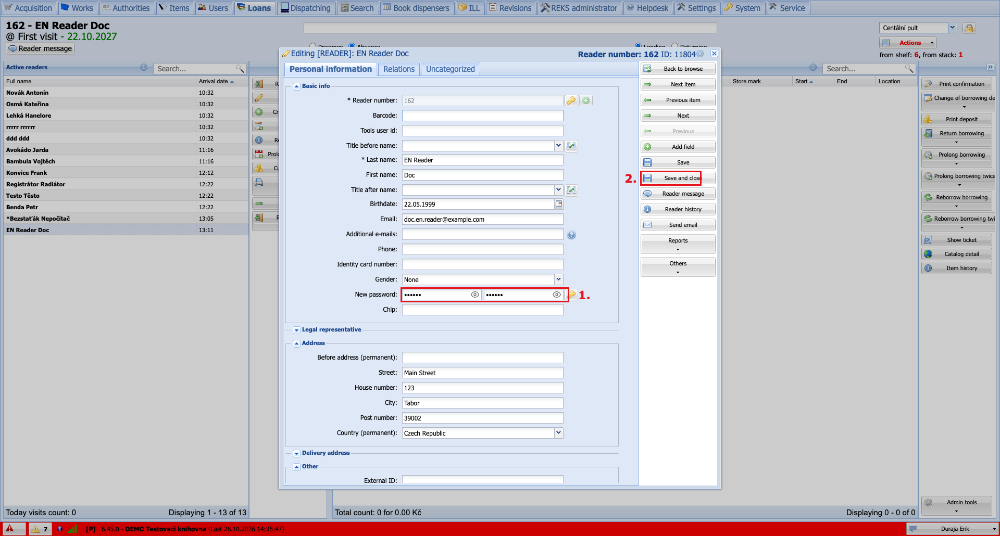
(fig. 5)