

Graphic guide to writing off items
We write off items on the Items tab. First we need to create a write-off list onto which we will scan the items proposed for write-off. We click the Write-off lists button and press Create there.
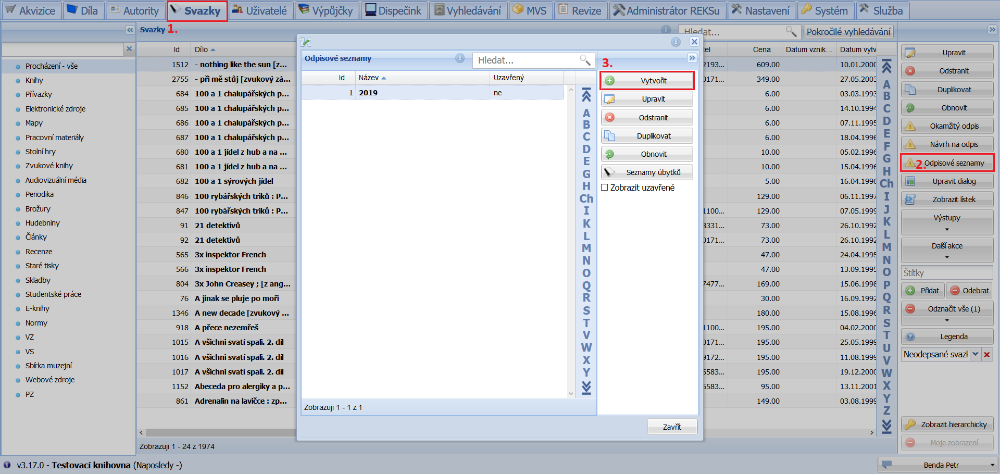
(fig. 1)
We enter the name of the new list and save it.
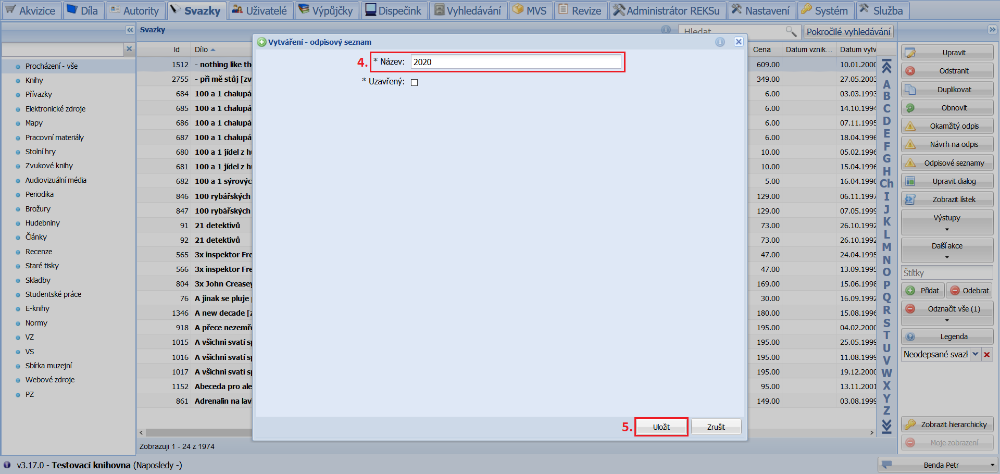
(fig. 2)
We select the list onto which we will scan the items and open it by clicking Withdrawal lists.
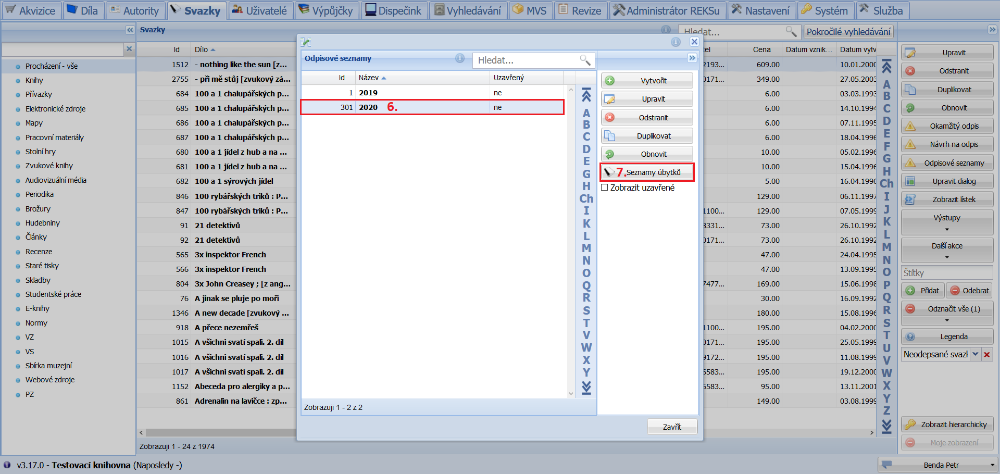
(fig. 3)
In the Add item field we scan the barcode with a scanner, or type in the incremental number, and confirm the insertion by clicking Add or pressing the Enter key.
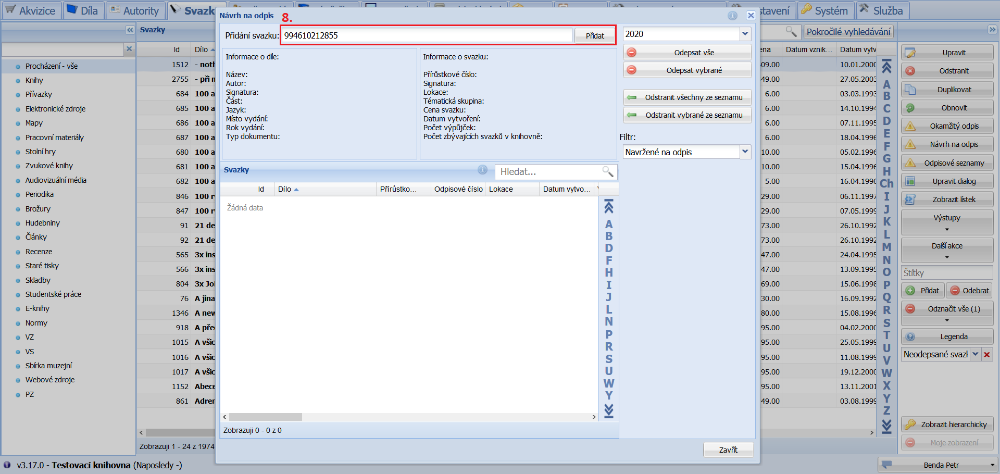
(fig. 4)
The items are gradually loaded into the table below, which builds up the list of items proposed for write-off. If we want to remove an item from the list of proposals, we can do so by selecting that item and clicking Remove selected from the list. We carry out the final write-off of the proposed items by clicking the Write-off all button.
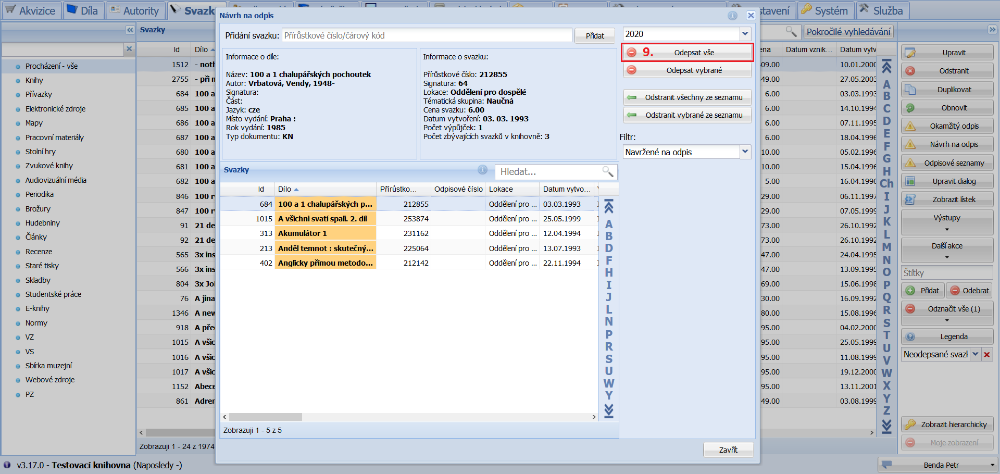
(fig. 5)
Before writing off, we check that the correct write-off series is selected and select the write-off reason. If we wish, we can also enter a note. By clicking Write off we definitively write the items off from our collection.
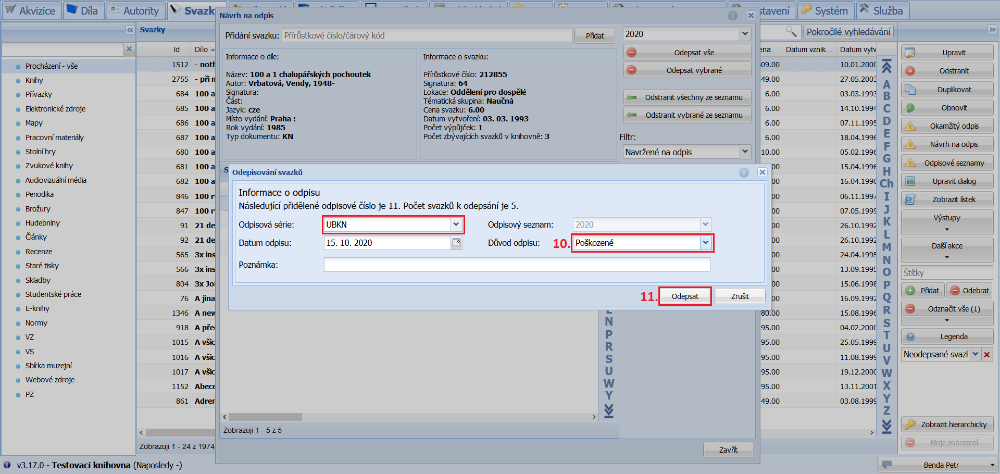
(fig. 6)
As the last step we confirm the write-off in the confirmation dialogue by clicking Yes. The write-off of all the items on the list is then carried out.
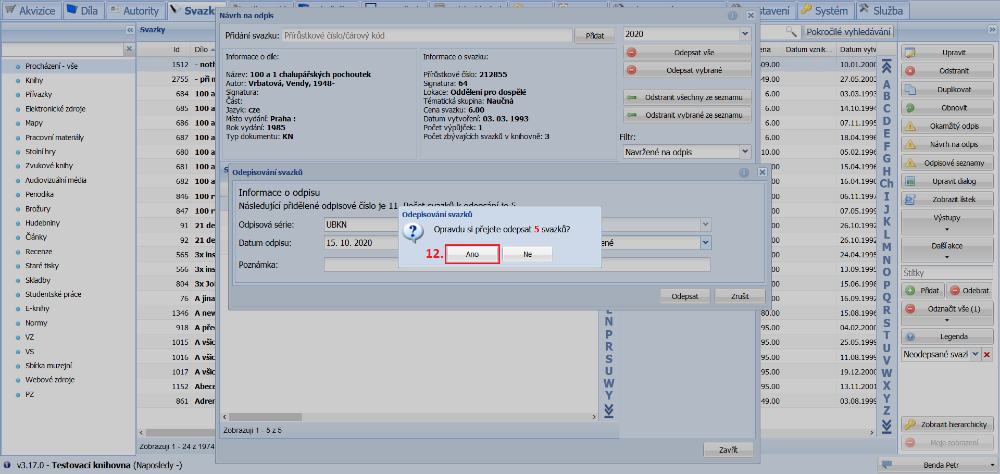
(fig. 7)
Once we have written the items off, we print the write-off list. We close both windows with the withdrawal lists and go to Advanced search. We change the state of the item to Written-off items. On the Combined search tab we enter the conditions by which we want to search for the written-off items. Most often this will be the write-off date or the write-off number. Then we click the Search button.
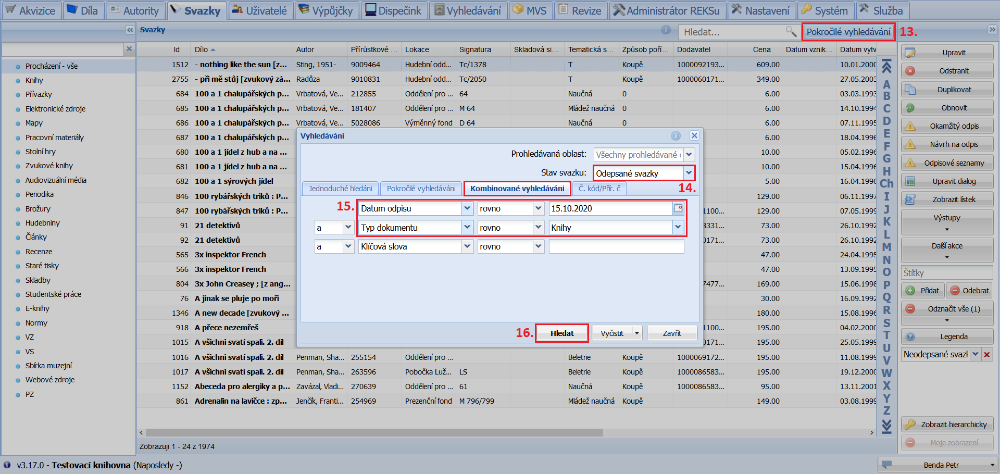
(fig. 8)
After the search, the table of items shows the items that meet the entered condition. Now we expand the Reports button and click Item basic output.
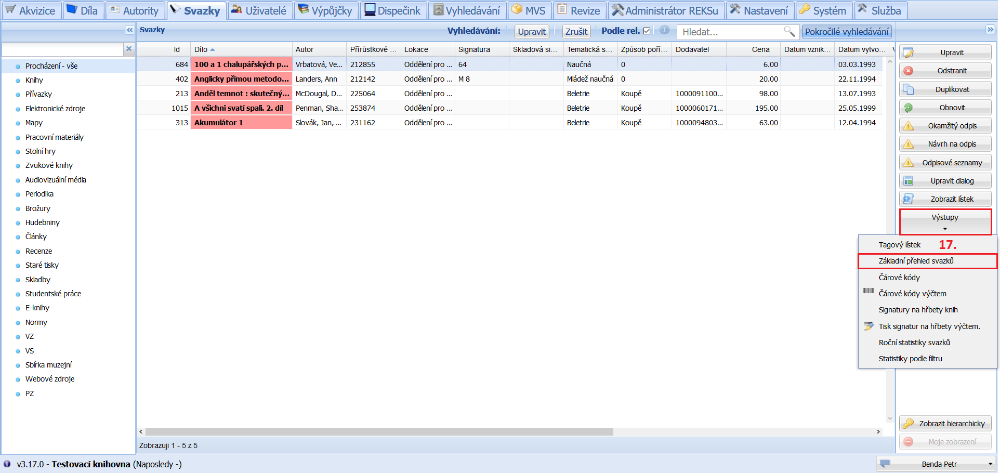
(fig. 9)
In the overview of reports we select the write-off list and choose PDF as the file format. We open the generated output and print it.
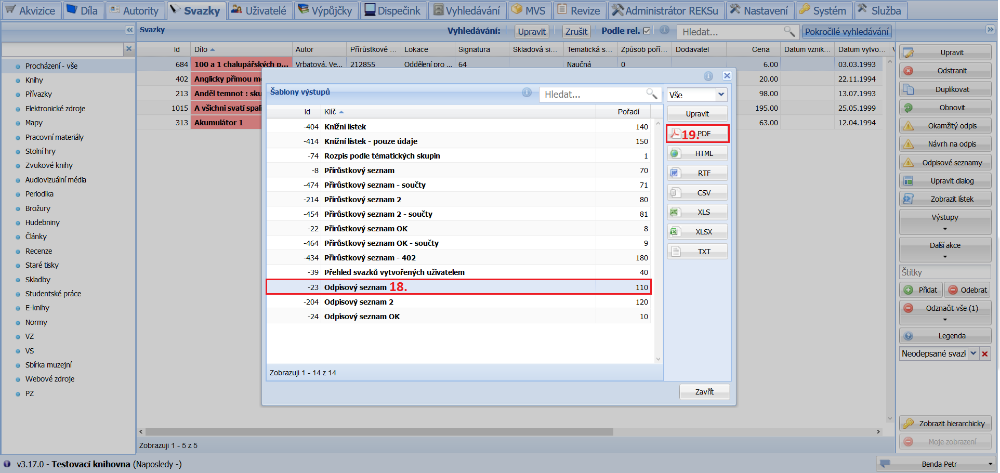
(fig. 10)
We can also propose an item for write-off straight from the overview of items. Simply select the item or items and click Proposal to write-off in the right-hand menu. In the dialogue we then select the write-off list and confirm the proposal by pressing OK.
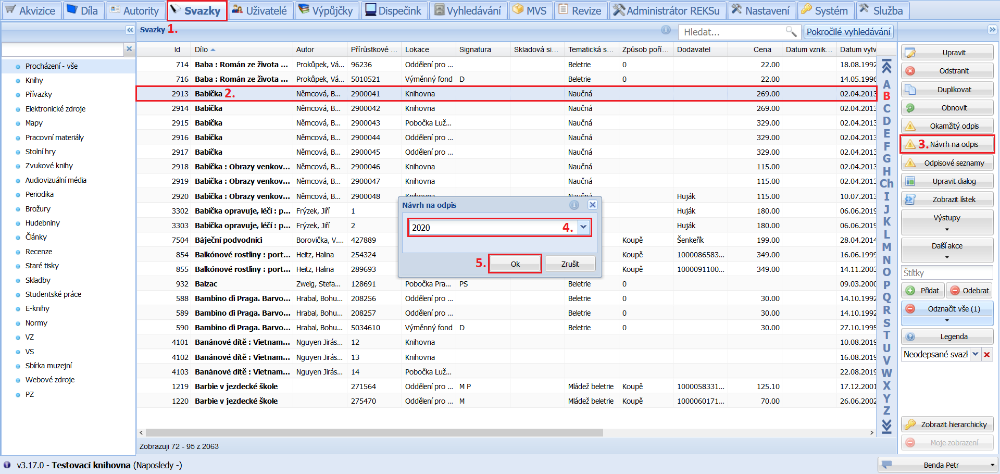
(fig. 11)
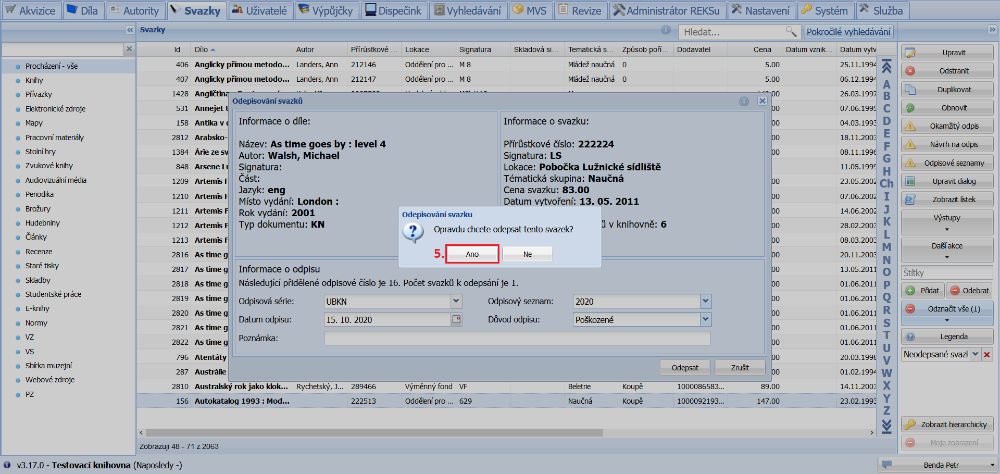
An item can also be written off immediately. From the overview we select just one item and click the Immediate write-off button. In the write-off dialogue window we check the write-off series and select the write-off list and the write-off reason. By clicking Write off we definitively write the selected item off from the library's collection.
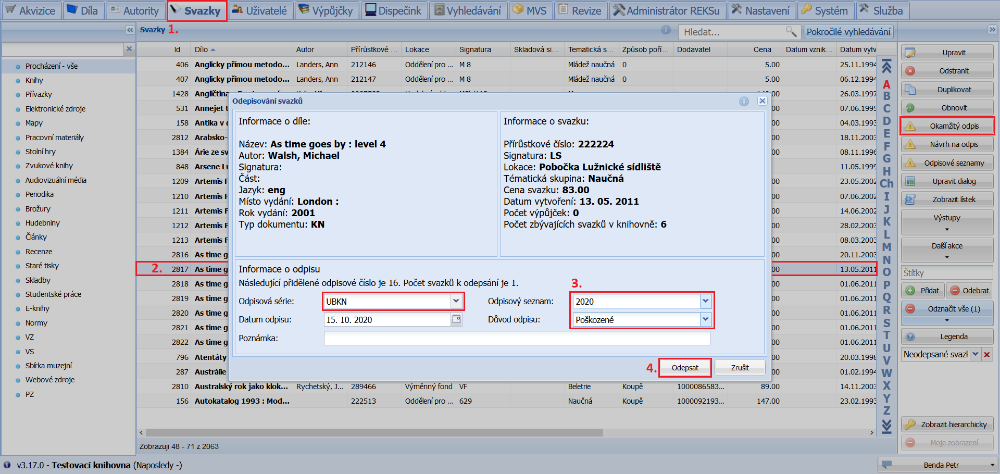
(fig. 12)
We complete the write-off by clicking the Yes button.
(fig. 13)