

Graphic guide to revision
Before a revision is started, it must first be set up. We can set up the revision ourselves according to the Graphic guide to creating a revision or ask for it to be created through the support portal. The revision itself is then carried out on the Revision tab. We select the given revision in the dropdown and start it by clicking the Start revision button. After the revision has been started, we no longer recommend editing its settings.
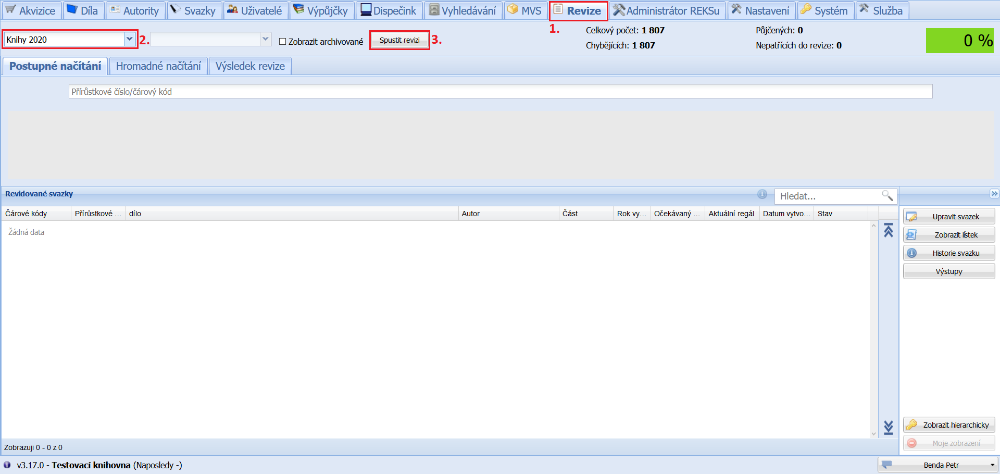
(fig. 1)
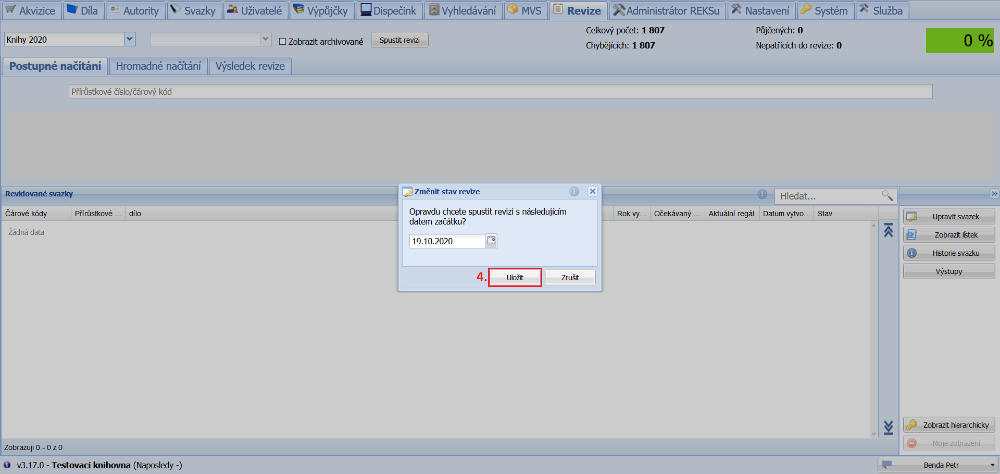
Before the revision is started, a confirmation dialog appears in which today is selected as the start date of the revision. By clicking Save we confirm the start with this date.
(fig. 2)
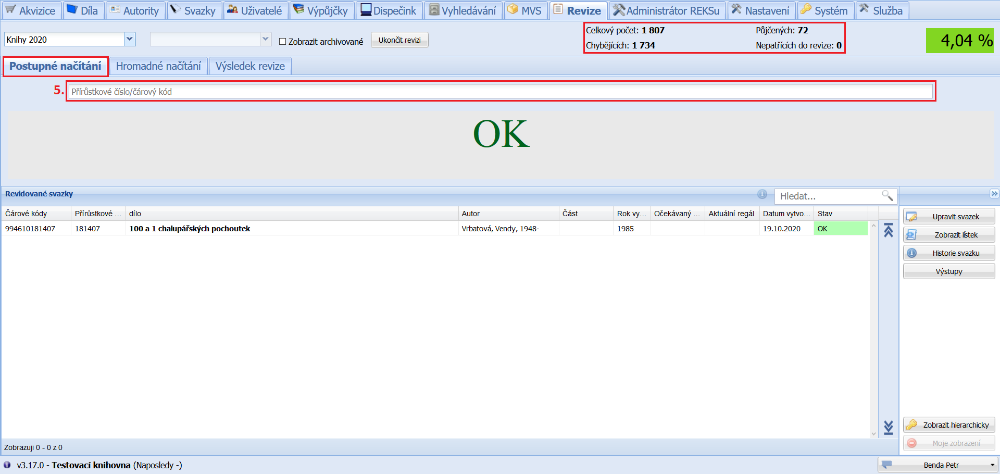
At this point the revision is recalculated and the items currently on loan are revised automatically. In the top right corner we then see summary information about the revision. Now all we need to do is, on the Sequential processing tab, place the cursor in the barcode scanning field and start scanning the individual items with the scanner. The result of processing an item is always shown in the middle of the screen after scanning. The revised item is also displayed in the Revised items table.
(fig. 3)
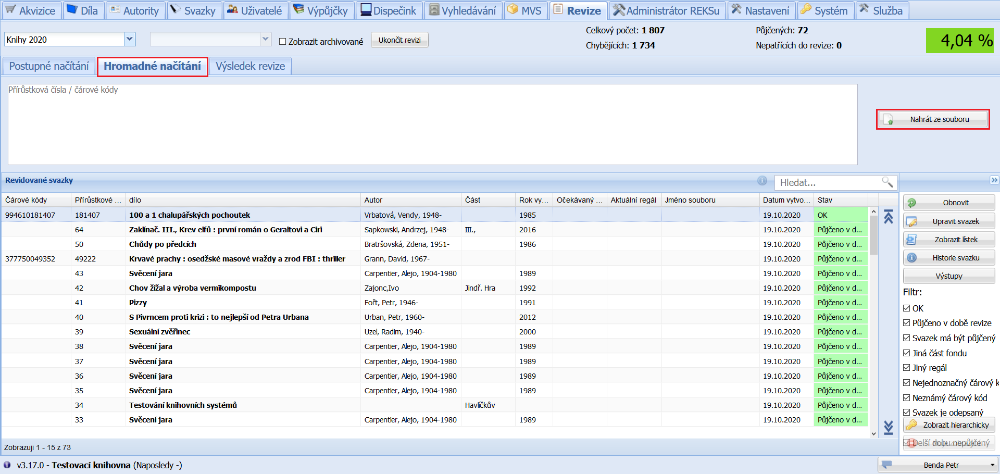
We use the Bulk processing tab if we do not want to scan items one by one, but already have them ready in a file. It is enough to upload such a file and all the barcodes contained in it are loaded into the revision. For the codes from the file to be read correctly, each code must be on a separate line or the codes must be separated by a semicolon. On this tab the Revised items table also shows all items already revised and their states, by which the items can be filtered.
(fig. 4)
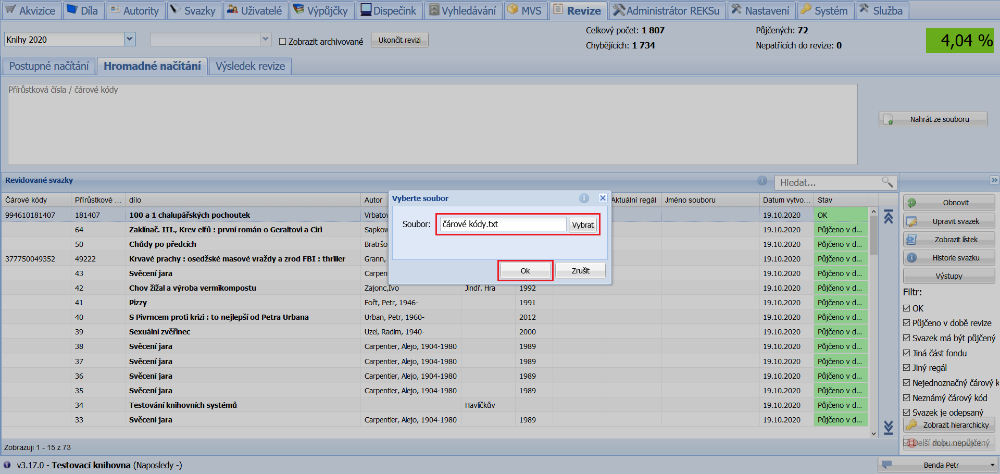
(fig. 5)
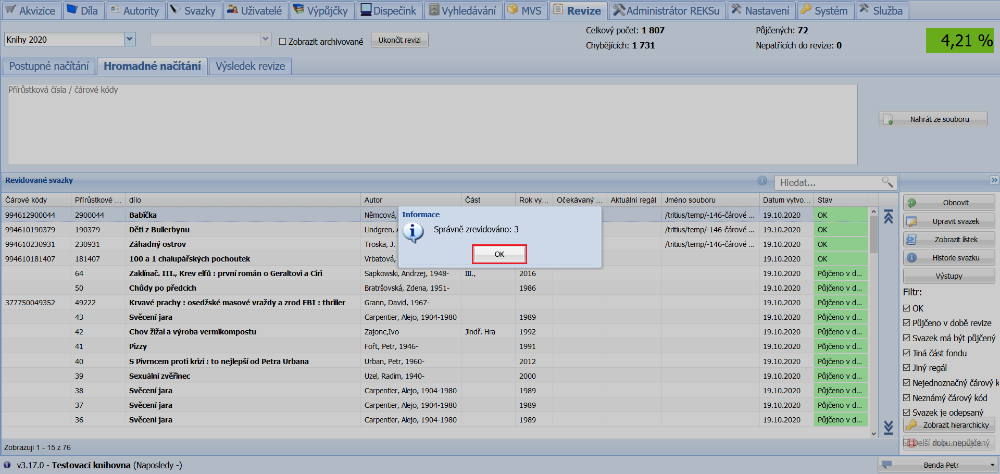
(fig. 6)
On the Revision result tab we see all the missing items in the Items table. Here we can also continue working with the items - mark them manually as revised, bulk update them, propose them for write-off, write them off and print outputs. After we have gone through all the shelves, scanned them into the revision and do not see any obviously omitted parts of the library among the losses, we can end the revision and track down the losses in the following period. After the end, it is no longer possible to scan items into the revision with the scanner, and if we physically find an item, we mark it as revised with the button.
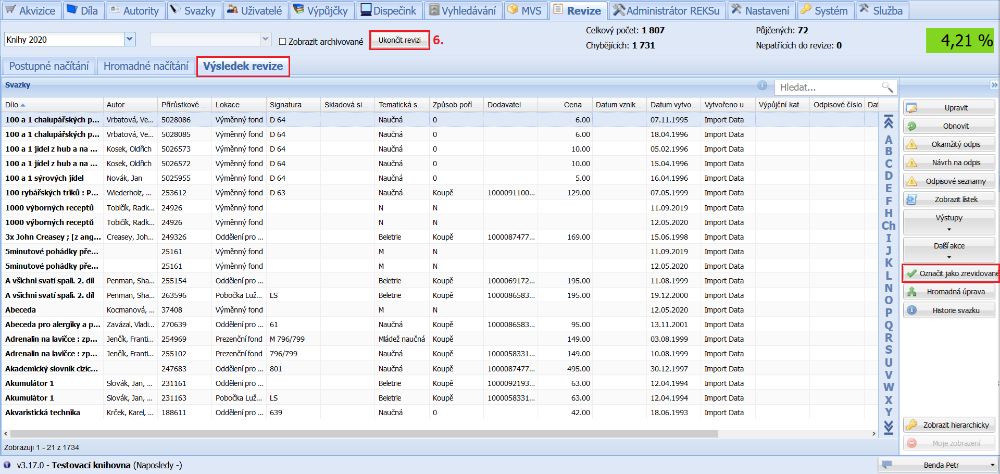
(fig. 7)
We confirm ending the revision and setting the end date by pressing Save.
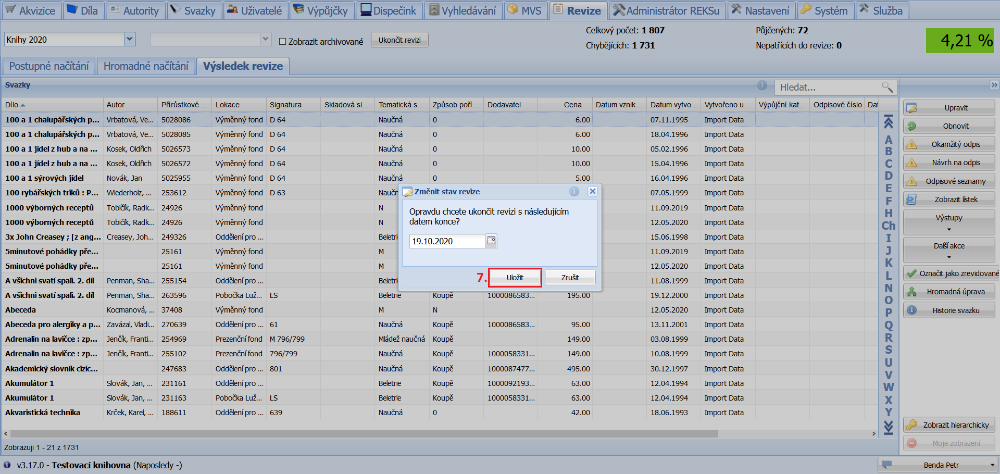
(fig. 8)
When we are finished with both the revision and tracking down the losses, we expand the Reports button and select Revision result.
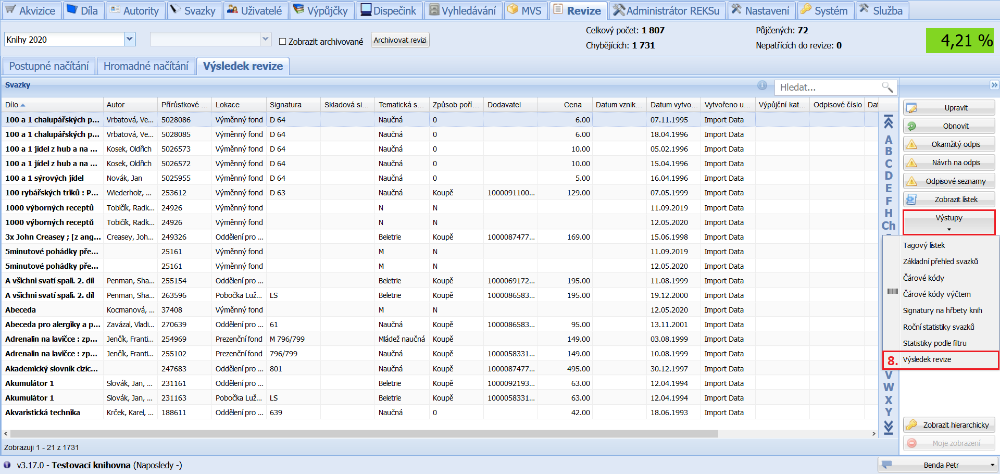
(fig. 9)
We select the print output and choose PDF as the file format. We open the generated file and print it. Then we fill in the details on the title page of the document.
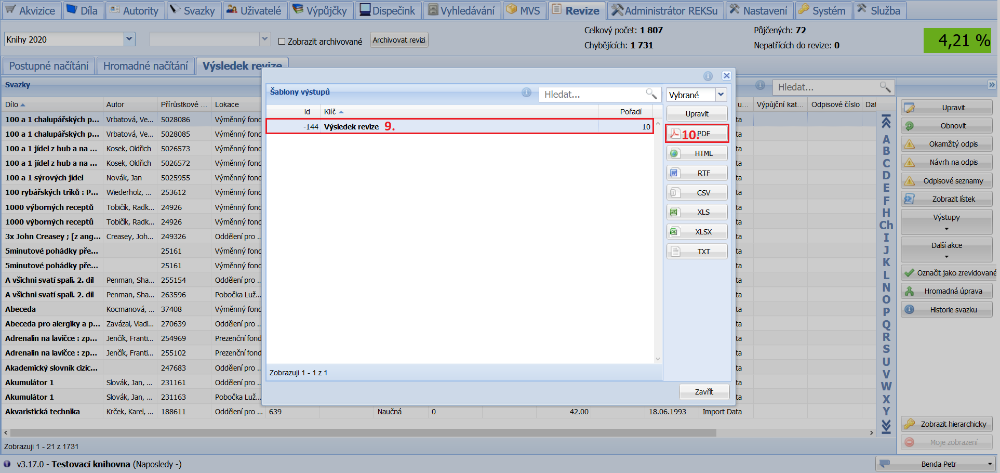
(fig. 10)
The last step left is to write off the missing items. We click the Bulk update button and fill in the write-off list field in the dialog window. By clicking Update all found items we assign the write-off list to all the missing items in the table and thereby propose them for write-off.
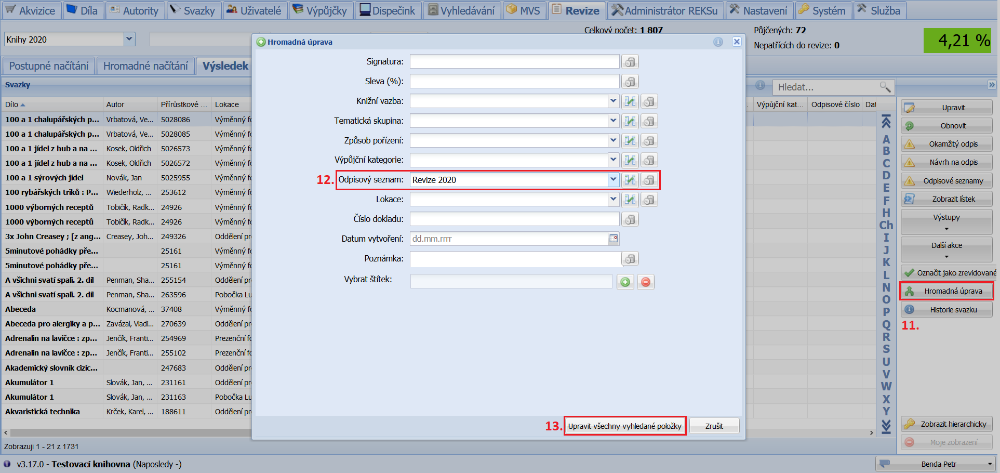
(fig. 11)
We confirm the proposal for write-off by pressing the Yes button.
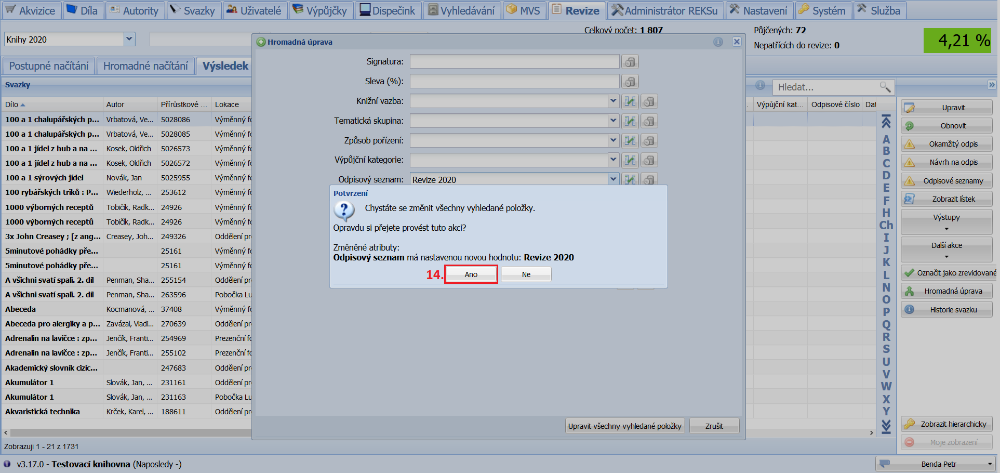
(fig. 12)
Next we open the Write-off lists, display the Withdrawal lists for our list and click the Write-off all button. We select the write-off series and the write-off reason. Then we write off the items by clicking Write off and confirm the final write-off by clicking Yes.
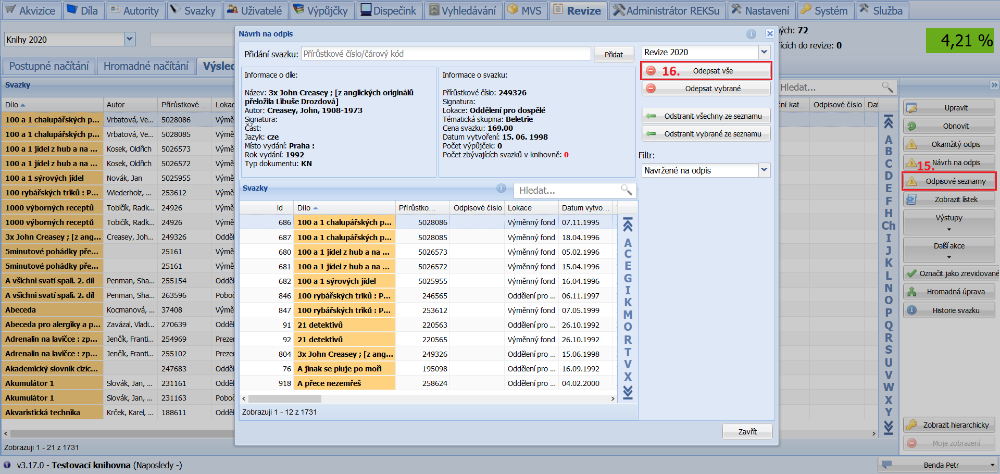
(fig. 13)
All written-off items will have a red background and an assigned write-off number and write-off date. If we wish, we can now archive the revision, which hides it from the overview.
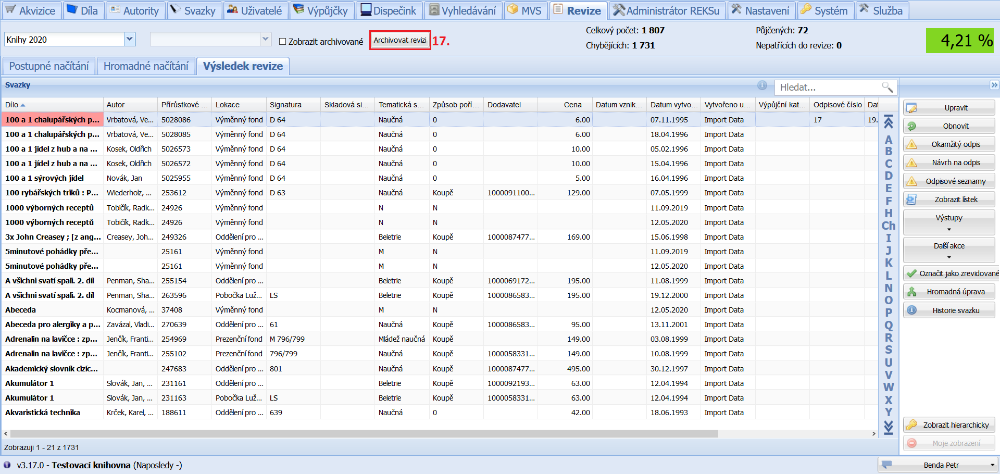
(fig. 14)
We confirm archiving the revision by pressing the Save button.
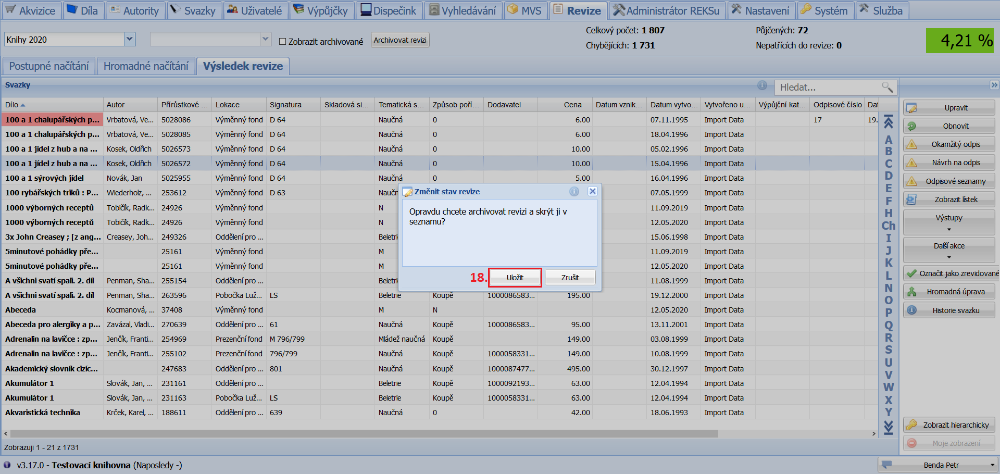
(fig. 15)