

Graphic guide to printing a literature search
To create a literature search, we first need to create a new label for it. On the Search tab we click the Labels field.
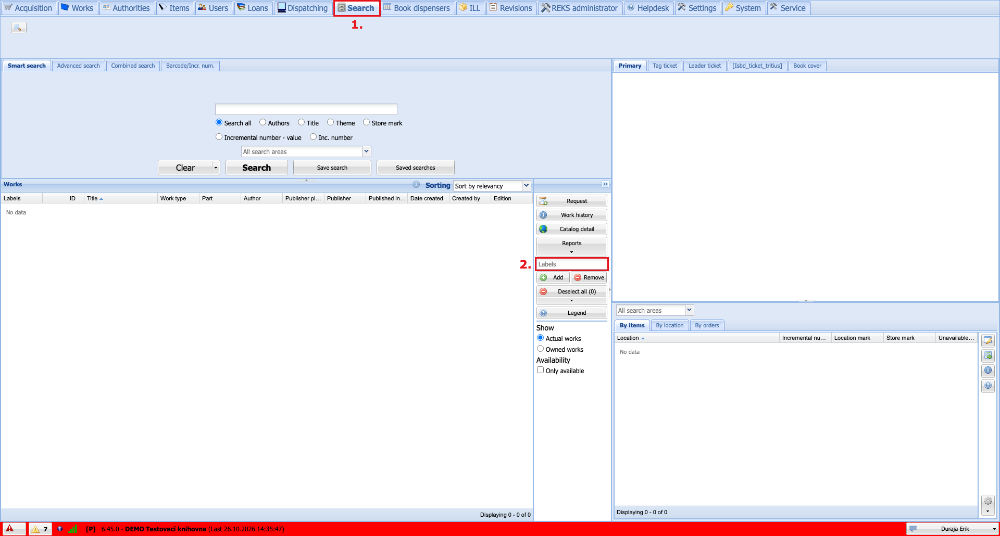
(fig. 1)
In the window with the overview of labels we click the Create button. This opens the dialog for creating a label. In the Key field we enter a unique name of the label. We can enter any order and description. We select Common as the label type. Then we click Save.
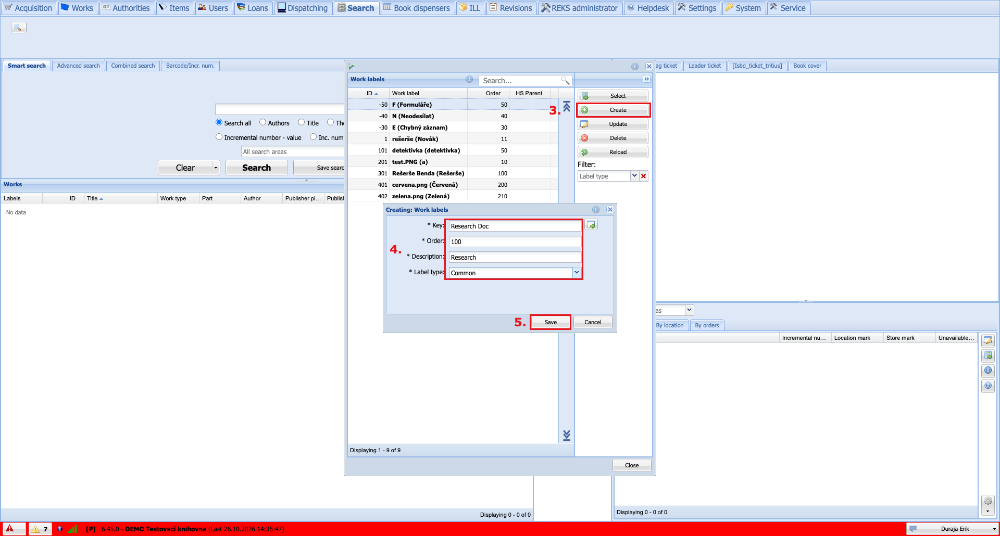
(fig. 2)
In the list we select the label we have created and click the Select button.
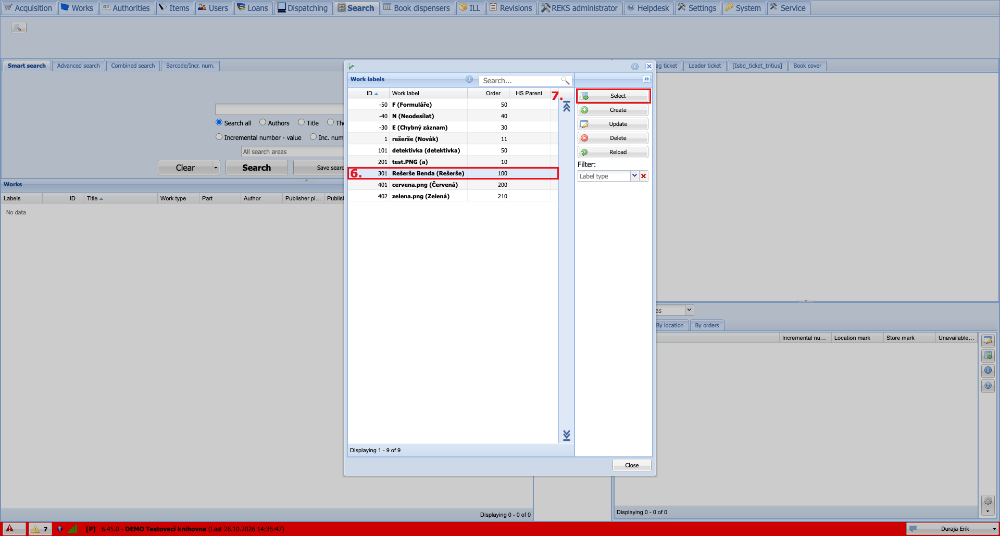
(fig. 3)
Now we search for the titles. We mark those we want to add to the literature search. Using SHIFT and the left mouse button we can mark several records at once. Using CTRL and the left mouse button we can then mark further records individually. When the records are marked, we assign the label to them by clicking the Add button. In this way we gradually add the label to all the records for which the reader wants to print the literature search.
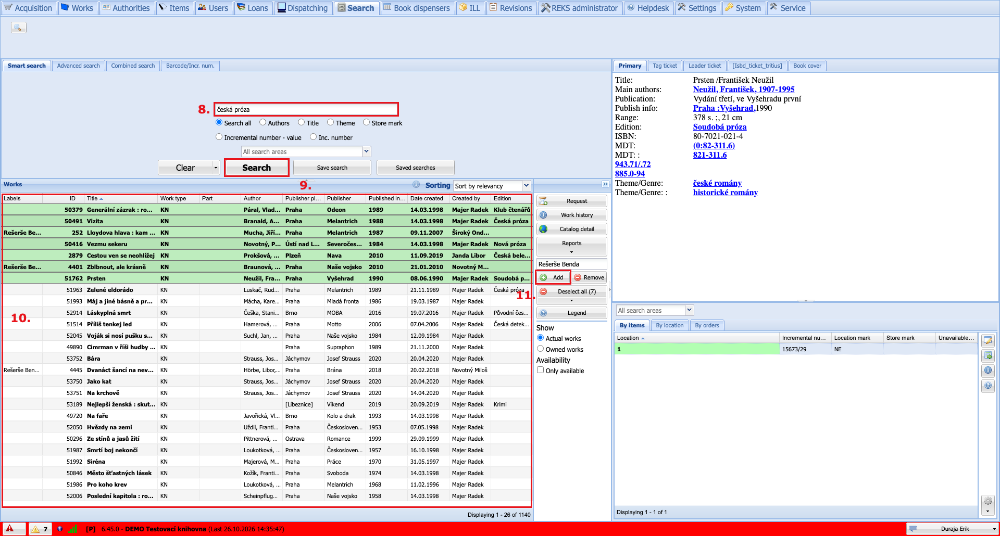
(fig. 4)
Once the label has been added to a work, it starts to be displayed next to the record. To be able to print the literature search, we need to find the records marked with the label. On the Combined search tab we set the search by our label and click the Search button. After marking the last work with the label, we need to wait a moment before the search indexes are refreshed.
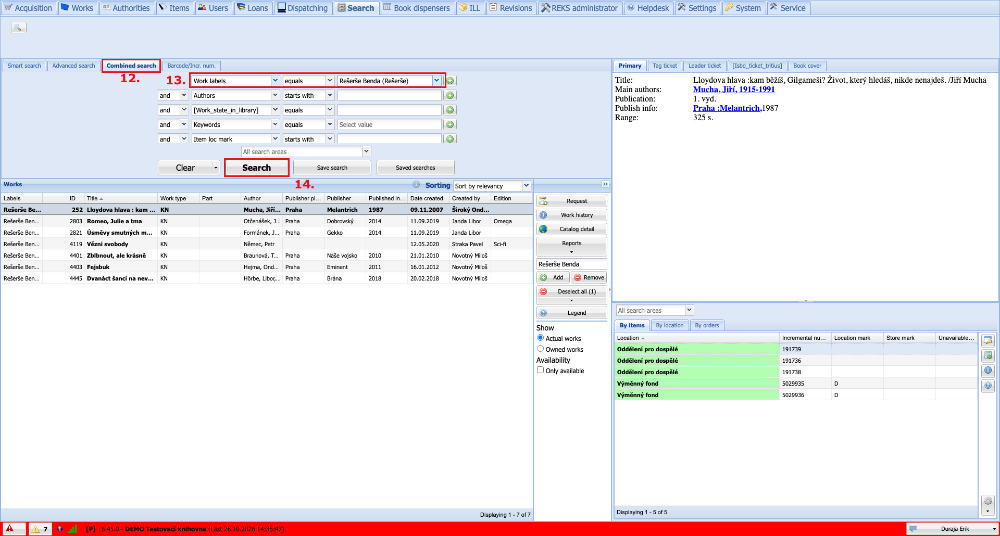
(fig. 5)
After the search, we can sort the records by any column by clicking its header. Next we expand the Reports button and select the Reports option.
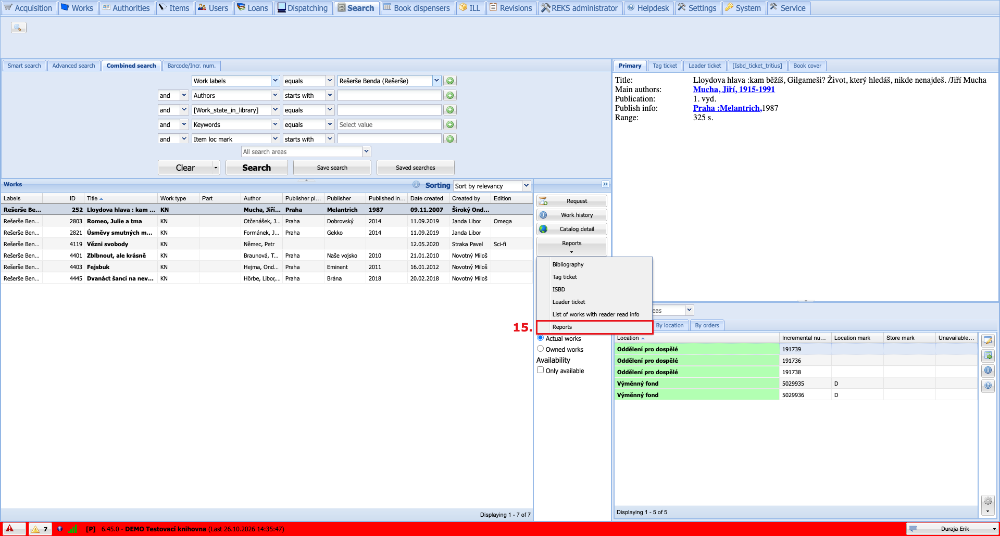
(fig. 6)
Among the reports we select the literature search and choose PDF as the file format. We then open the generated file and print it.
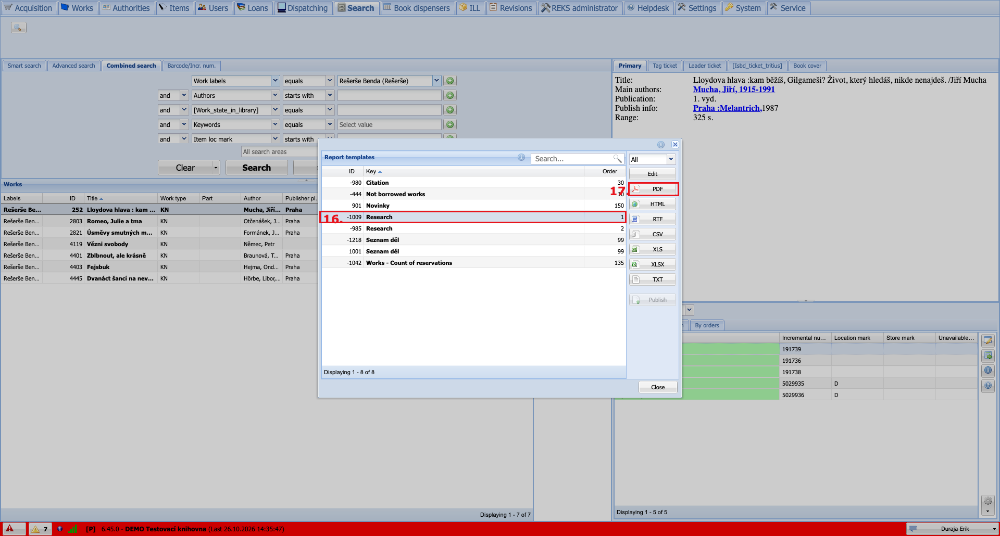
(fig. 7)