

Graphic guide to creating delivery notes
Delivery notes are used to move items from acquisition to a department, or from the library to a branch. It is a group of items, and we use the Labels tool to create groups. On the Items tab we click the Labels field in the right part of the screen. In the window that opens, we press the Create button.
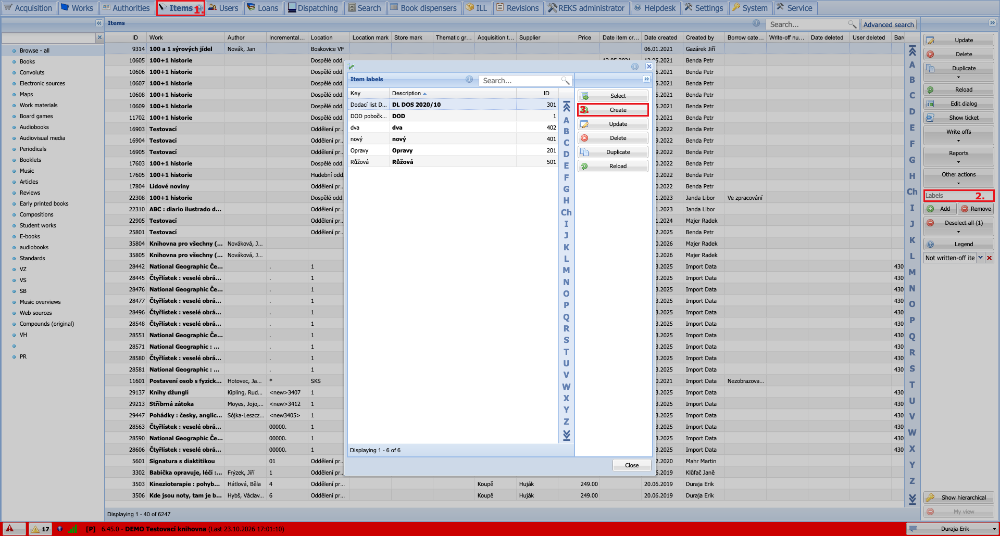
(fig. 1)
As the key we enter a unique name for the label. We can also fill in the description. We then click the Save button and close the window with the overview of labels.
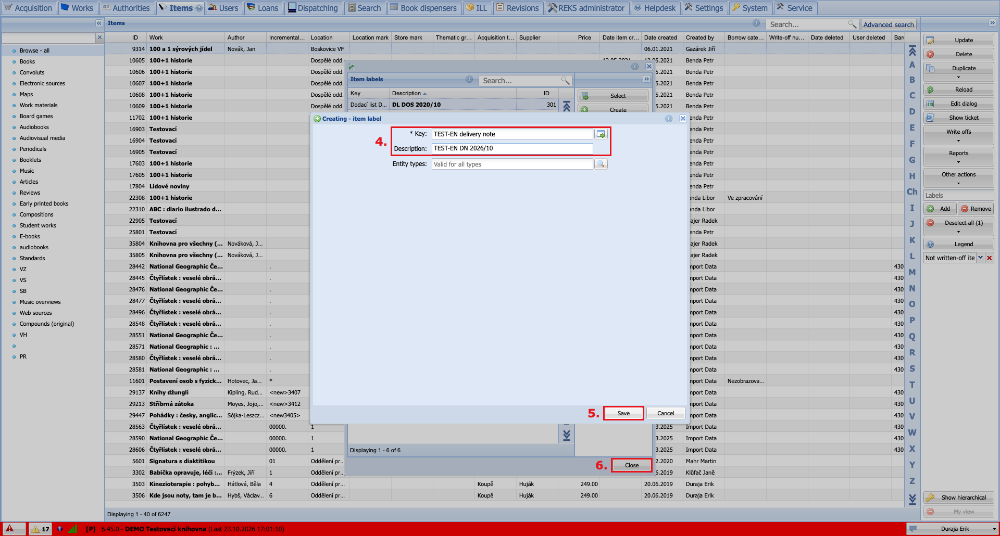
(fig. 2)
We expand the Other actions button and use the Load and update function to create the list.
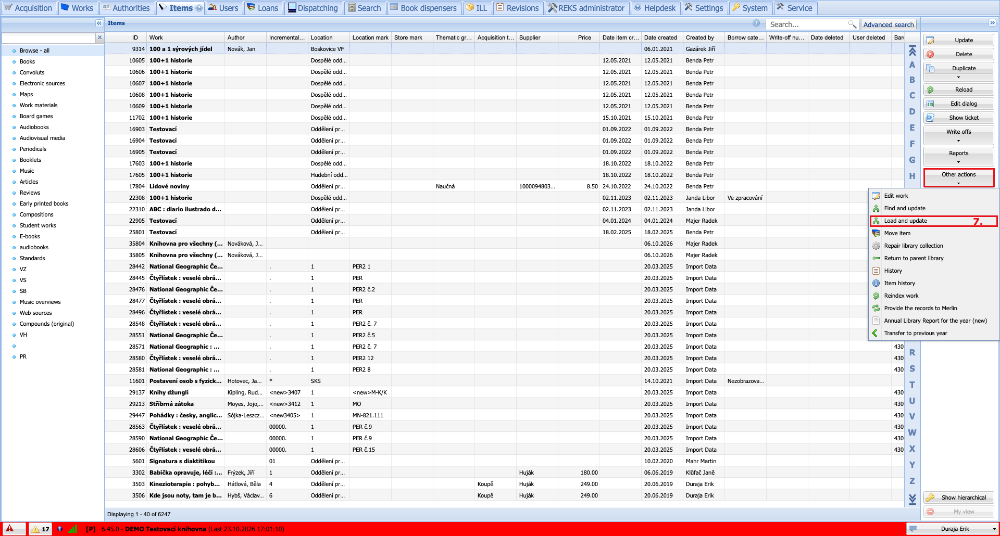
(fig. 3)
In the bulk update window we press the green plus next to the Select label field.
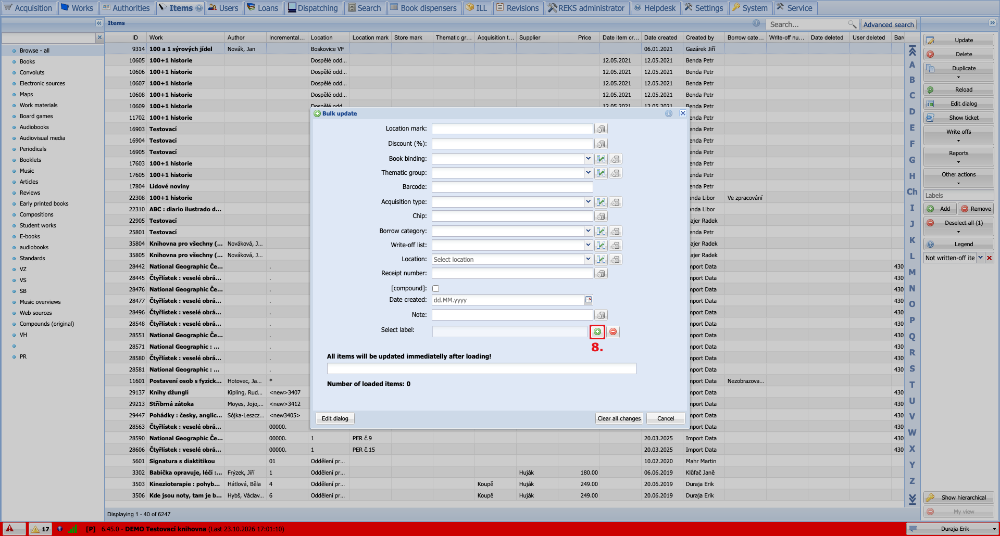
(fig. 4)
We then choose the label with which we want to mark the items and click the Select button.
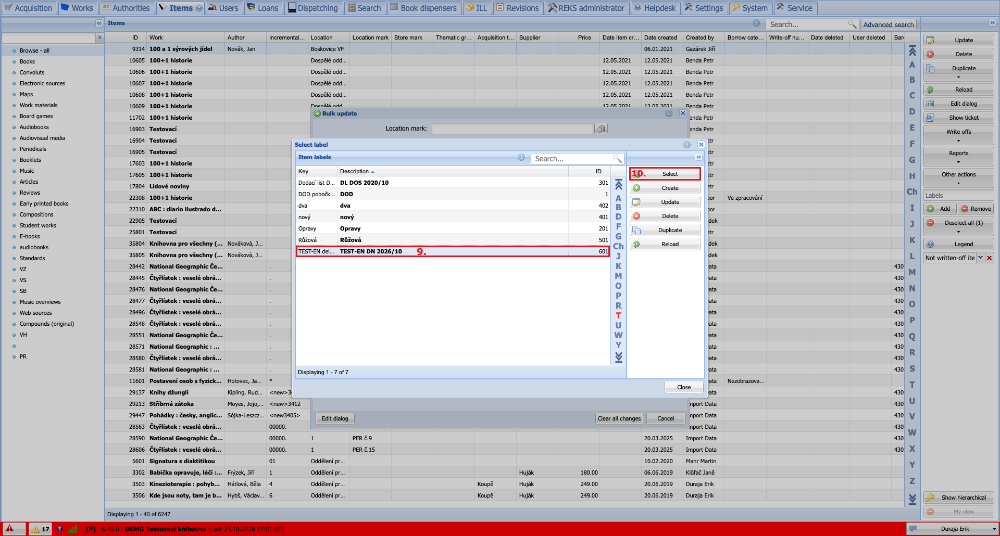
(fig. 5)
The label we have selected is now shown in the Select label field. In the bottom row we can start scanning the barcodes of the items we want to assign to the delivery note (mark them with the label) one after another with a scanner. If we do not have a scanner, we can type in the incremental number instead and confirm the entry with the Enter key. When we have scanned all the items for the label, we close the window by clicking the Cancel button.
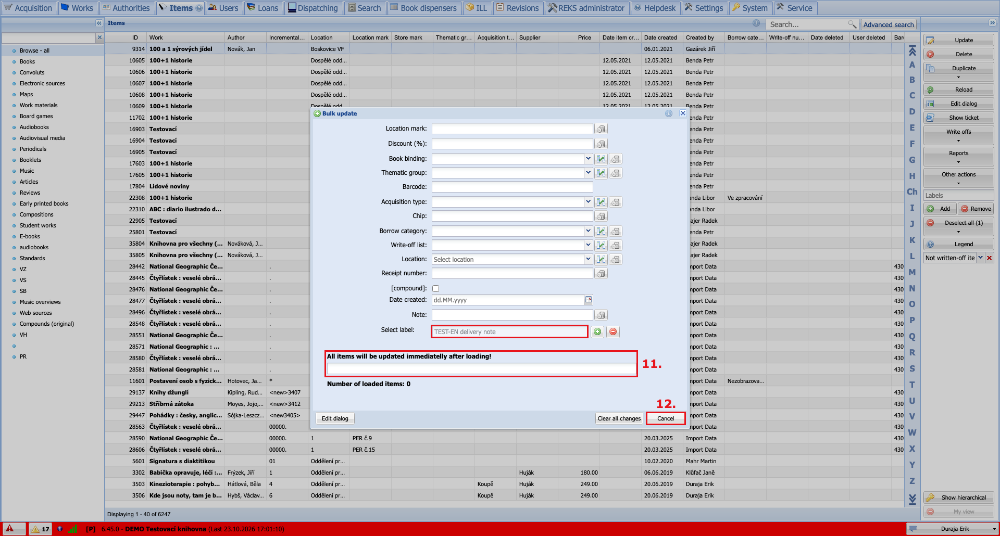
(fig. 6)
We then open Advanced search and filter all the items that belong to the delivery note. On the Combined search tab we select Item label, where we scanned the documents. We find the items by clicking Search.
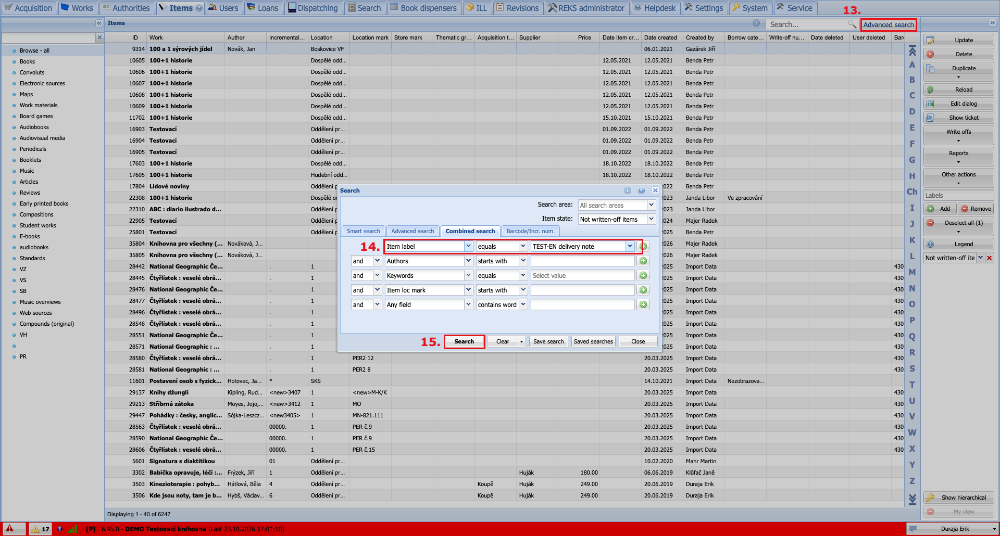
(fig. 7)
The table now shows the items that have the delivery note label assigned. We then expand the Reports button and in the menu click Item basic output.
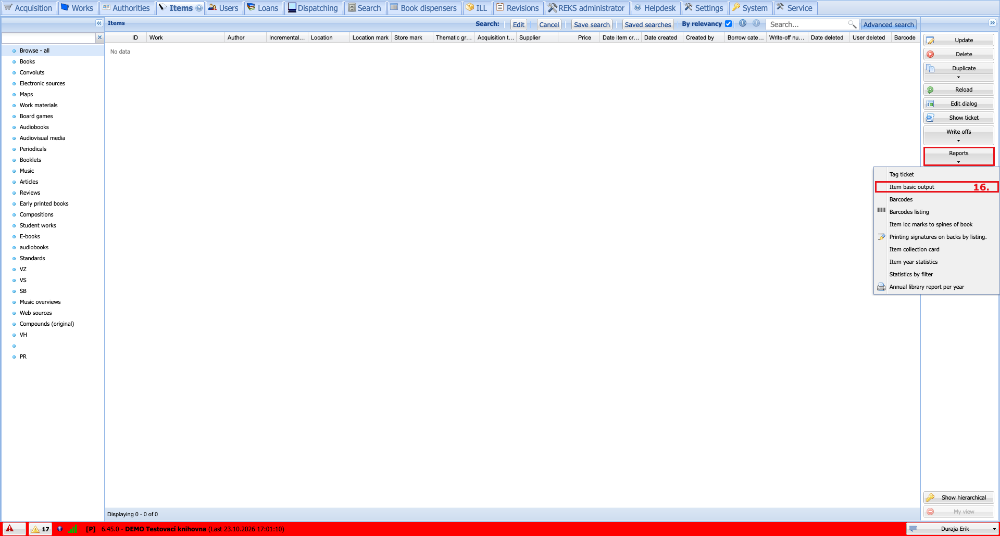
(fig. 8)
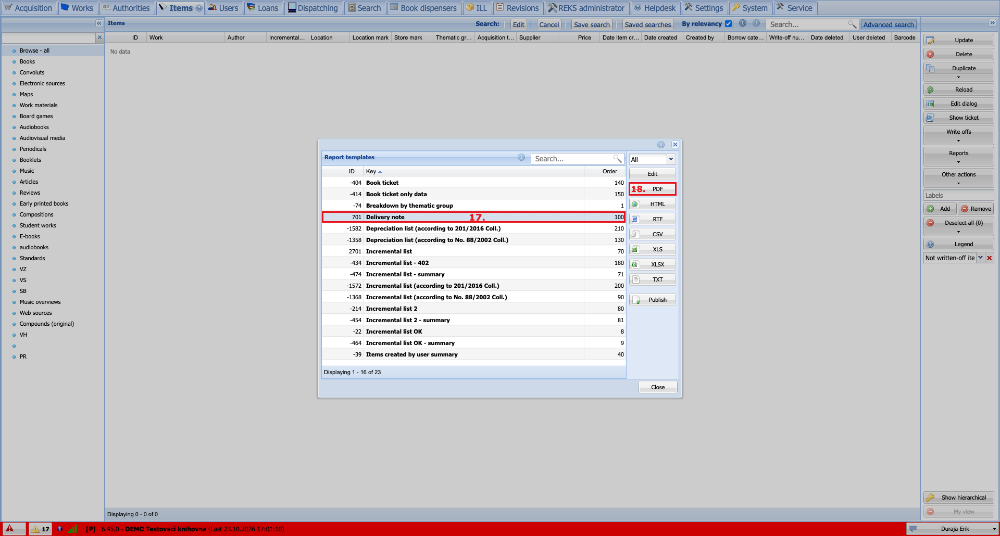
Here we select the output we want to print and choose PDF as the file format. We open the generated file and print it.
(fig. 9)