

Graphic guide to creating a new reader
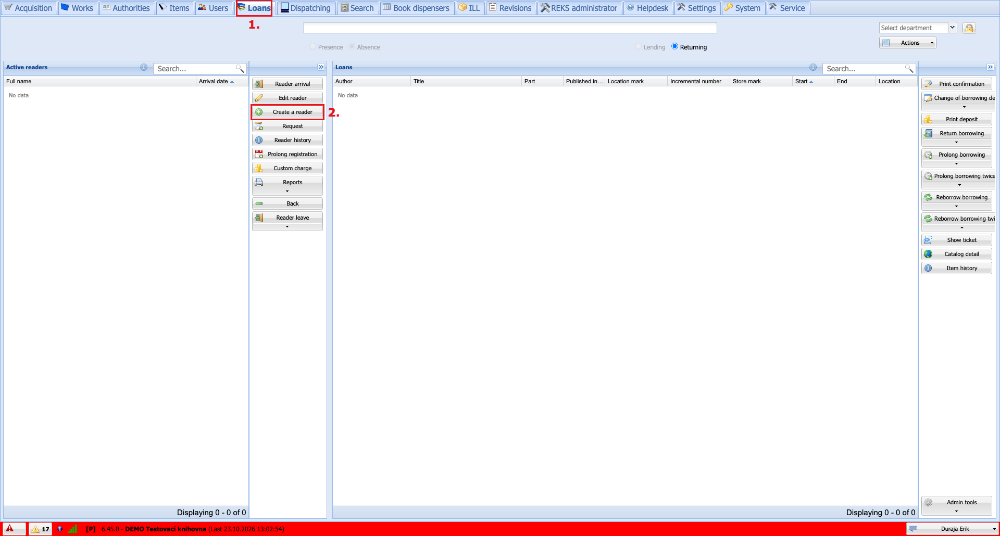
We work with the readers of our library on the Loans tab. To create a new reader, we click the Create a reader button, which is marked with a green plus.
(fig. 1)
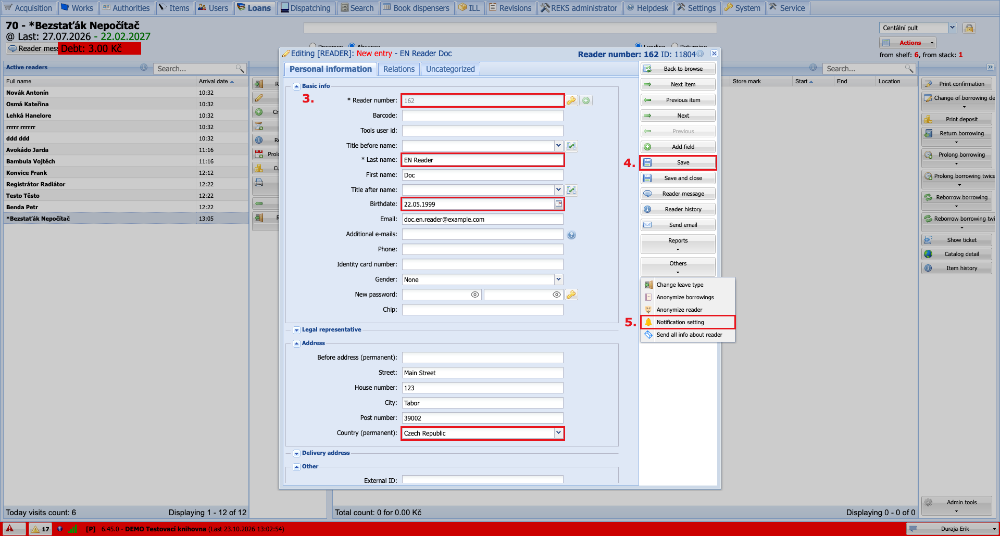
In the form we fill in all the details we need for the reader's record. Fields in red frames are mandatory and at least these fields must be filled in. We can have the next free reader number assigned by pressing the green plus or the F6 key. If we fill in the date of birth, a password for access to the online catalogue is automatically generated from it for the reader in the YYMMDD format. If we do not fill in the date of birth, we must enter a new password manually instead. When all the details are filled in, we click the Save button. Then we must set up the reader's notifications, which are under the Others button.
(fig. 2)
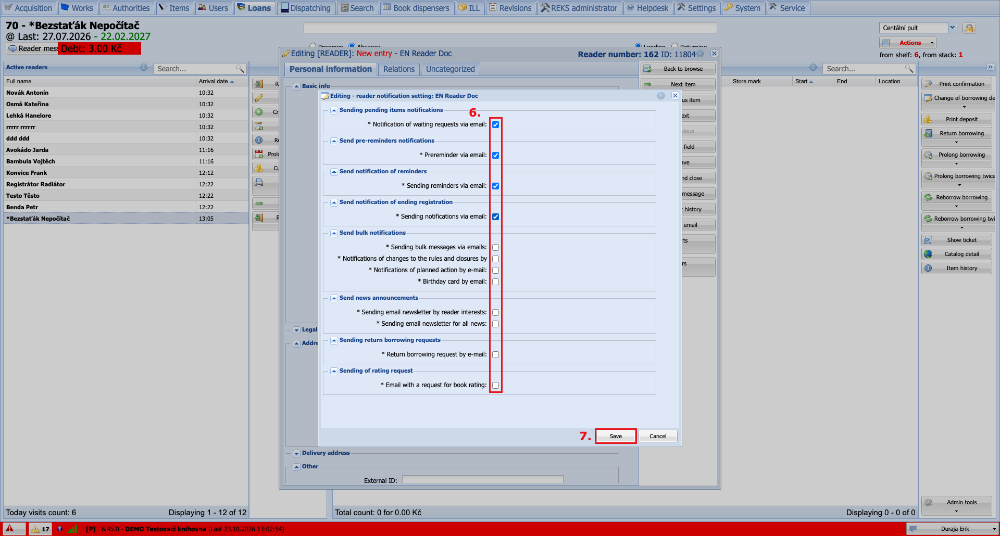
We tick the types of notifications and the ways in which the reader wishes to receive them, and save the form.
(fig. 3)
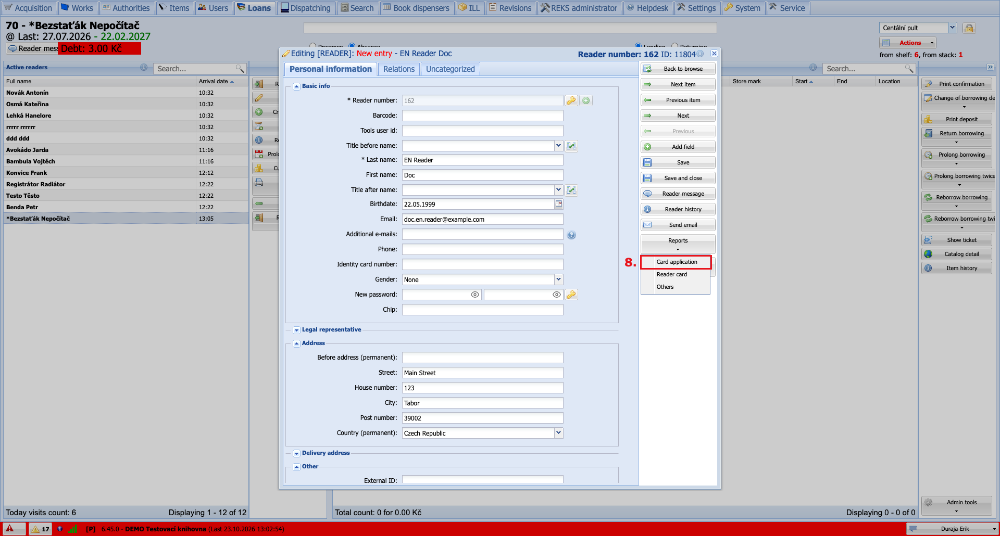
Then we expand Reports and print the application form (Card application) for the reader.
(fig. 4)
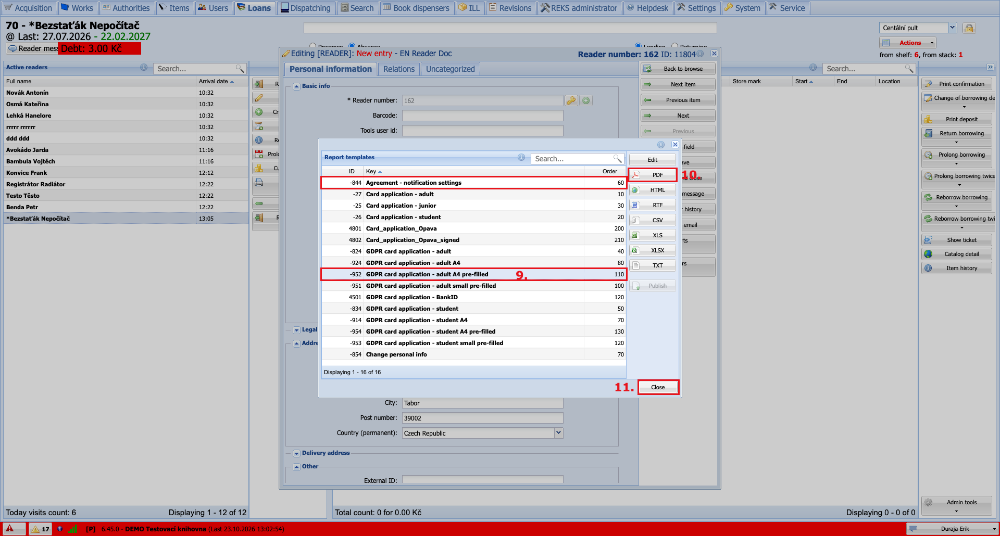
In the window with the application form reports we choose the type of application form we want to print. We recommend using the GDPR card application - adult A4 pre-filled report for adult readers and GDPR card application - student A4 pre-filled for children under 15. We also print the Agreement - notification settings. We must print the application form and the agreement one after another and in both cases we choose the PDF format. When both documents are printed, we can close the reports window.
(fig. 5)
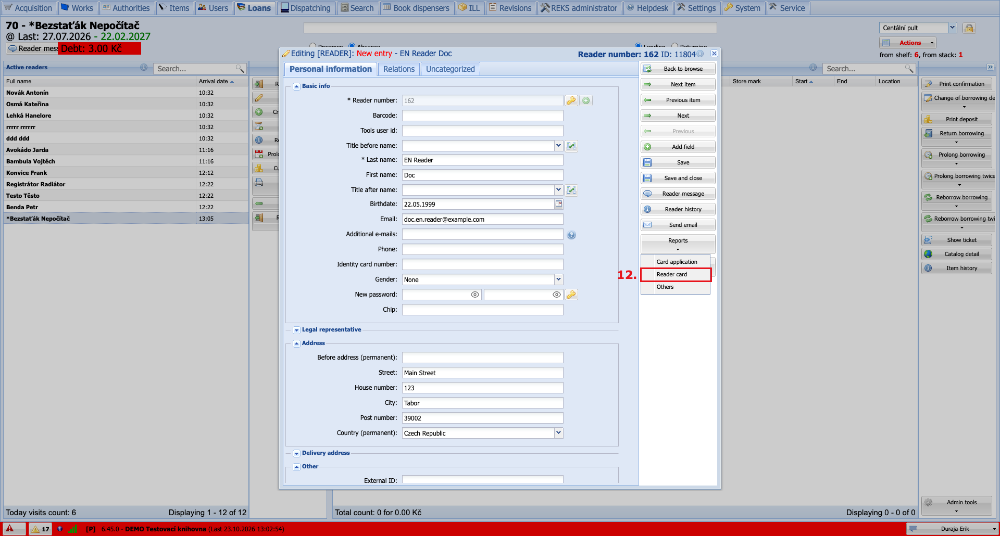
Finally, we print the reader's card, which we also find under Reports.
(fig. 6)
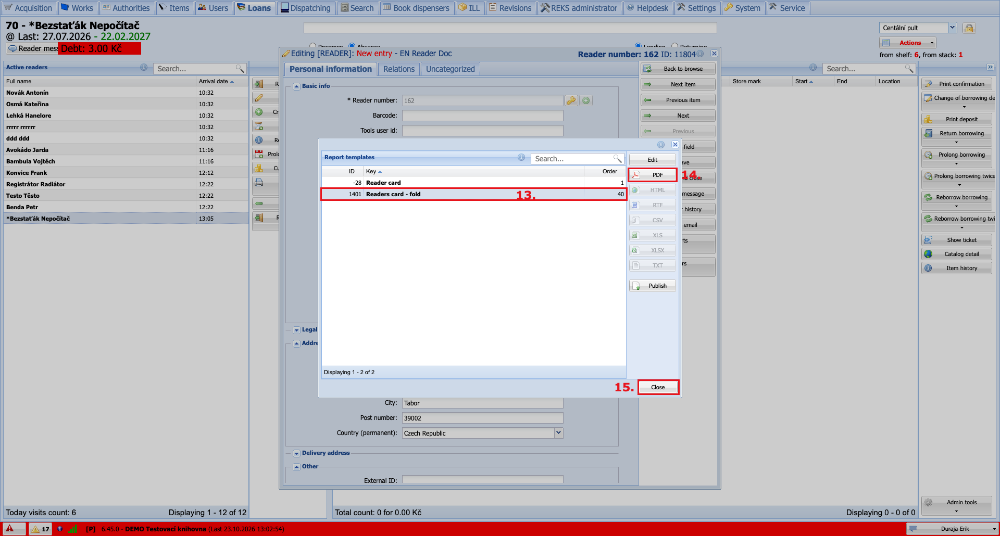
We choose the card that suits us better and, as with the application form, select PDF and print the file. We can then close the window.
(fig. 7)
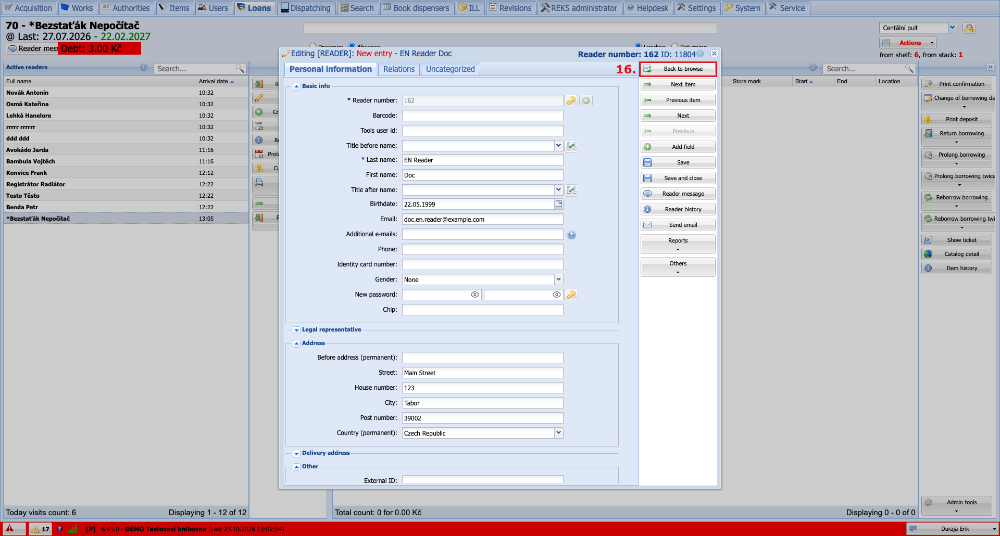
The new reader is now successfully registered. We can close the reader's profile by clicking Back to browse.
(fig. 8)
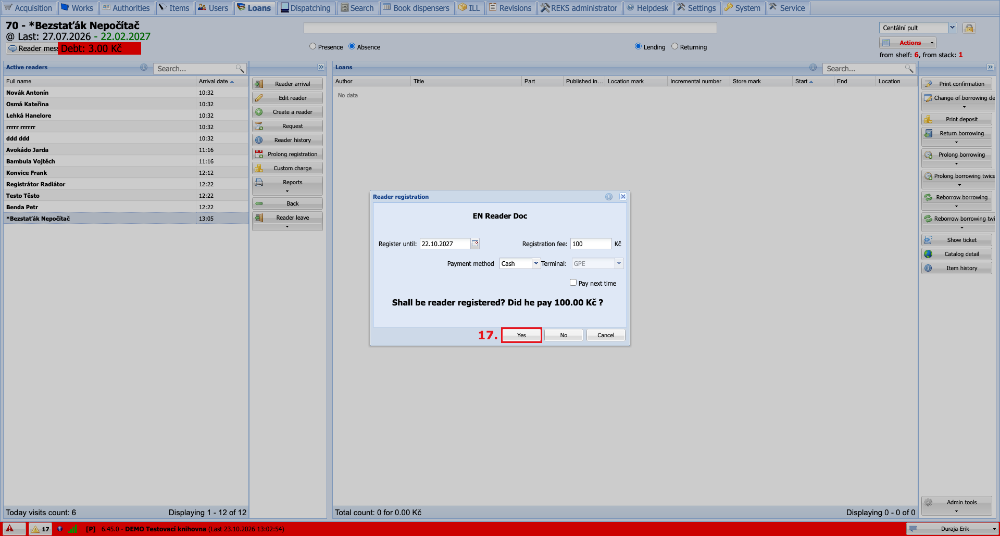
The reader's arrival is then recorded automatically and a window with the registration fee pops up. By pressing Yes we mark the fee as paid, which completes the registration, and we can start lending.
(fig. 9)