

Graphic guide to creating a reservation
On the Loans tab we select the present reader for whom we will create the reservation and click the Request button.
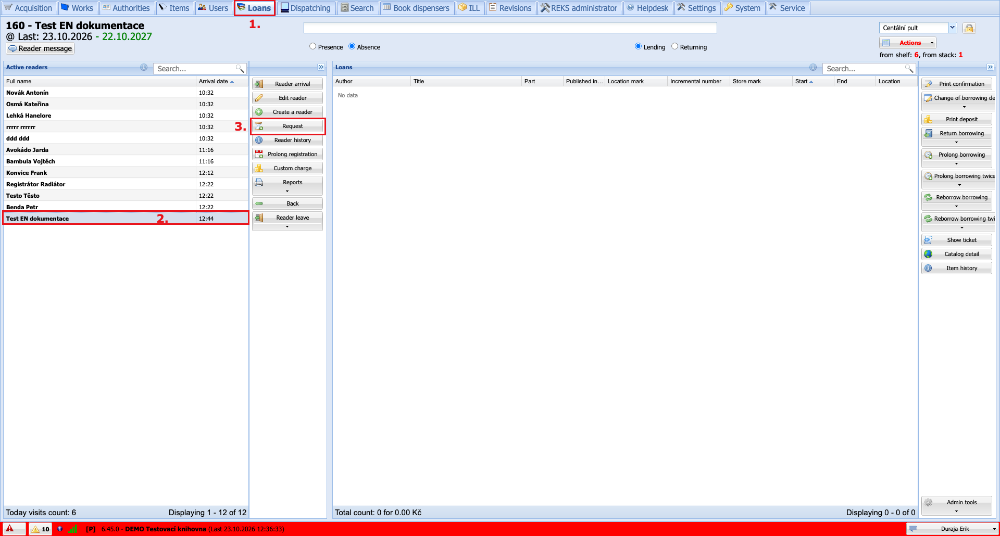
(fig. 1)
The system redirects us to the Search tab, where reservations are created. In the page header we see the reader whom we had selected in the borrow protocol and for whom the reservation will be created. We search for the document we will reserve and select it in the table of works. Then we click the Request button.
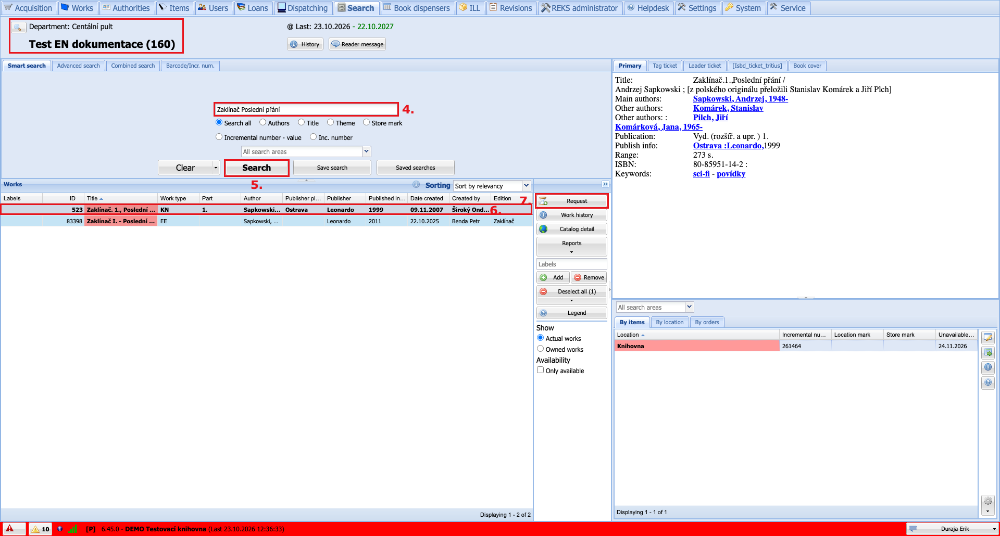
(fig. 2)
We select the department where we want to make the reservation and create it by pressing the Request button.
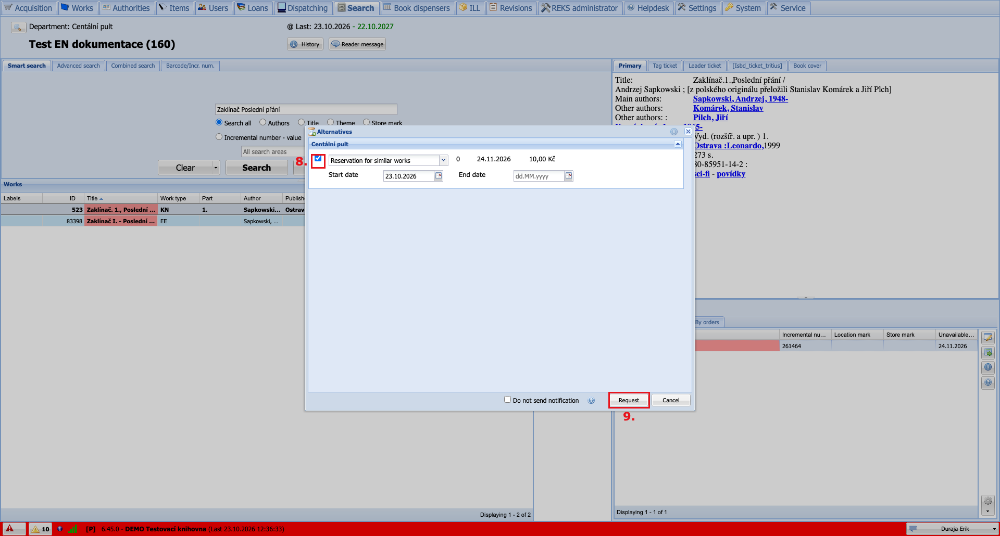
(fig. 3)
In the bottom right corner, information about the result is displayed.
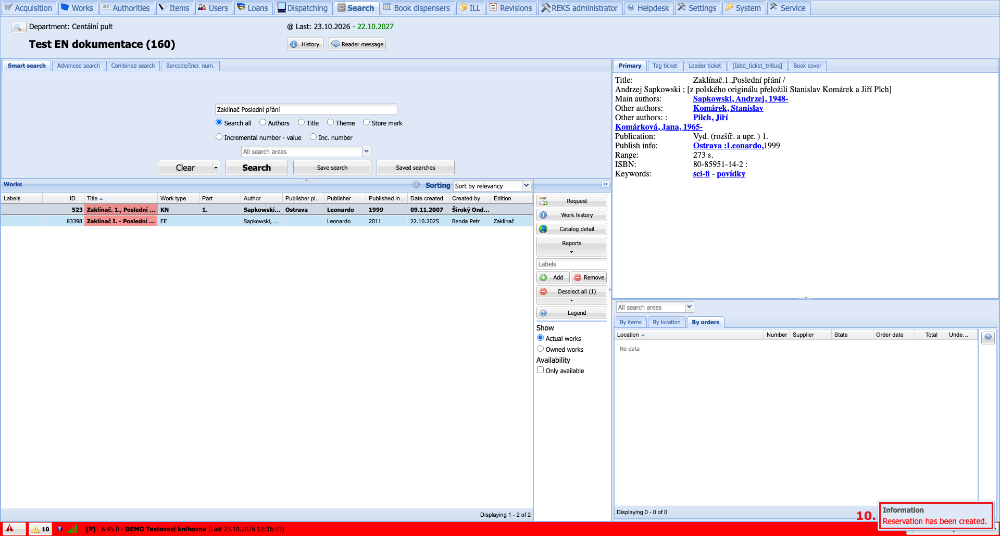
(fig. 4)
We can also create a reservation for a reader who is not currently present in the library. It is enough to have a department selected in the borrow protocol and switch to the Search tab. By clicking the magnifying glass we display the overview of readers, where we select the reader for whom we want to create the reservation and click the Select icon. We then continue as in figure 2.
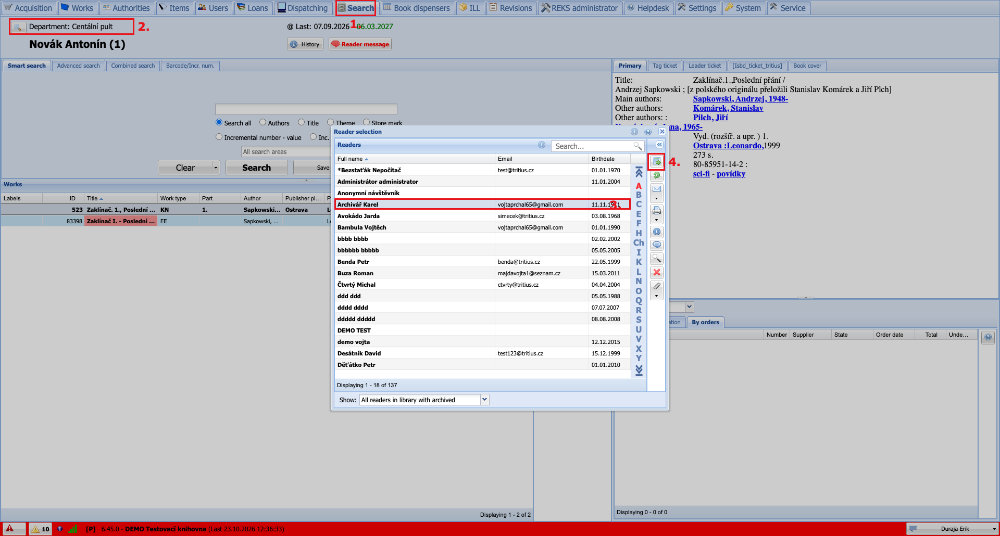
(fig. 5)