

Graphic guide to Centak
To search for and order works in the simplified acquisition module, we go to the Acquisition tab, where we then select the Centak tab. Here we type the title into the search field and click the Search button.
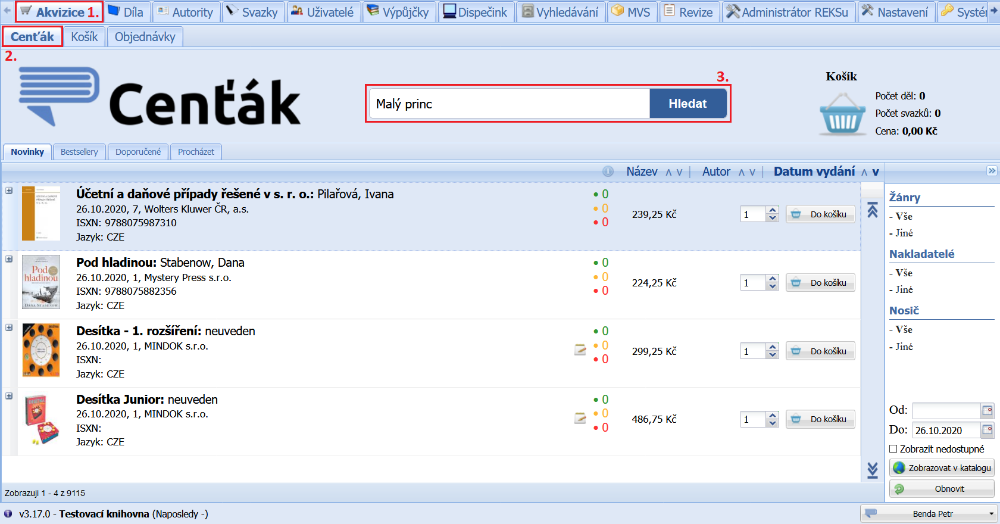
(fig. 1)
After the search, Tritius redirects us to the Search results card, where all the titles found are displayed. We can scroll between the items with the mouse wheel to see the next ones. We can also apply a filter to display only certain documents. To filter only books, we click the text Other in the Medium category.
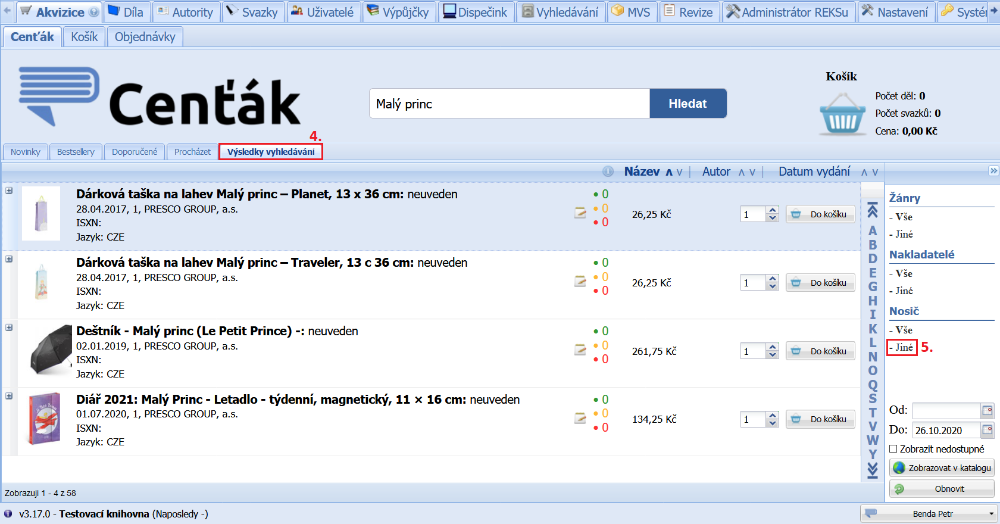
(fig. 2)
We search for the type of medium we want to filter, mark it and click Select.
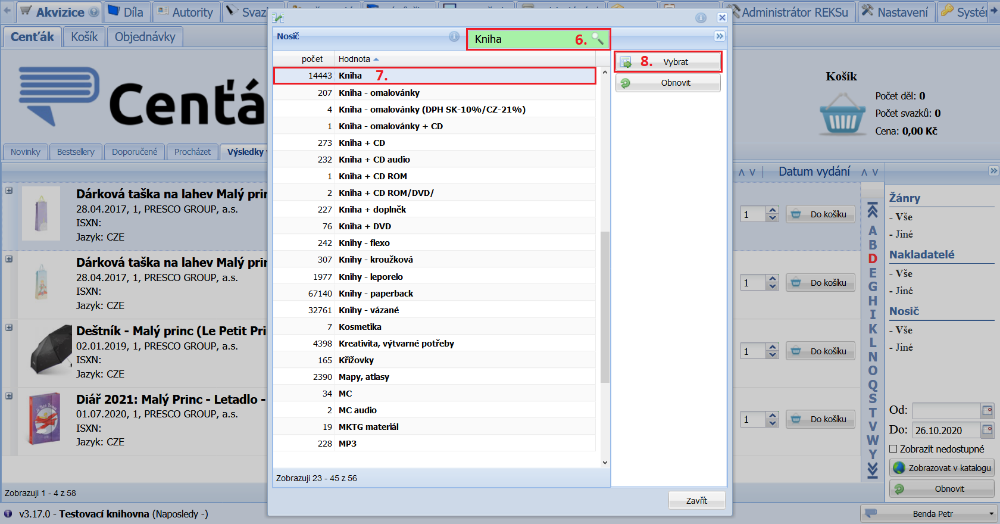
(fig. 3)
Now only the documents we want are displayed in the selection. We select the one we like and want to order. We enter the number of copies ordered and click the Into the basket button. In this way we put into the basket all the titles we want to order. Let us not forget that we still have the filter applied. If we want to cancel it, we click the text All in the relevant category.
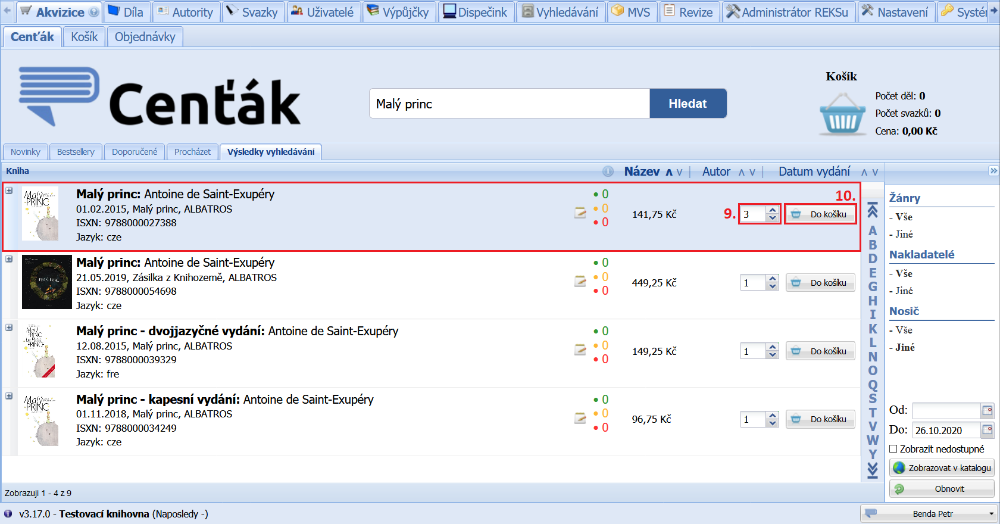
(fig. 4)
When we have all the titles in the basket, we click the basket image, which takes us to the Basket tab.
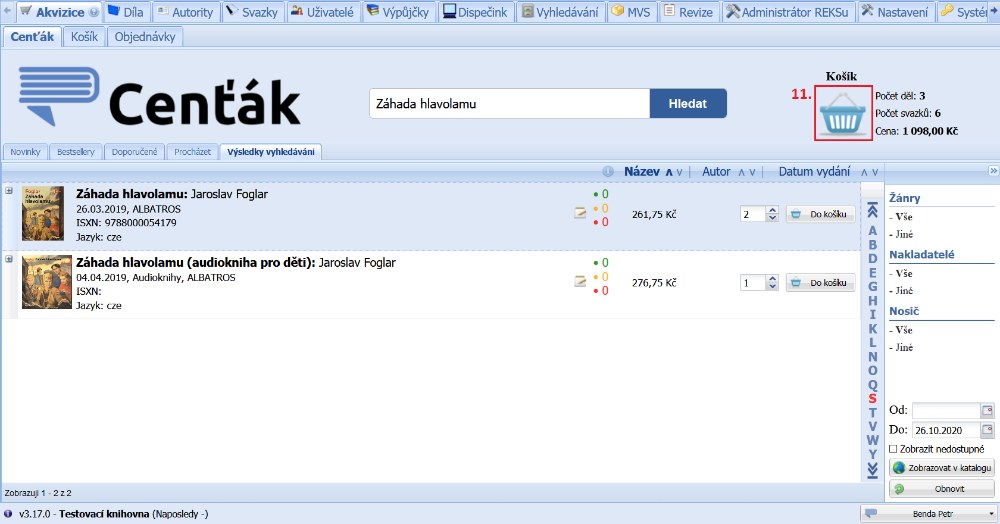
(fig. 5)
In the basket we can change the quantity of items ordered or remove a whole work. When we have checked the contents of the basket and want to order it, we click the Create order button.
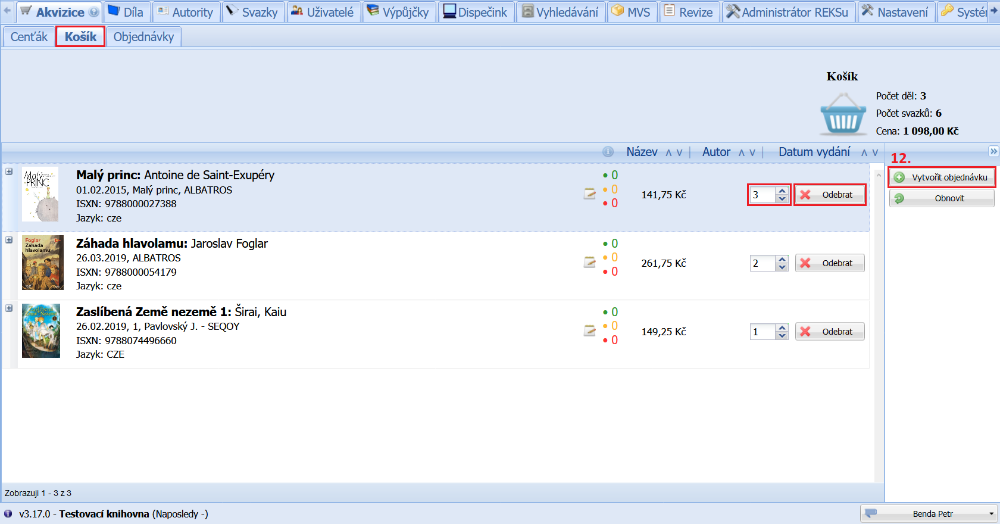
(fig. 6)
The titles have now been divided between two suppliers according to which one has them available or where buying them is more advantageous. If we do not want to order a title yet, we can use the green arrows to move it to Unassigned works. The title is then removed from the order but stays in our basket, ready for next time. By clicking the Order from supplier button we confirm the order for the selected supplier. The Tritius system connects to the supplier's order system and passes the order to it.
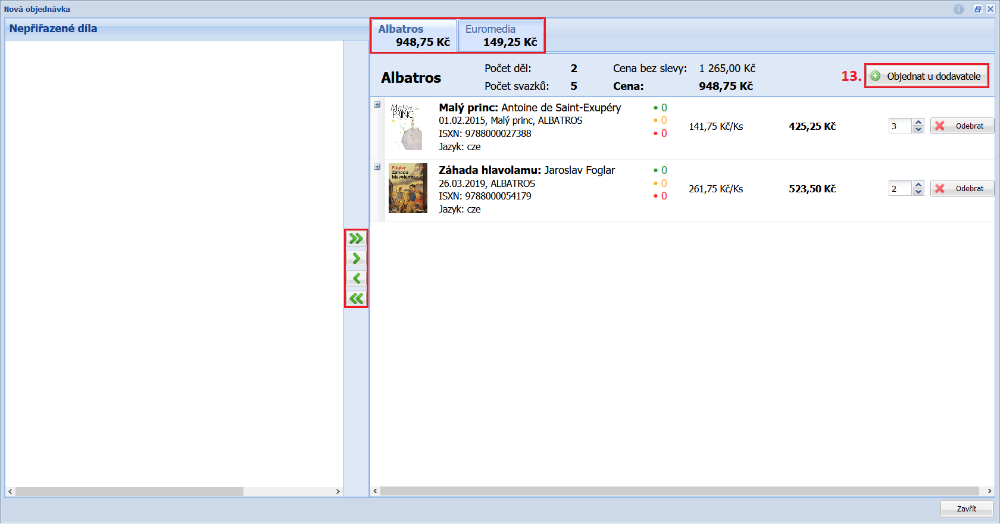
(fig. 7)
By clicking Confirm we confirm the order with the supplier and send it to them.
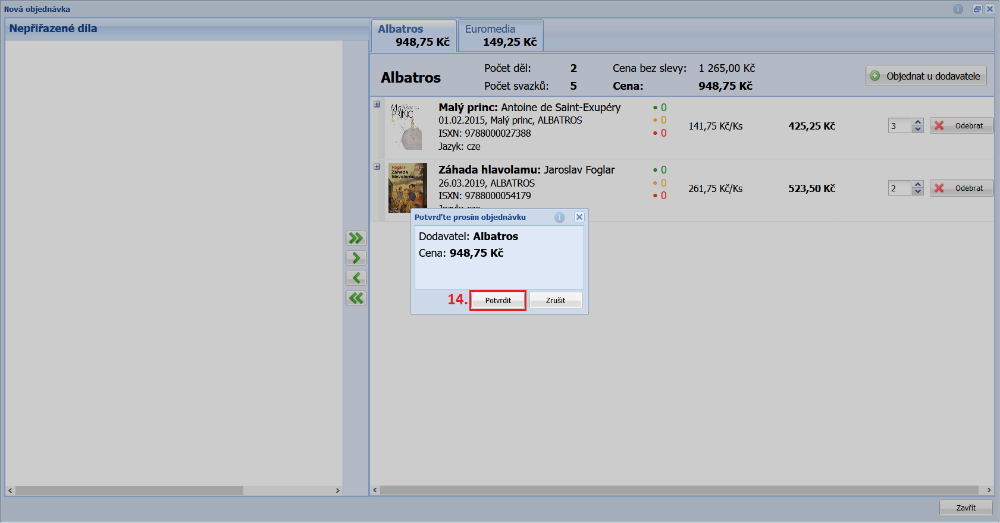
(fig. 8)
On the Orders tab we have an overview of the orders already created and of the individual works ordered. We mark the work whose items we want to register. Before registration we can update the work record from a Z39.50 source by clicking Refresh work. We then register the delivered items using the Register items button.
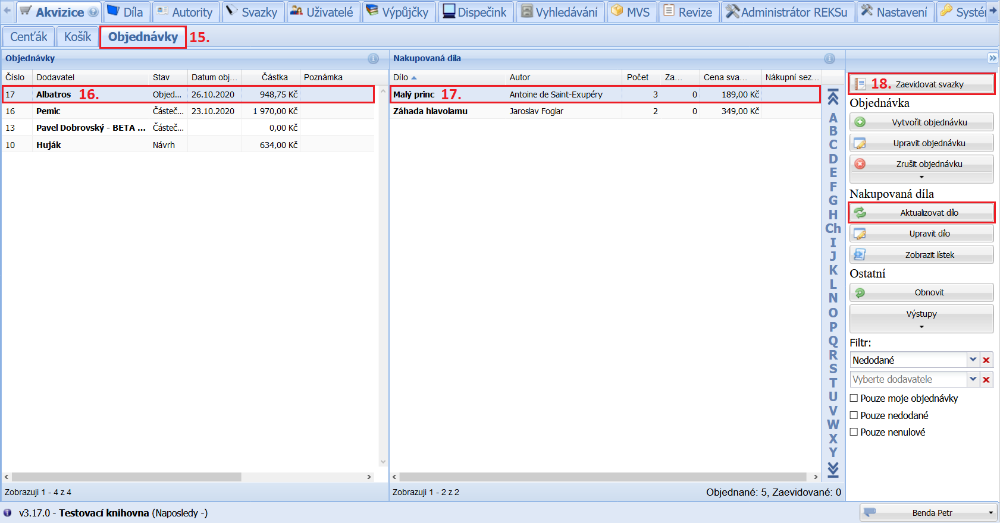
(fig. 9)
First we fill in the item data, which is copied to all registered items. Then we check the item count that we will actually register at the location. If the supplier did not deliver all the ordered items, we adjust their number. We finish the registration by clicking the Save and close button. In this way we gradually register the items of all works in the order. We can then find the items and edit them if necessary on the Items tab in cataloguing.
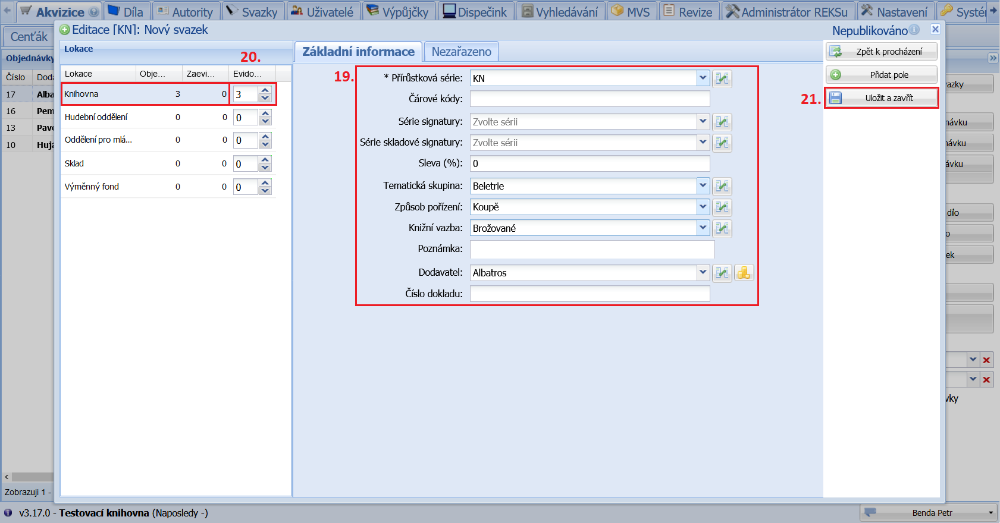
(fig. 10)