

Graphic guide to cataloguing
If we want to add an item to a work that our library already owns, or create a new work record and then add an item to it, we work on the Works tab. In the right part of the screen we select the document type we want to create. To start cataloguing, we press the Create button.
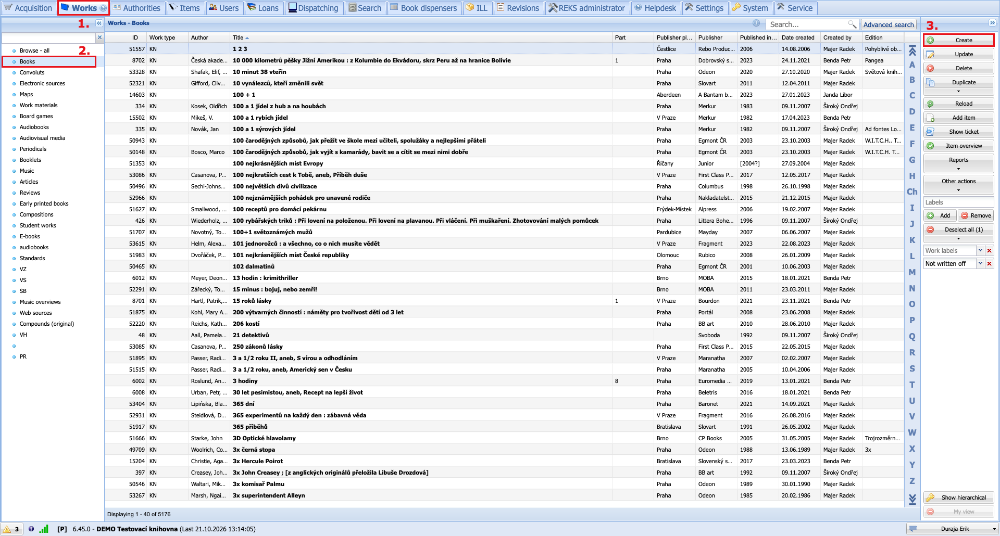
(fig. 1)
Existing record - adding an item
Before creating a new record, the existing collection is searched to check whether such a record already exists in our database, or whether it can be downloaded from an external Z39.50 source. If the catalogued document has an ISBN, we use it for the search first. The ISBN can simply be read from the barcode with a scanner or typed in manually. If the document has no ISBN, we fill in as much known information as possible - Author, Title, Year of publication. To start the search, we click the Search button. If an existing record highlighted in green also appears among the results, the work is already in our library. In that case we neither create nor take over a new work and use our existing record instead. We select the record by clicking it and add an item to it by pressing the Add item button.
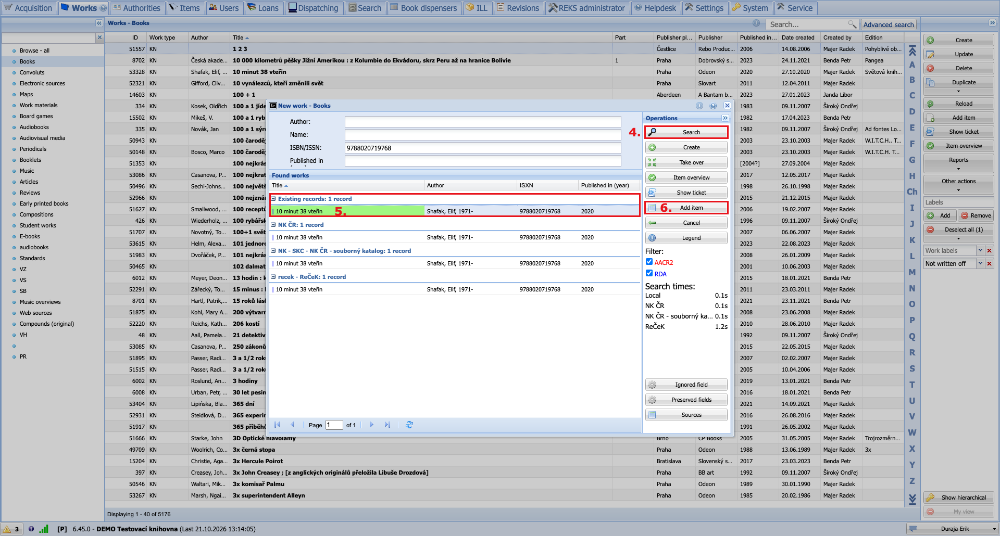
(fig. 2)
After pressing the button, the work record opens on the Items tab and a form opens straight away, where we always enter the information about the new item. In the form we fill in the details that matter to us. Fields marked with an asterisk are mandatory and must be filled in. By clicking the green plus, or by pressing F6 with the cursor in the Incremental number field, the system automatically assigns the next free incremental number. Once all details are filled in, we click Save and close. The item then appears in the work's list of items and can also be found on the Items tab. When all items of the work are entered, we close the record by clicking the Back to browse button.
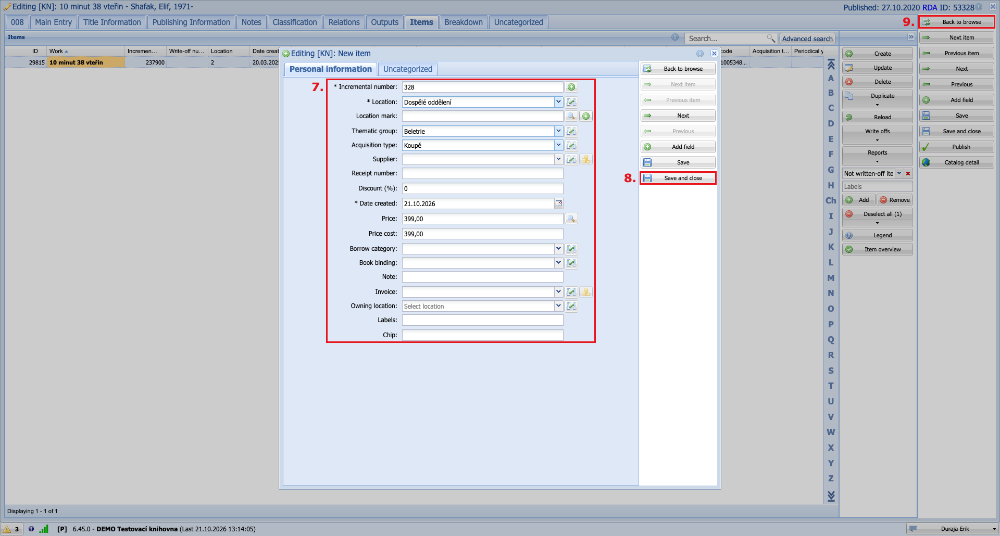
(fig. 3)
Creating a new record - taking over a work
If no existing record appears, the work is not yet in our library. In most cases, however, we manage to find a record in one of the Z39.50 sources. We mark the record that suits us best by clicking it and, since we are taking over an already catalogued record, we click the Take over button.
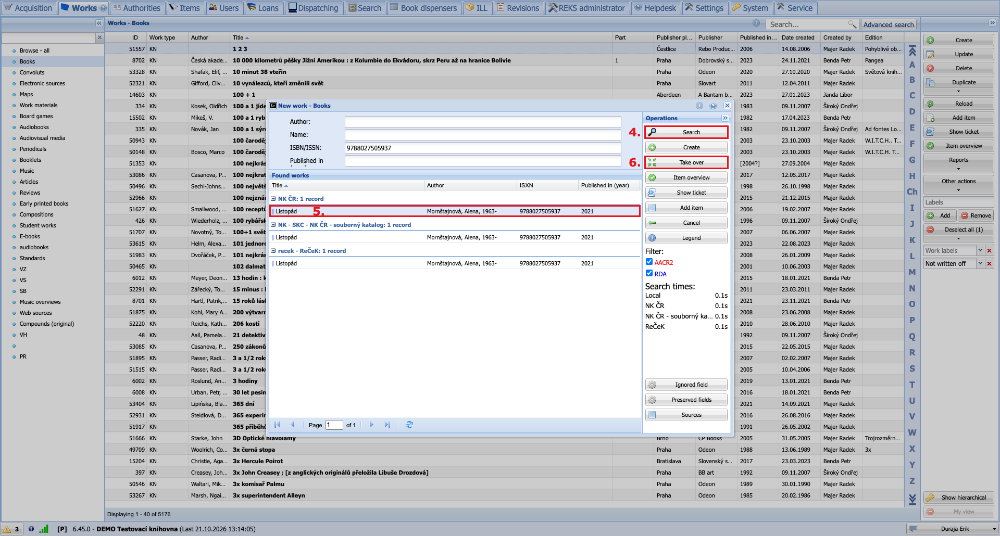
(fig. 4)
After taking over the record, we go through the individual tabs and check the data taken over. If we find incorrect or unsuitable data, we can correct it in the record. For records taken over from the National Library or the Union Catalogue, however, we recommend correcting only obvious errors and the subject description. If we are satisfied with the record, we simply click the Save button.
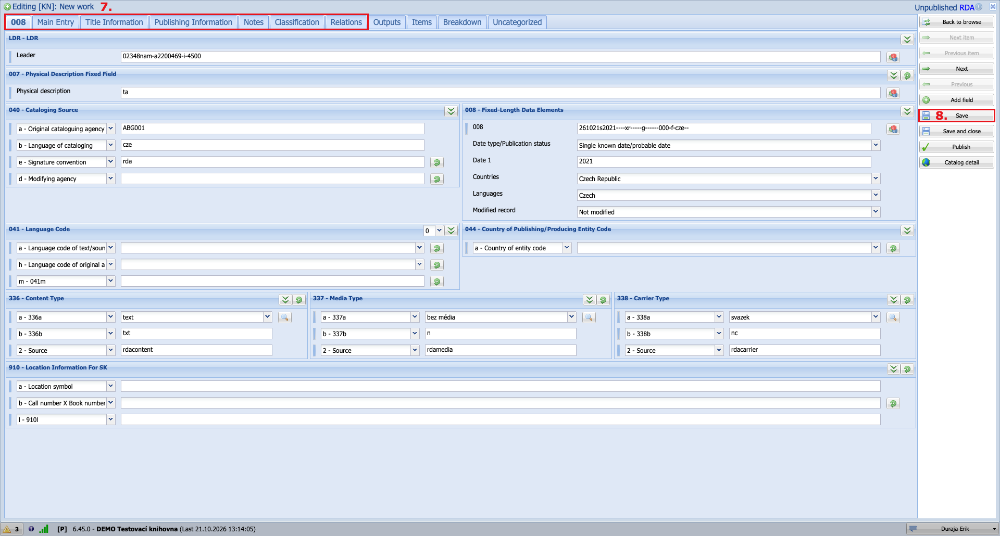
(fig. 5)
Once the work record is saved, we move to the Items tab. Here we always enter information about the individual items of the work that we own. We create a new item by clicking the Create button and continue as in figure 3.
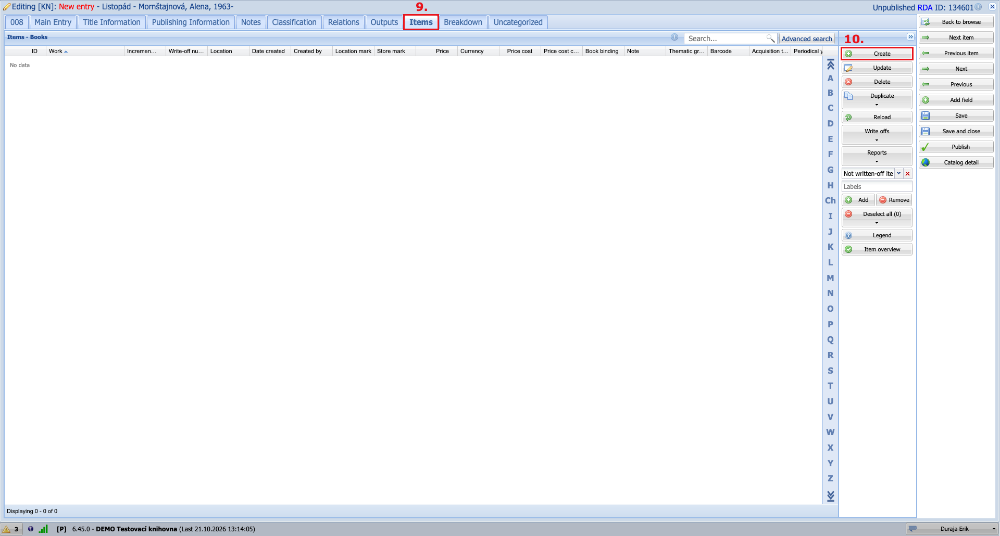
(fig. 6)
If we cannot find any record in an external source or in our library, we try waiting a week. For new titles it is very likely that the record will appear in one of the external sources within a few days and we will simply be able to take it over as in figure 4.
If we still cannot find the record after one or two weeks, or if it is an older or regional title, we have no choice but to create a completely new record. So we click the Create button. We gradually fill in all mandatory and known details according to the cataloguing rules until the record is complete. Then we click the Save button. This creates a completely new record, to which we then add an item as in figures 6 and 3.
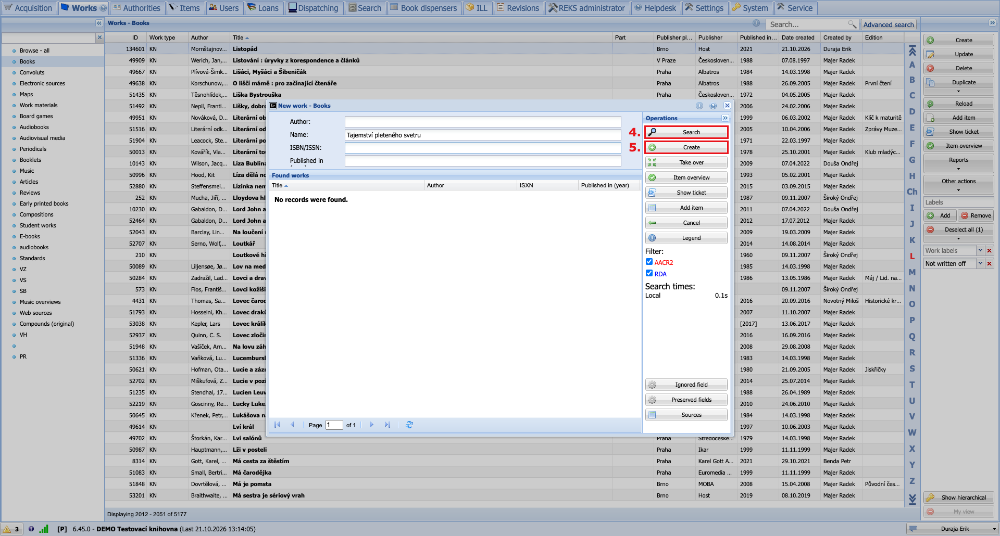
(fig. 7)