

Graphic guide to ILL
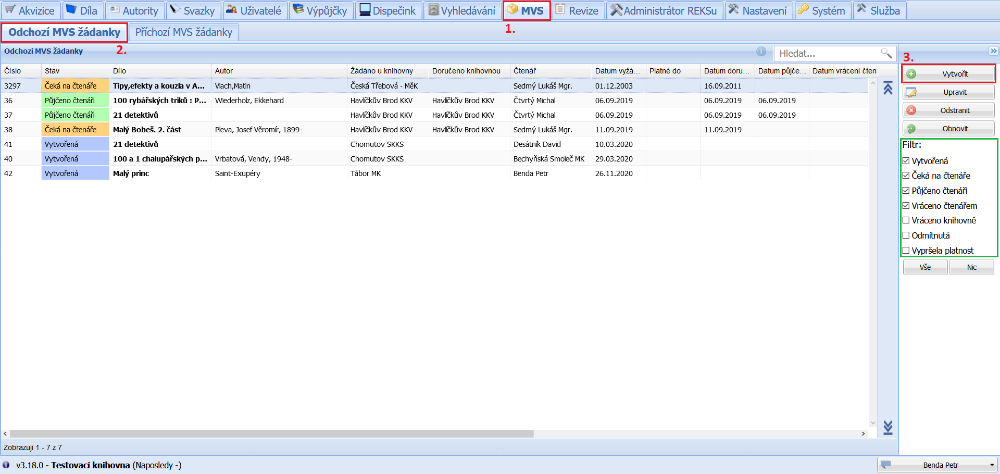
The ILL tab is used to create and manage interlibrary loan requests. On the Outgoing ILS requests tab we can easily filter existing requests by their status using the filter on the right side of the screen. To create a new request, we click the Create button.
(fig. 1)
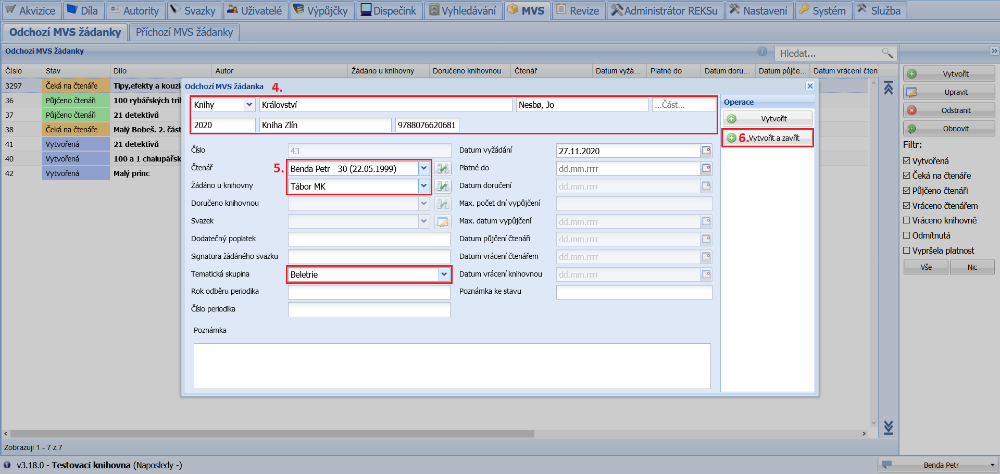
First, we select the document type that we will be requesting in the drop-down. Then it is enough to type into the request the details we know about the document. Next we select the reader for whom we are creating the request and the library from which we will request the document. If the library from which we are requesting the document has not yet been entered in the system, we use the icon to the right of the drop-down to create it. The request number and the date of request are filled in automatically. We can also fill in a thematic group or a note. When the request is filled in, we save it by clicking the Save and close button.
(fig. 2)
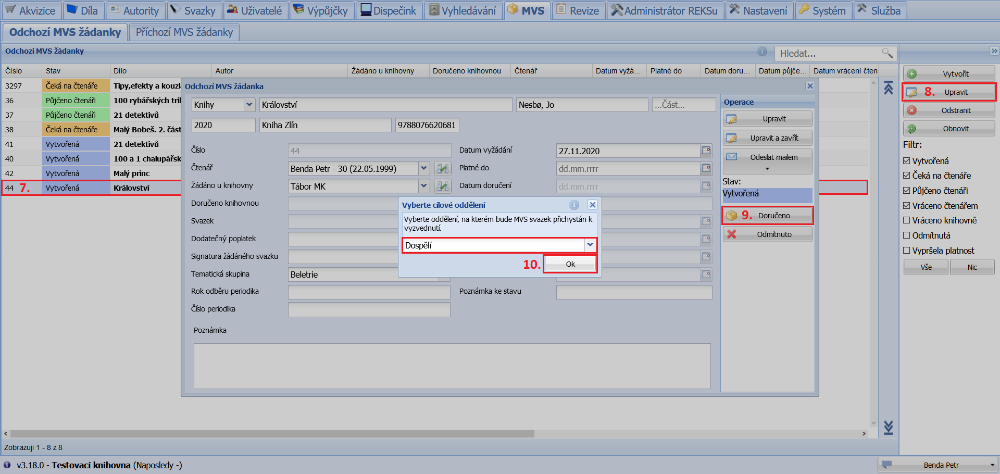
After the document has been delivered, this information needs to be recorded in the request. In the list we select the relevant request and open it with the Update button. Then we confirm the delivery by clicking the Delivered button. In the dialogue window we select the department where the document will wait for the reader and confirm the selection by clicking the Ok button.
(fig. 3)
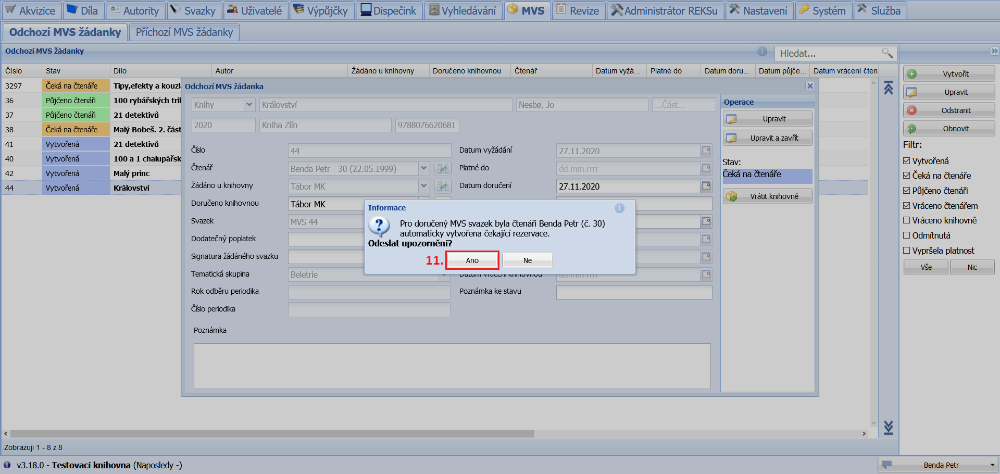
If the reader has an e-mail address or a phone number filled in and has given consent to receiving notifications, the system offers us the option to notify them about the waiting reservation of the ILL item.
(fig. 4)
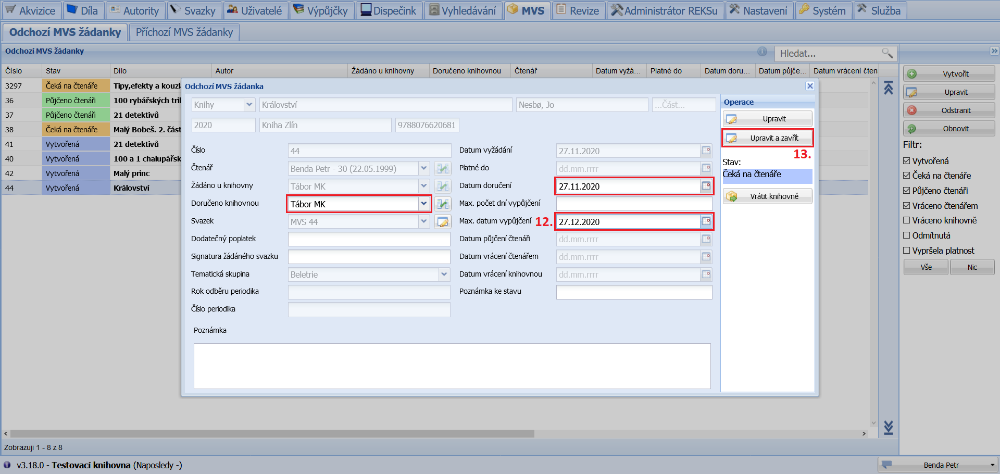
After confirming the delivery, the library that delivered the document (the same as the requested one) and the date of delivery (today's) are pre-filled automatically. If necessary, we can change these details. Then we fill in the maximum number of days or the date until which the document is lent. If the library that provided the document charges an additional fee, we enter it as well. We confirm the delivery with the Update and close button.
(fig. 5)
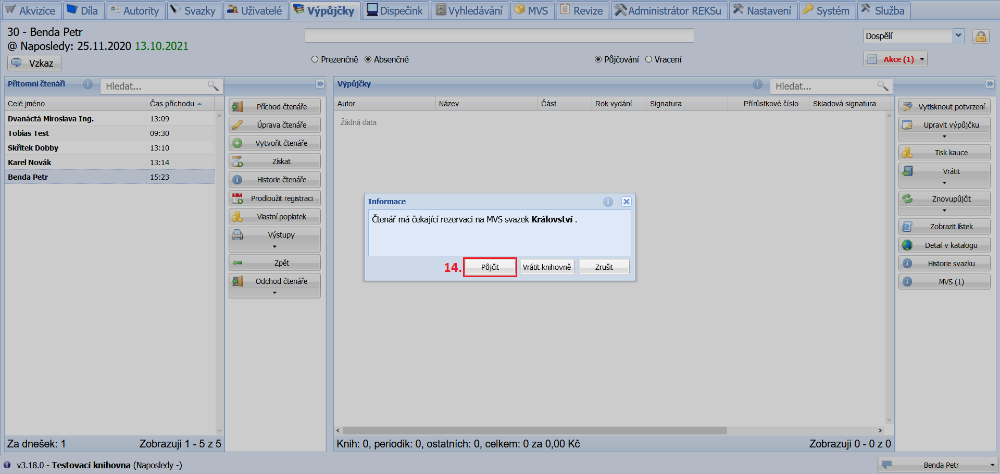
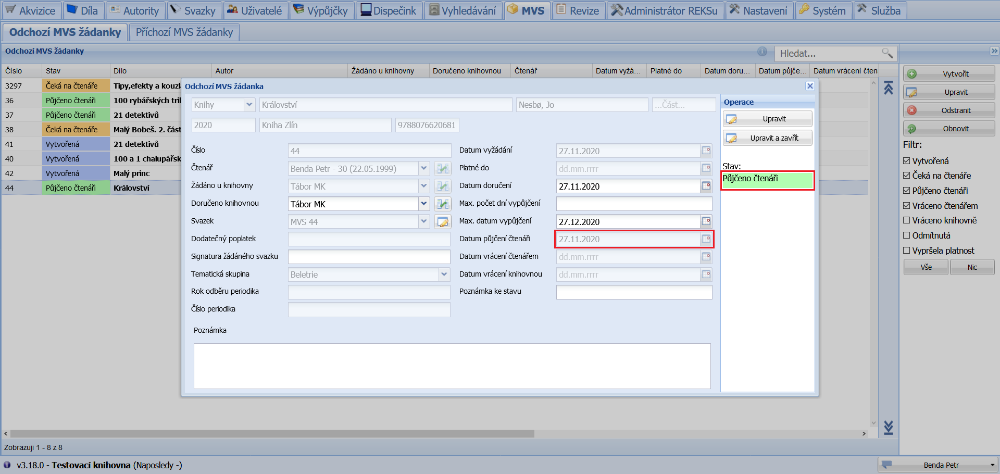
When the reader arrives, the system tells us that a prepared ILL item is waiting for them and asks whether we want to lend it to the reader. We confirm the loan by clicking the Lend to reader button. The status of the request is thereby automatically changed to Lent to reader. If the reader has several ILL documents, the system asks us repeatedly.
(fig. 6)
(fig. 7)
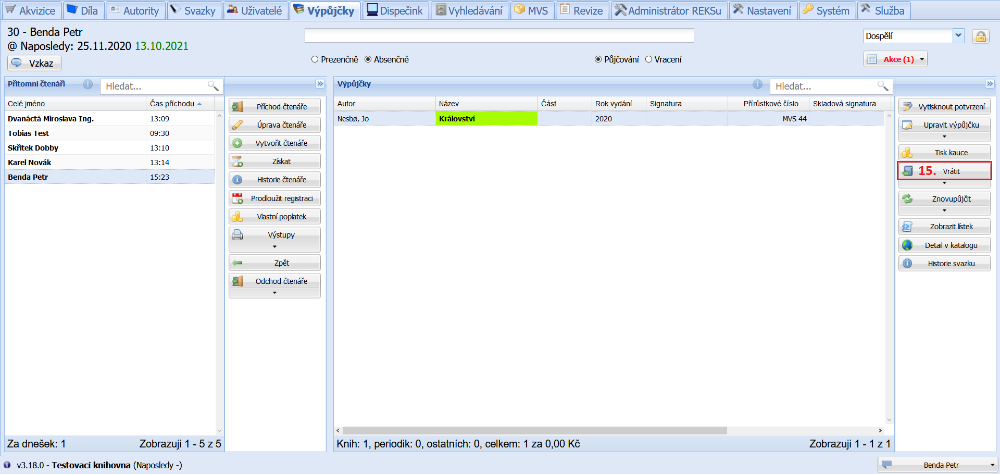
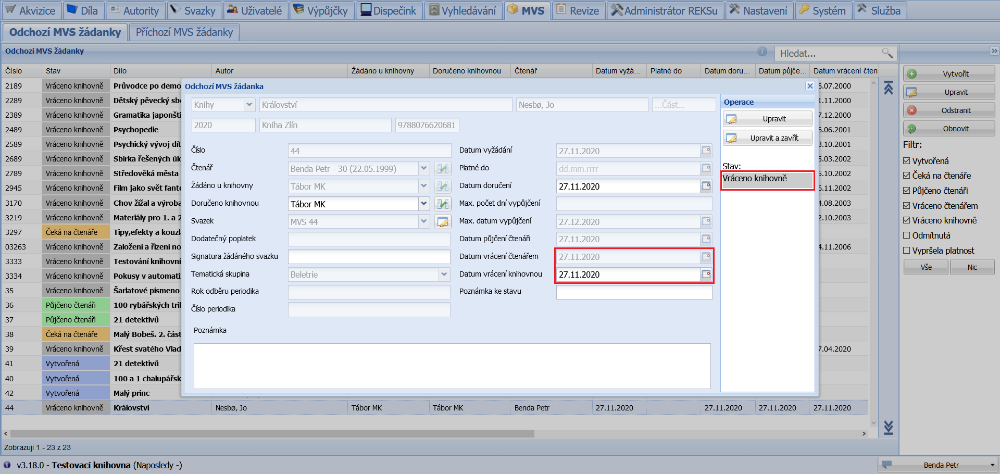
We process the return of the document from the reader by clicking the Return to reader button. After the return, the request automatically switches to the Returned to library status.
(fig. 8)
(fig. 9)