

Graphic guide to purchase lists in acquisition
Before reading this guide, we recommend first studying the standard Graphic guide to acquisition, on which the procedures in this guide are based and which they extend further.
In Acquisition, on the Purchase lists tab, we create a new purchase list by clicking the Create button.
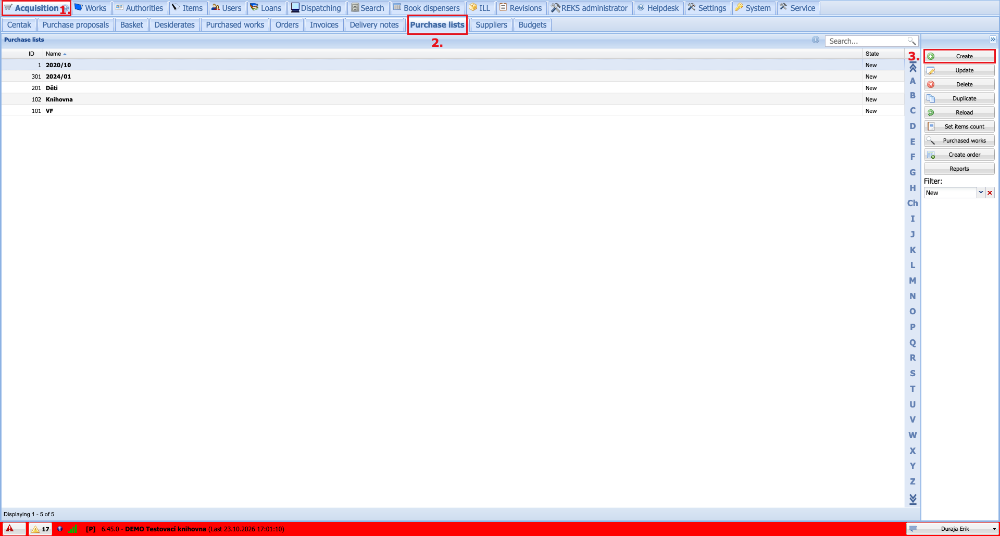
(fig. 1)
We enter the Name of the list according to our habits and leave the State as New. We create the list by clicking Save.
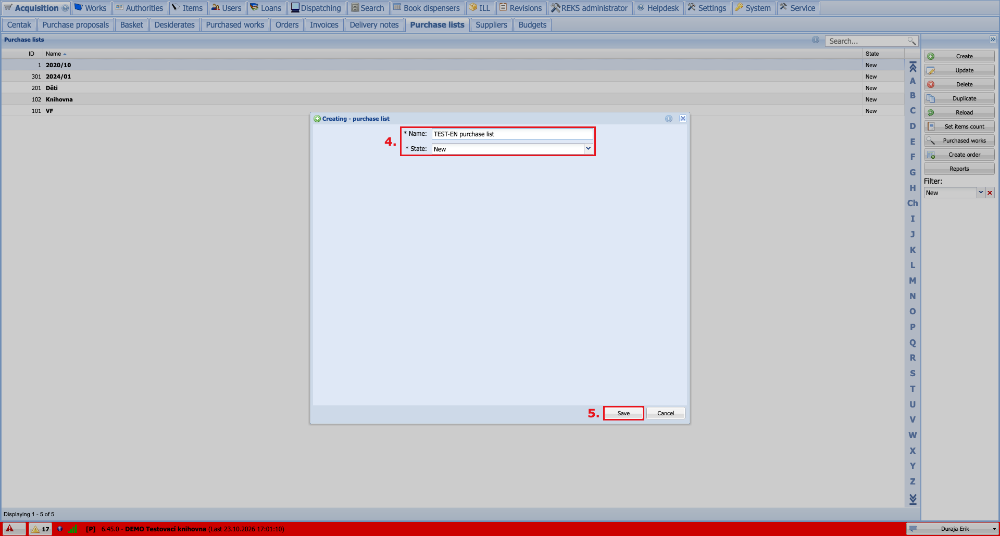
(fig. 2)
Now we add the purchased works to the list. We select our list and click the Purchased works button. In the dialogue window we then click the Create button.
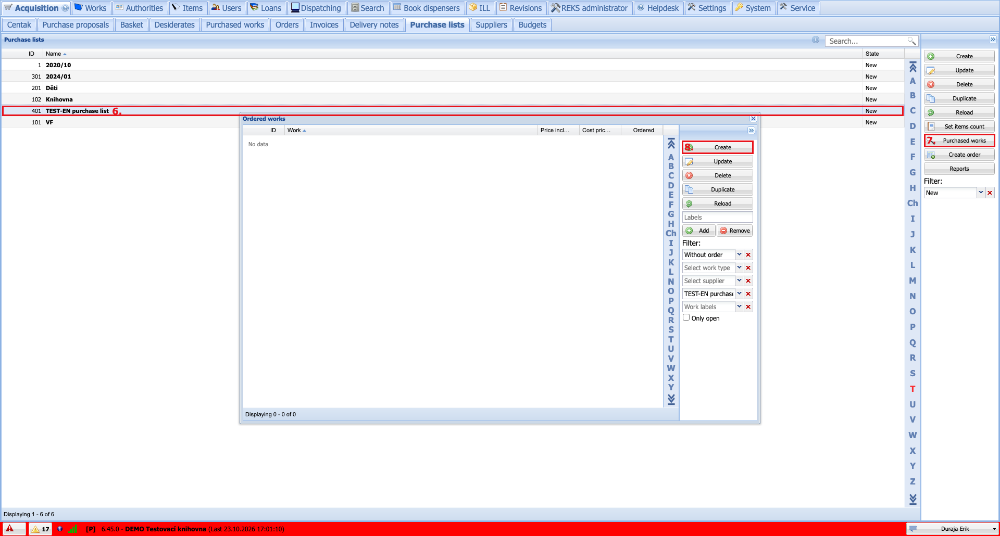
(fig. 3)
When creating a purchased work, we proceed in the same way as in standard acquisition. The only difference is that the purchase list we selected in the previous step is filled in automatically in the drop-down list. When we have entered all the details, we click the Create button and thus save the purchased work.
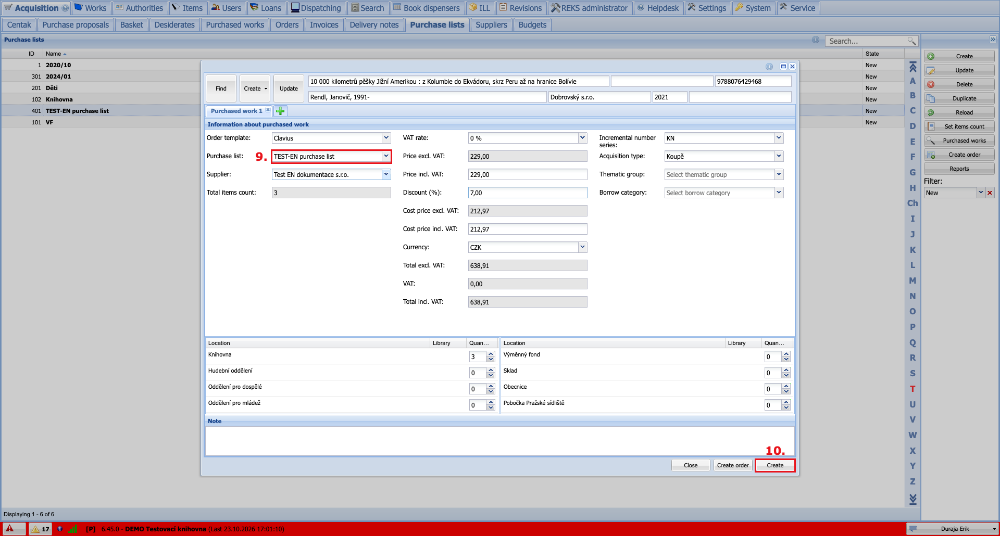
(fig. 4)
We gradually create further purchased works, which are added to the list at the same time. Once we have added all the works we wanted, we can close the list with the cross. In the Reports we can print the list of works for the purchasing meeting. When we are satisfied with the content of the list and want to order the works, we click the Create order button. If the purchase list contains works from different suppliers, then when creating the order an additional window appears with the choice of supplier and the purchased works for which the given supplier is selected.
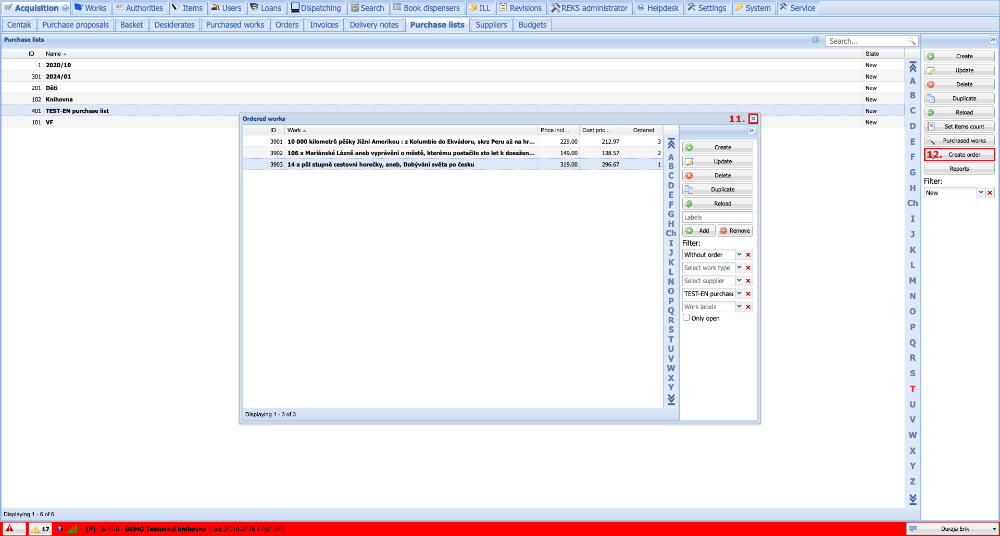
(fig. 5)
The new order automatically selects the supplier and also all the purchased works from the list from that supplier. We then check the content of the order, select the State correctly and create the new order by clicking Create. We then record the delivered items following the standard acquisition procedure.
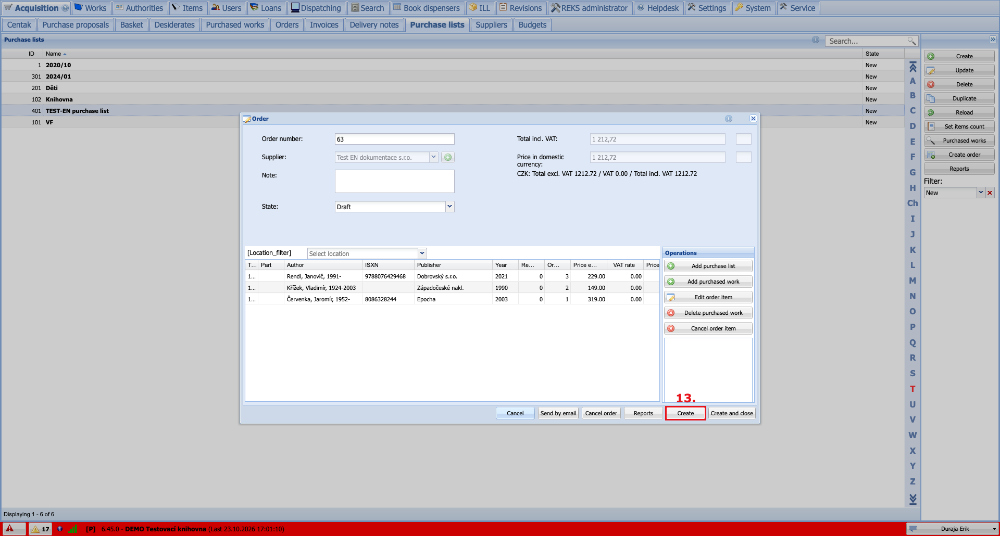
(fig. 6)