

Graphic guide to box retrieval into a 3iD box
This function is intended for libraries that want to offer their readers the retrieval of documents, which they can then pick up in a 3iD box.
- 1 Creating a box retrieval request by the reader
- 2 Processing the box retrieval request by the librarian
- 3 Inserting into the box
- 4 Removing from the locker
- 5 Notifications and GDPR
- 6 Restricting the offering of box retrieval
- 7 Charges for box retrieval
Creating a box retrieval request by the reader
The reader can request retrieval into a box through the web catalogue. The reader must be logged in to their reader account. After finding the document and pressing the Request button, it is necessary to tick Box retrieval, select the required box and press the Request button.
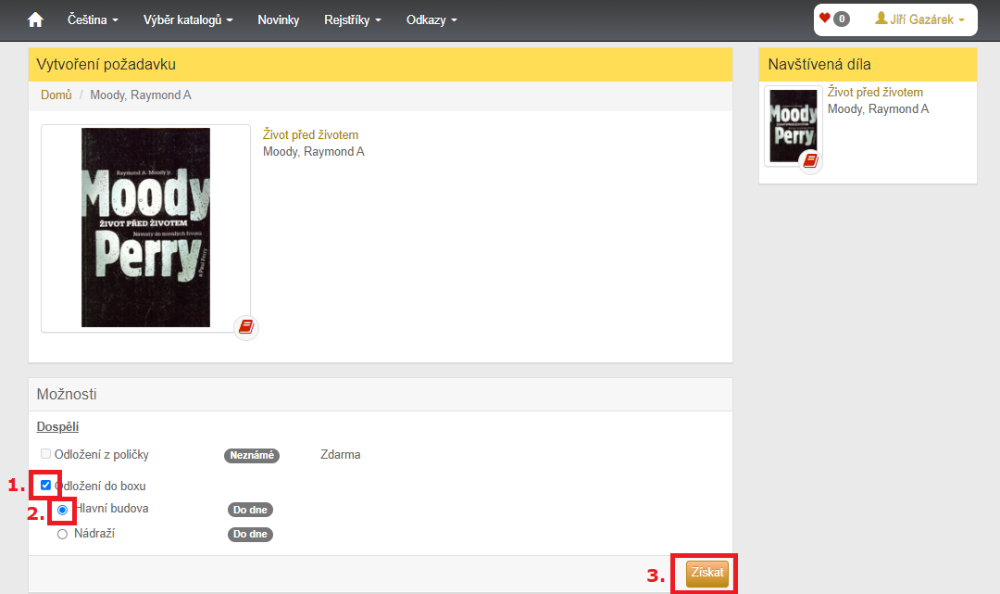
(fig. 1)
Processing the box retrieval request by the librarian
The librarian is informed about the existence of a box retrieval request in the lending module under the Action button by the caption Box: with the number of waiting requests marked in red.
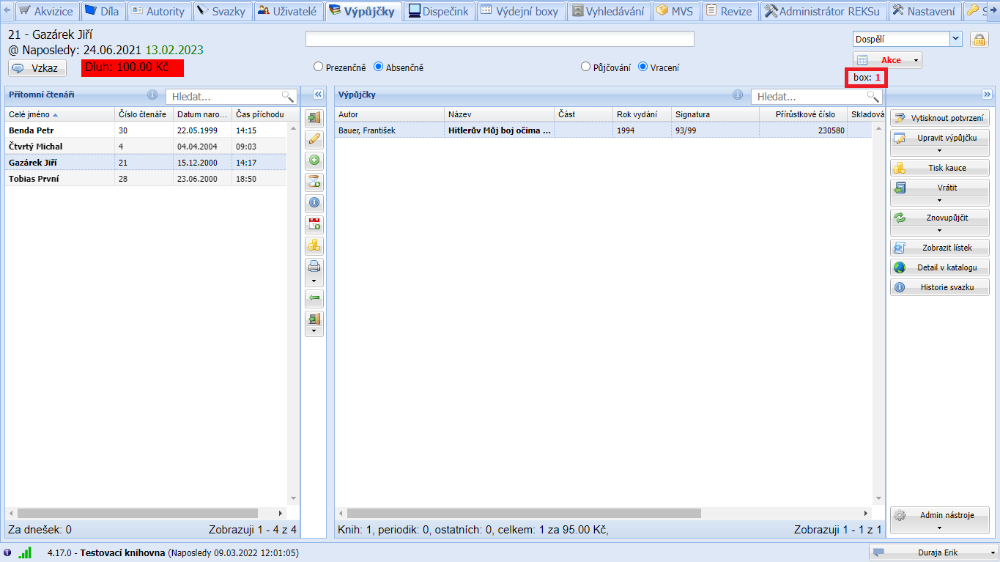
(fig. 2)
In the Action menu, click the Retrieval requests item.
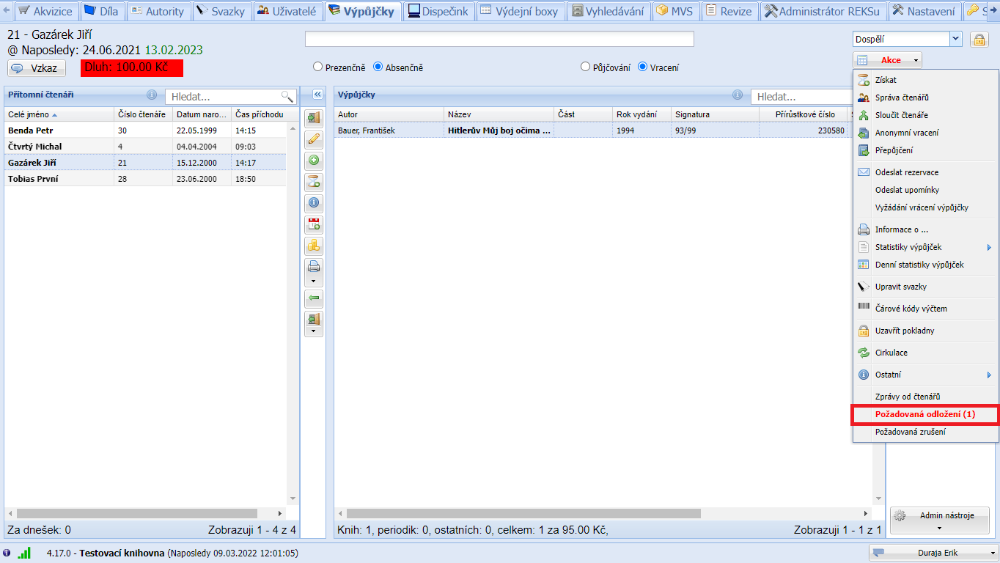
(fig. 3)
On the Box retrieval tab there is a list of documents requested for retrieval into a box. In the sub-tabs it is also possible to select specific boxes if the library has several. Find the individual documents and gradually scan their barcode or RFID chip into the scanning field at the bottom of the form. While the individual documents are being scanned, the printer will issue slips to be placed in the document. For this function it is practical to have a receipt printer. The printing function can be switched off via our support portal.
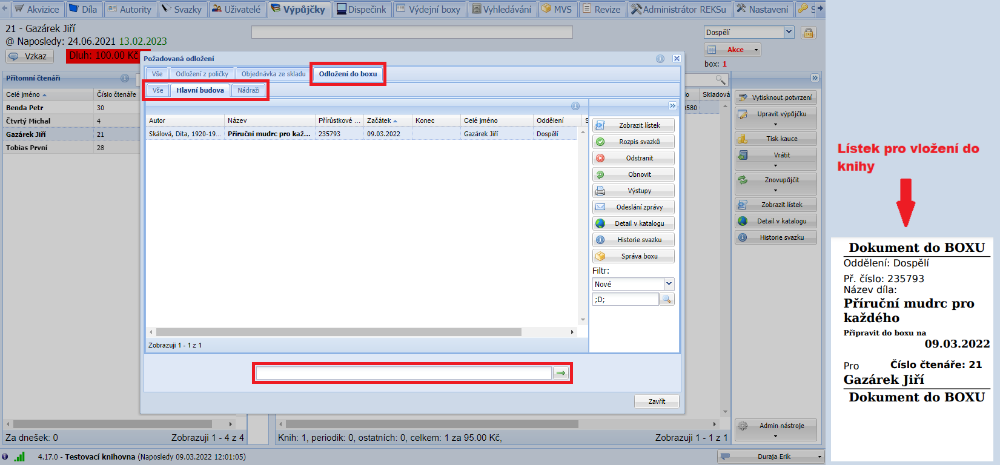
(fig. 4)
If you cannot find the document in the library, you can cancel the order by pressing the Delete button. If the reader has an e-mail filled in, the system offers to send a message about the cancellation of the order.
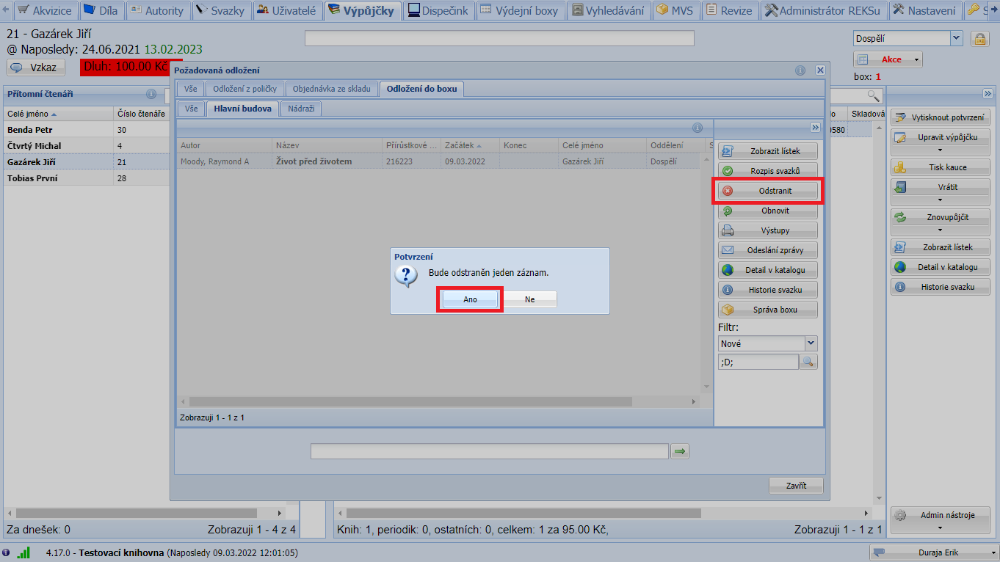
(fig. 5)
Filter
- New - box retrieval requests created by readers
- Waiting - scanned items that have not yet been assigned to a specific box, i.e. they need to be processed
- Ready to insert - items assigned to a specific box but not yet physically inserted into it
- Inserted into box - items inserted into the box, waiting to be picked up by the reader
- Picked up by librarian - cancelled orders that the librarian has already picked up, but the items have not yet been returned via anonymous return
Inserting into the box
The items are now ready to be assigned to the individual lockers of the book dispenser. A separate new module, Book dispensers, has been created in Tritius for the assignment.
You get to the module either with the Box management button in the retrieval requests, or by clicking the Book dispensers module tab.
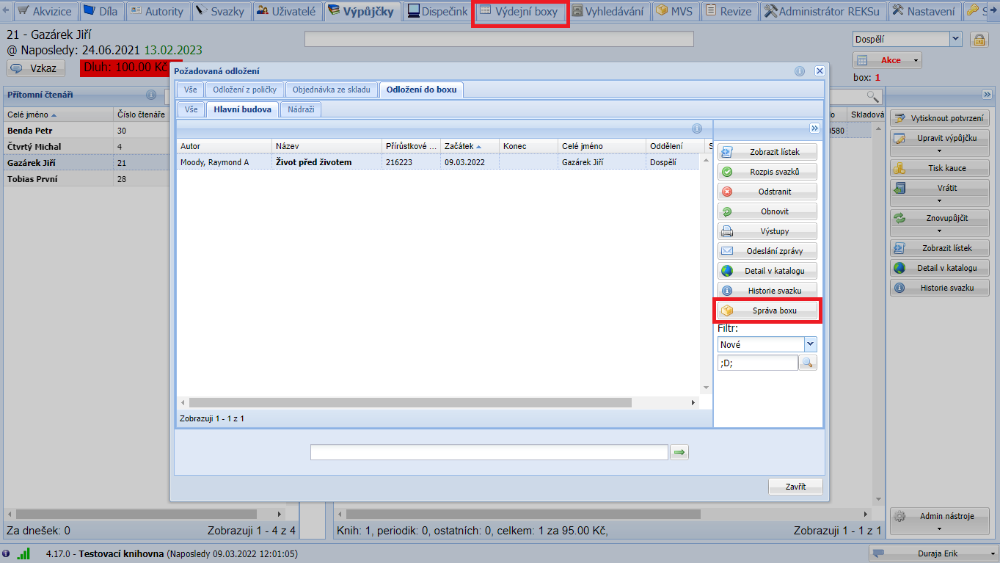
(fig. 6)
Description of the module
The individual parts of the Book dispenser module are numbered for easier orientation.
- The department at which I am processing the retrievals
- The book dispenser (if the library owns several boxes, the correct one must be selected)
- The reader whose orders are being processed
- The orders of the selected reader that need to be assigned to a locker
- The locker I am currently working with
- The locker controls
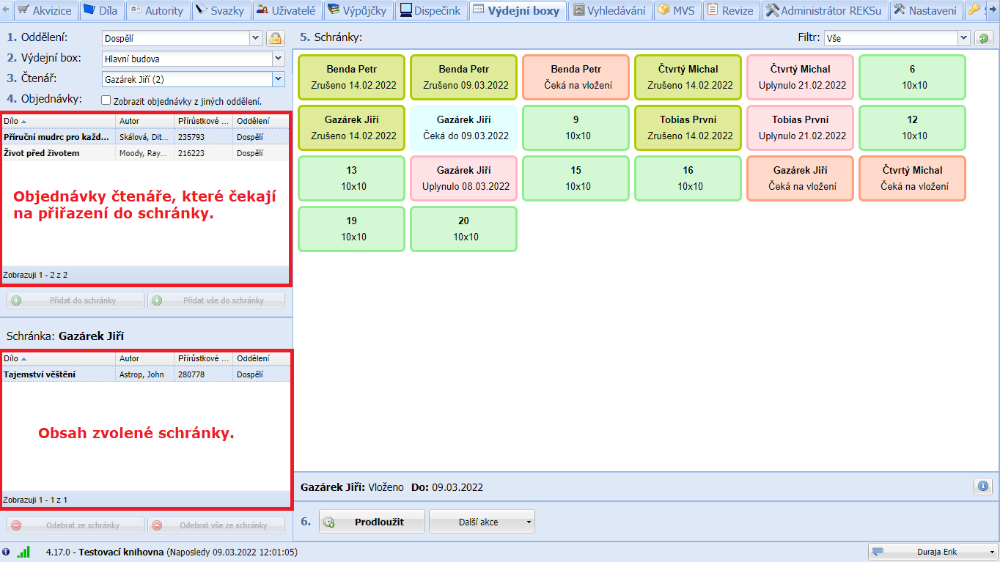
(fig. 7)
Assigning to a locker
To assign orders to a locker, it is necessary to select a free locker. Then, using the Add into locker and Add all into locker buttons, or by dragging, the orders can be assigned to a specific locker. This reserves the locker for the given reader.
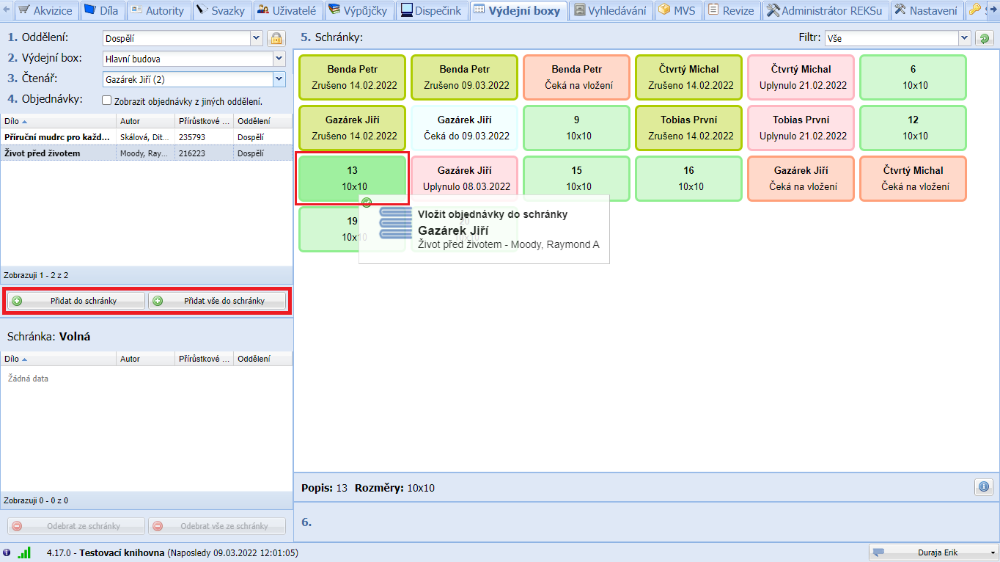
(fig. 8)
It is still possible to add further items to lockers in the Reserved state.
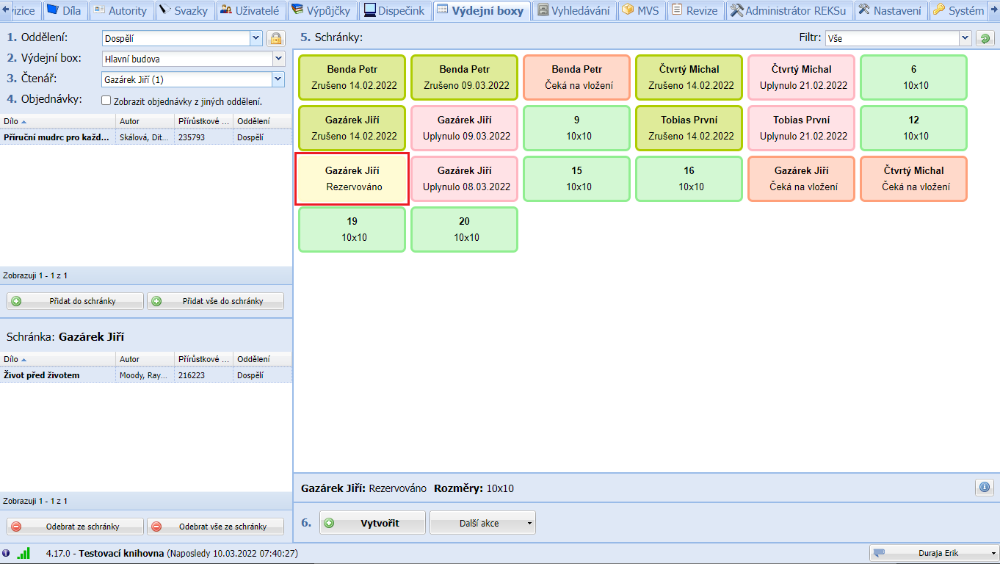
(fig. 9)
Creating a box order
Clicking the Create button generates a one-time access code which, when scanned by the box's integrated reader, opens the relevant locker into which you insert the items.
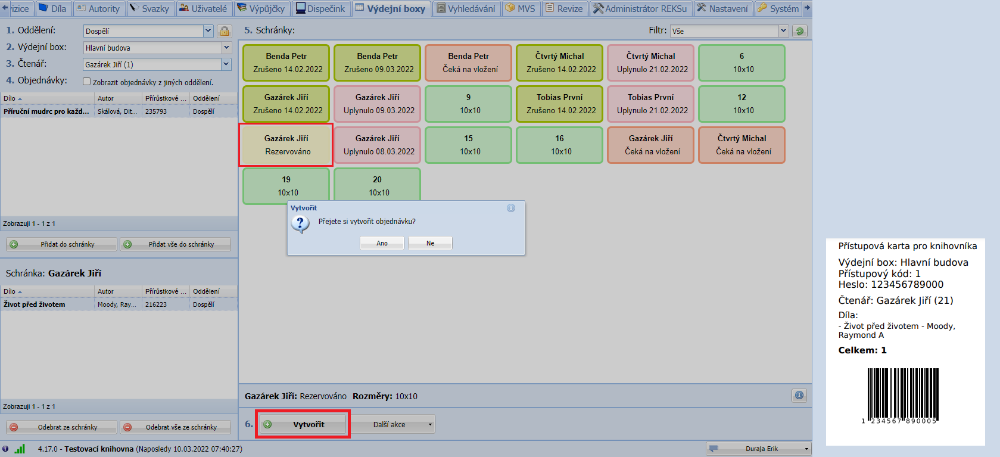
(fig. 10)
This step also switches the locker to the Waiting for insert state.
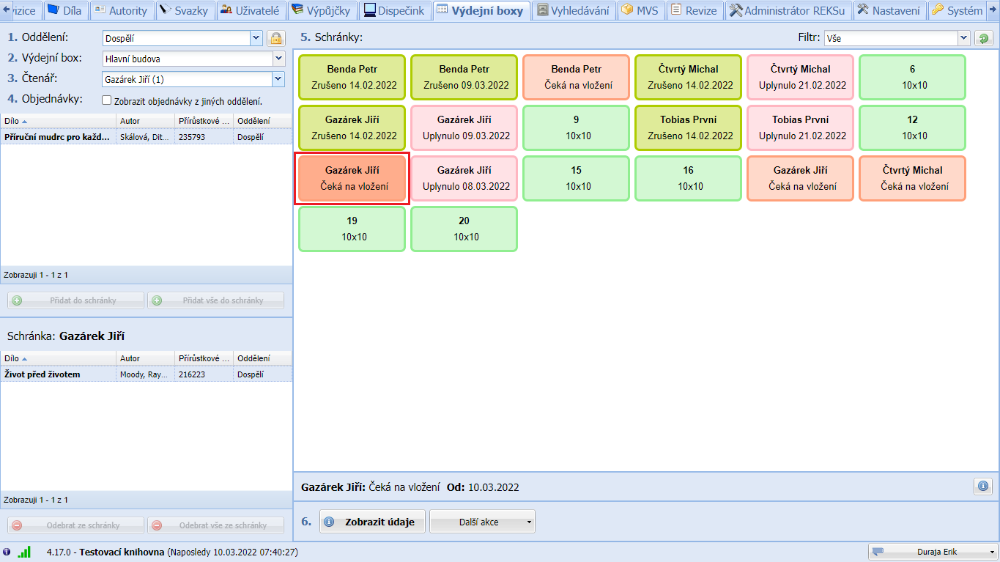
(fig. 11)
It is possible to switch the locker from the Waiting for insert state back to the Reserved state using Other actions → Cancel.
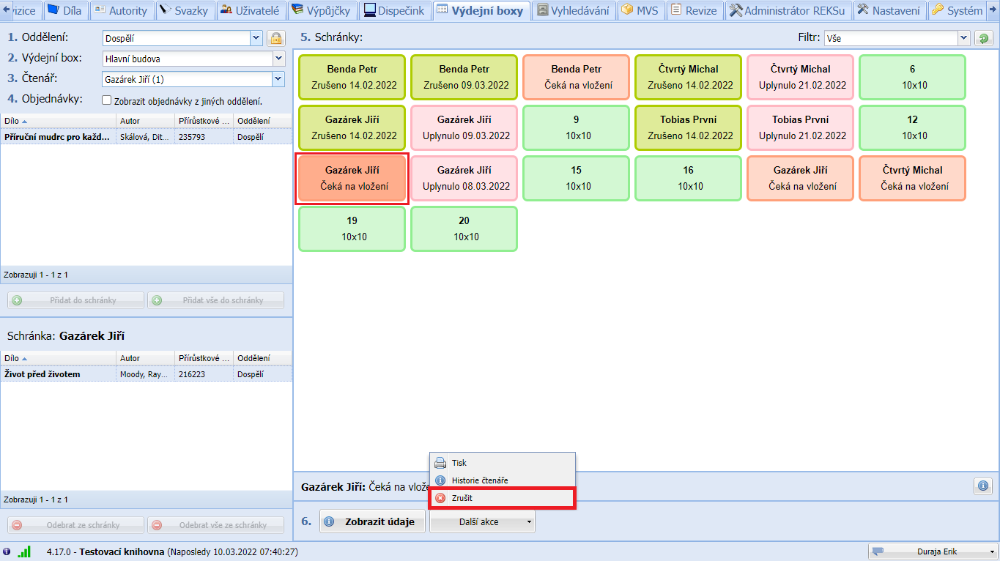
(fig. 12)
After the items have been inserted into the locker and it has been closed, an e-mail and/or SMS with the access details is sent to the reader.
The state of the locker changes to Inserted.
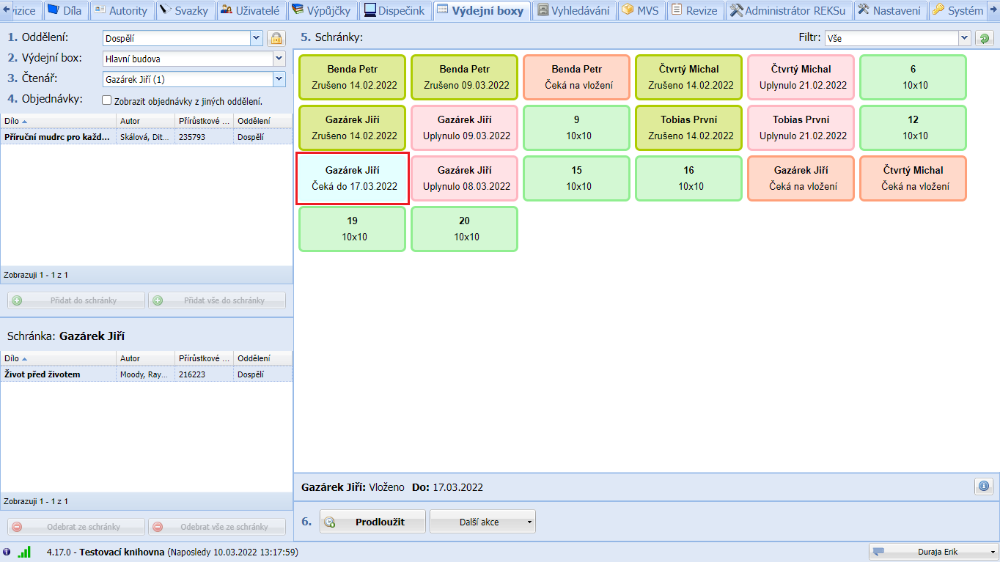
(fig. 13)
Removing from the locker
Orders not picked up
Orders that the reader does not pick up are automatically switched to the Pickup overtime state.
The order can be extended and an e-mail or SMS with information about the extension sent to the reader.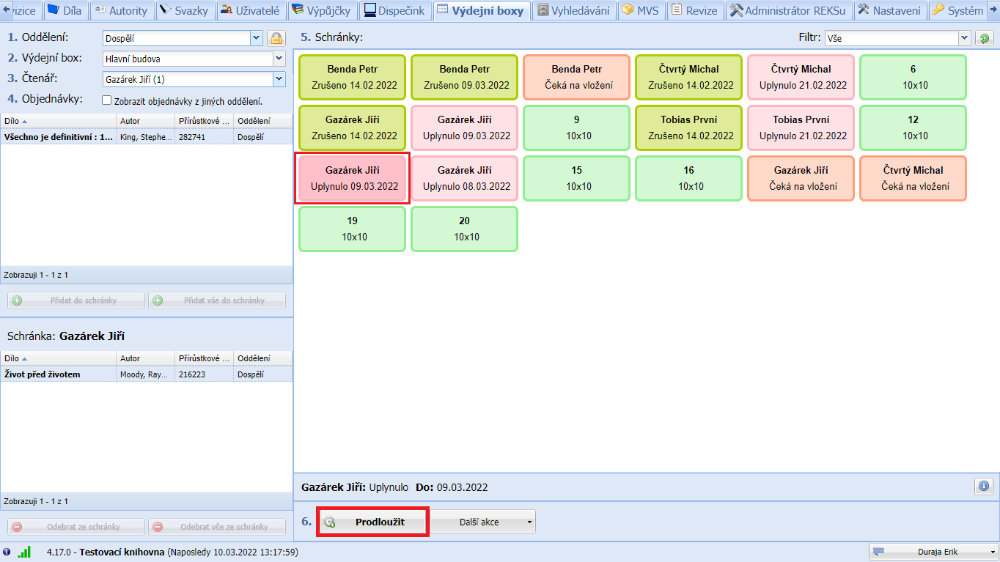
(fig. 14)
The second option is to cancel the order and prepare it for pickup by the librarian from the locker.
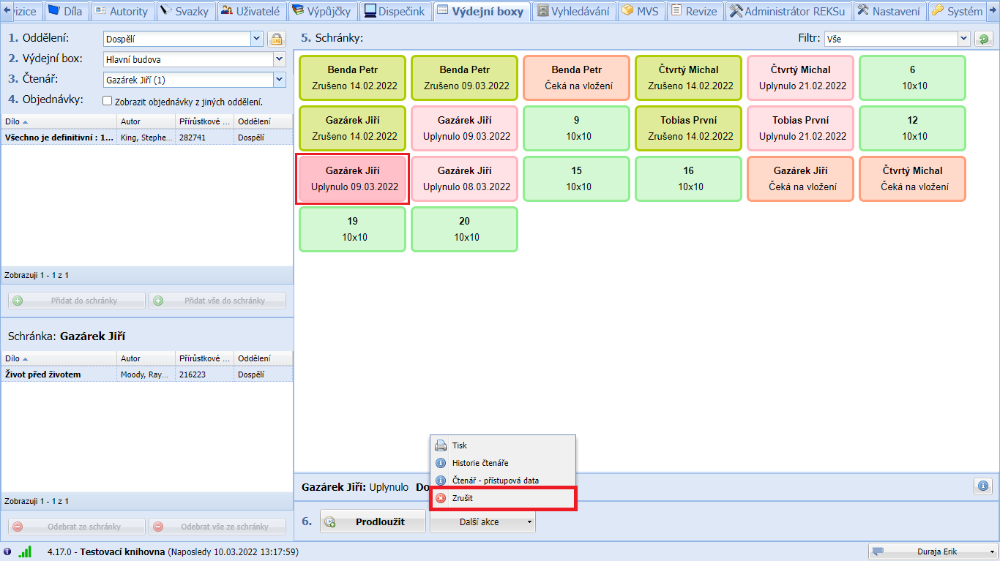
(fig. 15)
After cancellation, the order switches to the Cancelled state and an access card for opening the locker by the librarian is printed.
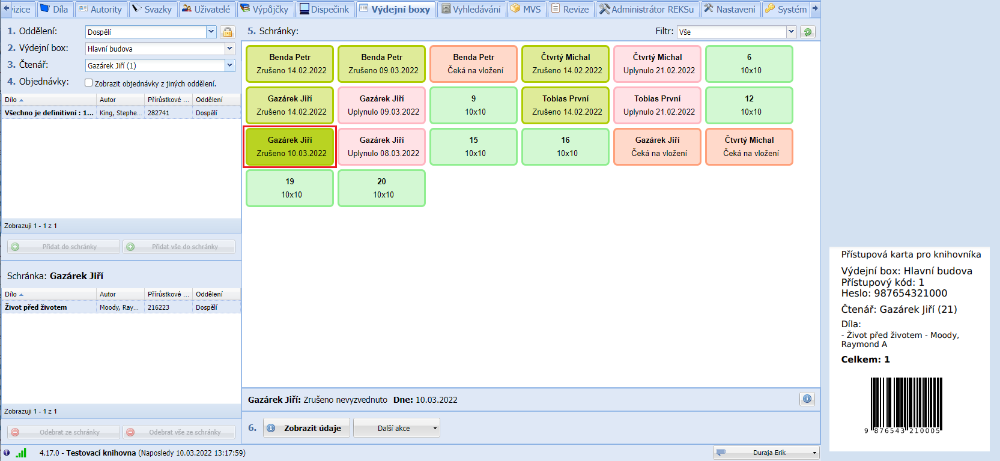
(fig. 16)
After the items have been removed, the locker is freed again.
The removed items must be returned via anonymous return. This ensures that subsequent reservations are processed.
Notifications and GDPR
Depending on the notification settings, notifications about waiting box retrievals are sent to readers. The notifications also include the PIN for opening the box locker.
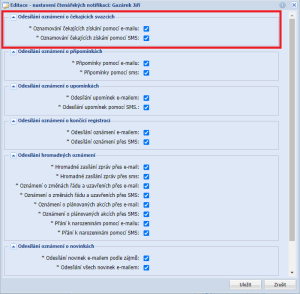
(fig. 17)
SMS messages are sent to the reader if:
- They have SMS notification enabled in their notification settings and also have a valid telephone number filled in.
E-mails are sent to the reader if:
- They have e-mail notification enabled in their notification settings and also have a valid e-mail filled in.
If a notification cannot be sent to the reader either by e-mail or by SMS, the box retrieval option is not offered to them during the process of requesting a document - there would be nowhere to send the access details for picking up from the box.
The e-mails and SMS messages are sent by the 3iD box, not by Tritius - Tritius only sends the contact details to the box. Any problems with the sending of e-mails or SMS must therefore be resolved with 3iD.
Examples of e-mails sent:
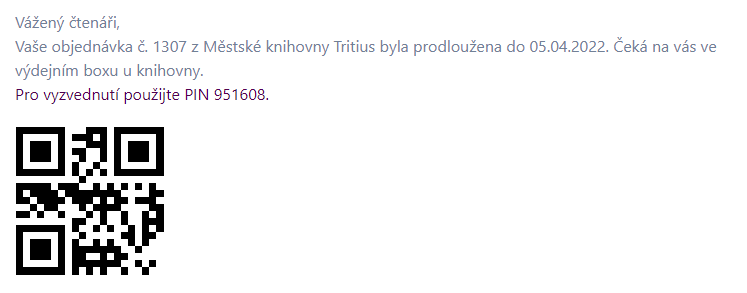
(fig. 18)
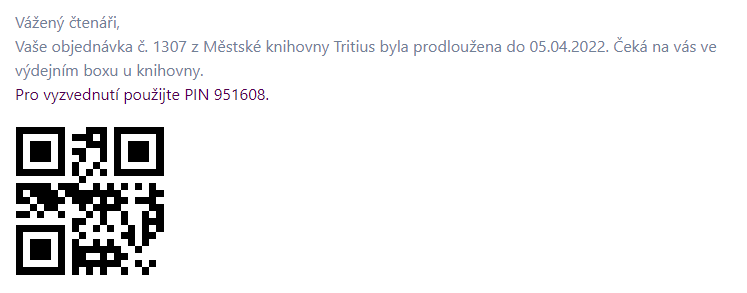
(fig. 19)

(fig. 20)
Examples of SMS messages sent:
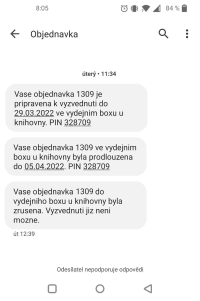
(fig. 21)
Restricting the offering of box retrieval
A library may want to restrict the offering of box retrieval to only some branches.
For each box it is possible to define the departments or locations at which retrieval into that box is to be offered.
If a library has several boxes, it can therefore define for each of them only certain branches from which it is possible to order into each of the boxes.
Charges for box retrieval
Charges can be set either:
- For each ordered item separately.
- Or for the whole order regardless of the number of items.
Example 1:
- The library charges CZK 5 for each item ordered into a box.
- Reader A orders 1 item into the box → 1 charge of CZK 5 is applied.
- Reader B orders 3 items into the box → 3 charges of CZK 5 each are applied, CZK 15 in total.
Example 2:
- The library charges CZK 10 for the use of a locker.
- Reader A orders 1 item into the box → CZK 10 is charged for the whole order.
- Reader B orders 3 items into the box → CZK 10 is charged for the whole order.