

Graphic guide to box retrieval
This function is intended for libraries that want to offer their readers the retrieval of documents, which they can then pick up in a special locker. During processing, the reader can be sent the number of the locker in which the document is stored and the PIN with which the locker can be opened.
Creating a box retrieval request by the reader
The reader can request a box retrieval through the web catalogue. The reader must be logged in to the reader account. After finding the document and pressing the Request button, it is necessary to tick Box retrieval and press the Request. button.
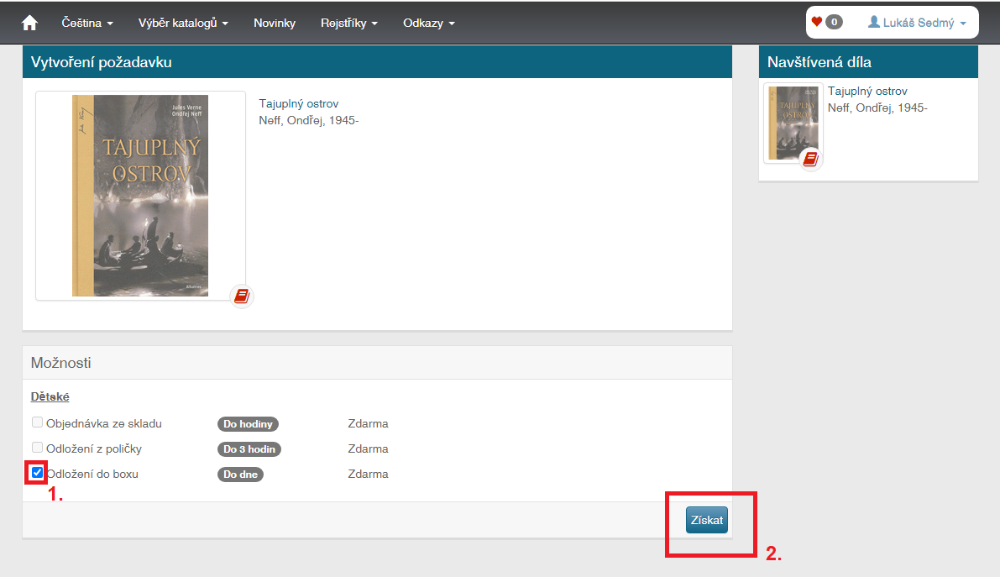
(fig. 1)
Handling a box retrieval request by the librarian
The librarian is informed about the existence of a box retrieval request in the lending module under the Action button by the label Box: with the number of waiting requests marked in red.
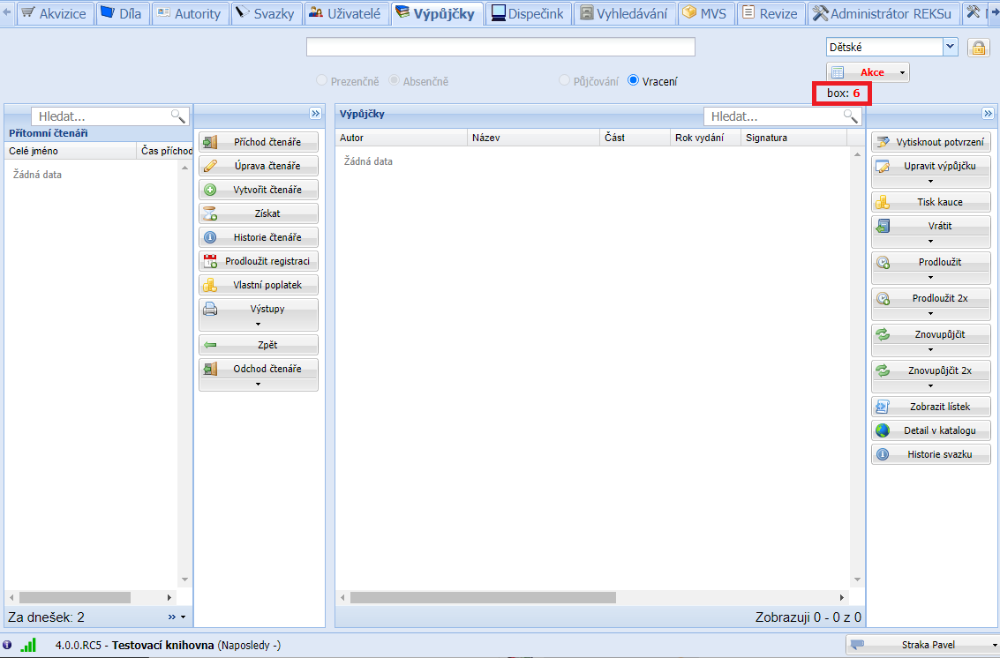
(fig. 2)
In the Action menu, click Retrieval requests.
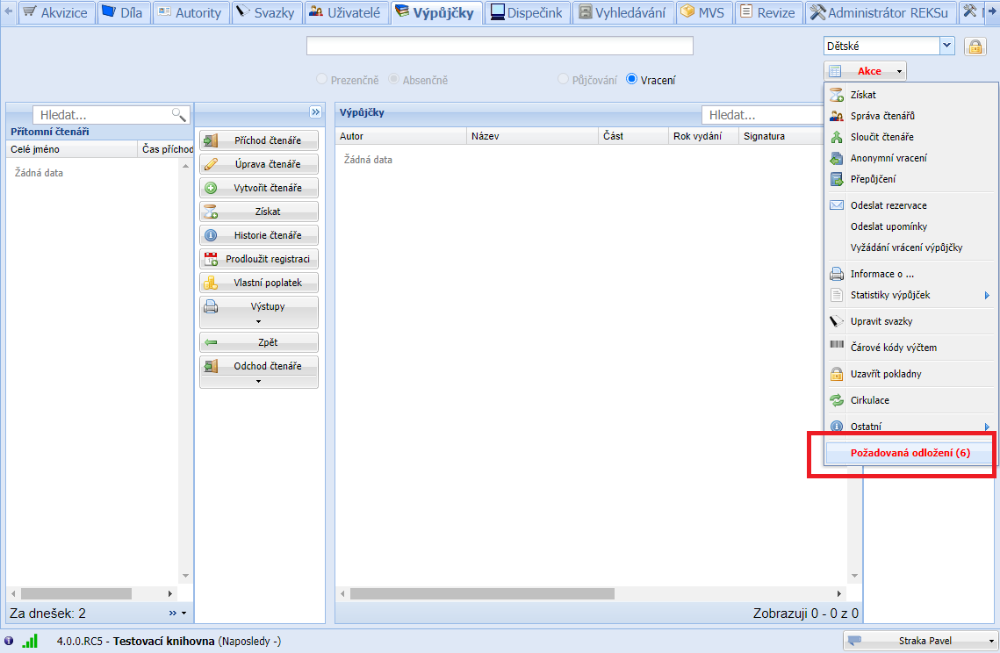
(fig. 3)
On the Box retrieval tab there is a list of documents requested for box retrieval. Find the individual documents and gradually scan their barcode or RFID chip into the scanning field at the bottom of the form. As the individual documents are scanned, the printer will issue slips to be placed in the document. For this function it is practical to have a receipt printer. The printing function can be turned off via our support portal.
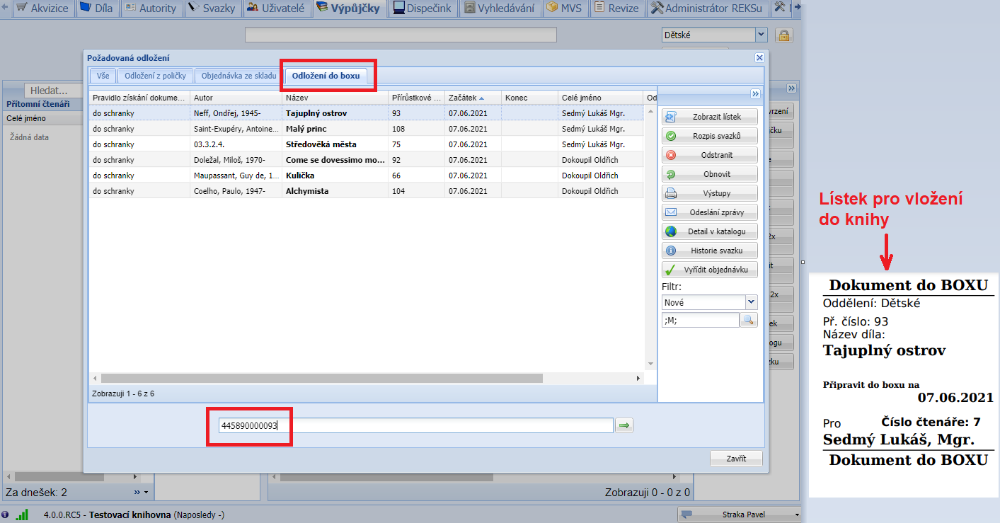
(fig. 4)
If you cannot find the document in the library, you can cancel the order by pressing the Delete button. If the reader has an e-mail address filled in, the system offers to send a message about the cancellation of the order.
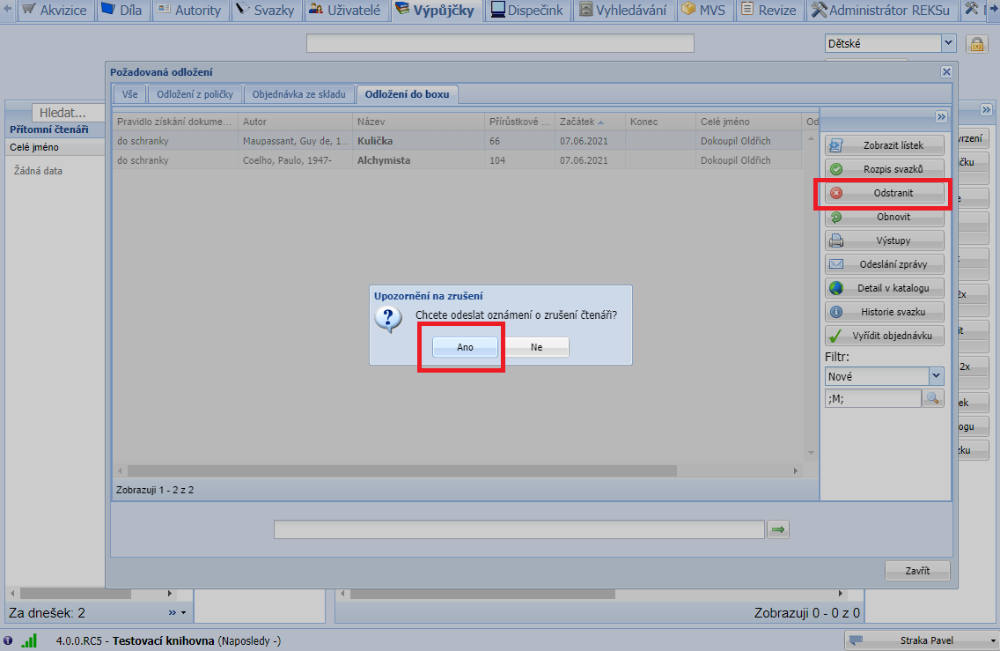
(fig. 5)
You can now print a list of the documents being taken to the box. To print the list, first select Waiting in the filter and then press the Reports button. Use the Box retrieval request list. To make it easier to assemble the requests, the documents are grouped by reader.
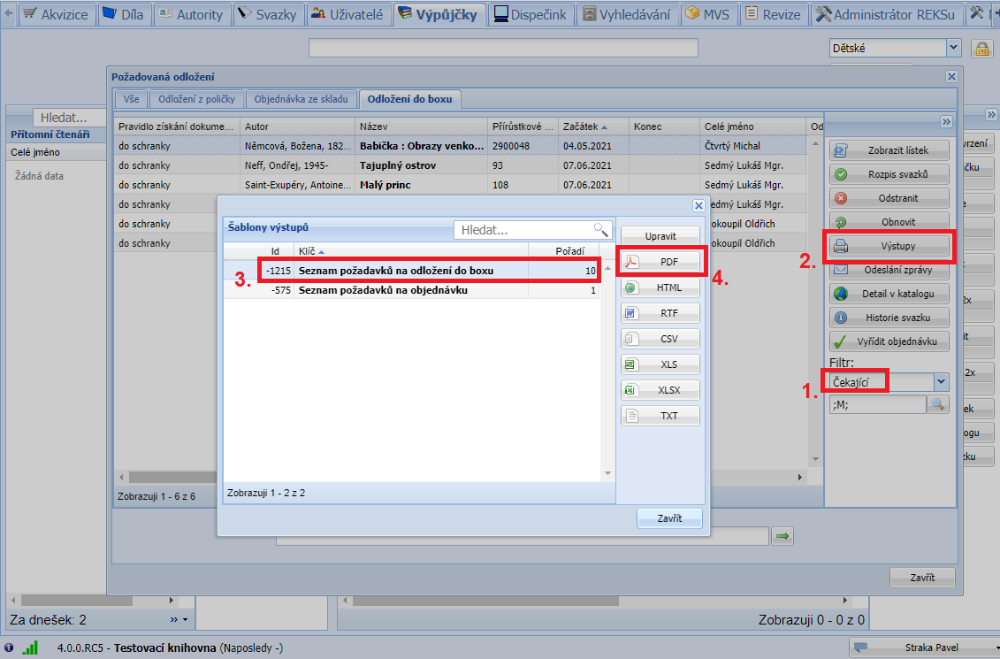
(fig. 6)
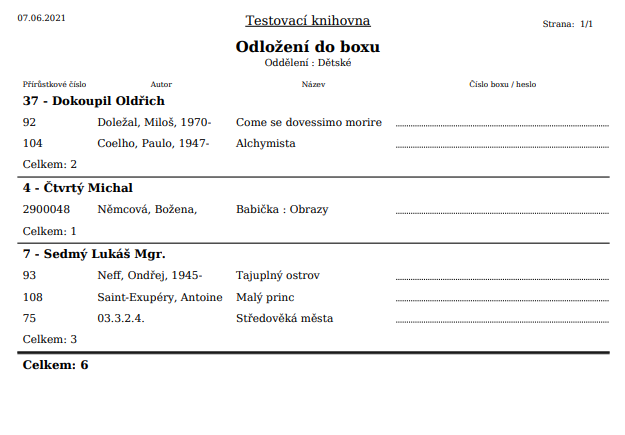
(fig. 7)
At this point you have the documents ready to take to the boxes. When placing them in the box, you can note each reader's box number and the PIN for opening it on the previously printed list.
After returning from the boxes, display the Box retrieval tab again and select Waiting in the filter. Place the cursor on one of the documents of the reader whose order you want to handle and press the Handle retrieval button.
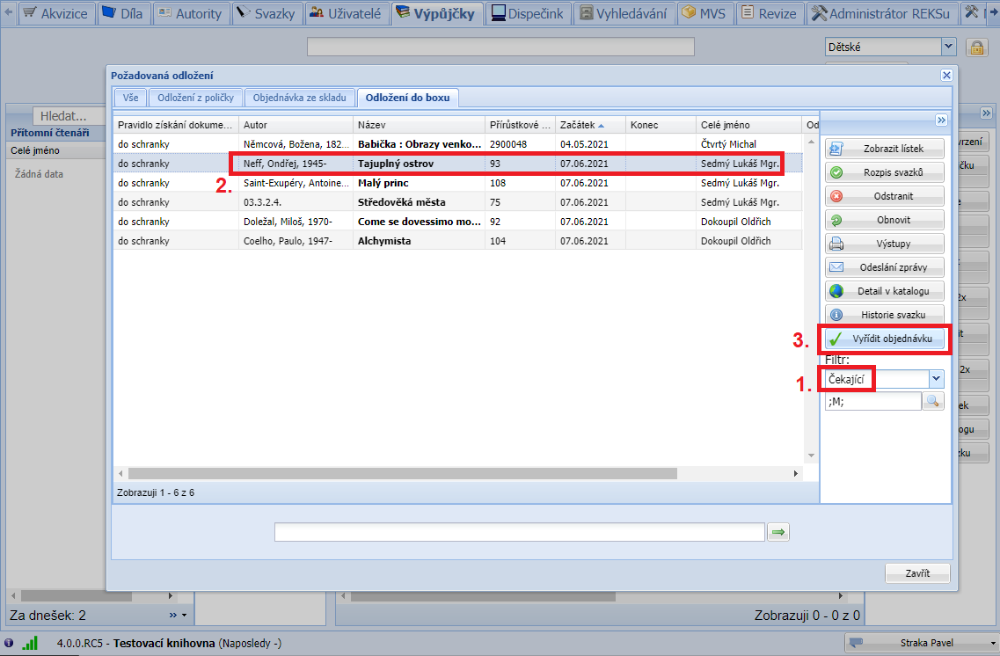
(fig. 8)
A window opens in which all prepared orders of the given reader are offered as selected. In the window you can fill in the Box number and the PIN (Box password). For this you use the list with the noted data. After pressing the Handle or Handle and close button, the order will be handled. If Send notification to reader is ticked, a notification e-mail is sent to the reader including the entered box number and the PIN to open it.
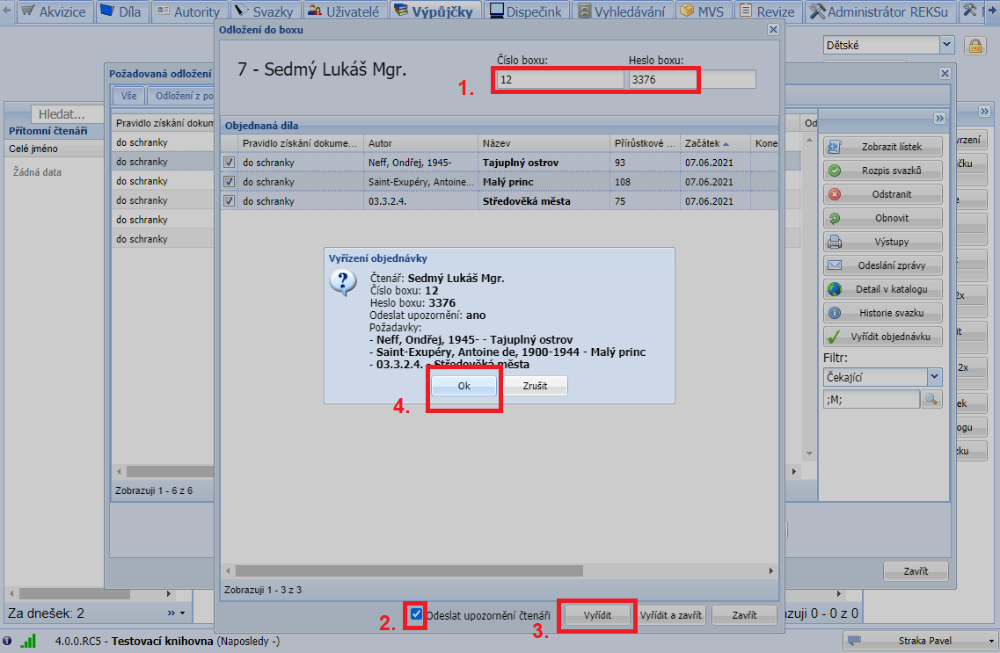
(fig. 9)
The box order is now handled and the documents placed in the box are recorded as borrowed in the account of the respective reader.
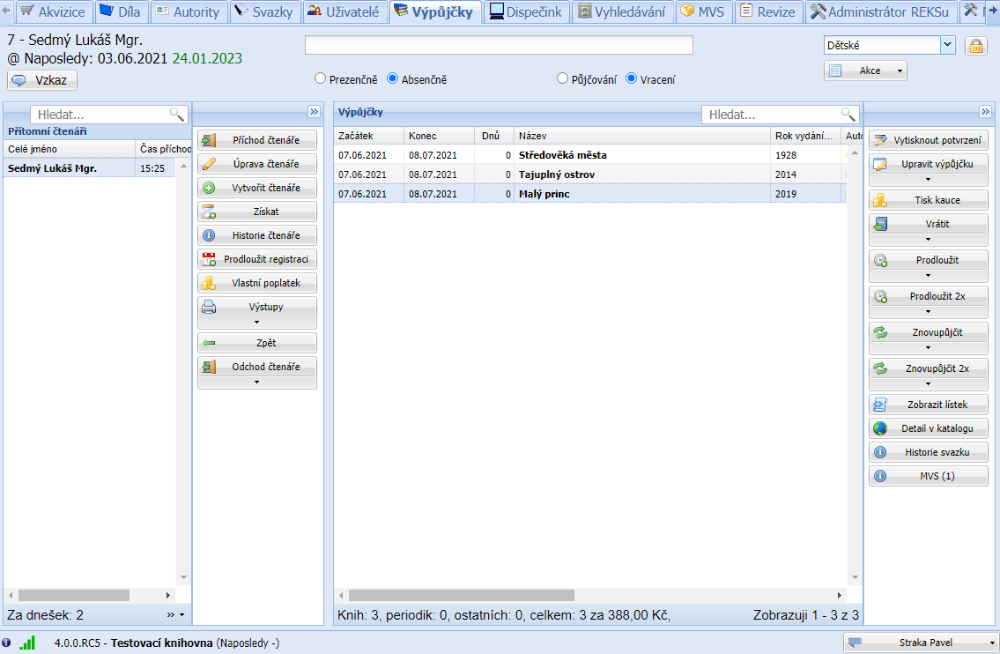
(fig. 10)