Graphic guide to the Offline lending desk
The Offline lending desk is used to lend documents during a longer internet outage. It is an emergency solution to prevent queues forming at the library counter. The Offline lending desk does not replace the full Tritius - it does not check, for example, registrations, charges, reservations, loan periods and so on (it bypasses all the library's rules, so it allows anyone to borrow anything).
It is part of the TritiusDesktop suite of applications Graphic guide to installing TritiusDesktop.
It can be launched from the desktop using the icon  or from the Start menu → TritiusApps → Offline lending desk Tritius.
Main window
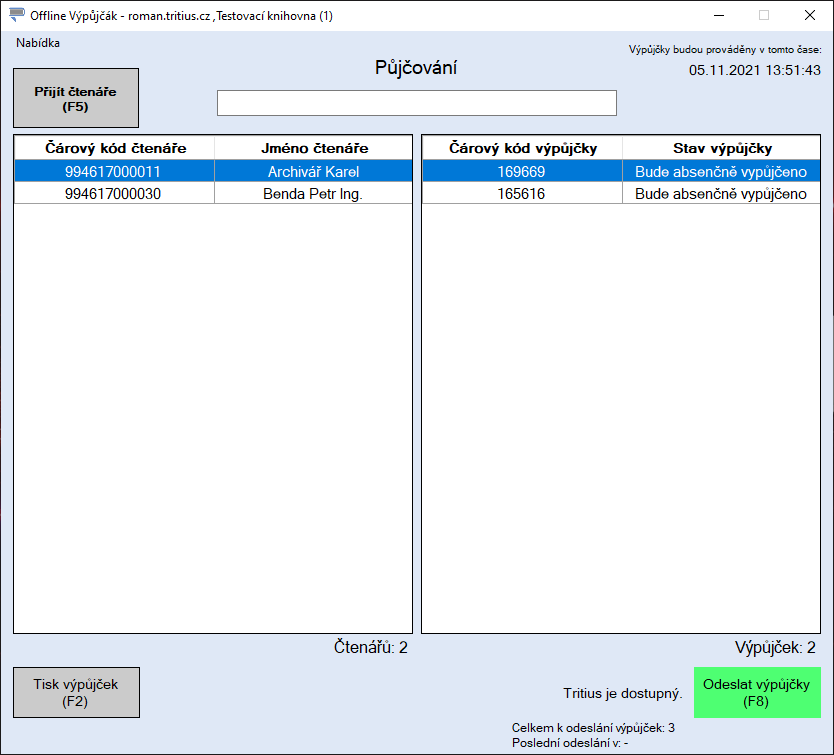
- Using the F5 key we scan the reader's card with the scanner (or enter the barcode manually).
- We scan the document with the scanner into the input field in the middle of the upper part of the window. The loan is recorded for the reader selected in the left column.
- To print a confirmation for the reader, we press the F2 key.
- The button in the bottom right turns green as soon as the connection to Tritius is restored, which means the loans can be sent to Tritius. Sending is done once for all readers. We start sending by clicking the button or by pressing the F8 key.
Unsent loans remain stored even after the program is closed, until they are sent. After sending, Tritius records for the loans that they come from the Offline lending desk and also who sent them under their login.
Sending loans to Tritius
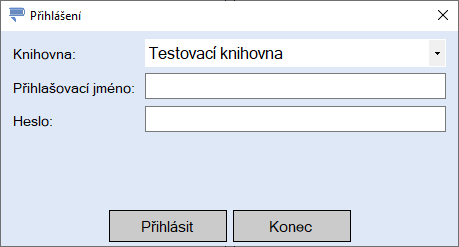
1. After starting the sending with the F8 key, we are prompted to log in to Tritius with our account (the user must have access to the selected library and permission to work in the lending protocol).
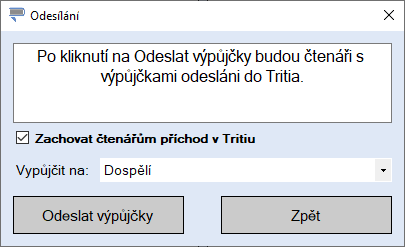
2. After a successful login:
- We select the department at which the loans will be made.
- We choose whether the readers are to remain arrived in the Tritius lending desk.
- We click Send loans.
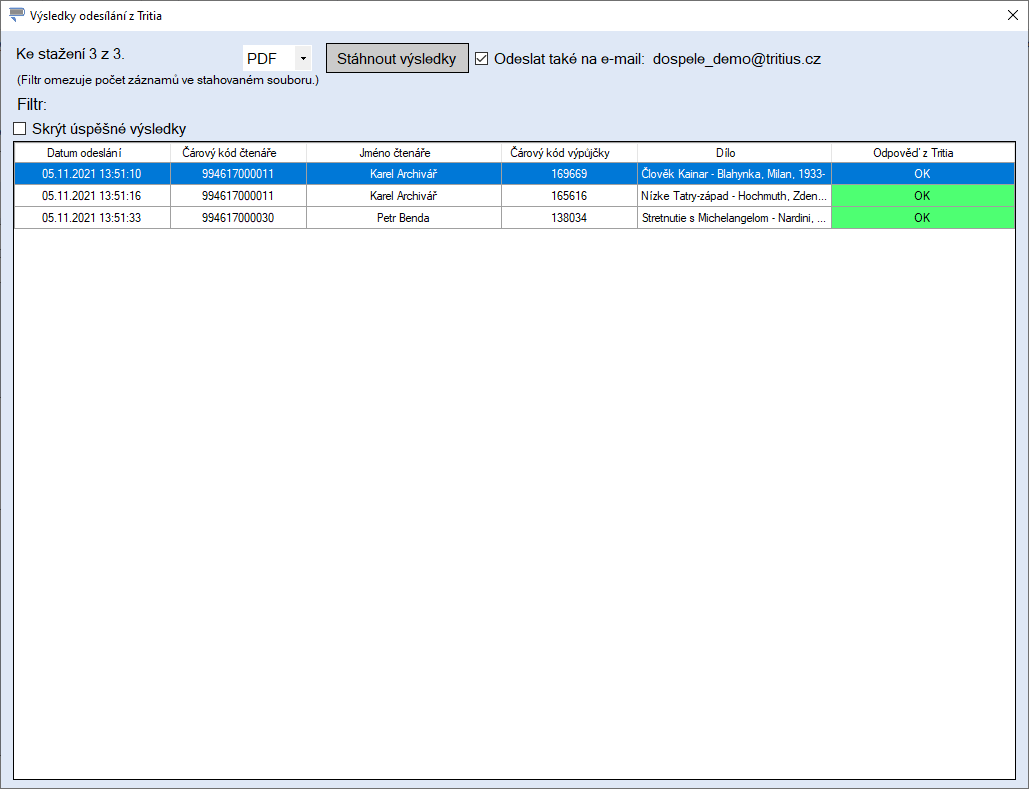
3. After the successful sending to Tritius, a window with the results of the lending in Tritius is displayed.
4. Now we download the result for later checking using the Download results button. Alternatively, if an e-mail is filled in for the department in Tritius, the result can also be sent by e-mail:
When the results window is closed, the results are deleted.
The lending result can be saved to PDF (available on Windows 10 and later), or to TXT and CSV.