

Graphic guide to moving classes to the new school year
On the Loans tab we open the Action button and select Reader management.
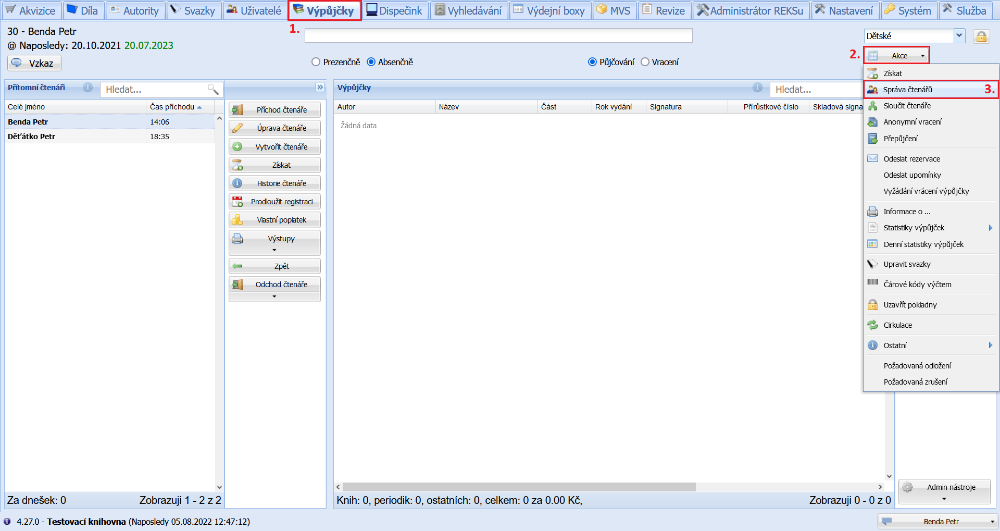
(fig. 1)
Then we open the Filter.
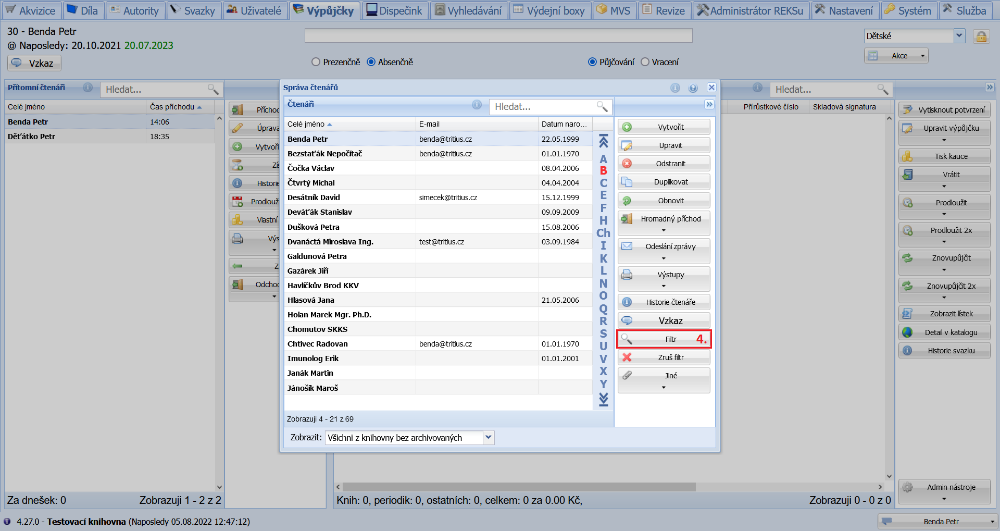
(fig. 2)
In the filter, in the Classroom field, we select the highest year and click the OK button.
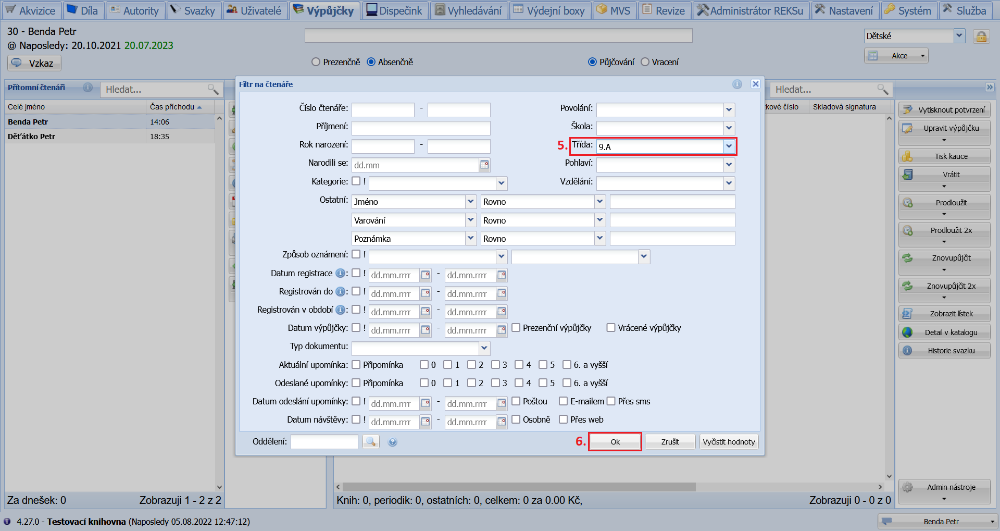
(fig. 3)
The list shows the pupils from the given class. Next we open the Other button and select Find and update.
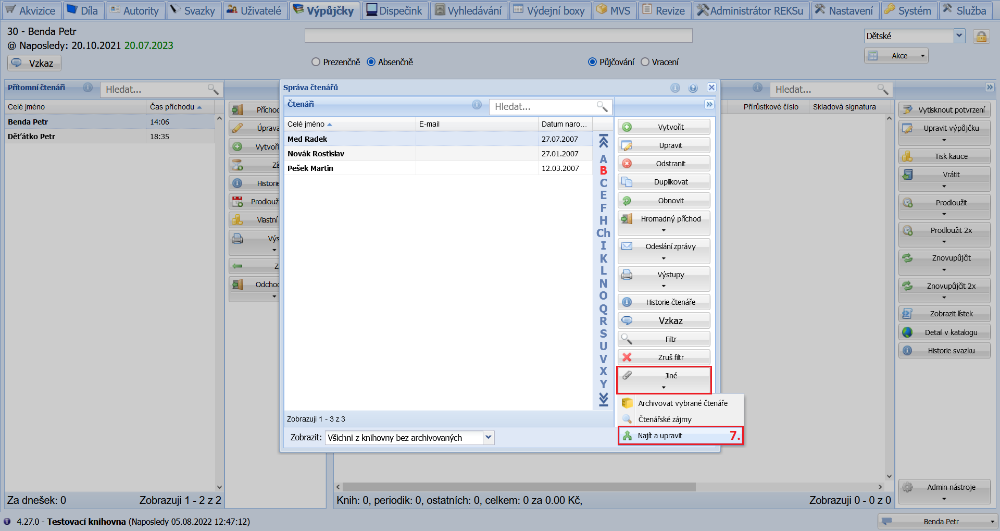
(fig. 4)
In the bulk edit window, next to the Classroom field, we click the Find button.
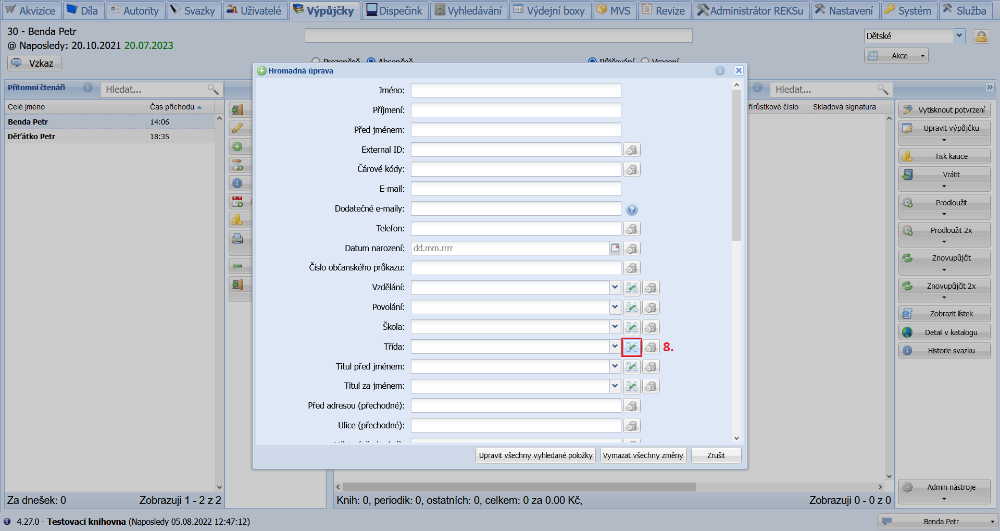
(fig. 5)
Next we click the Create button. In the window that opens, we fill in the order and the name of the new class. Then we click the Save button.
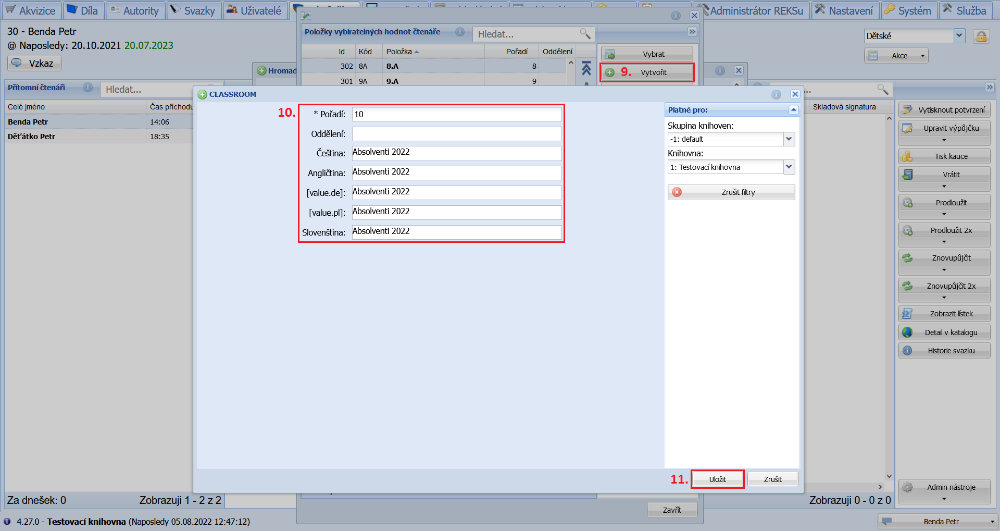
(fig. 6)
We mark the newly created class and click the Select button.
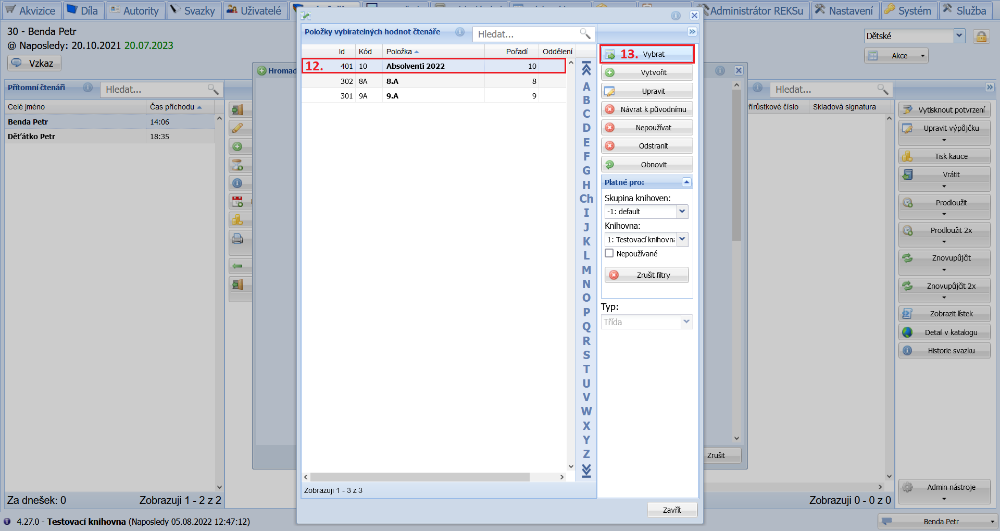
(fig. 7)
The selected value has been transferred to the Classroom field in the bulk edit window. We move the pupils to this class by clicking the Update all found items button.
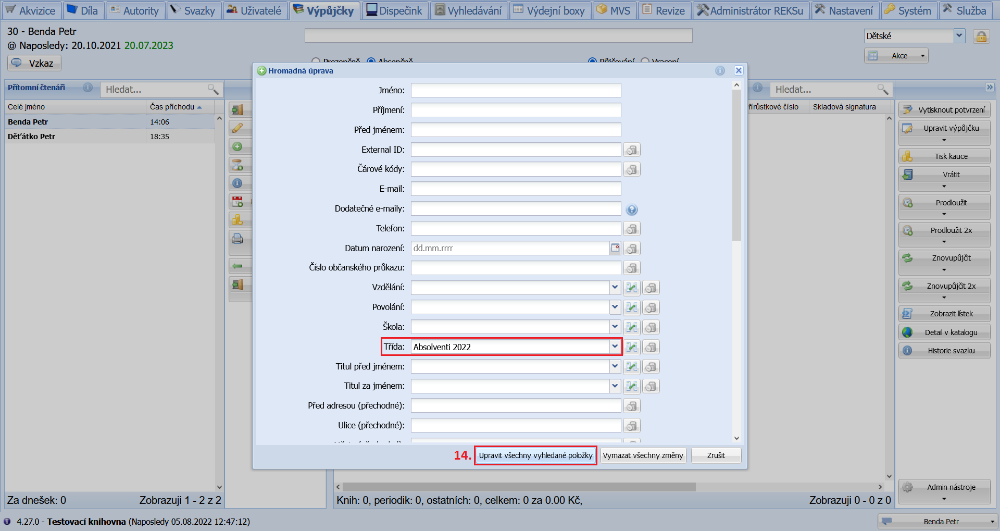
(fig. 8)
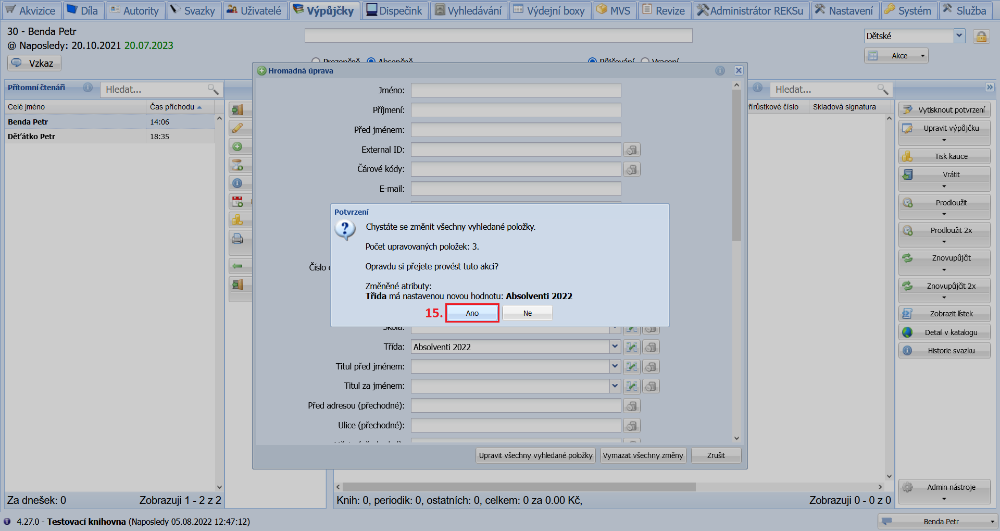
We confirm the change by clicking the Yes button.
(fig. 9)
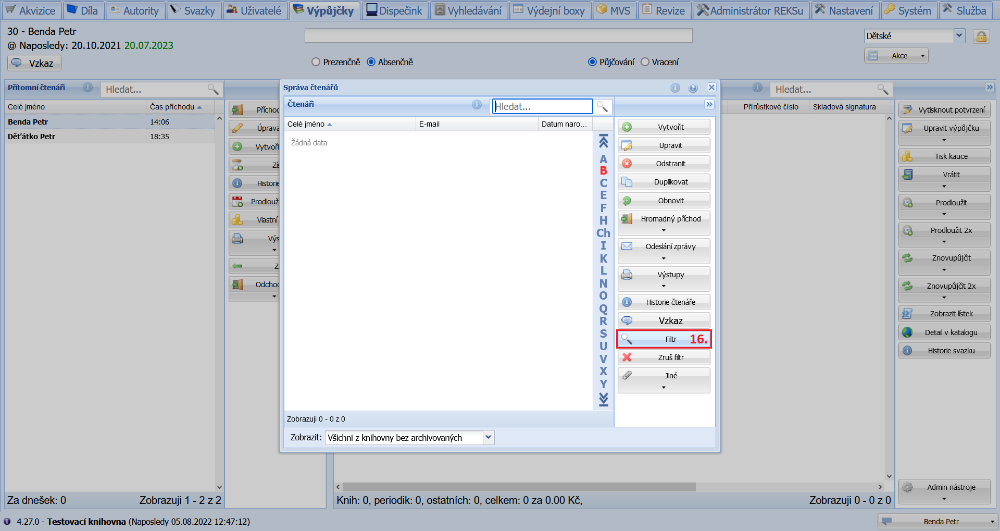
The pupils have now moved to the higher year and the current year has been vacated. We continue moving by opening the Filter window.
(fig. 10)
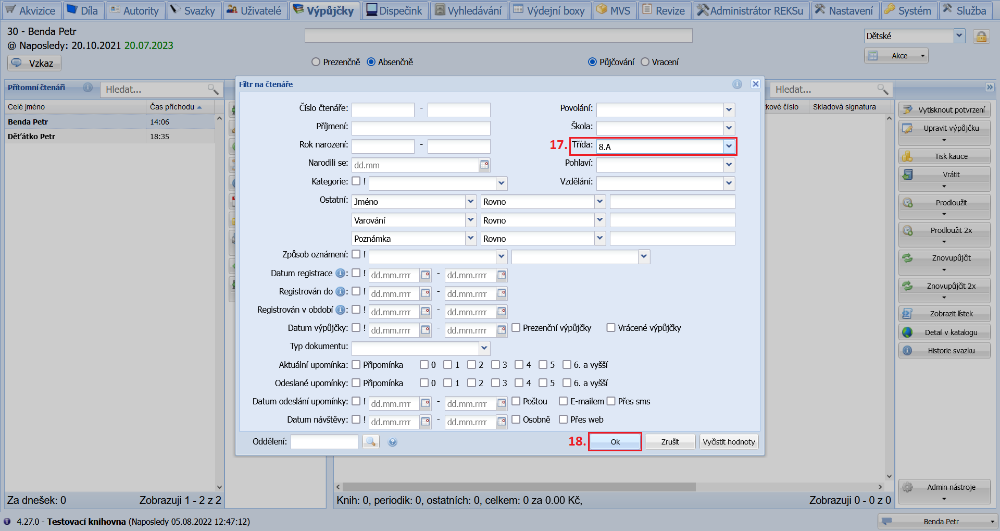
In the Classroom field we select the lower year than the one we have just vacated, and search for the pupils by clicking OK.
(fig. 11)
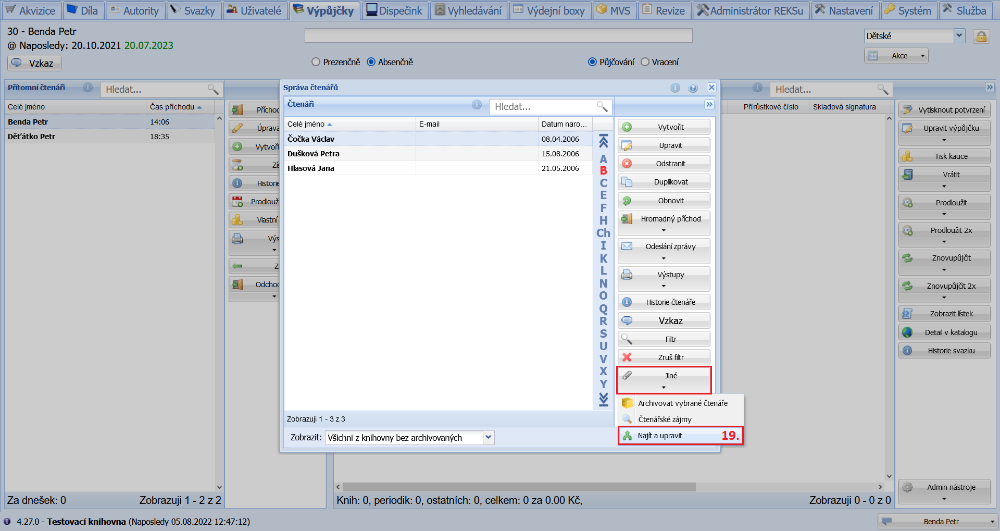
Next we open the Other button and select the Find and update option.
(fig. 12)
In the Classroom field we select the vacant higher year and move the pupils to it by clicking Update all found items.
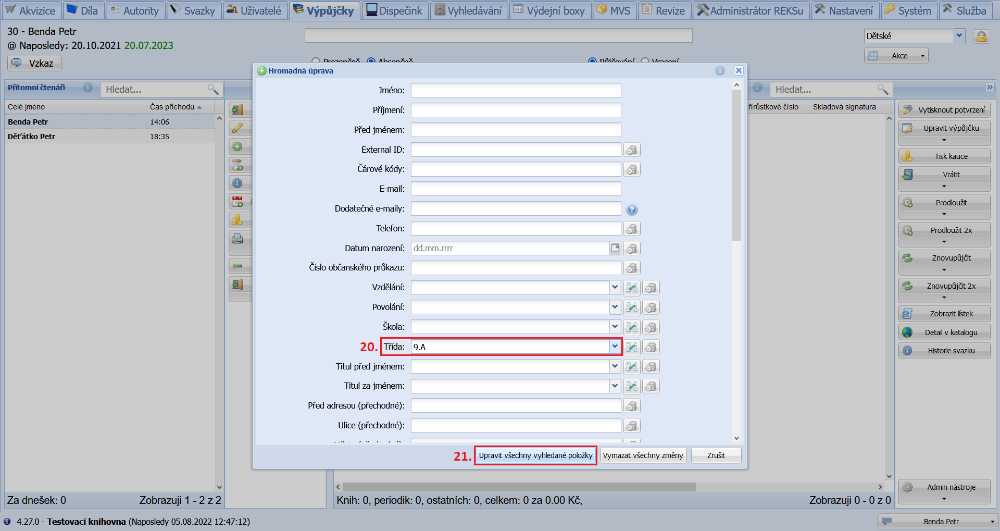
(fig. 13)
We confirm the action by clicking the Yes button. We continue in a similar way from figure 10 until all classes have been moved.
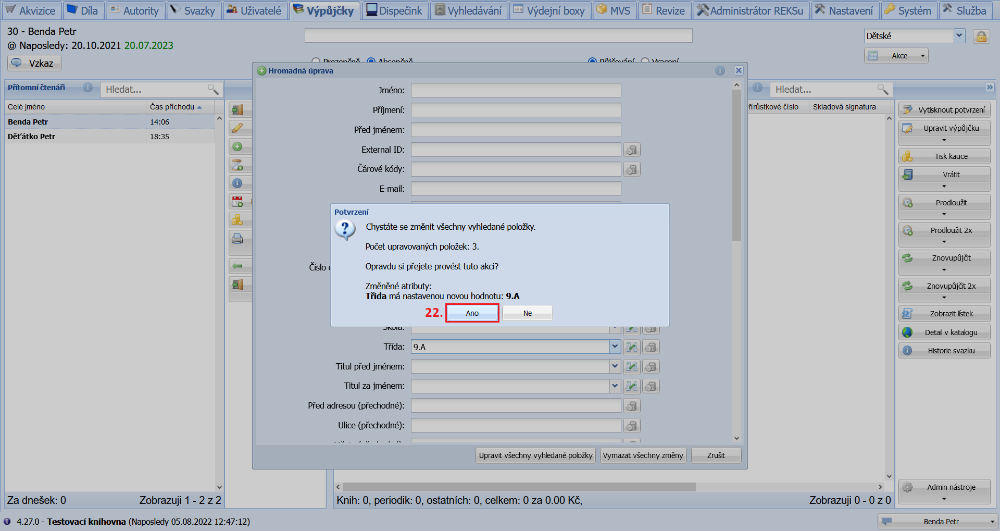
(fig. 14)